


Live stream crashes can be a nightmare for any content creator. You’re in the middle of an engaging broadcast, connecting with your audience, when suddenly—your stream freezes, buffers, or drops entirely. Don’t panic! This guide will walk you through exactly what to do when your stream crashes, how to fix a stream crash, and strategies for keeping viewers engaged after a crash. With Yostream leading the way in reliable streaming solutions, you’ll be back online in no time. Let’s break it down.
Why Do Live Streams Crash?
Understanding why a live stream crash happens is the first step to preventing and recovering from one. Here are the most common culprits:
- Internet Connectivity Issues: Unstable Wi-Fi, low bandwidth, or network congestion.
- Hardware Overload: Insufficient CPU, RAM, or outdated equipment.
- Software Glitches: Bugs in streaming platforms or conflicts with other applications.
- Platform Overloads: Server issues on the streaming service’s end.
- User Error: Incorrect settings, such as unsupported codecs or resolutions.
Here’s why this matters: Knowing the cause helps you troubleshoot effectively and prevent future crashes. Let’s move to actionable steps.
What Should You Do Immediately After a Live Stream Crash?
When your stream crashes mid-broadcast, every second counts. Follow these steps to fix a stream crash and get back online quickly:
- Stay Calm and Communicate: Notify your audience via social media (e.g., X or Discord) that you’re addressing the issue. Transparency builds trust.
- Check Your Internet Connection: Run a speed test to confirm bandwidth. Aim for at least 5 Mbps upload for 720p streaming.
- Restart Your Streaming Software: Close and reopen your streaming tool to reset any glitches.
- Verify Hardware Performance: Check Task Manager (Windows) or Activity Monitor (Mac) to ensure your CPU isn’t overloaded.
- Switch to a Backup Platform: If the issue persists, use a secondary streaming tool to resume broadcasting.
Table: Quick Troubleshooting Checklist for a Live Stream Crash
Issue | Action | Expected Outcome |
|---|---|---|
Internet Failure | Restart router, switch to 4G/5G | Restores connection |
Software Crash | Restart Yostream or OBS | Resets software glitches |
High CPU Usage | Close background apps | Frees up system resources |
Platform Server Issue | Check platform status page | Confirms if issue is on their end |
Next steps: Once you’re back online, focus on recovering from a stream crash and keeping your audience engaged.
How Can You Recover from a Stream Crash?
A live stream crash doesn’t have to ruin your broadcast. Here’s how to recover from a stream crash and maintain viewer trust:
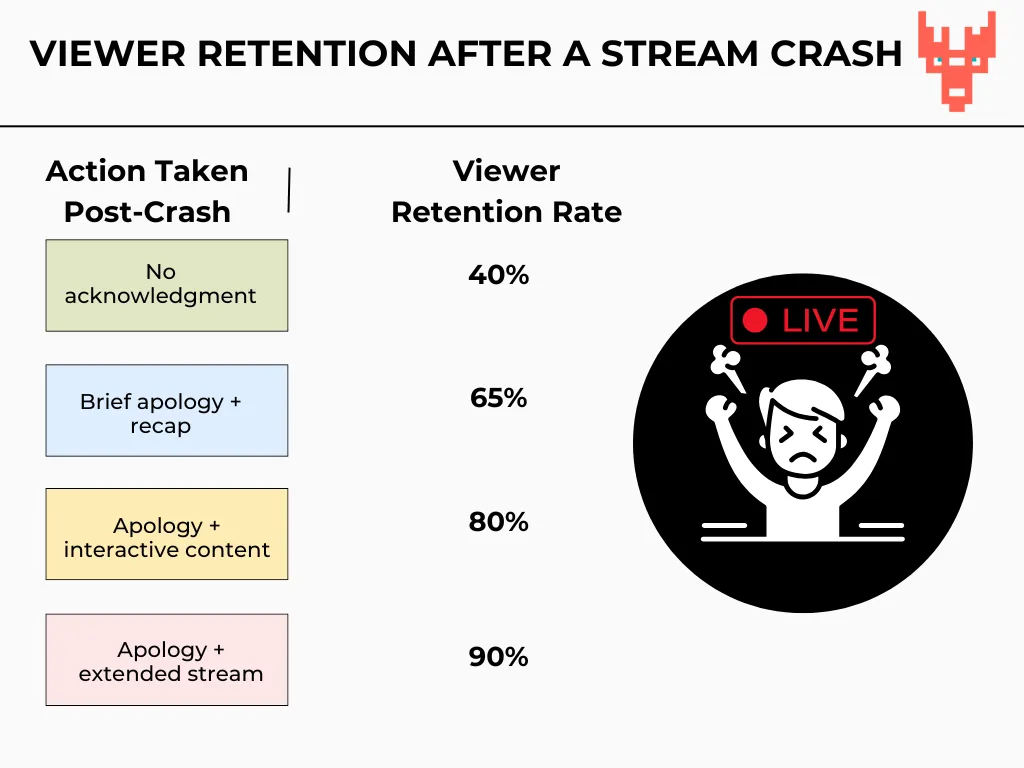
- Acknowledge the Issue: When you resume, briefly explain the crash and thank viewers for their patience.
- Offer a Quick Recap: Summarize key points from before the crash to reorient your audience.
- Engage with Interactive Content: Run a poll, Q&A, or giveaway to regain attention.
- Extend the Stream (if Possible): Add extra time to make up for the interruption.
- Post a Follow-Up: Share a clip or summary on X to keep the conversation going post-stream.
How Do You Keep Viewers Engaged After a Crash?
Keeping viewers engaged after a crash is critical to maintaining your audience’s trust and interest. Here are proven strategies:
- Use Humor: Lighten the mood with a joke about the crash.
- Involve Your Audience: Ask for their input on what to cover next.
- Offer Exclusive Content: Share a sneak peek or bonus material to reward loyalty.
- Leverage Chat Features: Respond to viewer comments to rebuild the connection.
- Promote Future Streams: Tease upcoming content to encourage viewers to return.
Here’s why this works: Engagement rebuilds the connection disrupted by the crash, ensuring viewers stick around.
What Tools Can Prevent Live Stream Crashes?
Prevention is better than recovery. Using the right tools can minimize the risk of a live stream crash. Here’s a comparison of top streaming platforms:
Table: Streaming Tools Comparison
Tool | Key Feature | Crash Prevention Score (1-10) |
|---|---|---|
Yostream | Auto-reconnect, low-latency | 9 |
OBS Studio | Open-source, customizable | 7 |
Streamlabs | User-friendly, integrations | 8 |
Restream | Multi-platform streaming | 6 |
Why Yostream Stands Out: Yostream’s auto-reconnect feature and robust server infrastructure make it a top choice for reliable streaming.
Frequently Asked Questions About Live Stream Crashes
1. Why Does My Stream Keep Crashing?
Streams crash due to unstable internet, outdated hardware, or software misconfigurations. Test your connection, update your tools, and use Yostream’s diagnostic features to pinpoint issues.
2. How Can I Fix a Stream Crash During a Live Event?
Restart your software, check your internet, and switch to a backup platform if needed. Communicate with your audience to maintain trust.
3. Can I Prevent a Live Stream Crash Entirely?
No platform guarantees zero crashes, but using Yostream, maintaining stable internet, and optimizing hardware settings significantly reduces risks.
4. How Do I Keep Viewers Engaged After a Crash?
Acknowledge the issue, offer a recap, and use interactive features like polls or Q&As to re-engage your audience.
5. What Settings Should I Use to Avoid Crashes?
- Resolution: 720p or 1080p for most streams.
- Bitrate: 3000-6000 kbps for 720p, 6000-8000 kbps for 1080p.
- Frame Rate: 30 FPS for stability.
- Encoder: Use hardware encoding (NVENC or AMD VCN) to reduce CPU load.
How Can You Prepare for Future Stream Crashes?
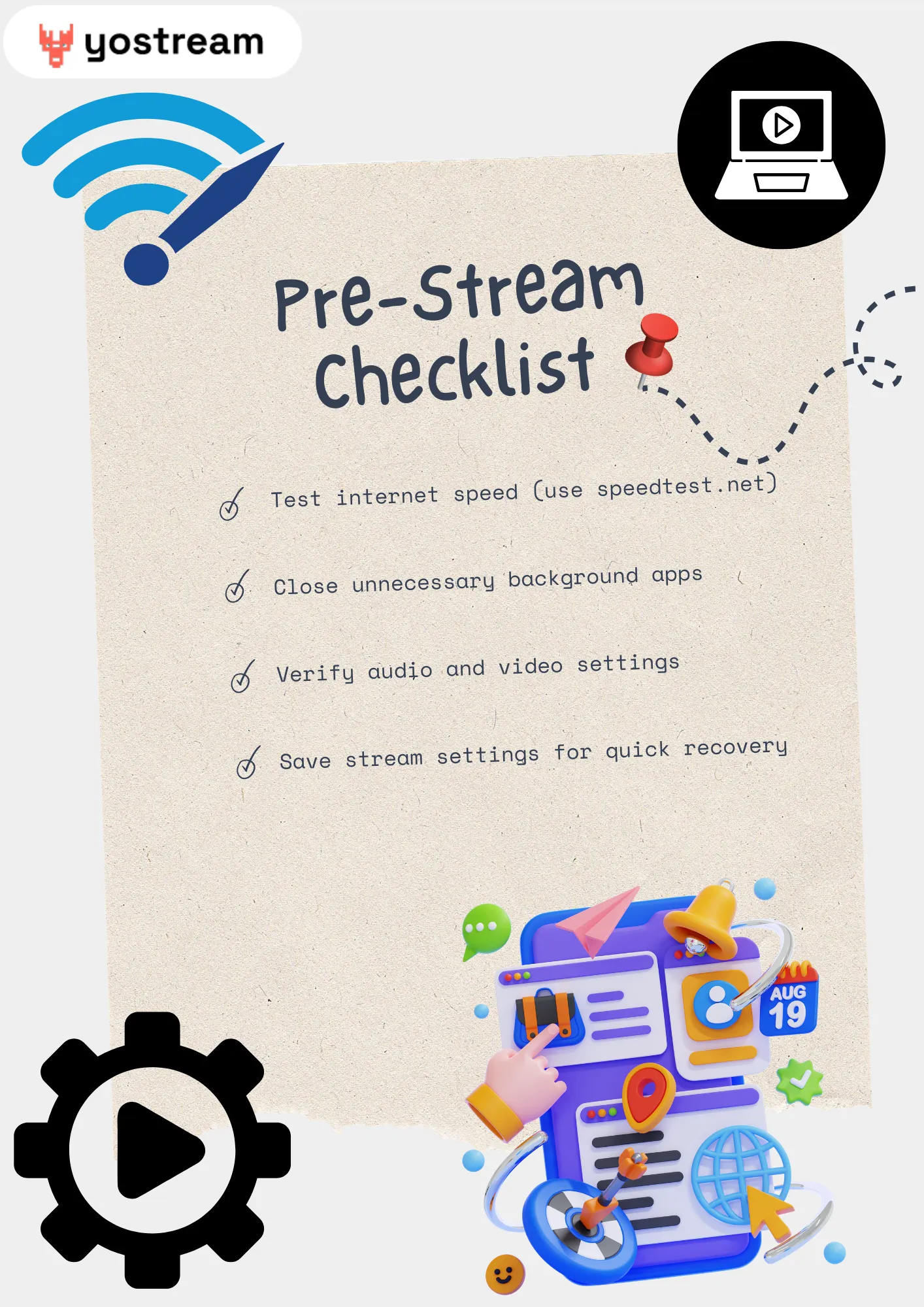
Preparation is key to minimizing the impact of a live stream crash. Here’s a checklist to stay ready:
- Test Your Setup: Run a practice stream to identify weak points.
- Have a Backup Plan: Keep a secondary device or platform ready.
- Monitor Performance: Use tools to track CPU and network usage.
- Update Regularly: Keep your streaming software and drivers up to date.
- Engage Your Community: Build a loyal audience on platforms like X to retain viewers during disruptions.
Why Trust Yostream for Live Streaming?
Yostream is designed with creators in mind, offering tools to prevent and recover from live stream crashes. With features like auto-reconnect, low-latency streaming, and real-time analytics, Yostream empowers you to deliver seamless broadcasts. Our team of streaming experts ensures you have the support needed to succeed.
A live stream crash can feel like a setback, but with the right tools and strategies, you can recover quickly and keep your audience engaged. By using Yostream, preparing in advance, and following our troubleshooting steps, you’ll turn crashes into minor hiccups. Ready to stream with confidence? Start with Yostream today and take control of your live broadcasts.