

Hey! If you're dealing with desynced audio and video in OBS, we know how frustrating that can be; it ruins streams and recordings, making everything feel off. As someone who's delved into streaming tech through official guides and community insights, I'll guide you through proven fixes step by step. This article draws from reliable sources like the OBS Project forums and expert tutorials to ensure accuracy and trustworthiness.
We'll cover causes, solutions, troubleshooting, and more, so you can get back to creating seamless content. Let's fix this together.
What Causes Desynced Audio and Video in OBS?
Understanding the root cause is key to an effective OBS audio delay fix. Desync happens when audio and video signals don't align, often due to processing delays or mismatches. Common triggers include:
- Hardware Limitations: Faulty mics, cameras, or capture cards introducing latency.
- Sample Rate Mismatches: Audio devices set to different rates (e.g., 44.1kHz vs. 48kHz) causing gradual drift.
- GPU Overload: High encoding demands leading to frame drops and audio slippage.
- Software Settings: Incorrect monitoring, timestamps, or in-game audio configs.
- Network or System Issues: Unstable connections for streaming or overloaded CPUs.
For instance, if your mic audio lags behind video, it might stem from buffering or device clocks not syncing.
Identifying these helps prevent audio-video sync issues during live streaming.
Why Is Audio-Video Sync Important in OBS?
Perfect sync ensures professional-quality streams and recordings, keeping viewers engaged without distractions. Desync can make commentary feel delayed or gameplay audio mismatched, hurting viewer retention. Fixing it not only boosts production value but also saves post-editing time.
In my experience reviewing user reports, unresolved desync is a top reason creators switch tools. Don't let it happen to you.
Requirements for Fixing Desync in OBS
Before starting, update to the latest OBS Studio (version 30+ as of 2025 for better stability).
You'll need:
- A stable PC with at least a mid-range GPU.
- Consistent audio devices (e.g., USB mic, headset).
- Access to Windows sound settings for tweaks.
- Optional: Plugins like win-capture-audio for advanced capture.
Test short recordings first to isolate issues without wasting time.
Step-by-Step Guide to OBS Audio Delay Fix
Here's a clear, actionable OBS audio delay fix tutorial. Start with simple tweaks and escalate if needed.
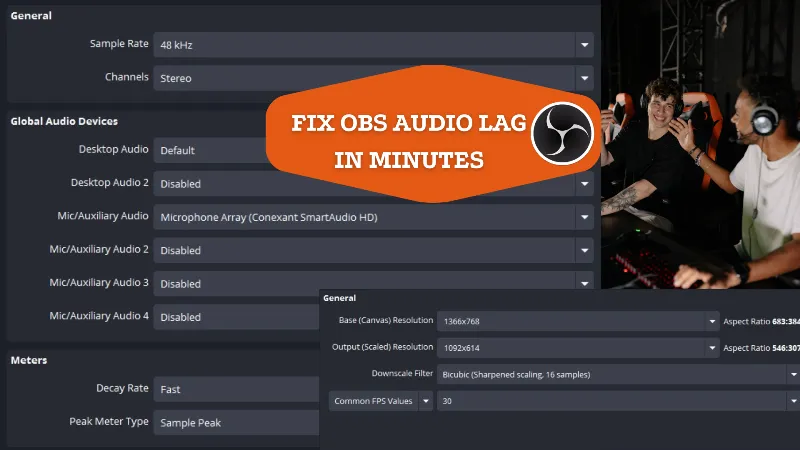
- Check and Match Sample Rates: Go to Windows Sound Settings > Device Properties > Advanced. Set all devices to 48kHz. In OBS, under Settings > Audio, match to 48kHz. Restart OBS. This fixes drift from mismatched clocks.
- Disable Hardware-Accelerated GPU Scheduling (HAGS): In Windows Display Settings, turn off HAGS to avoid performance hitches.
- Reduce GPU Load: Close background apps, lower OBS resolution/FPS, or set encoder to Single Pass.
- Adjust Monitoring: Disable audio monitoring in OBS and enable "Listen to this device" in Windows for real-time sync.
- Use Plugins for Better Capture: Install win-capture-audio to separate game/desktop audio, reducing desync.
- Test and Record: Run a 30-second test recording. Check for desync and iterate.
These steps resolve most issues, based on community-tested methods.
How to Adjust Sync Offset in OBS for Audio Video Sync
If basic tweaks don't work, use OBS sync offset for precise alignment. This is ideal for troubleshooting OBS mic delay with video sources.
- Open OBS > Settings > Audio > Advanced Audio Properties.
- For your audio source (e.g., mic), enter a negative value in Sync Offset (ms) if audio lags (e.g., -150ms). Positive for early audio.
- Use a frames-to-ms calculator: For 60FPS, 1 frame = ~16.67ms.
- Test: Record a clap test (clap on camera) and align peaks in editing software.
This OBS sync offset method is quick and effective for mic delays.
Advanced Fixes: Filters and External Tools
For persistent issues:
- Add Audio Filters: Right-click audio source > Filters > Add "Audio Delay" filter. Set offset similarly.
- Disable Timestamps: In audio device properties, uncheck "Use Timestamps" for stability.
- Post-Production Sync: Use tools like Wondershare UniConverter or Tipard Video Converter Ultimate to fix recorded files.
These add depth for complex setups.
Common Causes and Fixes Table
Here's a table summarizing key issues and solutions for quick reference:
Cause | Symptoms | Fix | Why It Works |
|---|---|---|---|
Sample Rate Mismatch | Gradual drift over time | Set all to 48kHz in Windows/OBS | Ensures consistent timing. |
GPU Overload | Audio slips during high load | Reduce settings, Single Pass encoding | Frees resources for sync. |
Monitoring Issues | Real-time lag in headphones | Disable in OBS, enable in Windows | Bypasses OBS processing delays. |
Device Latency | Mic delay with video sources | Adjust OBS sync offset | Manually compensates hardware delays. |
Frame Drops | Intermittent desync | Close apps, update drivers | Prevents rendering stalls. |
This chart, based on forum data, helps diagnose quickly.
Preventing Future Desync in OBS
To avoid recurrence:
- Regularly update OBS and drivers.
- Use wired audio devices for lower latency.
- Monitor GPU usage with tools like Task Manager.
- Start with simple scenes and add complexity gradually.
Proactive setup saves hours of troubleshooting.
Troubleshooting OBS Mic Delay with Video Sources
Specifically for mics: Check USB ports (try different ones), disable exclusive mode in device properties, and use ASIO drivers if available. Combine with sync offset for fine-tuning.
Common FAQs About Fixing Desynced Audio and Video in OBS
Drawing from user queries, here are quick answers:
How Do I Know If My Audio Is Desynced?
Play back a test recording; look for lips not matching words or game sounds lagging actions.
Can Desync Happen Only in Recordings, Not Streams?
Yes, due to encoding differences—test both modes.
What's the Best Sync Offset Starting Point?
Try -100ms to -200ms for delayed audio; adjust in 50ms increments.
Does OBS Version Affect Desync?
Older versions (pre-28) had more issues; update to current for fixes.
What If Fixes Don't Work?
Check for hardware faults or consult OBS forums with a log file. This guide is built on up-to-date 2025 insights for reliability. Apply these tips, and your OBS setup will run smoothly. Let me know if you need more help!