

If you're asking, “How do I live stream on Trovo?” here’s everything you need, from account setup through streaming configuration to going live.
Step 1: Visit Trovo
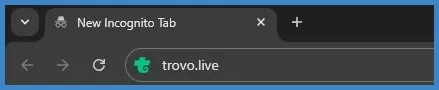
Type trovo.live in your browser, and press Enter.
Step 2: Sign Up
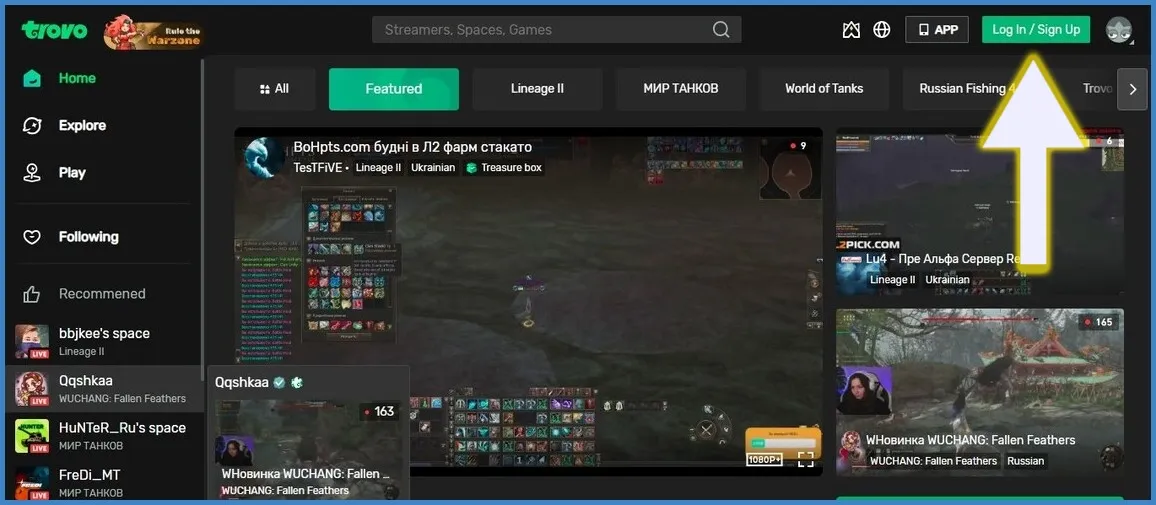
Click the Log In / Sign Up button at the top-right corner.
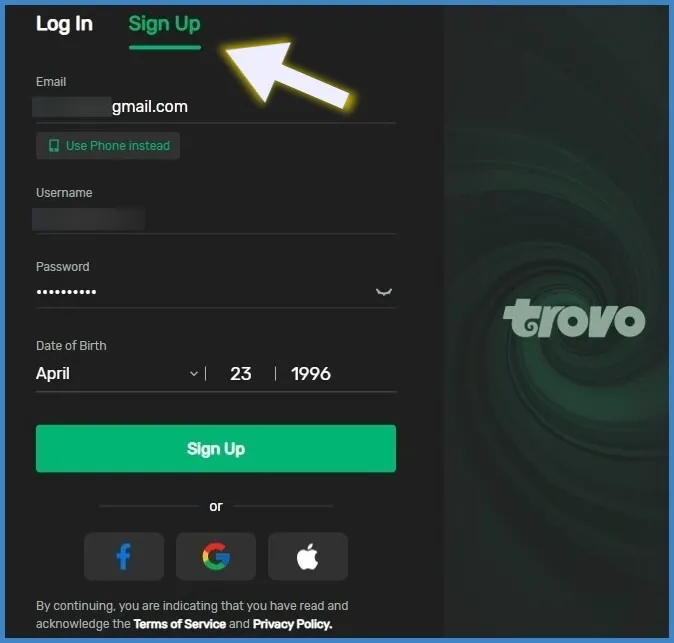
Step 3: Fill the Sign Up form
Select the 'Sign Up' tab, and provide an Email ID. Alternatively, you can use your mobile number. Provide a username, set up a strong password, and enter your birth details before hitting 'Sign Up' at the bottom. You can also proceed using your Facebook, Google, or Apple accounts.
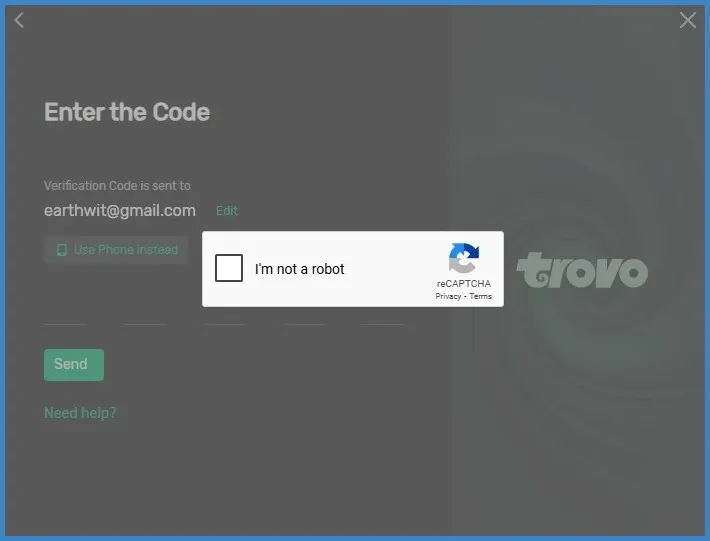
Verify the CAPTCHA by clicking on the checkbox, and enter the 5-digit Trovo Verification Code received in your Email.
Step 4: Select Categories
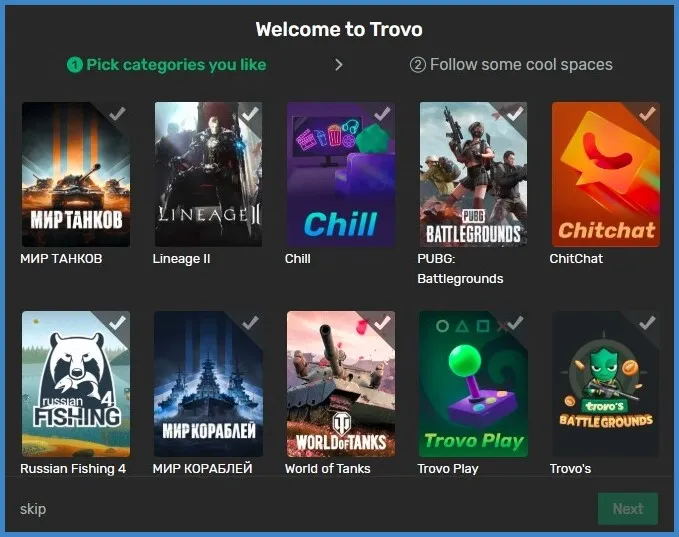
Select your desired categories from the list and click 'Next'. If you haven't chosen any, click 'Skip' to proceed.
Step 5: Enter Creator Studio
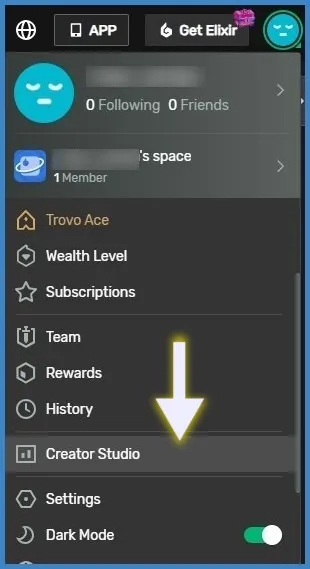
On the top-right corner of your homepage, click the profile icon, and select 'Creator Studio' from the dropdown menu.
Step 6: Filling up 'About You'
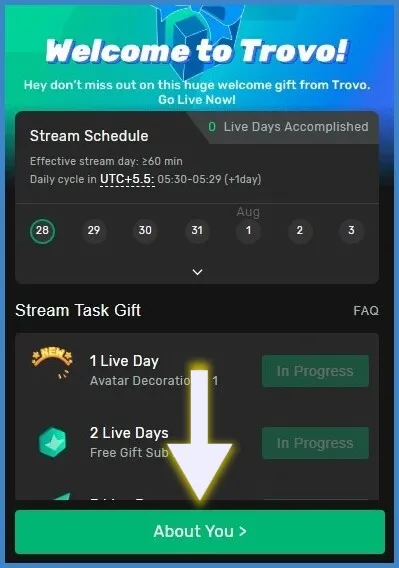
After entering the Creator Studio, you'll get a pop-up. Provide the basic details by clicking 'About You' at the bottom.
To set your Trovo stream, select a category and language. Accept the ToS and click 'Start your stream journey' at the bottom.
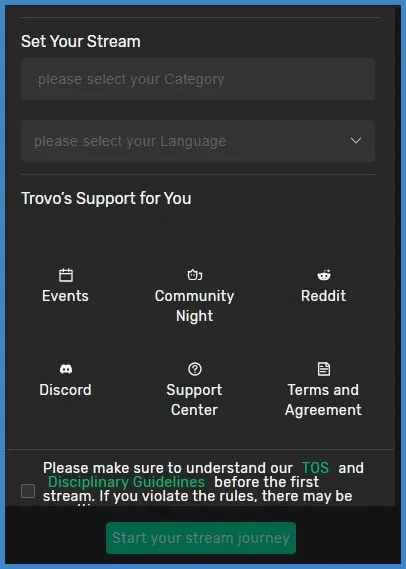
Step 7: Accessing the Host URL and Server Key
You can now see the Host URL and Server Key. While connecting Trovo to a live streaming software, you'll need both.
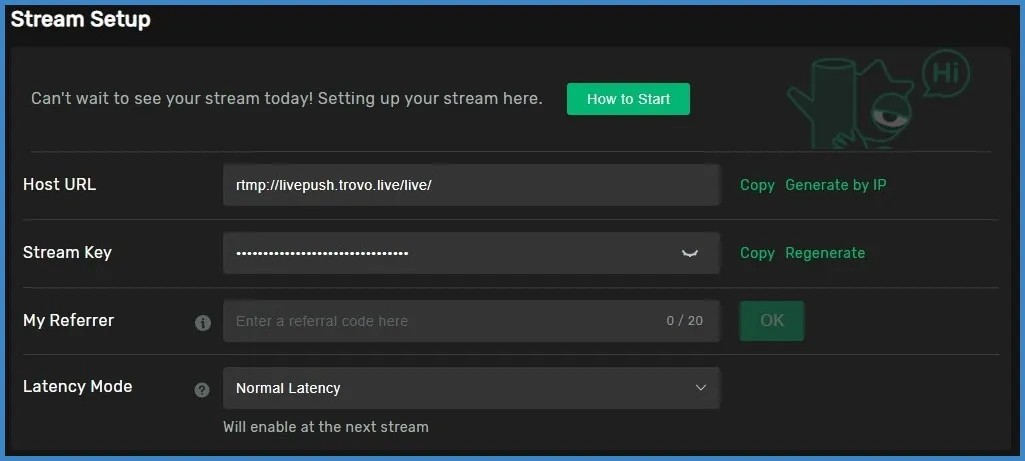
Step 8: Connecting Trovo to Live Streaming Software
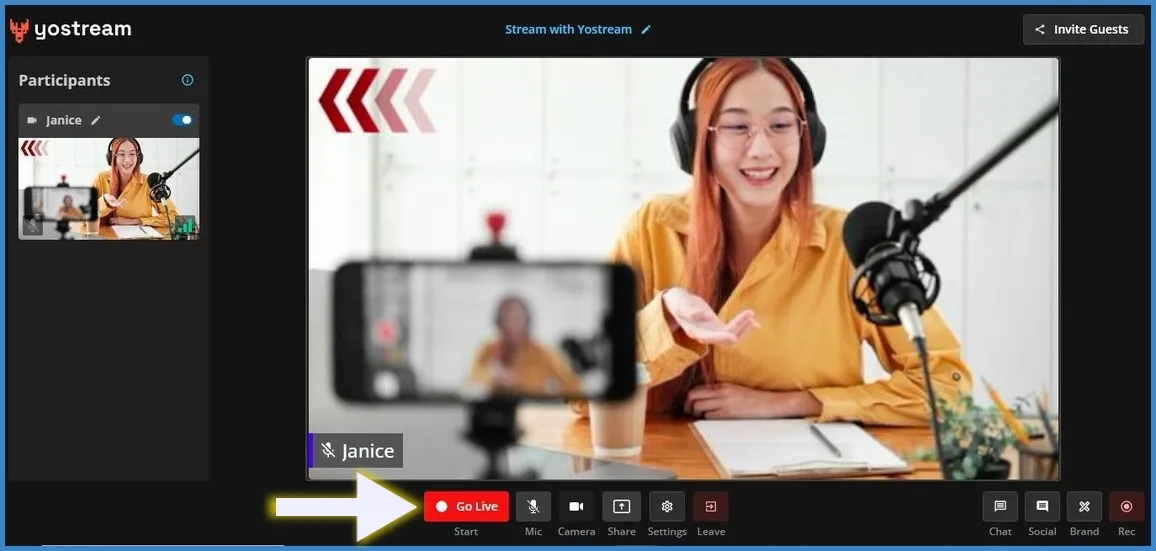
To live stream on Trovo, we'll use Yostream, a browser-based live streaming software. Yostream has an intuitive interface, and anyone can use it easily as it doesn't require technical skills.
After entering Yostream Studio, you'll see the following screen (the camera input on canvas will not be the same). Click Go Live.
Click 'Connect Account'. From the dropdown menu, select the last option, 'Custom Destination'.
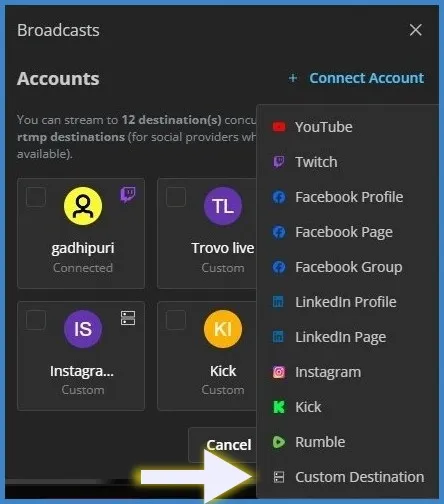
Add a name to your Trovo stream, and copy-paste the Host URL and Server Key (from Step 7) in the fields of Stream URL and Stream Key, respectively. Click 'Add' to continue.

Select the connected account, and click 'Start Broadcast' to go live on Trovo.
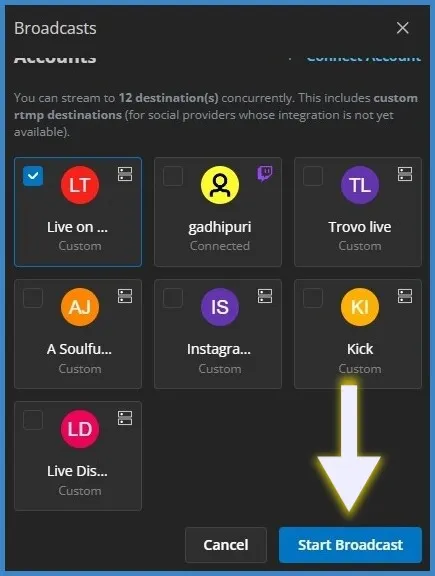
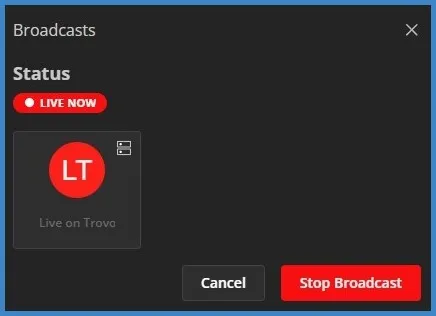
You're now live streaming on Trovo!
How to Check Your Live Stream on Trovo?
Go back to Trovo where you left it open at Step 7. Hover over the LIVE button (just before your profile icon). Click 'Check our new dashboard'. A new tab will open, displaying your live stream.