

YouTube live stream audio video sync issues are one of the most common and confidence-killing problems streamers face. Your viewers see your mouth move, but the words arrive half a second later. Or your gameplay sounds happen before the action. Either way, it destroys immersion and viewer trust, and YouTube's algorithm notices when users bail early.
This guide covers every cause and fix: from your encoder settings and OBS audio offset to upstream bitrate problems, hardware mismatches, and YouTube's own ingestion delay. If you've searched YouTube live stream audio delay fix or why is my live stream audio out of sync, this is the most complete answer you'll find.
🔍 Why Does YouTube Live Stream Audio Go Out of Sync?
Audio/video desynchronization in live streams is a pipeline problem. Your stream passes through multiple processing stages between your microphone and your viewer's ears, and each stage can introduce a timing offset. Understanding the stage is the key to fixing the specific delay you're experiencing.
There are two types of sync failure most streamers encounter:
- Audio ahead of video (audio early): Often caused by a separate audio interface with lower latency than your video capture pipeline.
- Audio behind video (audio late/lip-sync delay): The most common type. Usually caused by encoder processing time, buffering, or YouTube's transcoding pipeline.
The 7 Root Causes of Live Stream Audio Video Sync Problems
| Cause | Where It Happens | Severity | Fixable by Streamer? |
|---|---|---|---|
| Wrong audio offset in OBS/encoder | Encoder (your PC) | High | Yes |
| Mismatched sample rates (48kHz vs 44.1kHz) | Audio driver / encoder | High | Yes |
| Variable frame rate (VFR) video source | Video capture | Medium | Yes |
| GPU/CPU encoding lag under load | Encoder (your PC) | Medium | Partially |
| Network packet loss / jitter | ISP / upload | Medium | Partially |
| YouTube transcoding pipeline delay | YouTube servers | Medium | No (workarounds exist) |
| Bluetooth audio device latency | Audio hardware | High | Yes |
🧪 How Do I Know if My Stream Has an A/V Sync Problem?
Don't rely on viewer complaints. By the time chat notices, you've already lost watch time. Run a self-check before every stream.
The Clap Test (Most Reliable DIY Method)
1. Start a test stream (unlisted or private)
Set YouTube stream visibility to "Unlisted" and go live for 2 minutes.
2. Clap sharply in front of your camera
Clap once, clearly visible to your camera, while watching the stream on another device with headphones.
3. Measure the offset
If the sound arrives after your hands meet on screen, you have audio lag. If the sound comes before, you have audio lead. The gap in milliseconds is your offset value.
4. Confirm it's not just YouTube latency
Watch the playback on YouTube Studio's stream health monitor. Compare timestamps. Network latency is expected; a drift over time is a real sync problem.
⚠️ Watch Out
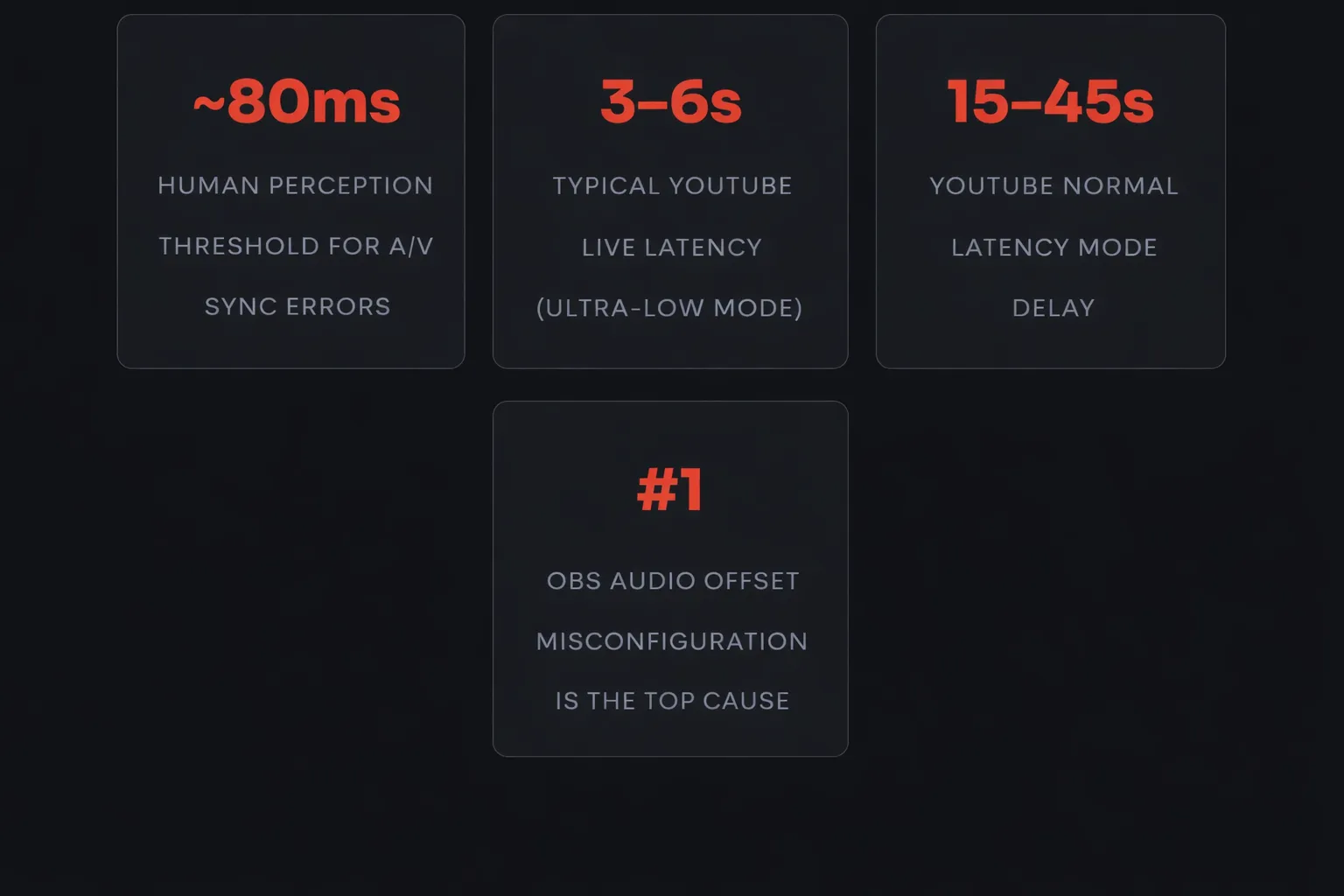
Many streamers confuse YouTube's normal end-to-end latency (3–45 seconds depending on mode) with an actual sync error. A/V sync is about the relationship between audio and video, not the overall delay. Both should arrive late together. If audio and video arrive at different times relative to each other, that's a sync problem.
🛠️ How to Fix Audio Sync in OBS Studio
OBS Studio is the most widely used free streaming software, and it has a dedicated audio offset tool built in. This is the first place to look for OBS audio sync fix for YouTube live.
Using OBS Audio Sync Offset (Step-by-Step)
1. Open Audio Mixer in OBS
In OBS, look at the Audio Mixer panel at the bottom of the screen.
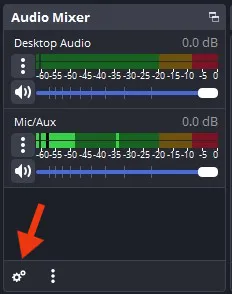
2. Click the gear icon next to your audio source
Select "Advanced Audio Settings" from the dropdown.
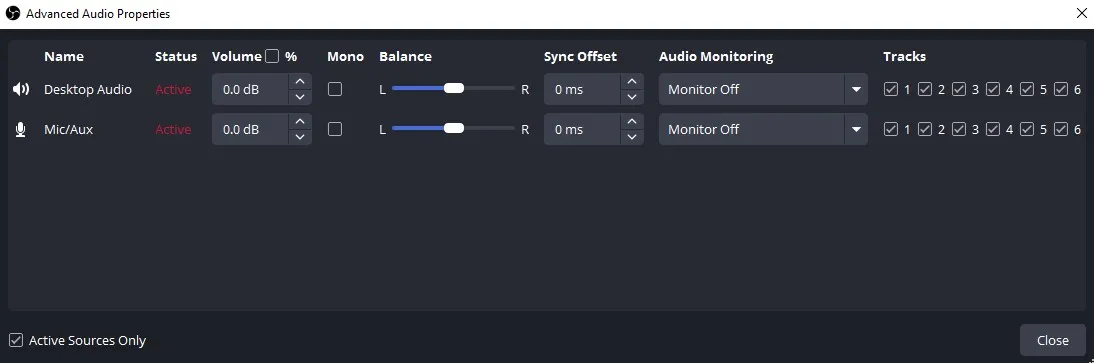
3. Set the Sync Offset value
Enter a positive value (in milliseconds) to delay audio to match late video. Enter a negative value to advance audio if video is ahead. Start with increments of 50ms and test each time.
4. Retest using the clap method
Run another unlisted stream test and verify the offset is corrected before going live publicly.
💡 Tip
If you're using a USB audio interface (Focusrite Scarlett, GoXLR, etc.), your audio often arrives faster than your webcam or capture card video. A positive sync offset of 200–400ms is common in this setup. Don't be surprised by large offset values.
OBS Sample Rate Mismatch Fix
This is the most overlooked cause of audio drift during YouTube live streams. If your audio device runs at 44,100 Hz but OBS is set to 48,000 Hz (YouTube's preferred rate), your audio will slowly drift out of sync, getting worse the longer you stream.
How to fix it:
- Go to OBS Settings > Audio
- Set Sample Rate to 48000 Hz
- Open Windows Sound Settings (or macOS Audio MIDI Setup) and set your audio device sample rate to 48000 Hz as well
- Restart OBS after making changes
🎛️ Pro Tip
If you have multiple audio sources in OBS (microphone, desktop audio, game capture audio), each one can have its own sample rate mismatch. Check every source individually. The drift rate will be different for each: a 44.1kHz source drifts about 2.27 seconds per hour when OBS expects 48kHz.
Variable Frame Rate (VFR) Video Sources Causing Sync Problems
Screen capture and some webcams output variable frame rate video, which confuses OBS's sync engine. The fix is simple: force constant frame rate (CFR).
- In OBS OBS Settings > Video and ensure you have a fixed output FPS (30 or 60)
- For game capture: enable V-Sync or FPS cap in your game to prevent VFR output
- For screen capture: use Display Capture instead of Window Capture when possible
⚙️ Encoder & Hardware Settings That Cause A/V Sync Drift
Beyond OBS, your encoder configuration plays a huge role in whether YouTube Live receives a correctly timed stream. This section covers hardware encoder audio sync problems and how to fix them.
GPU vs CPU Encoding: Which Is Less Likely to Cause Sync Issues?
| Encoder Type | Examples | Sync Risk | Notes |
|---|---|---|---|
| CPU (x264) | OBS x264, FFmpeg | Low | Most stable sync, slower under load |
| NVIDIA NVENC | RTX 20/30/40 series | Low | Recommended for most streamers |
| AMD AMF/VCE | RX 5000+ series | Medium | Sync issues on older driver versions |
| Intel QuickSync | Intel iGPU | Medium | Can have A/V drift on high-motion content |
| Elgato 4K60 (hardware) | External encoder | Higher | Requires manual offset calibration |
Capture Card Audio Sync Issues
External capture cards (Elgato HD60 S+, AVerMedia Live Gamer, Magewell) often introduce an additional delay between the HDMI video signal and their audio output. This is separate from your microphone audio.
The fix involves routing your audio through a consistent path:
- Do not use both the capture card's audio output and a separate USB microphone without offsetting them
- Route all audio through your main audio interface, not split across the capture card and PC
- If using the capture card's audio passthrough, measure its latency with the clap test and apply an offset in OBS
ℹ️ Note
Capture cards like the Elgato 4K60 Pro introduce approximately 120–200ms of video processing delay. Your audio, running through a USB mic directly into OBS, may arrive 200ms earlier than the video. This is why your voice sounds ahead of your face. Fix: add a +200ms sync offset to your microphone track in OBS Advanced Audio Settings.
🌐 Can My Internet Connection Cause Audio Lag on YouTube Live?
Yes, but not in the way most people think. Network issues don't typically cause one audio packet to drift from video. What network problems do cause is frame drops and bitrate instability, which YouTube's encoder compensates for in ways that can break sync.
How Network Jitter Breaks Live Stream Sync
When your upload connection is unstable, your streaming software buffers more aggressively. This can cause YouTube's ingest servers to receive audio and video frames at inconsistent intervals, which their transcoding system has to reconcile. The result looks like intermittent A/V sync jumps rather than a steady offset.
What to check:
- Run a stream-specific speed test at fast.com or Waveform's BUFFERBLOAT test
- Your upload speed should be at least 2x your target stream bitrate (headroom matters more than raw speed)
- Check for jitter (not just speed). Jitter above 20ms can cause sync instability
- Use a wired Ethernet connection. WiFi introduces jitter by design
💡 Tip
In OBS, go to Settings > Output > Streaming and enable "Dynamic Bitrate" (if using OBS 26+). This lets OBS automatically reduce bitrate during network instability instead of dropping frames, which is friendlier to YouTube's sync engine.
Recommended Bitrate Settings for YouTube Live (No Sync Issues)
| Resolution | Frame Rate | Recommended Video Bitrate | Audio Bitrate |
|---|---|---|---|
| 1080p | 60fps | 6,000–9,000 kbps | 128–320 kbps (AAC) |
| 1080p | 30fps | 4,000–6,000 kbps | 128 kbps (AAC) |
| 720p | 60fps | 3,500–5,000 kbps | 128 kbps (AAC) |
| 720p | 30fps | 2,500–4,000 kbps | 128 kbps (AAC) |
| 480p | 30fps | 1,000–2,000 kbps | 64–128 kbps (AAC) |
📡 YouTube-Side Delays: What's Happening on Their End?
YouTube processes your stream through its Live Streaming Ingest Infrastructure before it reaches viewers. Understanding this pipeline helps you make smarter latency choices.
YouTube Live Latency Modes Explained
| Latency Mode | End-to-End Delay | Best For | Sync Risk |
|---|---|---|---|
| Ultra Low Latency | 3–7 seconds | Interactive streams, live Q&A | Medium (less buffering = more dropout risk) |
| Low Latency | 7–15 seconds | Most live events | Low |
| Normal (Default) | 15–45 seconds | Large audience broadcasts | Very Low |
🎛️ Pro Tip
Ultra Low Latency mode sacrifices YouTube's ability to smooth over network hiccups. If you're experiencing intermittent sync jumps that you can't reproduce locally, switch to Low Latency mode in YouTube Studio under Stream Settings > Latency. It's the best balance between responsiveness and stability for most creators.
YouTube's Transcoding Pipeline and Audio Handling
When YouTube receives your RTMP stream, it re-encodes the video to multiple qualities (adaptive bitrate streaming, or ABR) but generally passes through the audio with minimal processing. This means audio sync errors introduced before YouTube receive will persist for viewers. YouTube does not fix your encoder's mistakes.
However, there are cases where YouTube's ABR ladder can cause apparent sync issues at the viewer end:
- Viewers switching between quality levels mid-stream can experience a brief A/V desync of 1–2 seconds
- DVR rewind while live can cause sync inconsistencies
- YouTube's health score below 70% correlates with higher viewer-side sync complaints
📱 How to Fix A/V Sync on Mobile YouTube Live Streams
Streaming from a smartphone introduces hardware-specific sync challenges because mobile encoders are tightly integrated and offer fewer controls than desktop software like OBS.
iOS YouTube Live Audio Sync Fix
- Close all background apps before going live to reduce CPU competition with the encoder
- Avoid using Bluetooth AirPods or headsets while live streaming. The Bluetooth audio codec (SBC/AAC over Bluetooth) adds 150–250ms of audio latency that iOS cannot compensate for in the live encoder
- Use a Lightning or USB-C wired headset instead
- If using an external DSLR or camera via a video capture adapter, test for capture latency and use a third-party app like Larix Broadcaster that allows audio offset configuration
Android YouTube Live Audio Sync Fix
- The YouTube app on Android uses the device's MediaCodec API for encoding, which varies by chipset. Snapdragon devices generally have better A/V sync than MediaTek in live encoding scenarios
- Enable Developer Options and check "Disable HW overlays" only as a last resort test, as it impacts performance
- Use RTMP streaming apps with manual audio delay control (StreamLabs Mobile, Larix Broadcaster) instead of the native YouTube app for professional streams
🎚️ Multi-Track Audio and Sync Issues in Live Broadcasts
If you're running a more complex production with multiple audio sources (guest microphones, music bed, sound effects), sync becomes exponentially harder to manage. This is where professional live stream audio sync management becomes essential.
Common Multi-Source Sync Problems
- Remote guest audio via Zoom/Discord: VoIP apps add their own compression and network buffering. A Zoom guest call typically has 100–300ms of latency that appears in your stream. Use Source Connect or a direct phone hybrid for broadcast-quality guest audio
- Music bed from a different device: If your background music comes from a phone aux cable or a second computer, it travels through an analog-to-digital conversion that adds latency compared to your main microphone
- Multiple USB microphones: Each USB mic has its own clock. USB audio is notoriously subject to clock drift between devices. Use a single audio interface with multiple inputs instead of multiple USB mics
🎛️ Pro Tip
Professional broadcasters use a hardware audio delay unit (like the Behringer DEQ2496 or a Dante audio network) to align all audio sources to a single reference clock before they reach the encoder. If you run regular multi-guest shows, this investment pays off in zero sync calibration time per stream.
✅ Pre-Stream A/V Sync Checklist
Run this before every YouTube Live stream. Bookmark it. It takes under 5 minutes.
- ☐ OBS sample rate set to 48000 Hz
- ☐ Windows/macOS audio device sample rate set to 48000 Hz
- ☐ No Bluetooth audio devices active
- ☐ Game/screen capture source set to constant frame rate
- ☐ Audio sync offset calibrated (clap test done)
- ☐ Upload speed tested at 2x+ target bitrate
- ☐ Wired Ethernet connection confirmed (not WiFi)
- ☐ YouTube latency mode set to "Low Latency" (not Ultra)
- ☐ Test stream run on unlisted channel before going public
- ☐ Stream health score above 80% in YouTube Studio
🧰 Tools That Help Prevent YouTube Live Sync Problems
The right toolchain reduces sync problems before they start. These are the tools professionals actually use.
| Tool | Type | What It Fixes | Cost |
|---|---|---|---|
| OBS Studio | Encoder software | Audio offset, sample rate, CFR encoding | Free |
| Streamlabs | Encoder software | A/V sync, alert audio timing | Free / Pro |
| Larix Broadcaster | Mobile encoder | Mobile audio offset control | Free |
| VB-Audio VoiceMeeter | Virtual audio mixer | Multi-source audio clock alignment | Free (donationware) |
| Focusrite Scarlett 2i2 | Audio interface | Single clock source for all audio | ~$120 |
| Elgato Wave XLR | Audio interface | Low-latency USB audio with stable clock | ~$150 |
| YouTube Studio Health Monitor | Monitoring | Real-time stream health and sync indicators | Free |
Browser-Based Streaming Platforms with Built-In Sync Management
For creators who want to reduce encoder complexity entirely, browser-based and cloud streaming platforms handle much of the sync pipeline automatically. If you're running multi-guest shows, panels, or branded live productions, offloading the encoding pipeline to a dedicated platform can eliminate most of these issues by design.
🎬 Worth Knowing: Yostream
One platform that comes up frequently among mid-to-advanced YouTubers dealing with sync headaches is Yostream. It's a browser-based live streaming studio that lets you go live to YouTube directly without the OBS configuration overhead.
For streamers specifically dealing with multi-guest audio sync, remote panel shows, or branded overlays, the managed encoding approach means the audio clock is handled at the platform level rather than your local machine, reducing the most common sources of drift. Worth evaluating if you're tired of recalibrating sync offsets before every stream.
❓ FAQs: YouTube Live Stream Audio Video Sync
1. Why is my YouTube live stream audio ahead of video?
Audio arriving before video usually means your audio source (typically a USB microphone or audio interface) has lower processing latency than your video pipeline (webcam, capture card, or screen capture). The fix: add a positive sync offset to your audio source in OBS Advanced Audio Settings. Start at +200ms and adjust based on testing.
2. Does YouTube fix audio sync issues automatically?
No. YouTube passes your audio through with minimal modification. Its transcoding pipeline adjusts video quality for adaptive bitrate streaming but does not correct A/V desynchronization introduced before the RTMP ingest point. You must fix sync at the encoder level before your stream reaches YouTube.
3. Why does my stream audio drift over time and get worse the longer I stream?
This is a sample rate mismatch. If your audio device runs at 44,100 Hz and your encoder expects 48,000 Hz, the drift accumulates at a rate of approximately 2.27 seconds per hour. Fix: set both your audio device and OBS to 48,000 Hz. If you've confirmed matching sample rates and still see drift, you may have a USB audio clock stability problem, in which case switching to a hardware audio interface with a stable XTAL clock resolves it.
4. Can Bluetooth headsets cause audio sync problems on YouTube Live?
Yes. Bluetooth audio codecs introduce 150–300ms of latency by design. When you use a Bluetooth headset as your microphone input, this latency enters your encoder's audio stream. Your video, captured by a USB webcam, arrives faster. The result is audio that consistently lags behind video. Always use wired audio devices for live streaming.
5. What is the best OBS audio sync offset for a webcam and USB microphone setup?
There's no universal value. USB webcams typically add 0–100ms of video latency. USB microphones add near-zero audio latency. So for a standard webcam + USB mic setup, you'll likely need a positive audio offset of 50–150ms to delay audio and match the slower video. Use the clap test to find your exact value. Webcam model, USB hub quality, and PC load all affect the result.
6. Why does my live stream replay on YouTube have better sync than the live version?
YouTube's live playback delivers content in real time with minimal buffering tolerance, which exposes sync issues. The replay (VOD) is processed post-stream and may go through additional normalization by YouTube's servers. Additionally, viewers watching replays on stable connections have consistent buffering, which smooths over minor sync inconsistencies. Neither fixes the underlying problem, but the replay experience often appears better due to these factors.
7. How do I fix audio sync issues when streaming with multiple cameras on YouTube Live?
Each camera introduces a different processing latency. When you switch between cameras in a multi-camera setup (using OBS scenes, ATEM Mini, or similar), the audio reference remains constant but the video latency changes. The fix: measure the latency of each camera individually using the clap test, and apply individual sync offsets to the audio source in each scene, or alternatively, apply a blanket audio delay that covers the highest-latency camera and use the offset for others.
8. Does streaming at higher bitrates reduce audio sync problems?
Not directly. Bitrate affects quality, not sync. However, streaming at too low a bitrate can force your encoder to drop frames to stay within the bitrate budget, which can cause intermittent sync jumps. Maintaining an appropriate bitrate for your resolution (see table above) ensures the encoder isn't struggling, which indirectly supports sync stability.
Trending Reads:
- Simple steps for your ease: How To Live Stream On YouTube With Yostream
- Your First Xbox YouTube Stream: How to Live Stream on YouTube from Xbox (Beginner-Friendly, No Confusion)
- End OBS audio desync forever: How to Fix Desynced Audio and Video in OBS?
- Avoid the delay: Prevent Buffering And Lag During Live Streams
- Experience lag-free streaming: Tips to Fix Bitrate Issues When Streaming