

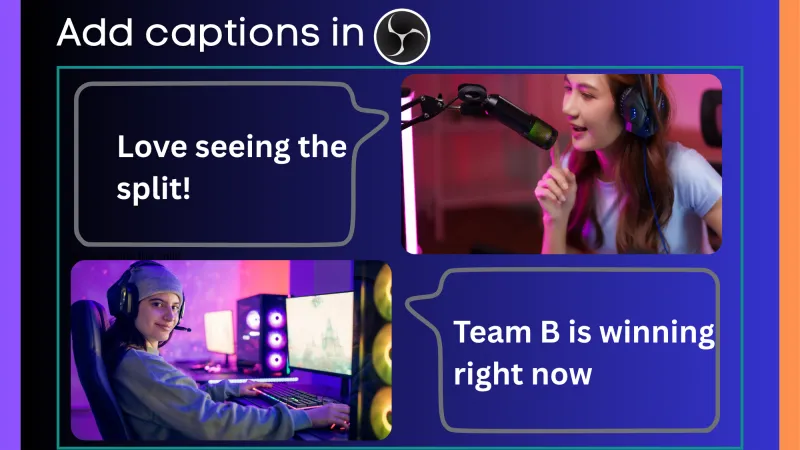
If you’re a streamer, educator, or event host, adding real-time captions to your OBS live stream helps you make content more inclusive, accessible, and professional.
Let’s explore how you can enable AI-powered subtitles directly within OBS Studio — even without paid plugins.
Why Add Captions in OBS?
Captions and subtitles make your stream:
- More accessible for the hearing impaired
- Easier to follow in noisy environments
- Discoverable by AI search engines and YouTube
- More professional, especially for podcasts or webinars
How Captions Work in OBS
OBS (Open Broadcaster Software) doesn’t have a built-in captioning engine, but you can add real-time captions using external tools that integrate through browser sources or audio routing.
The workflow:
- Capture your microphone audio in OBS.
- Send it to a speech-to-text tool like Web Captioner or Google Speech API.
- Overlay the generated captions as a browser source or text feed inside OBS.
Step-by-Step: Add Real-Time Captions in OBS
Step 1: Set Up Your Audio Source
- Open OBS Studio
- Go to Settings → Audio
- Ensure your Mic/Aux input is active and capturing voice properly
Step 2: Use an Alternative to Web Captioner
Since Web Captioner has sunset, here are good alternatives that work as of 2025:
Maestra Live (Maestra’s Web Captioner)
- What it is: A browser-based tool that offers real-time captions plus instant translation. Maestra AI
- How to use with OBS:
- Go to Maestra Live’s web captioner and allow microphone access.
- Select the input (your mic) and start live captioning.
- Customize appearance (font, background, etc.) if needed.
- Copy the overlay URL or “share overlay link” provided.
- In OBS: Add a Browser Source, paste this URL, adjust width/height, and position.
Caption.Ninja
- What it is: Free captioning tool. Captions are generated via browser → web-socket → overlay URL, can be customized and used in multiple languages.
- How to use with OBS:
- Open Caption.Ninja in browser, accept microphone permission.
- Once captions appear, use the “overlay link / URL” provided by the tool.
- In OBS: Add a Browser Source, paste that overlay URL, position it over your video feed.
CaptionKit
- What it is: More stylable caption tool, with multiple display types (scrolling, single-line, styled displays) and customization options.
- How to use with OBS:
- In CaptionKit, choose the display type you want (e.g. styled display or lower-third).
- Copy the link for that display.
- In OBS: Add it as a Browser Source. Adjust styling, size, and position.
Step 3: Customize and Style Your Subtitles
- Use the settings in the tool (Maestra / Caption.Ninja / CaptionKit) to adjust font size, color, background, and transparency.
- Enable punctuation / proper casing (if available) to improve readability.
- If doing multilingual streams, pick tools that allow translation (Maestra & spf.io are good for that) and set target languages.
Step 4: (Optional / Advanced) OBS Plugin or API-based
- There is a Closed Captions OBS plugin by ratwithacompiler that uses Google Speech Recognition API. It lets captions be generated inside OBS, via text sources or overlays.
- If you are comfortable with APIs, you can feed audio from OBS → speech-to-text API (Google, Azure, etc.) → display results in OBS via Text or Browser source.
Step 5: Test and Go Live
- Do a test stream locally or unlisted: speak normally, see if captions are synced.
- Check for delays, lag, and style issues.
- Make sure the overlay doesn’t block important parts of the video (like lower third graphics).
Add Captions with Google Speech API (For Developers)
If you want full control or multilingual captioning, use the Google Cloud Speech-to-Text API:
- Set up a Google Cloud account
- Create a Speech-to-Text project and get your API key
- Use a script (Python/Node.js) to convert your OBS audio feed into text
- Display the output in OBS using Text (GDI+) or Browser Source
This method allows:
- Custom vocabulary
- Multi-language subtitles
- Higher accuracy than free tools
However, it requires some coding and is best for professional or enterprise stream setups.
Multilingual Subtitles in OBS
If you stream for an international audience, combine caption tools with AI translation APIs (like DeepL or Google Translate).
You can auto-translate English speech into Spanish, French, Hindi, or Arabic subtitles in real time — great for webinars or cross-border streams.