

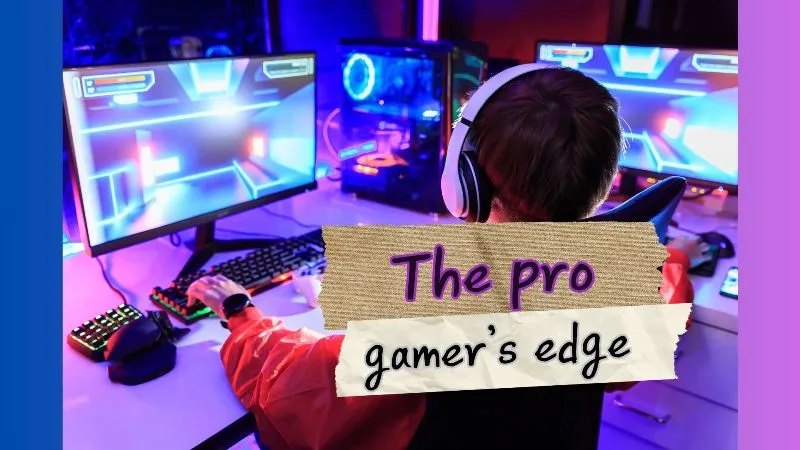
What Is a Dual PC Streaming Setup?
Setting up dual PC streaming begins with understanding the concept. A dual PC streaming setup uses two computers: one for gaming (the gaming PC) and another for encoding and broadcasting the stream (the streaming PC). This configuration splits the workload, ensuring your gaming performance remains smooth while delivering high-quality streams to platforms like Twitch, YouTube, or Kick.
Here’s why this matters: a single PC handling both gaming and streaming can overload your CPU, causing lag, dropped frames, or reduced stream quality. By using a second PC for streaming, you achieve seamless gameplay and professional-grade broadcasts. Let’s break it down.
Why Choose a Dual PC Setup for Streaming?
A 2 PC stream setup offers significant advantages over a single PC setup. Here’s why it’s worth the investment:
- Improved Performance: The gaming PC focuses solely on running your game, while the streaming PC handles encoding, minimizing lag and frame drops.
- Higher Stream Quality: Dedicated encoding supports higher resolutions (1080p or 4K) and stable frame rates (60 FPS).
- Flexibility: Adjust stream settings without affecting gameplay.
- Professional Output: Add overlays, transitions, and effects without taxing your gaming rig.
Who Benefits Most?
Gamers, content creators, and streamers playing resource-heavy games like Call of Duty, Cyberpunk 2077, or Baldur’s Gate 3 will see the most value from this setup.
What Equipment Do You Need for a Dual PC Streaming Setup?
To create a gaming PC streaming PC setup, you’ll need specific hardware and software. Below is a detailed list to get started.
Hardware Requirements
Component | Recommended Specs for Gaming PC | Recommended Specs for Streaming PC |
|---|---|---|
CPU | Intel i7-12700K or AMD Ryzen 7 5800X | Intel i5-10400 or AMD Ryzen 5 3600 |
GPU | NVIDIA RTX 3070 or AMD RX 6700 XT | Not required (integrated graphics suffice) |
RAM | 16GB DDR4 (minimum) | 8GB DDR4 (minimum) |
Capture Card | Elgato HD60 X, AVerMedia Live Gamer 4K | Same (connected to streaming PC) |
Audio Interface | Focusrite Scarlett Solo | Same (connected to streaming PC) |
Cables | HDMI 2.0, DisplayPort, USB-C | Same |
Network | Gigabit Ethernet or Wi-Fi 6 | Gigabit Ethernet (preferred) |
Software Requirements
- Primary Streaming Software: OBS Studio (top choice for dual PC setups)
- Multistreaming Software: Yostream (for broadcasting to multiple platforms)
- Audio Management: Voicemeeter Banana, VB-Audio Cable
- Optional Tools: Discord for community engagement, Adobe Premiere for video editing
How to Set Up a Dual PC Streaming System Step-by-Step
Let’s walk through how to set up dual PC streaming in a clear, actionable way. Follow these steps to get your 2 PC stream setup running smoothly.
1. Prepare Your Hardware
- Gaming PC: Ensure it meets the specs above. Install your game and test performance.
- Streaming PC: Set up with a clean OS install for optimal performance. Connect it to a monitor, keyboard, and mouse.
- Capture Card: Connect the gaming PC’s HDMI output to the capture card’s input. Then, connect the capture card’s output to the streaming PC via USB or PCIe.
2. Install and Configure Streaming Software
- Download OBS Studio: Visit https://obsproject.com to install OBS Studio on your streaming PC. OBS is the go-to choice for its robust features and compatibility with dual PC setups.
- Connect Yostream for Multistreaming: Create a Yostream (https://yostream.com) account to broadcast to multiple platforms simultaneously.
- Configure Output: In OBS, set your streaming platform (Twitch, YouTube, etc.), resolution (1080p or 4K), and bitrate (6000-8000 Kbps for 1080p60).
3. Set Up Video Capture
- Connect the Capture Card: Plug your gaming PC’s HDMI into the capture card’s input. Connect the capture card to the streaming PC via USB.
- Add Source in OBS: Open OBS Studio, add a “Video Capture Device” source, and select your capture card. Adjust resolution and frame rate to match your gaming PC’s output.
- Test Display: Ensure the gaming PC’s output appears in OBS without lag.
4. Sync Audio for Your Dual PC Setup
Audio delay is a common challenge in dual PC streaming. Here’s how to fix audio delay in a dual PC streaming setup:
- Use Voicemeeter Banana: Install Voicemeeter (https://vb-audio.com/Voicemeeter/) on both PCs to route audio.
- Route Game Audio: On the gaming PC, set Voicemeeter as the output device. On the streaming PC, set Voicemeeter as the input.
- Adjust Latency: In OBS Studio, go to “Audio Settings” and fine-tune the sync offset (usually 50-200ms) to align audio with video.
- Test with a Clap: Record a test stream, clap on camera, and check if audio and video align.
5. Sync Webcam Between Two PCs for Streaming
Wondering how to sync a webcam between two PCs for streaming? Here’s how:
- Use a USB Switch: Connect your webcam to a USB switch (like the UGREEN USB 3.0 Switch) to share it between both PCs.
- Alternative: Network Webcam Software: Use software like SparkoCam (https://sparkocam.com) to stream your webcam feed over the network to the streaming PC.
- Add Webcam in OBS: In OBS Studio, add a “Video Capture Device” source for the webcam. Adjust position and size to fit your overlay.
6. Configure Network Settings
- Ethernet Connection: Use a wired Ethernet connection for both PCs to minimize latency.
- Router Setup: Ensure both PCs are on the same network. Assign static IP addresses to avoid connection drops.
- Test Upload Speed: Use Speedtest.net to confirm your upload speed is at least 10 Mbps for 1080p60 streaming.
7. Add Overlays and Alerts
- Create Overlays: Use OBS Studio’s scene editor or tools like StreamElements (https://streamelements.com) to design custom overlays.
- Set Up Alerts: Connect your streaming platform to OBS or Yostream for follower, subscriber, and donation alerts.
- Test Overlays: Run a test stream to ensure overlays display correctly without obstructing gameplay.
8. Test and Optimize
- Run a Test Stream: Stream privately in OBS to check for lag, audio sync, or dropped frames.
- Monitor Performance: Use Task Manager (Windows) or Activity Monitor (Mac) on both PCs to ensure CPU usage stays below 80%.
- Adjust Settings: Lower bitrate or resolution if you experience issues.
Best Capture Cards for Dual PC Streaming
Choosing the best capture card for streaming is critical for a smooth 2 PC stream setup. Here’s a comparison of the top options:
Capture Card | Resolution Support | FPS | Price (USD) | Key Features |
|---|---|---|---|---|
Elgato HD60 X | 4K30, 1080p60 | 60 | $179.99 | Low latency, HDR10 support |
AVerMedia Live Gamer 4K | 4K60, 1080p120 | 120 | $249.99 | High frame rate, RGB lighting |
Razer Ripsaw HD | 4K30, 1080p60 | 60 | $159.99 | Compact design, easy setup |
Common FAQs About Dual PC Streaming
1. How Much Does a Dual PC Streaming Setup Cost?
A basic 2 PC stream setup costs $1,500-$2,500, including a budget gaming PC ($800-$1,200), streaming PC ($500-$800), capture card ($150-$250), and accessories. High-end setups can exceed $4,000.
2. Can I Use a Laptop as a Streaming PC?
Yes, a laptop with an i5-10400 or Ryzen 5 3600 and 8GB RAM can work as a streaming PC. Ensure it has enough USB ports for the capture card and peripherals.
3. How Do I Fix Audio Delay in a Dual PC Streaming Setup?
Use Voicemeeter Banana to route audio and adjust sync offsets in OBS Studio. Test with a clap to align audio and video.
4. How Do I Sync a Webcam Between Two PCs for Streaming?
Use a USB switch or network webcam software like SparkoCam. Add the webcam as a source in OBS Studio and adjust its position.
5. What’s the Best Software for Dual PC Streaming?
OBS Studio is the top choice for its robust features and compatibility. Use Yostream for multistreaming to platforms like Twitch and YouTube simultaneously.
Troubleshooting Common Issues
Here are solutions to frequent problems in a gaming PC streaming PC setup:
- Dropped Frames: Lower your bitrate or switch to Ethernet. Check upload speed on Speedtest.net.
- Audio Delay: Adjust sync offsets in OBS Studio or use Voicemeeter Banana.
- Webcam Lag: Use a USB 3.0 switch or reduce webcam resolution to 720p.
- Capture Card Issues: Update drivers from the manufacturer’s website (e.g., https://www.elgato.com/downloads).
Next Steps for Your Dual PC Streaming Setup
Ready to go live? Here’s what to do next:
- Test Your Setup: Run a private stream in OBS Studio to fine-tune settings.
- Use Yostream for Multistreaming: Connect OBS to Yostream to broadcast to multiple platforms.
- Engage Your Audience: Use alerts in OBS to interact with viewers.
- Optimize Over Time: Experiment with overlays, bitrate, and resolutions to perfect your stream.