

Echo in podcast audio can ruin an otherwise professional recording, making it sound amateurish and difficult to listen to. If you’ve ever wondered, "Why does my podcast have an echo, and how can I stop it?" you’re not alone. This guide will help you eliminate podcast audio echo with expert-backed techniques, optimal software settings, and acoustic best practices.
What Causes Echo in Podcast Audio?
Echo, also known as reverb or feedback, occurs when sound waves reflect off hard surfaces or when audio from speakers is picked up by a microphone, creating a feedback loop. Understanding the root causes is the first step to finding a podcast echo problem solution. Here are the primary culprits:
- Room Acoustics: Hard surfaces like walls, windows, or bare floors reflect sound, causing reverberation.
- Microphone Placement: Microphones too far from the speaker or near reflective surfaces pick up unwanted reflections.
- Speaker Feedback: When speakers play audio that the microphone picks up, it creates a feedback loop.
- Multiple Microphones: In multi-mic setups, unsynchronized audio capture can lead to echo-like effects.
- Software Settings: Incorrect audio settings in recording software can introduce delays or echo.
By addressing these issues proactively, you can avoid echo when recording a podcast and achieve professional-grade audio.
How to Prevent Echo During Podcast Recording
To eliminate podcast audio echo, you need a combination of proper equipment, optimized recording environments, and software settings. Below, I’ve outlined actionable steps to ensure your podcast sounds clear and professional.
1. Optimize Your Recording Environment
The recording space is critical to minimizing echo. Hard surfaces like glass, tile, or bare walls reflect sound, creating reverb. Here’s how to set up an echo-free environment to improve the sound quality of your podcast:
- Choose a Small, Furnished Room: Record in a space with soft furnishings like carpets, curtains, or furniture to absorb sound. A closet or bedroom often works well.
- Add Sound-Absorbing Materials: Use acoustic foam, blankets, or pillows to dampen reflections. For example, hanging heavy curtains or placing foam panels behind the microphone can reduce echo significantly.
- Avoid Large, Empty Spaces: Large rooms or spaces with high ceilings amplify echo. If unavoidable, create a “sound booth” using pillows or a portable vocal booth.
- Test Your Space: Clap your hands in the room. If you hear a sharp, repeating sound, the space needs treatment.
Table: Common Sound-Absorbing Materials and Their Effectiveness
Material | Echo Reduction Effectiveness | Monthly Cost | Availability |
|---|---|---|---|
Acoustic Foam | High | $35 | Specialty Stores |
Blankets/Curtains | Moderate to High | 20$ | Household Items |
Carpets/Rugs | Moderate | $35 | Common |
Moving Blankets | High | $40 | Hardware Stores |
Pillows | Moderate | $15 | Household Items |
2. Use the Right Microphone and Placement
Your choice of microphone and its positioning can make or break your audio quality. Here’s how to optimize:
- Select a Directional Microphone: Use a cardioid or hypercardioid microphone (e.g., Shure SM7B or Audio-Technica ATR2100x) to capture sound primarily from the front, reducing ambient noise and echo.
- Position the Mic Close to Your Mouth: Keep the microphone 6–12 inches from your mouth to prioritize direct sound over reflections.
- Use a Pop Filter: A pop filter reduces plosives and can slightly dampen ambient sound.
- Avoid Built-In Microphones: Laptop or webcam mics are omnidirectional and prone to picking up echo. Invest in a dedicated USB or XLR microphone.
3. Wear Headphones
One of the most common causes of echo is feedback from speakers. When your microphone picks up audio from speakers, it creates a loop. Wearing headphones eliminates this issue by preventing audio leakage. If guests can’t use headphones, ensure they lower their speaker volume or move the microphone away from speakers.
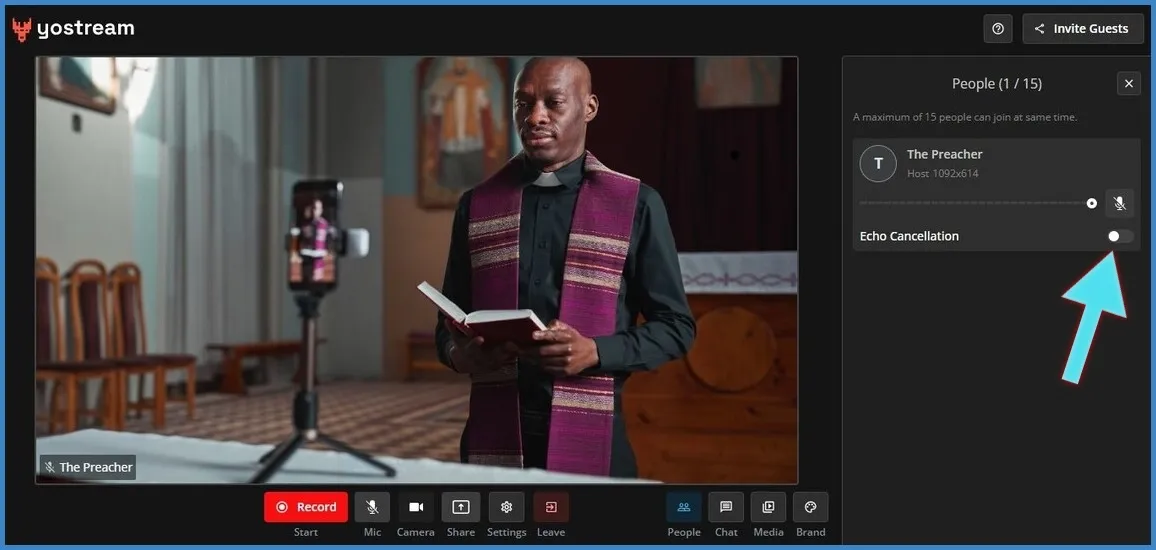
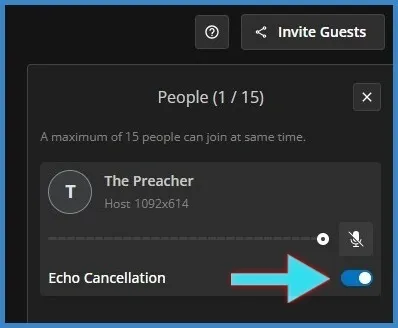
4. Use Yostream with Echo Cancellation
For remote podcasting, software plays a crucial role in audio quality. Yostream is the best podcast recording software for eliminating echo, thanks to its robust echo cancellation feature. Here’s how to use it:
Enable Echo Cancellation: In Yostream’s audio settings, toggle on the echo cancellation option. This feature uses advanced algorithms to suppress feedback and reverb, ensuring clean audio even when guests aren’t using headphones.
Test Before Recording: Run a test recording to confirm that echo cancellation is working effectively.
Follow these Steps to Enable Echo Cancellation in Yostream
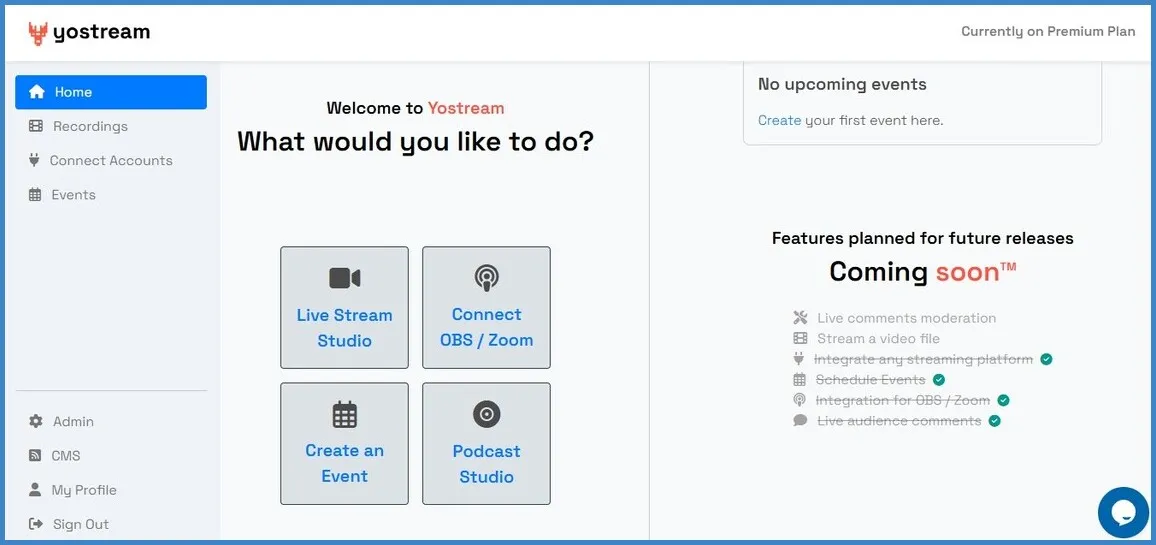
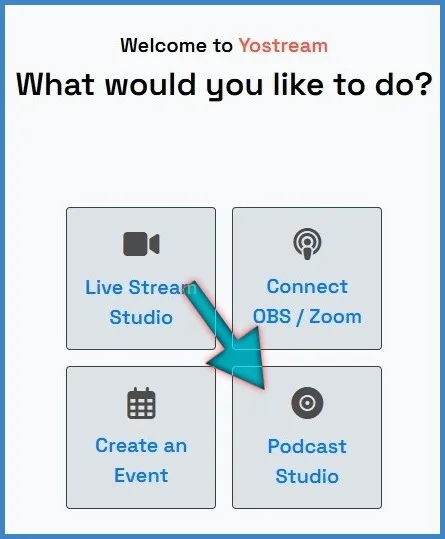
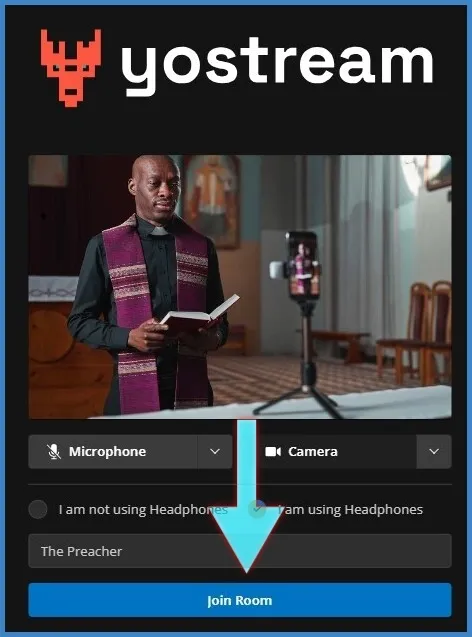
Why Yostream? Yostream’s intuitive interface, cloud-based recording, and patented echo cancellation technology make it superior to competitors like Zoom or StreamYard for remote podcasting. Its ability to handle multi-track recordings and integrate with editing software adds significant value.
Chart: Comparison of Podcast Recording Software for Echo Cancellation
Software | Echo Cancellation | Multi-Track Recording | Ease of Use | Monthly Cost |
|---|---|---|---|---|
Yostream | Advanced | Yes | High | $15 |
Zoom | Basic | Limited | Moderate | $15.99 |
StreamYard | Moderate | Yes | High | $44.99 |
SquadCast | Moderate | Yes | High | $16 |
5. Adjust Software and Hardware Settings
Incorrect settings can introduce echo or delay. Here are the best settings to eliminate echo in podcast software:
- Turn Off Audio Enhancements: On Windows, disable microphone enhancements in the sound settings, as they can cause echo.
- Use a Low Latency Interface: An audio interface like the Focusrite Scarlett 2i2 reduces delay in audio processing.
- Monitor Levels: Keep input gain moderate to avoid amplifying ambient noise or reflections.
- Disable Auto-Ducking: On platforms like Zoom, turn off auto-ducking, as it can cause garbled audio when multiple speakers talk simultaneously.
How to Fix Echo in Post-Production
If echo slips into your recording, post-production tools can help salvage the audio. However, prevention is always better than correction, as heavy editing can degrade quality. Here’s how to fix echo issues in podcast audio:
1. Use Audio Editing Software
Software like Audacity, Adobe Audition, or GarageBand offers tools to reduce echo:
Noise Reduction: Select a silent portion of the audio to create a noise profile, then apply noise reduction to minimize background echo.
Noise Gate: Mute sections where no one is speaking to reduce ambient reverb.
De-Reverb Plugins: Use specialized plugins like CrumplePop EchoRemover or iZotope De-Reverb to target and reduce echo without affecting voice quality.
EQ Adjustments: Reduce frequencies where echo is prominent (often 200–500 Hz) using an equalizer.
2. Manual Editing for Multi-Mic Setups
If echo results from multiple microphones, manually mute tracks when speakers aren’t talking. This is time-consuming but effective for in-person recordings.
Table: Recommended Post-Production Tools for Echo Removal
Tool | Echo Reduction Capability | Monthly Cost | Platform Compatibility |
|---|---|---|---|
CrumplePop EchoRemover | High | $29 | Multiple DAWs |
iZotope De-Reverb | High | $24.99 | Multiple DAWs |
Audacity | Moderate | Free | Windows, Mac, Linux |
Adobe Audition | High | $22.99 | Windows, Mac |
Additional Tips for Professional Podcast Audio
- Test Regularly: Record short clips to check for echo before full sessions.
- Monitor with Headphones: Real-time monitoring helps catch echoes early.
- Educate Guests: If recording remotely, ensure guests use headphones and test their setup.
- Invest in Quality: While budget solutions work, investing in a good microphone and acoustic treatment yields long-term benefits.
FAQs About Podcast Echo Issues
1. Why Does My Podcast Have an Echo, and How Can I Stop It?
Echo is typically caused by reflective surfaces, speaker feedback, or poor microphone placement. To stop it, optimize your recording space with soft materials, use directional microphones, wear headphones, and enable echo cancellation in Yostream.
2. How Do I Fix Echo Issues in Podcast Audio?
Prevent echo by recording in a treated room, using headphones, and adjusting software settings. In post-production, use tools like Audacity or CrumplePop EchoRemover to reduce echo.
3. What Are the Best Settings to Eliminate Echo in Podcast Software?
In Yostream, toggle on echo cancellation, monitor input levels, and ensure low latency. Disable audio enhancements in your computer’s sound settings and use a directional microphone to minimize echo.
4. How Can I Avoid Echo When Recording a Podcast?
Choose a small, furnished room, position your microphone close to your mouth, wear headphones, and use Yostream’s echo cancellation feature. Regularly test your setup to catch issues early.
5. Can I Eliminate Podcast Audio Echo Without Expensive Equipment?
Yes! Use household items like blankets or pillows to treat your room, invest in a budget-friendly directional microphone (e.g., Samson Q2U), and leverage free software like Audacity for post-production.