

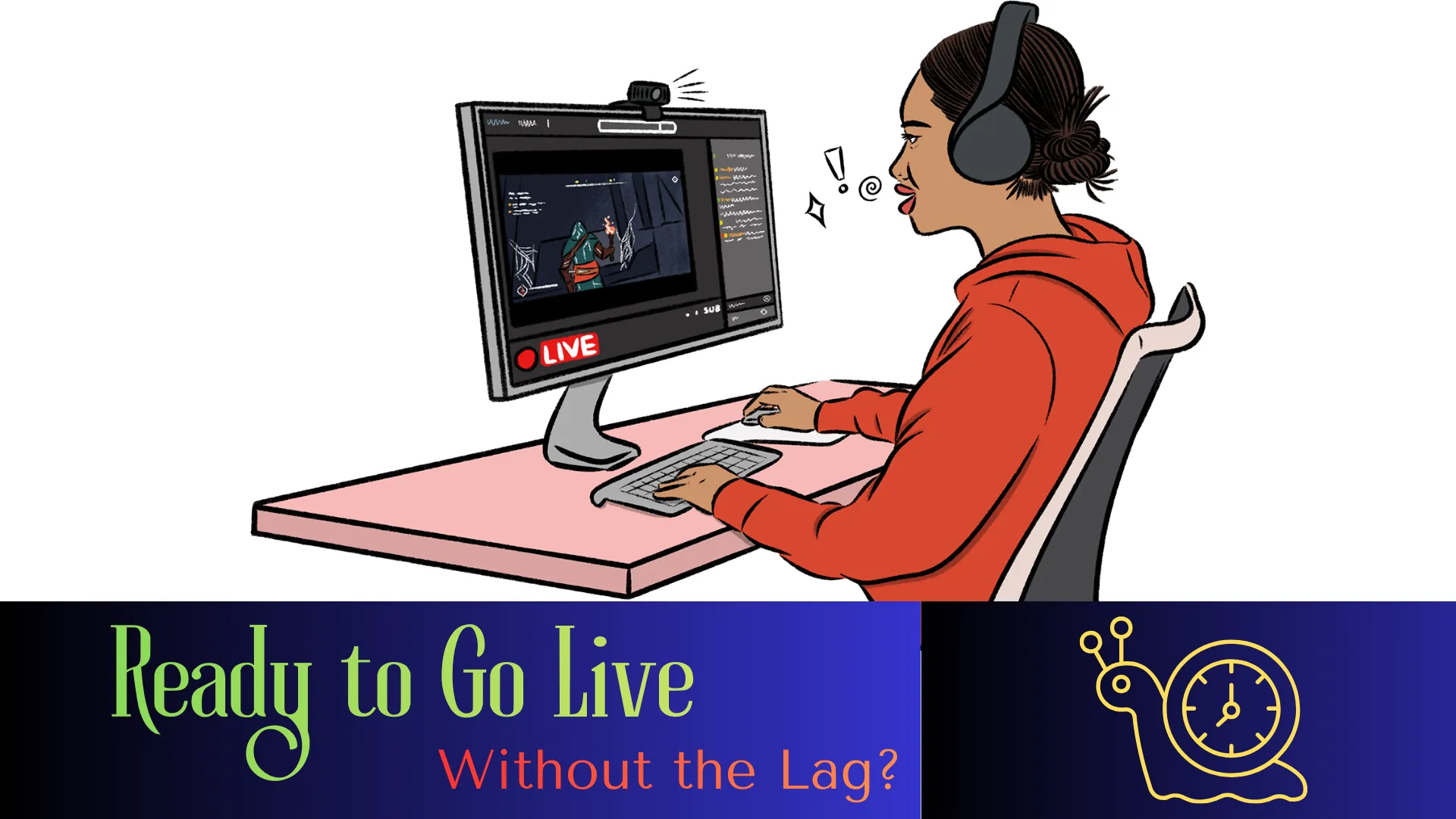
For creators everywhere, a slow or unstable internet connection is the fastest way to ruin a live stream, causing frustrating buffering and dropped frames for your audience. The good news is that you don't need fiber-optic speeds to go live successfully. With the right techniques and tools, you can broadcast a stable, watchable stream even on a less-than-perfect connection.
To go live with slow internet, you must prioritize stability over quality. Immediately lower your stream resolution to 720p or 480p, reduce your bitrate to between 2500 and 3500 kbps, and connect via a wired Ethernet cable instead of Wi-Fi. Using browser-based live streaming software can also offload the heavy processing to the cloud, making your stream more reliable on an older computer or weak connection.
Quick Summary: Solutions for Streaming on a Slow Connection
| Solution | How It Helps | Effort Level |
|---|---|---|
| Switch to Ethernet | Provides a stable connection, eliminating Wi-Fi interference and packet loss. | Low |
| Lower Resolution & Bitrate | Reduces the amount of data your stream needs to upload, preventing buffering. | Medium |
| Use Browser-Based Software | Offloads encoding to the cloud, reducing strain on your computer and network. | Low |
| Close Bandwidth-Hogging Apps | Frees up bandwidth for your stream by stopping background downloads and uploads. | Low |
| Optimize Encoder Settings | Fine-tunes how your computer compresses video, ensuring efficiency without overloading your CPU. | High |
| Use a Bonding Service | Combines multiple internet sources (like Wi-Fi and 4G) into one super connection for ultimate stability. | Medium |
Step-by-Step Solutions for Live Streaming with Slow Internet
If your upload speed is less than ideal, follow these steps in order to get the most stable stream possible.
1. Hardwire Your Connection
The single biggest improvement you can make is to stop using Wi-Fi. Wi-Fi is susceptible to interference, signal drops, and congestion. Connect your computer directly to your router with an Ethernet cable. This provides a consistent and reliable data path, significantly reducing the risk of sudden connection drops and packet loss.
2. Lower Your Streaming Resolution
High-resolution video like 1080p requires a lot of data. Dropping your resolution is the most effective way to reduce your bandwidth usage.
- If you usually stream at 1080p, drop to 720p.
- If your connection is very weak (under 3 Mbps upload), drop to 480p (SD) .
- Also, ensure your frame rate is set to 30fps, not 60fps, as 60fps nearly doubles your data requirement. You can check out this guide to identify the ideal frame rate for different types of content
3. Optimize Your Bitrate
Your bitrate is the amount of data you send per second. You must set this to a value your internet connection can handle comfortably. A good rule is to set your bitrate to no more than 70-80% of your tested upload speed.
- Run a speed test (like Ookla Speedtest) to find your upload speed in Mbps.
- Convert your target bitrate: 1 Mbps = 1000 kbps. So, if your upload speed is 5 Mbps, your maximum safe bitrate is around 4000 kbps (80% of 5000 kbps).
- For a 720p stream, start with a bitrate between 2500 and 3500 kbps.
4. Close Everything Else
Your computer and network are shared resources. Before going live, shut down any application that might be using the internet or taxing your CPU.
- Close: Cloud backup apps (Dropbox, Google Drive), torrent clients, video games, and even other browser tabs streaming music or video.
- Pause: Any pending updates on your computer or game consoles, as these can start downloading without warning.
Technical Section: Understanding Bitrate, Upload Speed, and Resolution
To consistently achieve a stable stream, you need to understand the relationship between three key technical concepts.
- Upload Speed: This is the amount of data your connection can send to the internet, measured in megabits per second (Mbps). This is your primary constraint. You can find your upload speed by running an online speed test. Remember, your stream isn't the only thing using this; a small amount is needed for overhead and other computer tasks.
- Bitrate: Measured in kilobits per second (kbps), this is the specific setting in your streaming software that dictates how much data you allocate to your video. A higher bitrate gives a better-looking image but requires more upload speed. The golden rule: Your upload speed must always be higher than your chosen bitrate. Aim for 20-30% headroom.
- Resolution and Frames Per Second (FPS): These settings determine the size and smoothness of your video.
- 1080p (1920x1080): Requires a high bitrate (4500-6000 kbps). Not recommended for slow internet.
- 720p (1280x720): The sweet spot for slow connections. Looks good with a bitrate of 2500-3500 kbps.
- 480p (854x480): A reliable fallback for very poor connections, requiring a bitrate under 2000 kbps.
Here is how resolution and bitrate work together: If you have an upload speed of 4 Mbps, you cannot simply stream at 1080p. The required 4500+ kbps bitrate would max out your connection, causing severe lag. You must instead choose 720p and a lower bitrate like 3000 kbps, which fits comfortably within your 4 Mbps limit.
Comparison Table: Recommended Streaming Setups by Internet Speed
| Your Upload Speed | Max Resolution / FPS | Recommended Bitrate | Best Software Type | Key Strategy |
|---|---|---|---|---|
| 1 - 3 Mbps | 480p (SD) @ 30fps | 1000 - 2000 kbps | Browser-based | Go audio-only if video is unstable. Prioritize clean audio at AAC 128 kbps . |
| 3 - 5 Mbps | 720p @ 30fps | 2500 - 3500 kbps | Browser-based or Encoder | Wired Ethernet is essential. |
| 5 - 10 Mbps | 720p @ 60fps or 1080p @ 30fps | 3500 - 5000 kbps | Encoder (OBS, Streamlabs) | You have more flexibility; prioritize stability. |
| Unstable / Variable | Adaptive (e.g., 720p) | 2500 - 3000 kbps | Bonding Service (Speedify) or Hardware like LiveU | Combine connections (Wi-Fi + Cellular) to create a stable link. |
Even with the right settings, problems can arise. Here is how to diagnose and fix the most common issues.
- Problem: Buffering for viewers / Dropped Frames in your encoder software.
- Cause: Your network cannot handle the bitrate you've set, or there is packet loss. In some cases, the issue might be on the platform's end with their Content Delivery Network (CDN), though this is less common.
- Fix: Lower your bitrate further. If you are at 3000 kbps, try 2500 kbps. Also, check your network for instability by running a constant ping to a server (like ping google.com -t on Windows) and look for timeouts or high latency spikes.
- Problem: Stream is choppy or lagging, but frames aren't dropping.
- Cause: Your computer's hardware (CPU or GPU) is overloaded and cannot encode the video fast enough. This is known as "encoding lag."
- Fix: Close background applications. If using a software encoder like OBS Studio, switch your encoder from software (x264) to hardware (NVENC or AMD/Intel Quick Sync) if available. This offloads the work to your graphics card. You can also adjust your x264 encoder preset. Using a "veryfast" or "faster" preset significantly reduces CPU load, making it the best choice for older computers, though it may require a slightly higher bitrate to maintain the same visual quality.
- Problem: Video is pixelated, but the stream is stable.
- Cause: Your bitrate is too low for the complexity of the scene (e.g., fast motion or high detail).
- Fix: If your connection has headroom, increase your bitrate slightly. If not, simplify your scene. Avoid fast camera movements or high-detail backgrounds. Also, ensure your audio bitrate is set correctly; a standard like AAC at 128 kbps provides clear sound without using much bandwidth, ensuring your viewers at least hear you well even if the video suffers.
- Problem: Sudden stream disconnection.
- Cause: A major internet outage or a router glitch.
- Fix: First, check if your router needs a restart. For long-term fixes, consider a bonding solution. Software like Speedifycan combine Wi-Fi and your phone's 5G connection seamlessly. For professional remote broadcasting, dedicated hardware encoders from companies like LiveUor Peplinkcan bond multiple cellular networks at a hardware level for broadcast-grade reliability, completely bypassing a single weak home connection.
Tools Section: Choosing the Right Streaming Software
Your choice of software can make or break your stream on a slow connection. You generally have two paths: traditional encoders or modern browser-based studios.
1. Traditional Encoders (Desktop Software)
These are powerful, feature-rich applications installed on your computer. They offer maximum control but require more technical knowledge and a capable computer.
- OBS Studio: The industry standard. It's free, open-source, and has an "Auto-Configuration Wizard" that can test your system and network to suggest initial settings. It also offers a beta "dynamic bitrate" option to adjust to network changes.
- Streamlabs Desktop: Built on OBS, it adds integrated widgets, alerts, and a more user-friendly interface. It includes a "Dynamic Bitrate" feature that automatically lowers your quality when it detects congestion, which is perfect for unstable connections.
- XSplit: A popular paid alternative known for its ease of use and powerful scene creation tools.
2. Browser-Based Live Streaming Software (Cloud Studios)
These platforms run entirely in your web browser (like Chrome or Edge). They are revolutionizing streaming for people with slow internet or modest computers by performing the heavy video encoding in the cloud, not on your machine.
- Yostream: A versatile browser-based platform that lets you go live from any device—desktop, tablet, or phone—without downloads. For users with very low bandwidth, Yostream's browser-based nature reduces local CPU strain. If you are a gamer or need more advanced scene control, Yostream also supports connecting external encoders like OBS via its RTMP Source feature, giving you the best of both worlds: powerful local capture with cloud-based distribution and guest hosting.
- StreamYard: Another popular browser studio that simplifies live production. It uses fixed, clear bitrates for each resolution, so you know exactly what to expect. Its guest-friendly interface and simple troubleshooting (like dropping a guest to audio-only) make it ideal for interviews and panels on slow connections.
The Browser-Based Advantage: For slow internet, browser-based tools offer a key benefit: multistream fan-out. If you want to stream to both YouTube and Facebook, a traditional encoder would require you to upload two separate streams, doubling your bandwidth usage. A browser-based studio like Yostream or StreamYard sends one single stream from your computer to their servers, which then redistributes it to all your platforms. This cuts your upload requirement in half.
3. Connection Bonding Tools
- Speedify: This is not a streaming studio but a service that creates a super-stable internet connection. It can bond multiple internet sources together, such as your Wi-Fi and your phone's 5G hotspot. If one connection drops or slows down, your stream seamlessly keeps running on the other. It also has an "Enhance Streaming" mode designed to prioritize streaming traffic for the lowest possible latency.
The Bottom Line
Going live with slow internet is a challenge of management, not magic. By honestly assessing your upload speed, making the necessary trade-offs in resolution and bitrate, and choosing a tool that fits your technical comfort level, you can deliver a smooth experience for your viewers. Remember to pay attention to the finer details: optimize your encoder presets to prevent computer lag, prioritize clean AAC audio as a lifeline for your audience, and consider professional bonding hardware if you stream from extremely remote locations. Whether you opt for the deep control of OBS Studio or the simplicity of a browser-based platform like Yostream, the principles of stability and preparation remain the same. Always test your setup before your actual broadcast, and remember that a stable 720p stream is always better than a buffering 1080p one.