

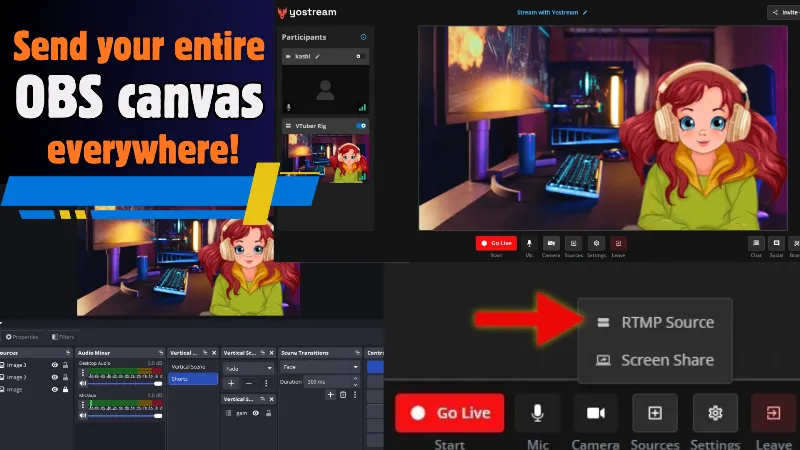
Tired of OBS plugins crushing your FPS?
Done losing half your audience because you only stream to Twitch?
Want your full 1080p60 overlays, animated alerts, green screen, and webcam flair on YouTube, TikTok, Kick, and everywhere else at the same time?
Yostream’s brand-new RTMP Source fixes all of that in literally 180 seconds.
No extra services. No GPU meltdown.
Just pure OBS power and instant multistream domination.
Let’s go. Timer starts now.
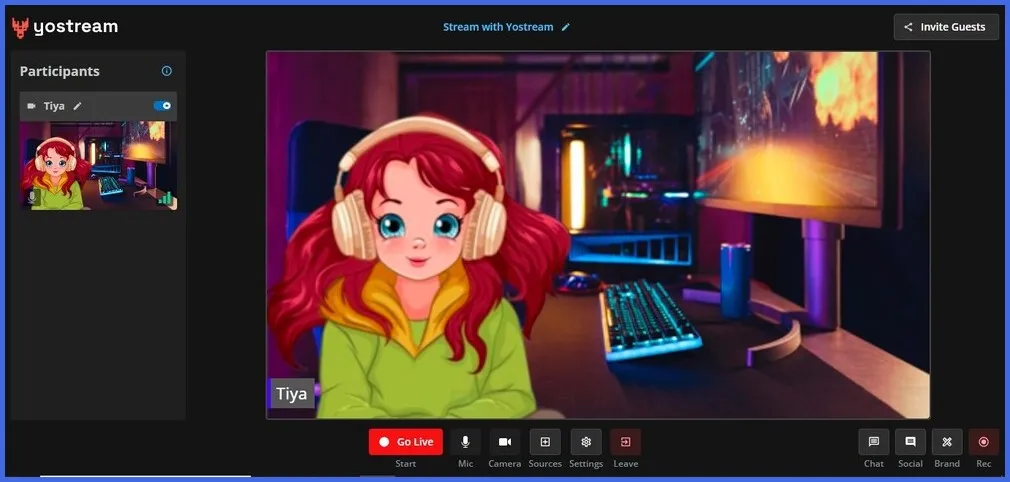
Step 1. Jump into Yostream Studio
Open yostream.io in your browser. Log in and enter the studio (Pro plan or higher required).
Note: The image displayed in the canvas comes from the OBS virtual camera. Make sure you selected the correct source. If you want to know how to use the virtual cam of OBS, you can refer to this guide: How To Use The OBS Virtual Camera?
Step 2. Add a New Source
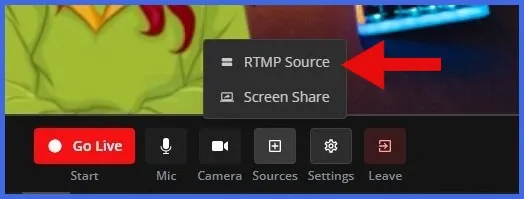
Go to 'Sources' → RTMP Source.
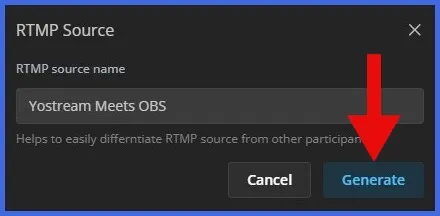
Step 3. Name it Like A Boss & Hit Generate
Examples: “Main Gaming Rig”, “Speedrun Overlay”, “VTuber Full Scene”
Click Generate
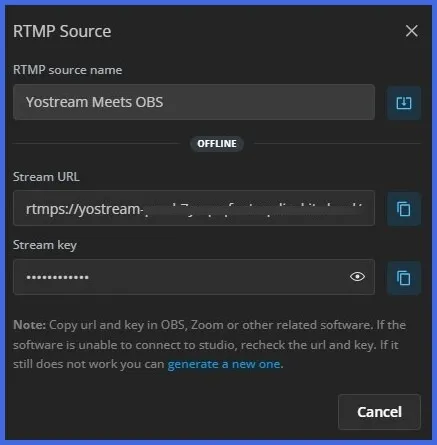
Step 4. Copy the Credentials
Stream URL → copy
Stream Key → copy
(They are unique and secure. Treat the key like a password.)
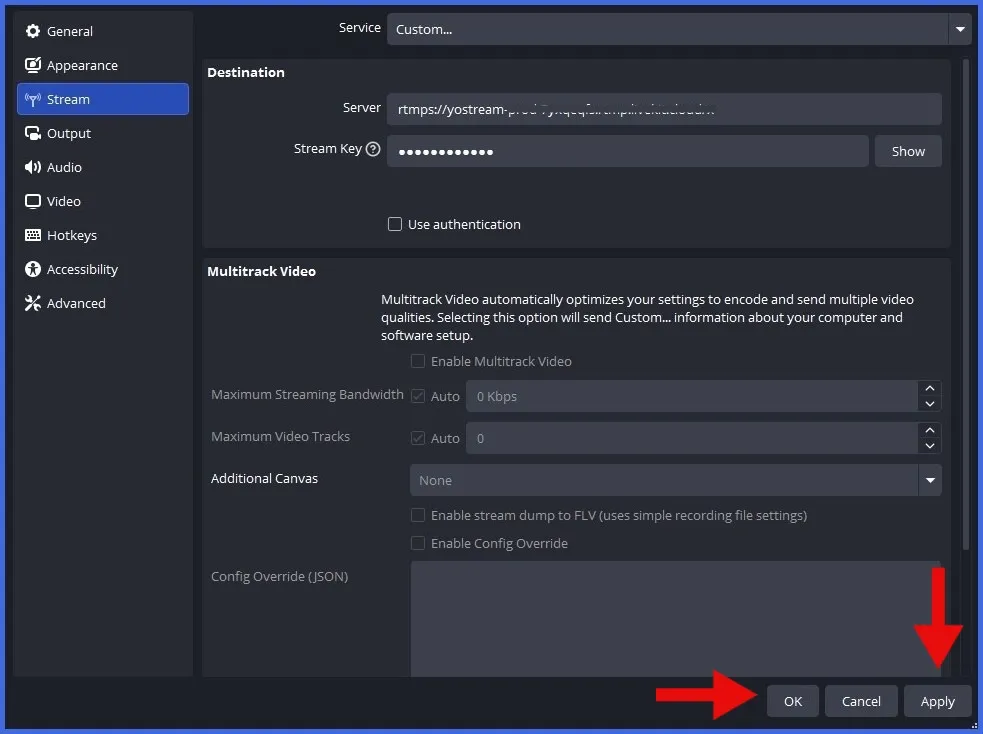
Step 5. Switch to OBS Studio
Settings → Stream
Service: Custom
Server: paste Yostream URL
Stream Key: paste Yostream key
Apply → OK
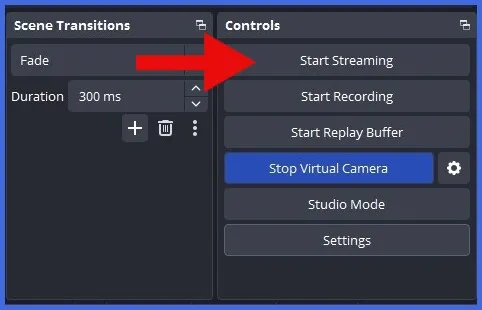
Step 6. Hit Start Streaming in OBS
Do NOT click “Go Live” in Yostream yet.
Step 7. Final Boss Move
Add Yostream theme, ticker, or extra guests.
Select your platforms, such as Twitch, YouTube, Rumble, Facebook, Kick, LinkedIn, etc. You can follow Yostream's guide to know how to start multistreaming.
Smash Go Live.
You are now multistreaming your perfect OBS scene everywhere.
Done. Under 3 minutes. Zero dropped frames.
Best OBS Settings for Yostream RTMP Source
Setting | Recommended Value | Why It Matters |
|---|---|---|
Output Mode | Advanced | |
Encoder | NVENC (NVIDIA) / AMF (AMD) / Quick Sync | Keeps FPS high during gameplay |
Rate Control | CBR | |
Bitrate | 6000 Kbps (1080p60) / 4000 Kbps (720p60) | Perfect balance |
Keyframe Interval | 2 | |
Preset | Quality or Max Quality | |
Resolution | 1920×1080 or 1280×720 | |
FPS | 60 or 30 |
FAQs: Everything You Need to Know About Yostream RTMP Source + OBS
1. Is RTMP Source available on the free or Basic plan?
No. RTMP Source is exclusive to Pro plans and higher. Lower tiers can use webcam or screen share, but not external RTMP ingest.
2. How much latency does this setup add compared to streaming directly to Twitch?
Total end-to-end latency is typically 3–6 seconds, very similar to direct Twitch or YouTube streaming. The RTMP push from OBS to Yostream adds only a fraction of a second.
3. Does Yostream RTMP Source work with Streamlabs OBS or XSplit?
Yes, 100%. Any encoder that supports custom RTMP output works perfectly (Streamlabs OBS, XSplit, vMix, Wirecast, etc.). The steps are identical.
4. My OBS feed isn’t appearing in Yostream. What should I check first?
- Confirm you clicked “Start Streaming” in OBS (not just recording).
- Double-check the Server URL and Stream Key are pasted correctly (no extra spaces).
- Wait 10–20 seconds after starting OBS.
- Refresh Yostream Studio or regenerate the key if needed.
5. Will my OBS alerts, donations, and browser sources still work?
Absolutely. Everything in your OBS canvas (including browser sources for Streamlabs/StreamElements alerts, Twitch chat, donations, etc.) comes through perfectly.
6. Do I need to stop streaming in OBS when ending the Yostream broadcast?
Recommended yes. Click “Stop Streaming” in OBS after ending the Yostream broadcast to free up resources and avoid accidental background encoding.