

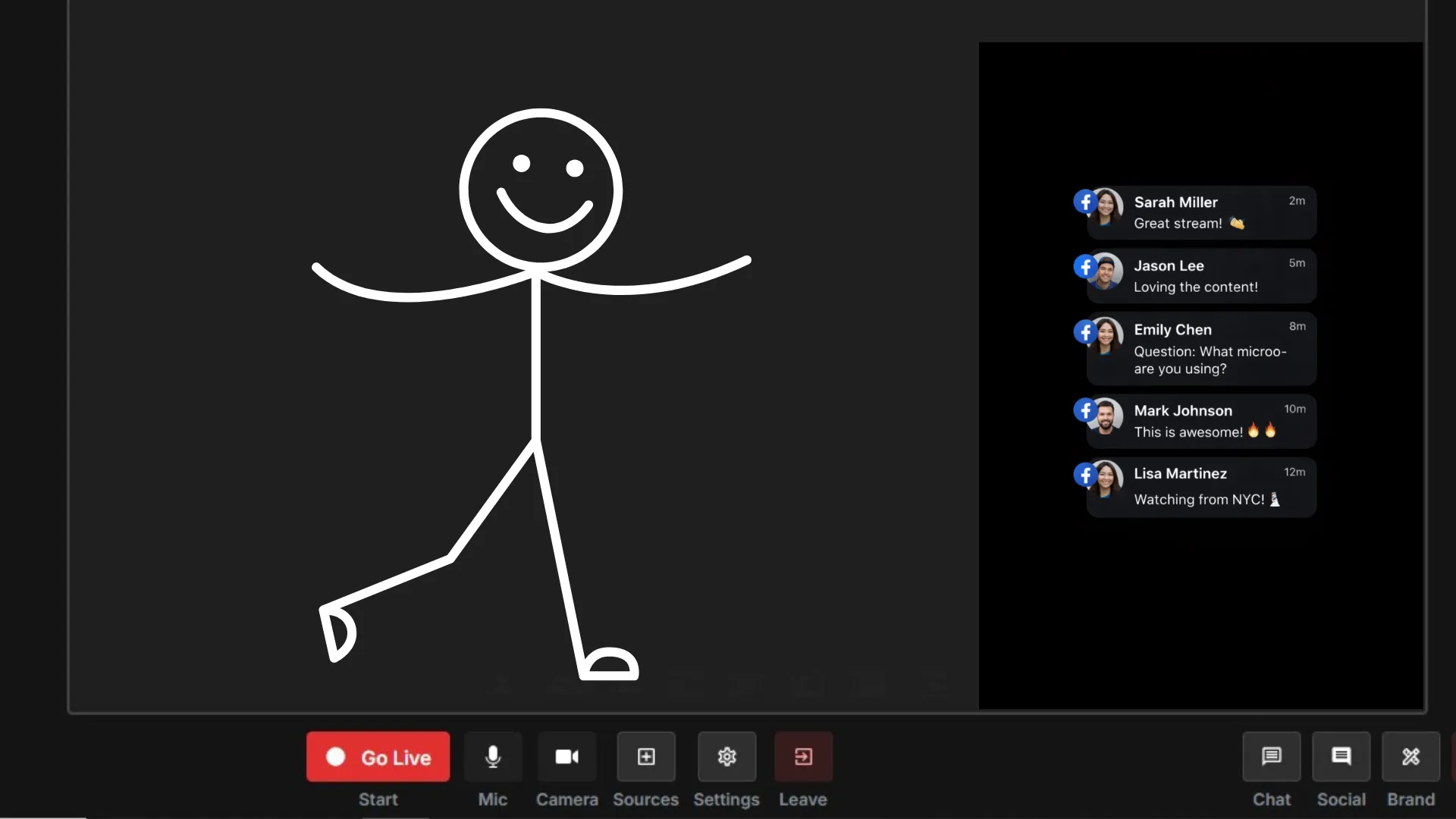
Most Facebook Live streamers read comments out loud but never show them. That is a missed opportunity.
When a viewer's comment physically appears on your stream, three things happen: the commenter feels seen, lurking viewers get social proof that engagement is real, and your stream looks like a produced broadcast rather than a phone held up in a living room.
This guide walks you through:
- The exact setup
- Tools you need
- Common mistakes
- A cleaner way using Yostream
No fluff. Just what works.
Why Show Viewer Comments On-Screen in Facebook Live?
Displaying comments directly on your stream helps you:
- Build real-time engagement 👇
- Acknowledge viewers instantly
- Increase watch time
- Make streams feel conversational
👉 Streams with visible chat overlays typically perform better in:
- Retention
- Interaction rate
- Replay value
What Do You Need to Display Facebook Live Comments?
Basic requirements
| Requirement | Why it matters |
|---|---|
| Streaming software | To capture and display comments |
| Facebook Live access | Source of comments |
| Stable internet | Prevent lag in chat sync |
| Browser-based or desktop tool | For overlay rendering |
Can You Show Comments Directly Inside Facebook Live?
👉 Short answer: No
Facebook does not natively allow comment overlays inside the stream.
You need:
👉 A third-party streaming tool
Method 1: Standard Yostream Setup (Direct Facebook Connection)
1. Log in to Yostream
Open Yostream in your browser.
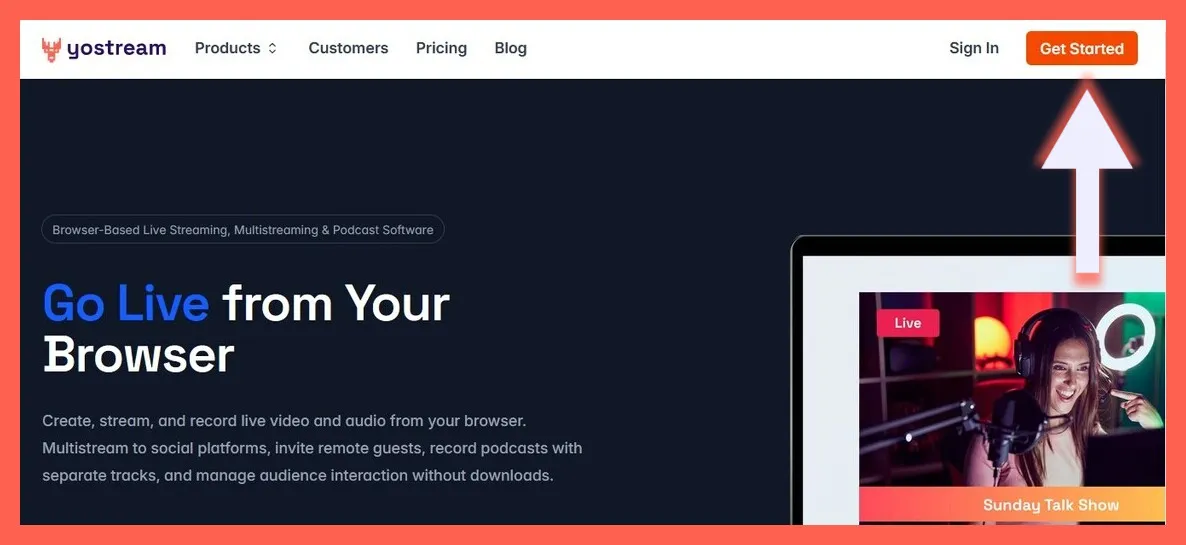
Click Get Started and log in.
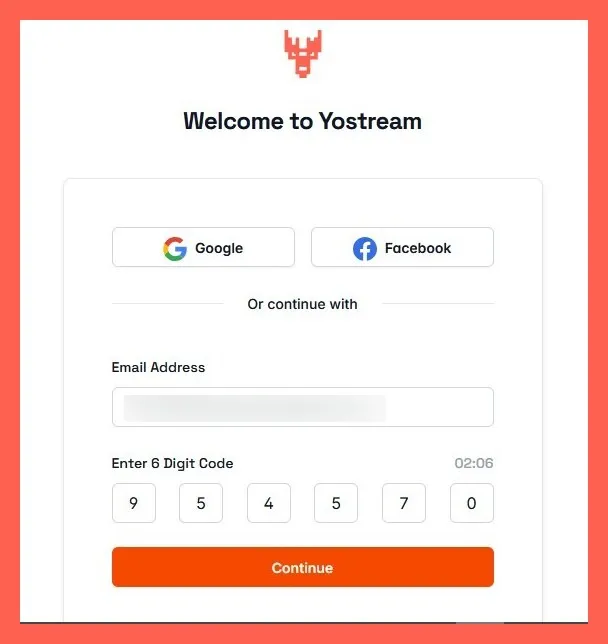
2. Enter Studio
Click Start Live Stream.
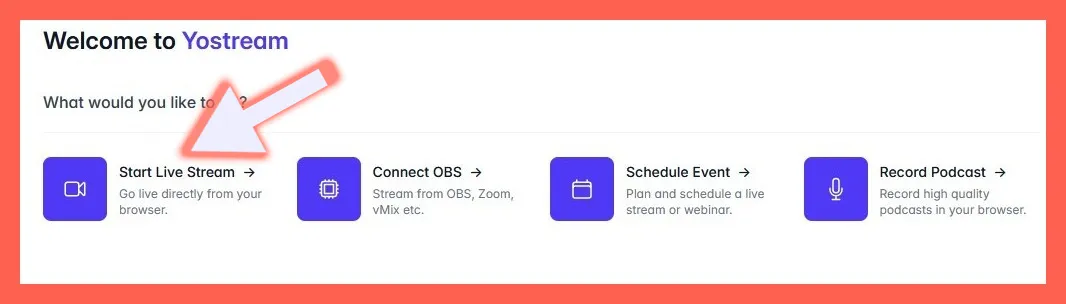
Provide a username. Select camera, mic, and join room.

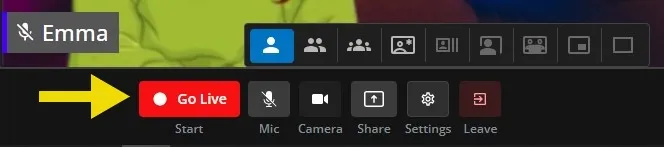
3. Click “Go Live”
After entering the dashboard, you'll see the "Go Live" option at the bottom.
4. Connect Facebook
- Click Connect Account
- Select Facebook (Page/Profile)
👉 Authorize access and select your destination

5. Enable Comment Overlay
Go to Social in the bottom-right corner.
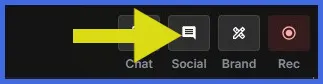
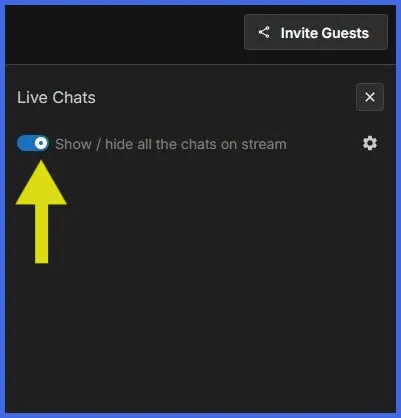
Toggle Live Chats overlay ON.
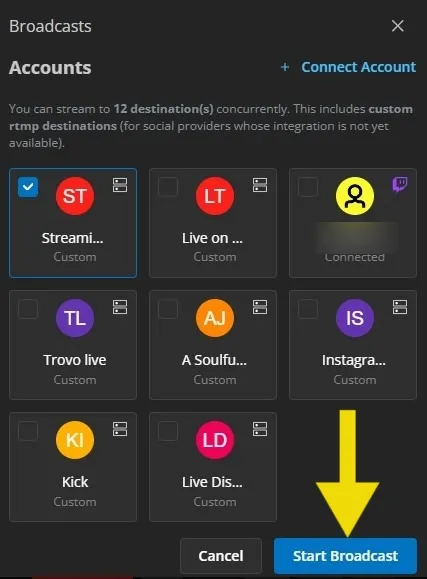
6. Start Streaming
Click Start Broadcast.
⚠️ Method 2: Show Comments Using Custom RTMP (Important Backup Method)
Use this when Facebook integration fails due to any technical glitch.
🔧 Step-by-step (Custom RTMP + Yostream)
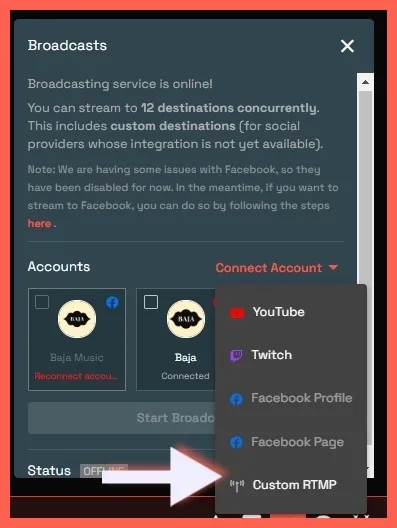
1. Add Custom RTMP in Yostream
- Click Connect Account
- Select Custom RTMP
Enter:
- Destination Name
- Stream URL
- Stream Key
2. Get Stream Key from Facebook
Go to Facebook Live:
- Click “What’s on your mind?”
- Click three dots
- Select Live video
3. Choose Streaming Software
Select:
👉 Streaming Software
4. Copy Credentials
Copy:
- Stream Key
- Server URL (under advanced settings)
5. Paste into Yostream
- Paste Stream Key + URL into Yostream
- Click Add Destination
👉 Now Facebook is connected via RTMP
6. Start Broadcast from Yostream
- Select destination
- Click Start Broadcast
7. Finalize on Facebook
Go back to Facebook tab
Add:
- Title
- Description
Click Go Live
8. Enable Comments Overlay (Same as before)
Inside Yostream:
- Turn ON Live Chats overlay
📌Important: Yostream
Steps 1 to 7 in Method 2 follow the complete process of streaming to Facebook using Custom RTMP. If you need additional clarity at any point, refer to this detailed step-by-step guide: How To Stream To Facebook Using Custom RTMP?
Pro Tips to Make On-Screen Comments Look Better
🎯 Keep it Readable
- Avoid too many comments at once
- Use high-contrast colors
🎯 Highlight Important Comments
- Pin questions
- Show viewer names
🎯 Avoid Screen Clutter
- Don’t cover gameplay or main content
- Place comments at bottom or side
🎯 Moderate your chat
- Filter spam
- Highlight meaningful interactions
Common Problems and Fixes
❌ Comments Not Showing
Fix:
- Reconnect Facebook account
- Refresh stream dashboard
❌ Delay in Comments
Fix:
- Check internet stability
- Reduce stream bitrate (if using OBS or other encoders)
❌ Overlay not visible
Fix:
- Ensure overlay toggle is ON
- Check layer positioning
Frequently Asked Questions
1. Can I show YouTube and Facebook comments on-screen at the same time?
Yes, if you are multistreaming. Tools like Yostream support simultaneous streaming to multiple platforms and can aggregate comments from all destinations into a single chat overlay. This is useful for creators who broadcast to both Facebook and YouTube simultaneously.
2. Why are my comments not showing up in my overlay tool?
Common causes:
- Your Facebook stream is not yet live (comments only flow after you click Go Live on Facebook)
- The RTMP connection between your tool and Facebook dropped or was not authenticated properly
- Your overlay tool is not connected to the correct Facebook account or Page
- Facebook's API rate limit is temporarily throttling comment retrieval (rare but possible during viral streams)
3. Does Facebook charge to use RTMP streaming?
No. RTMP access through Facebook Live Producer is free. You need a Facebook account and either a personal profile, a Page you manage, or a Group. There are no fees from Facebook's side for using Custom RTMP.
4. Can I show comments on-screen during a Facebook Live on mobile?
Showing custom overlays on mobile Facebook Live is not possible through native tools. Mobile Facebook Live only supports the basic "Feature a Comment" function. For overlay-based comment display, you need to stream from a desktop or laptop using RTMP software.
5. What is the difference between pinning a comment and featuring a comment on Facebook Live?
On Facebook Live:
- Feature a Comment: Displays the comment as an overlay visible to all viewers during the live broadcast
- Pin a Comment: Keeps a comment at the top of the comment thread so viewers can easily see it, but does not create a video overlay
For on-screen display, "Feature a Comment" is the relevant function.