

Telegram channel streaming is fast becoming a reliable way for creators, teachers, gamers, and community leaders to connect with their audiences. With over 900 million monthly active users, the app is not just for messaging; it has evolved into a live broadcasting platform where you can reach hundreds or even thousands of followers at once.
If you want to start a live stream on Telegram desktop, broadcast a Telegram live video from PC, or connect live streaming software for Telegram, this tutorial explains every step in plain language.
Getting Started with Live Streaming on Telegram PC
Step 1: Install or Update Telegram Desktop
To use live video, you need the latest version of Telegram Desktop or Telegram for macOS. Download from the official Telegram website.
- Launch the app.
- Log in with your phone number.
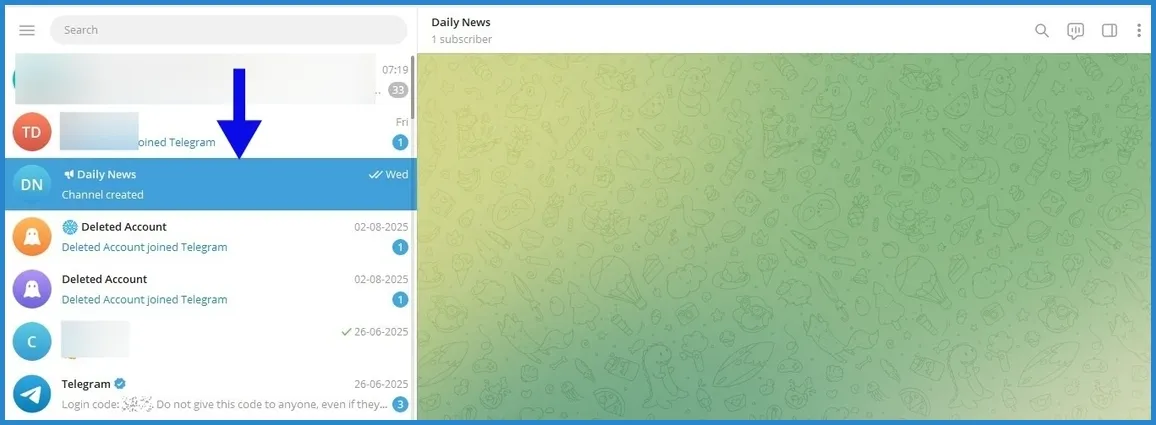
- Create a new Telegram channel or open an existing one where you want to broadcast.
Step 2: Understand the Two Options
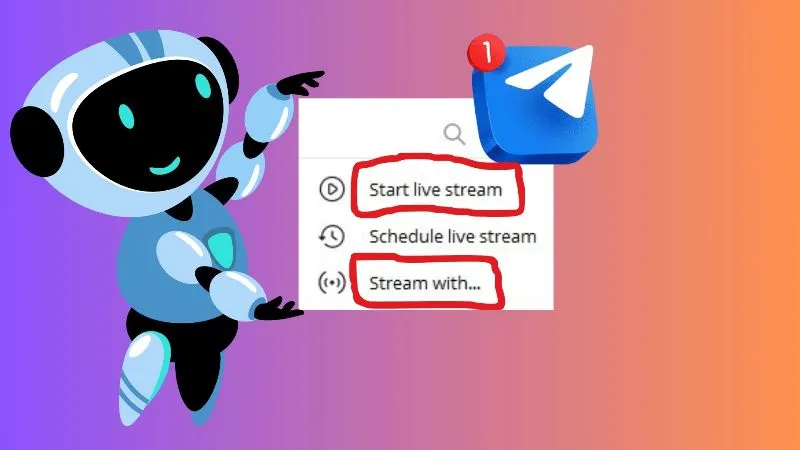
When you select “Go Live” on a channel, Telegram gives you two choices:
- Start Live Stream – uses your webcam and microphone directly inside Telegram.
- Stream With… – connects Telegram to external live streaming software via RTMP.
Both work, but they solve different problems. Let’s break them down.
Start Live Stream (Direct in Telegram)
This is the built-in, straightforward option for Telegram channel streaming.
How it works
- Uses your computer’s camera and microphone.
- Entirely managed inside the Telegram app.
Why choose it
- Simple setup: No third-party software.
- Quick broadcasting: Ideal for Q&A, face-to-face talks, community updates.
- Replay support: Telegram keeps the recording for later viewing.
Limitations
- No overlays, branding, or professional controls.
- No multistreaming to YouTube, Twitch, or Facebook.
- Screen sharing is limited to what Telegram offers.
Stream With External Tools (RTMP Option)
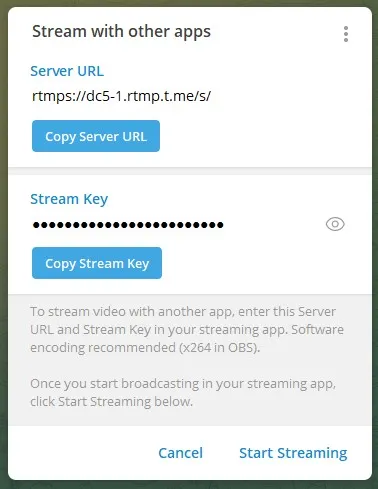
This option is designed for creators who need more flexibility. Telegram generates an RTMP server URL and Stream Key so you can connect professional live streaming software.
How it works
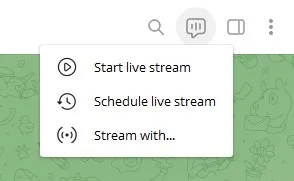
- In your channel, click the chat icon → Stream With….
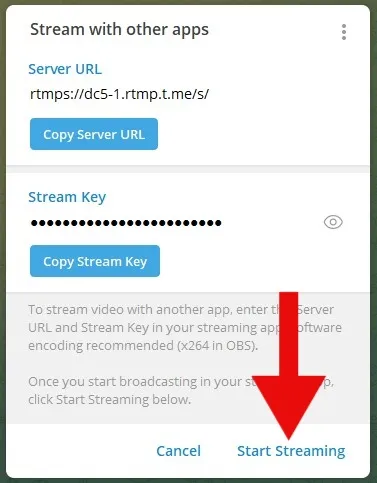
- Copy the RTMP server URL and Stream Key provided.
- Paste them into your chosen streaming software (Yostream).
- Configure your inputs (screen, overlays, external mic).
- Start streaming from your software. Your live broadcast appears directly in your Telegram channel.
Why choose it
- Customizable: Add branding, overlays, and graphics.
- High quality: Stream in HD with stable frame rates.
- Multistreaming: Broadcast to Telegram and other platforms simultaneously.
- Flexible inputs: Use pro cameras, podcast mics, screen capture, or even multi-guest setups.
Step 3: How to Live Stream on a Telegram Channel Using Yostream
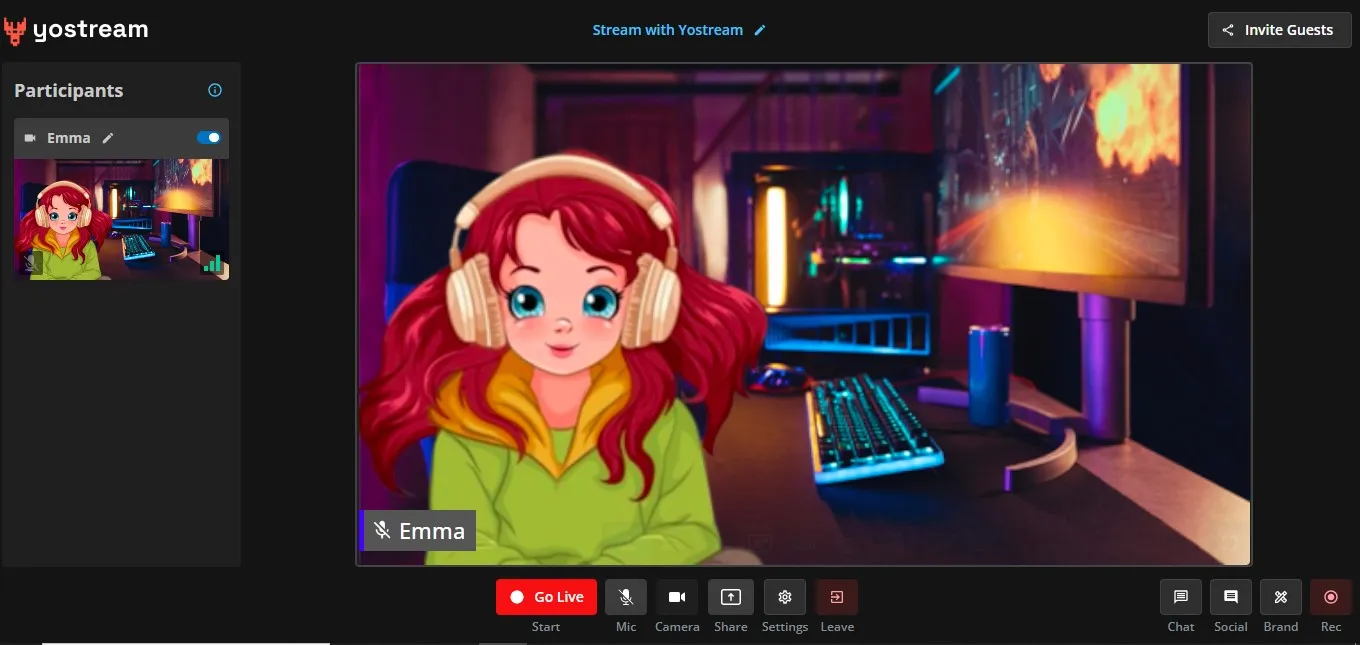
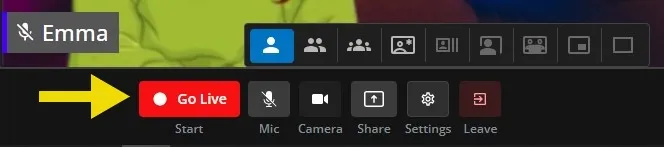
Click Go Live.
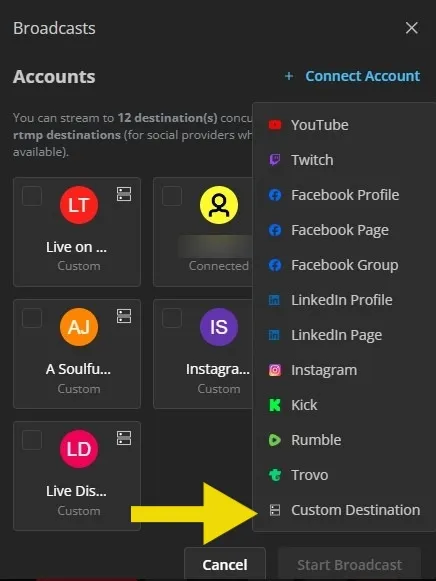
Click Connect Account.
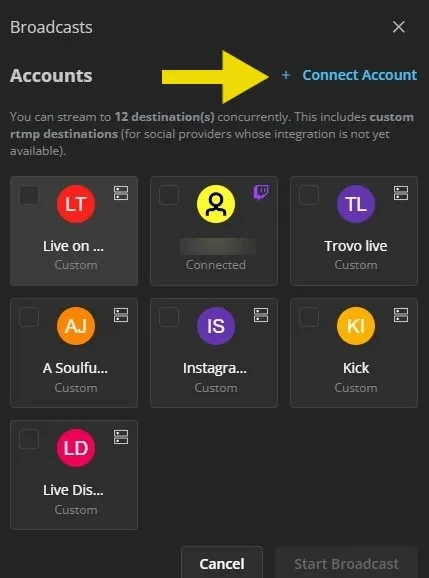
From the list of accounts that are already integrated with Yostream, select Custom Destination at the bottom.
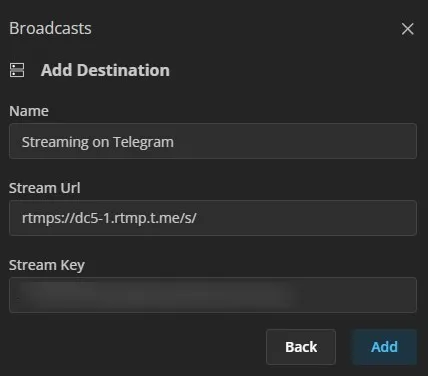
Copy the Server URL and Stream Key from Step 2, and paste them into the respective fields of the Add Destination form. Also, provide a name for your streaming session. Click Add to continue.
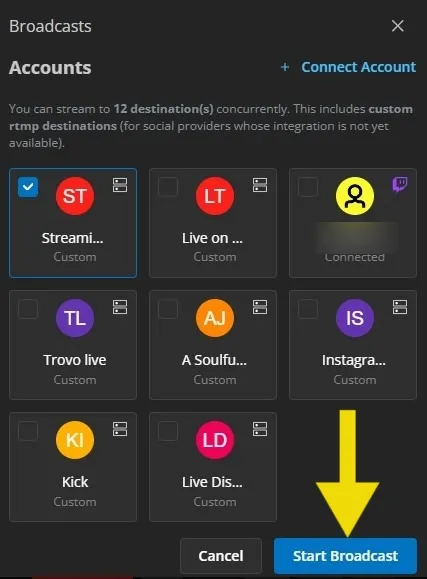
Select the newly-connected account and click Start Broadcast.
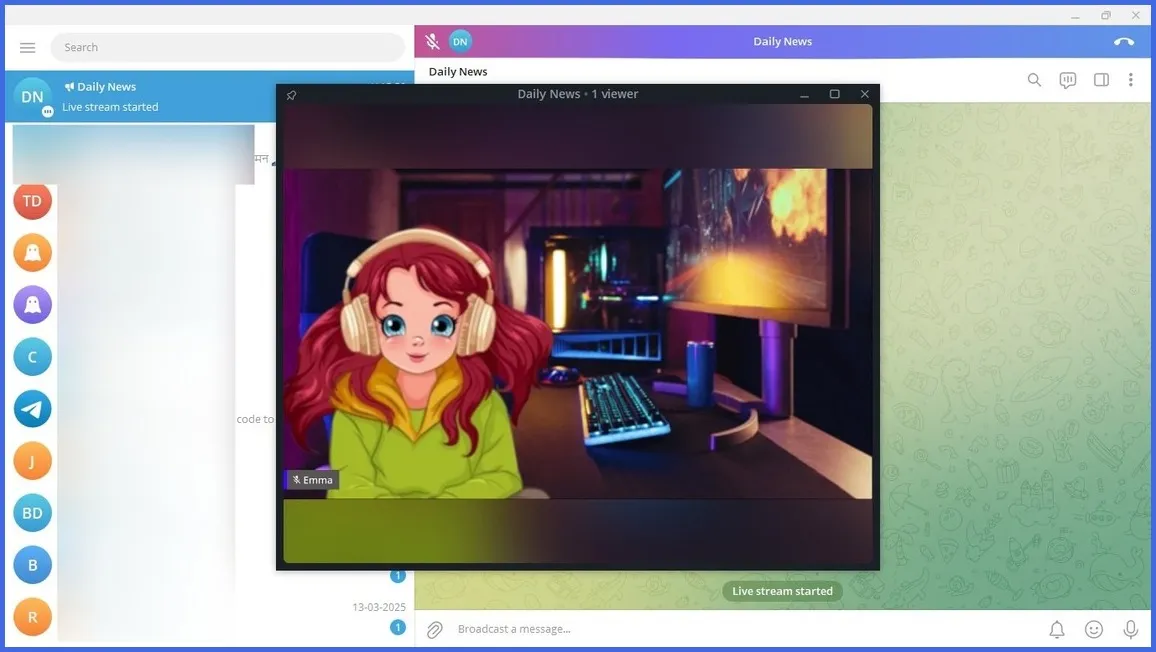
Visit your Telegram desktop, and click Start Streaming.
You're now successfully live streaming on Telegram desktop using Yostream.
Recommended Live Streaming Software for Telegram
If you plan to use Stream With…, you’ll need the right tool.
- OBS Studio – Free and open-source, perfect for custom setups. (obsproject.com)
- Streamlabs – Popular with gamers who need overlays and alerts. (streamlabs.com)
- Yostream.io – A browser-based streaming tool that requires no downloads. Yostream makes Telegram channel streaming simple with features like:
- Multistreaming to YouTube, Twitch, Facebook, and Telegram.
- Guest invites for podcasts and interviews.
- Low-latency streaming for interactive events.
- Multistreaming to YouTube, Twitch, Facebook, and Telegram.
Yostream is especially useful if you don’t want the technical setup of OBS or Streamlabs.
Common Questions About Telegram Channel Streaming
Can I multistream on Telegram?
Yes, but only if you choose Stream With… and connect software like Yostream or OBS.
Does Telegram save live streams?
Yes. After your broadcast, Telegram lets you save and share the video in your channel.
Which option is better for gaming?
Stream With… is better since it supports screen capture, overlays, and higher quality output.
Can I stream from my browser?
Yes. Tools like Yostream let you live stream on Telegram without installing software.