

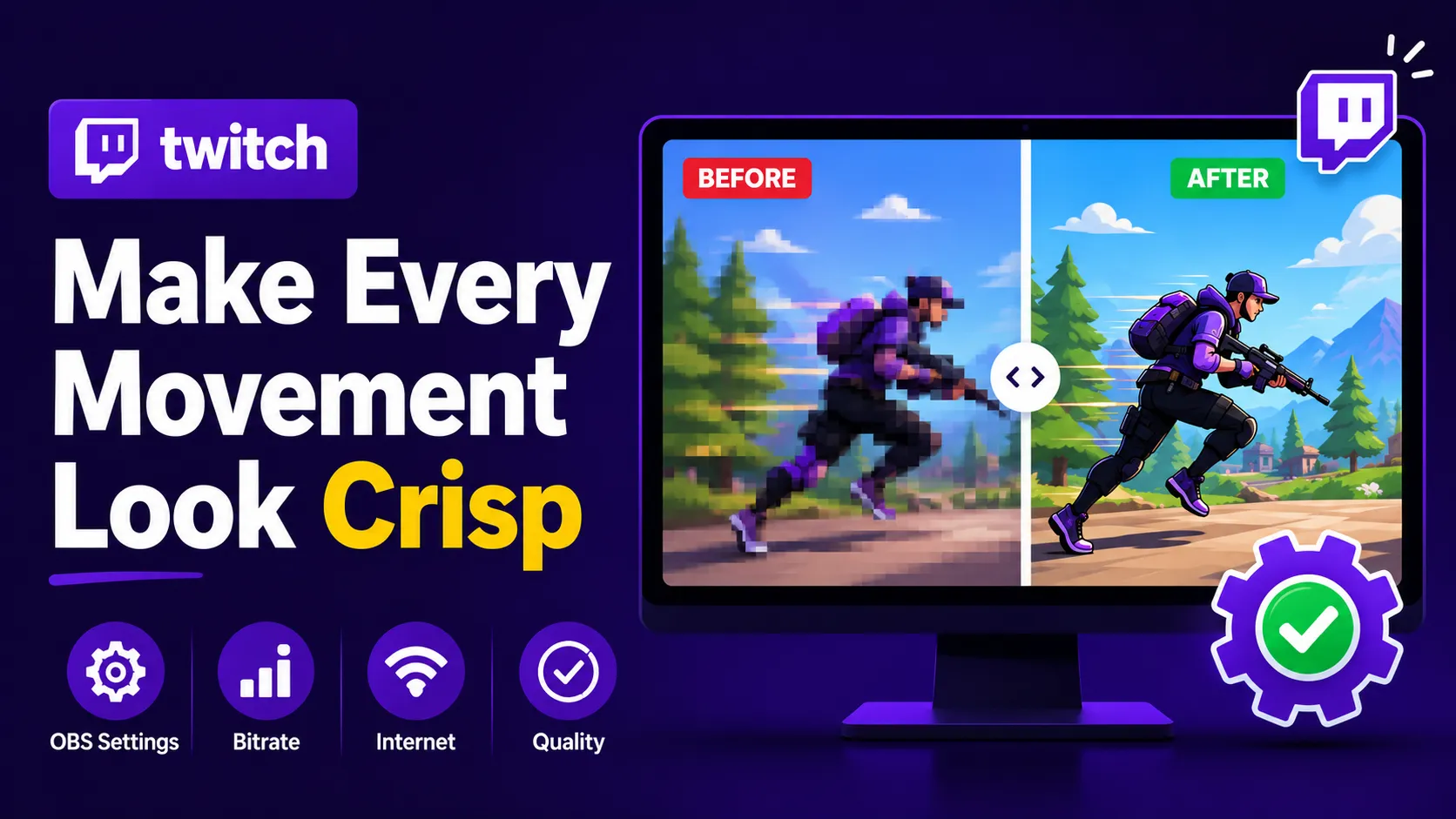
Your stream looks fine when you're sitting still, then the second you turn a corner in-game or wave your hands during an IRL segment, it turns into a blocky mess. If that's what's happening to you, it's almost never your internet in the way people assume. It's that your encoder doesn't have enough bitrate to describe everything that changed between one frame and the next, so it starts throwing detail away. The fix is usually a handful of settings changes, not a hardware upgrade.
Why Pixelation Shows Up Specifically When You Move
A still frame barely changes from the one before it, so your encoder can compress it hard without anyone noticing. A fast-moving game scene or a person walking across frame changes thousands of pixels a second, and if the bitrate ceiling can't keep up, the encoder starts cutting corners: blocky artifacts, smeared motion, mushy detail in dark areas. That's why a stream can look sharp standing still and fall apart the moment there's real motion on screen.
Twitch's own broadcasting guidelines put most streamers in the 3,000–6,000 Kbps range depending on resolution and frame rate, with some room above that for partners.
What's Actually Causing It
Low bitrate. This is the number one cause of motion pixelation, full stop. Additionally, you can apply some essential settings to live stream smoothly on Twitch.
| Resolution | FPS | Recommended Bitrate |
|---|---|---|
| 720p | 30 | 3,000–4,500 Kbps |
| 720p | 60 | 4,500–6,000 Kbps |
| 1080p | 30 | 4,500–6,000 Kbps |
| 1080p | 60 | 6,000–8,000 Kbps |
If you're running 1080p60 at 4,000 Kbps, pixelation during action scenes is close to guaranteed.
Wrong encoder settings. OBS gives you x264 (CPU), NVENC (NVIDIA), AMD AMF, and Intel Quick Sync. An outdated preset on any of these can tank image quality well before bitrate becomes the bottleneck.
Resolution set higher than your bitrate supports. A clean 720p stream usually beats a heavily compressed 1080p one. If bitrate is the constraint, dropping resolution is often the bigger win.
Upload instability. Twitch only gets the data you successfully upload. If your upload speed fluctuates mid-stream, quality drops with it, even if your OBS settings are correct.
Content that's naturally motion-heavy. Shooters, racing games, sports, IRL walking streams: these all demand more bitrate than something like a chess or just-chatting stream.
How to Fix It
- Raise your bitrate. Settings → Output → Streaming. Start around 4,500–6,000 Kbps for 720p60, 6,000 for 1080p30, or up to 8,000 for 1080p60, and adjust from there based on how motion actually looks.
- Drop your resolution. Settings → Video → Output Resolution → 1280×720. Keep your base resolution at your monitor's native res. Plenty of streamers see an immediate improvement dropping from 1080p to 720p once bitrate is the limiting factor.
- Switch to NVENC if you have an NVIDIA GPU. It's a dedicated hardware encoder that frees up your CPU. OBS's own NVENC guide is worth reading in full, but a reasonable starting point is Quality preset, High profile, look-ahead off, psycho-visual tuning on.
- Drop from 60 FPS to 30 if you're bandwidth-constrained. 60 FPS eats significantly more bitrate. Dropping to 30 often solves pixelation outright for streamers without much upload headroom.
- Check your actual upload speed, not just your plan's advertised number. Run a real speed test and look at upload specifically. A safe rule of thumb: keep 25–30% headroom above your bitrate. Streaming at 6 Mbps means you want 8–10 Mbps of stable upload underneath it.
- Turn on dynamic bitrate. Settings → Advanced → Network. This lets OBS scale bitrate down automatically during network congestion instead of dropping the stream entirely.
- Pick a nearby ingest server. A distant server adds packet loss you don't need. OBS usually handles this with "Auto," but manually testing servers can shave off real latency if you're on the edge of your bandwidth budget.
- Close whatever's quietly eating your upload. Cloud backups, Steam downloads, Windows updates, OneDrive sync: all of these compete with your stream for the same upload pipe, usually without you noticing until mid-stream.
- Simplify your local setup if you're running everything at once. OBS, browser sources, Discord, the game itself, recording software, all fighting for CPU and GPU headroom, will hurt encode quality before bandwidth ever becomes the issue. This matters even more if you're on a modest rig: on a low-end PC, every extra local application is CPU and GPU you don't have to spare for encoding, and it's often the actual reason for pixelation rather than anything Twitch is doing. Live streaming software for low-end PCs generally solves this by shifting the encoding work off your machine. Browser-based software like Yostream is one option here: it lets you multistream from browser to multiple platforms at once, so you're not running a second full application on top of your game and OBS. If you're already committed to an OBS workflow, Yostream's RTMP Source feature (available on Pro plans and above) lets you route your existing OBS output through it and out to multiple destinations, rather than replacing your setup outright.
Best OBS Settings for Fast-Moving Games
If you specifically want the best OBS settings for streaming 1080p 60fps, this table is the one to bookmark, since 1080p60 is the resolution and frame rate combination that punishes a wrong bitrate or encoder choice the hardest.
| Setting | Recommended Value |
|---|---|
| Resolution | 1280×720 or 1920×1080 |
| FPS | 30 or 60 |
| Encoder | NVENC (RTX GPUs) |
| Bitrate | 6,000–8,000 Kbps |
| Keyframe Interval | 2 |
| Preset | Quality |
| Profile | High |
Why Your Stream Looks Fine to You but Pixelated to Viewers
-
This trips people up constantly. Your OBS preview shows the source before Twitch's own compression touches it. What viewers actually see is your encode, plus Twitch's compression, plus whatever their own connection can handle. A stream that looks perfect in your preview window can look noticeably worse once it's actually gone through the pipeline. Always check your real broadcast on a second device before assuming your settings are dialed in, and ask chat directly whether a change actually helped instead of guessing from your own preview. If you're testing settings live and chat gets noisy while you sort through feedback, basic Twitch mod commands like /clear or a quick timeout keep things readable without pulling your attention off OBS.
Does Better Hardware Actually Fix This
Sometimes, not always. A lot of streamers upgrade a GPU when the real problem was bitrate the whole time.
Fix your settings first. Buy hardware only if you've actually hit its ceiling.
One thing worth doing before you touch anything: record a short local test, change one setting at a time, and compare. Streamers who change bitrate, encoder, resolution, and FPS all at once usually can't tell which change actually fixed it. And don't just max out your bitrate either — going too high can cause buffering for viewers on slower connections. You're optimizing for stable quality, not the biggest number OBS will let you type in.
Professional streamers tend to combine a few of the same fundamentals: hardware encoding, a bitrate tuned to their actual upload, scene-specific settings for high-motion segments, and a wired connection instead of Wi-Fi. Encoder and bitrate choices generally matter more for visual quality than most hardware purchases, per OBS's own encoder documentation.
Frequently Asked Questions
Why does my Twitch stream get pixelated when I move? Movement creates far more visual data than a static scene. When bitrate or encoder performance can't keep up, the stream loses detail and pixelates.
What bitrate should I use for Twitch streaming? 6,000 Kbps is a solid starting point for most creators. Fast-moving games can benefit from pushing higher if your connection and account tier support it.
How do I make my Twitch stream less blurry? Raise bitrate, drop resolution if you need to, switch to NVENC or another hardware encoder, and make sure your upload speed comfortably clears your bitrate.
Is 720p better than 1080p for Twitch? Often, yes, if your bitrate can't properly support 1080p. A clean 720p stream tends to beat a compressed, under-bitrated 1080p one.
Does OBS cause pixelation? No. OBS is just the tool. Wrong bitrate, encoder, FPS, or resolution settings inside it are what cause the problem.
Can internet speed affect Twitch stream quality? Yes. Insufficient or unstable upload speed leads to dropped frames and compression artifacts regardless of how your OBS settings are configured.
Does multistreaming make streams pixelated? Not inherently. A properly configured multistreaming setup sends one encoded feed out to multiple platforms, which is generally lighter on your system than running separate broadcasts to each one manually.
Pixelation during movement almost always traces back to one of four things: bitrate, resolution, encoder settings, or upload stability. Start with bitrate, drop resolution if you need to, switch to a hardware encoder if you haven't already, and change one variable at a time so you actually know what fixed it. Check your real broadcast, not just the OBS preview, before you call it done.