

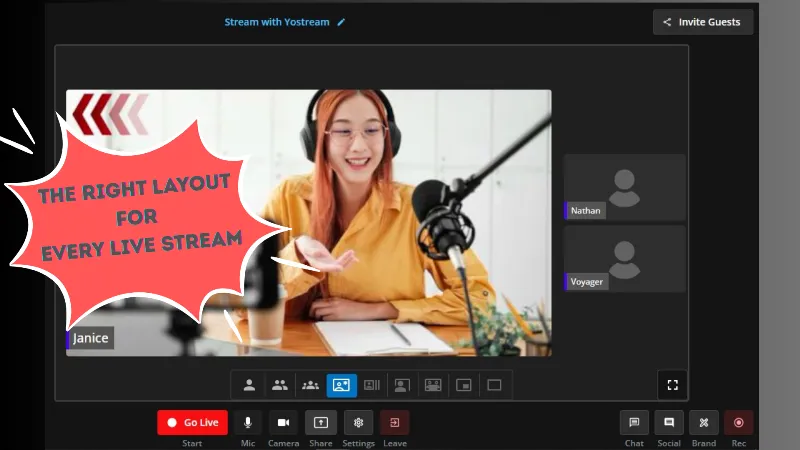
When running a live stream, the way your content is displayed on screen directly impacts how viewers engage with it. For creators, educators, gamers, and event hosts, choosing the right screen layout can make the difference between a professional-looking broadcast and a cluttered stream.
If you’re just getting started, you may want to check out these quick tutorials first:
Once you’re familiar with the basics, this guide will walk you through the nine distinct Yostream layouts and show you when and how to use them effectively.
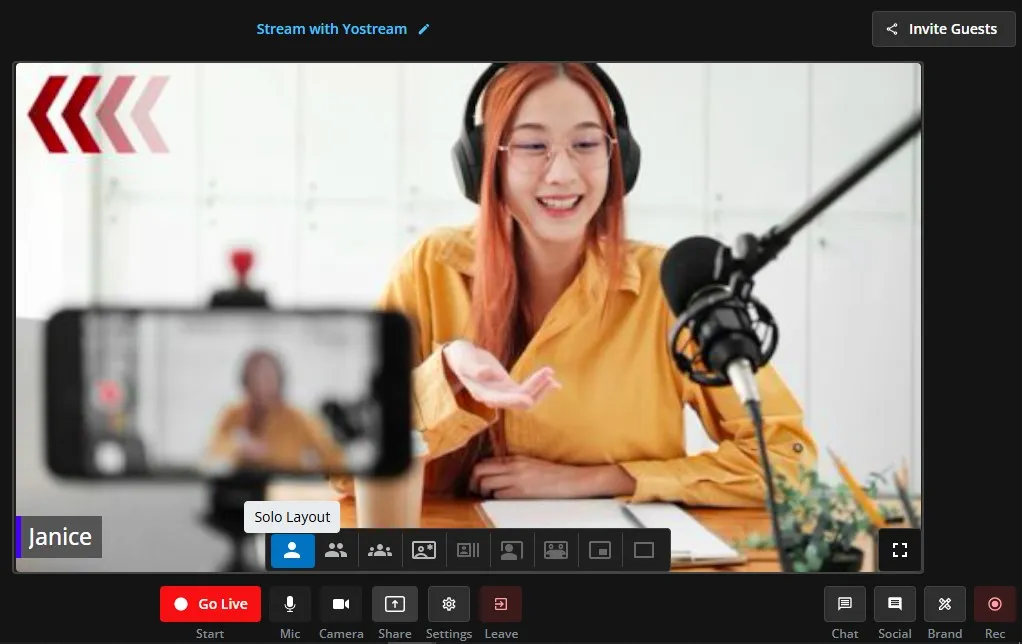
1. Solo Layout
- What it is: Displays only one speaker or source on screen.
- Best for: Single-host podcasts, solo gaming sessions, keynote addresses.
- Why use it: Keeps the focus on one person without distractions.
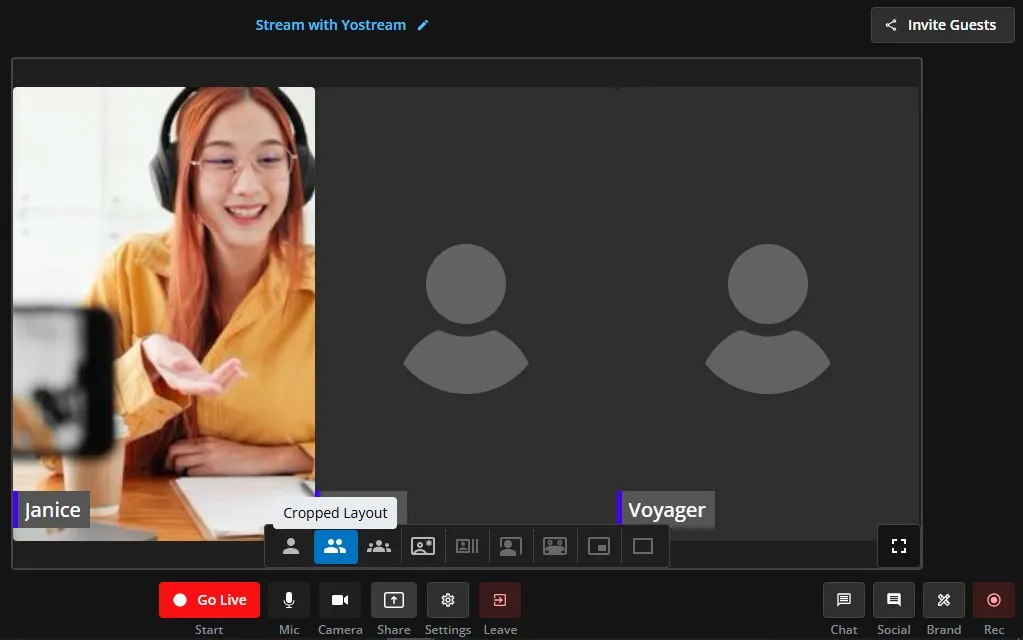
2. Cropped Layout
- What it is: Cuts out background elements, showing only the faces or key parts of participants.
- Best for: Talk shows, interviews, professional discussions.
- Why use it: Creates a clean, polished look for speaker-focused sessions.
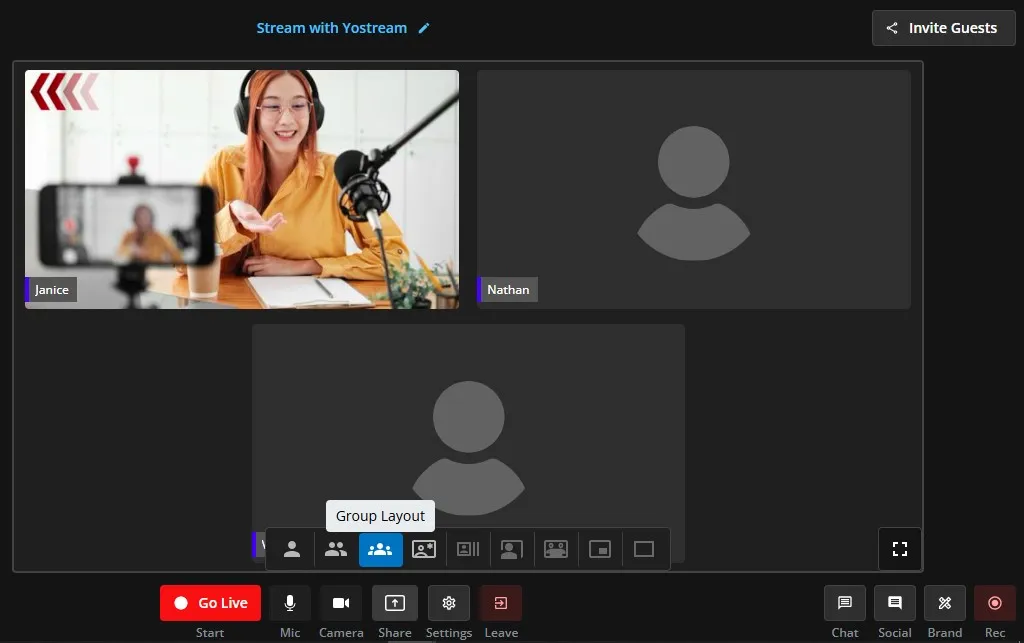
3. Group Layout
- What it is: Shows multiple participants equally in a grid format.
- Best for: Roundtable discussions, panel talks, and team meetings.
- Why use it: Ensures every participant gets equal screen time.
4. Spotlight Layout
- What it is: Highlights one main speaker while others appear in smaller frames.
- Best for: Webinars, Q&A sessions, and guest interviews.
- Why use it: Keeps the focus on the main speaker while still showing reactions from others.
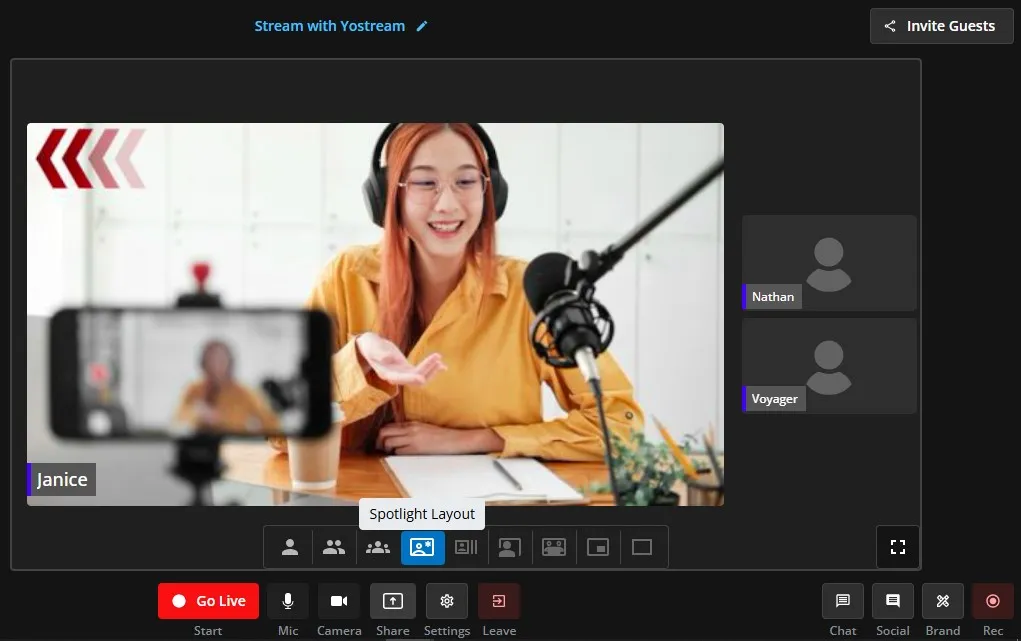
5. News Layout
- What it is: Mimics the style of TV news broadcasts with a main speaker plus ticker-style spaces for text or multiple feeds.
- Best for: Announcements, business updates, commentary streams.
- Why use it: Professional, familiar format that resonates with audiences.
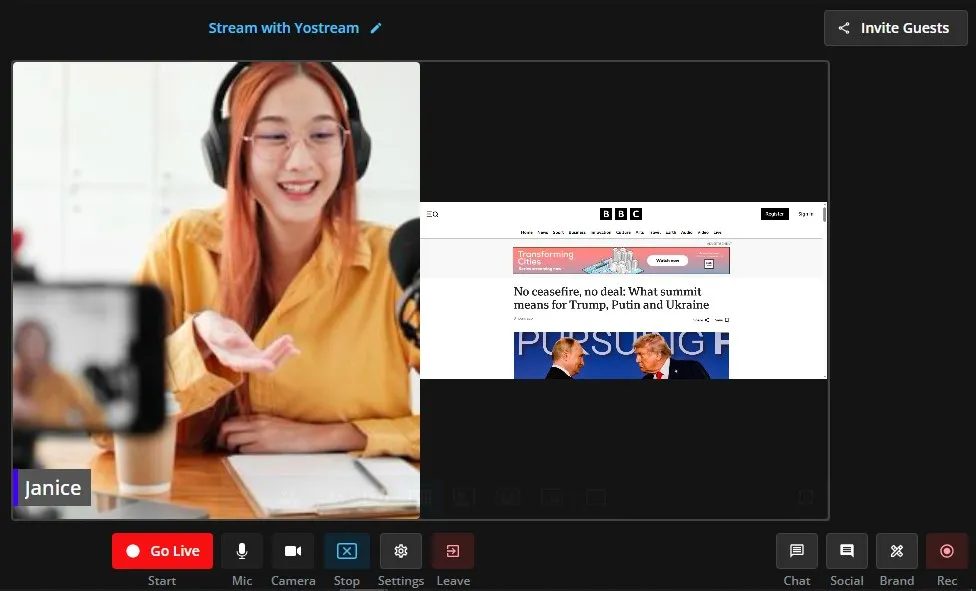
6. Screen Layout
- What it is: Emphasizes screen sharing, with video feeds appearing alongside or above the shared content.
- Best for: Tutorials, product demos, and classroom teaching.
- Why use it: Keeps the instructional material at the center while presenters remain visible.
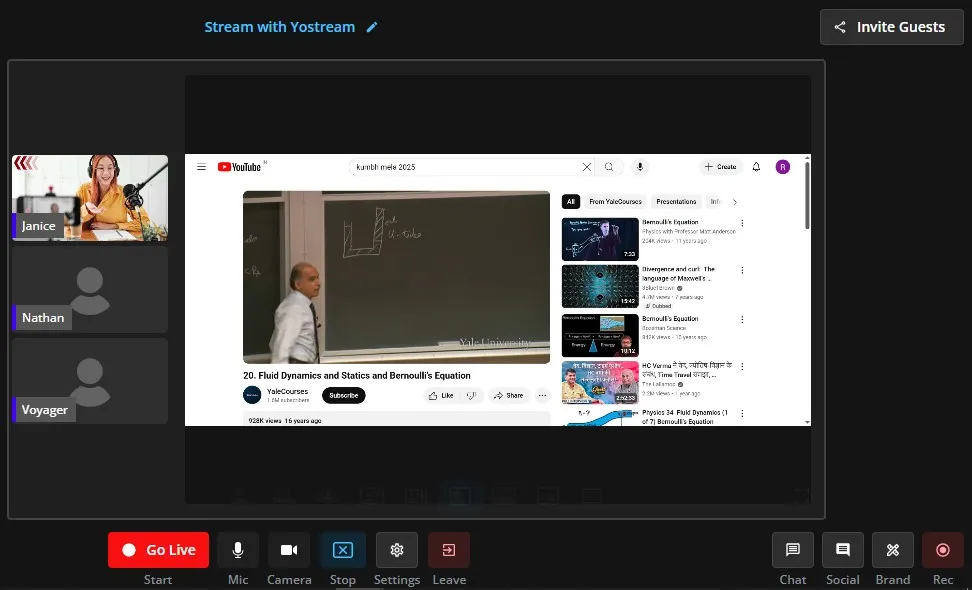
7. Reaction Layout
- What it is: Displays a main video or shared screen with reaction windows around it.
- Best for: Gaming streams, live event commentary, watch parties.
- Why use it: Shows both the content and the streamer’s reactions at once.
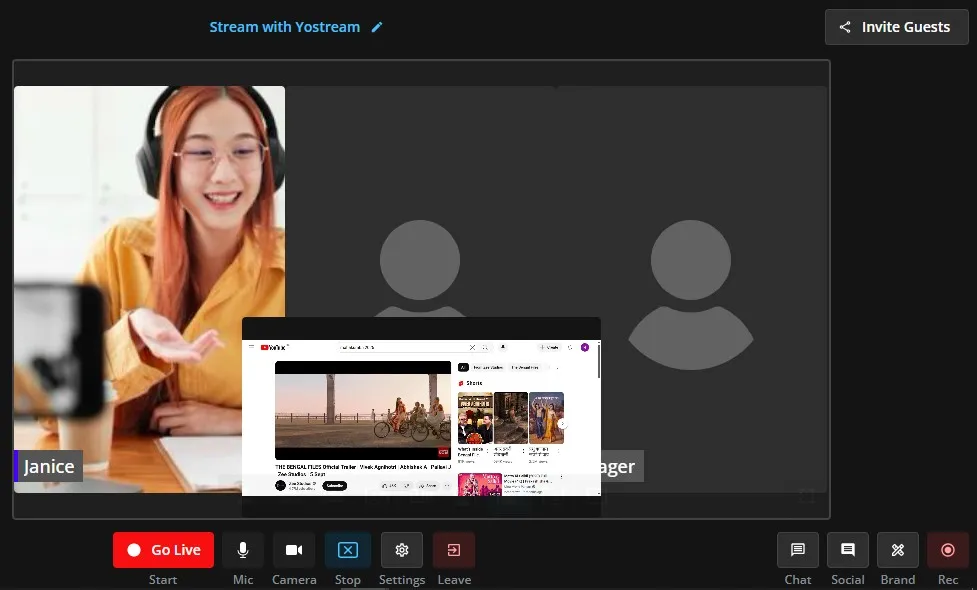
8. Picture in Picture (PiP)
- What it is: Keeps the main content large with a smaller video overlay.
- Best for: Gaming, sports commentary, reaction videos.
- Why use it: Allows the audience to follow both the main content and the speaker’s face simultaneously.
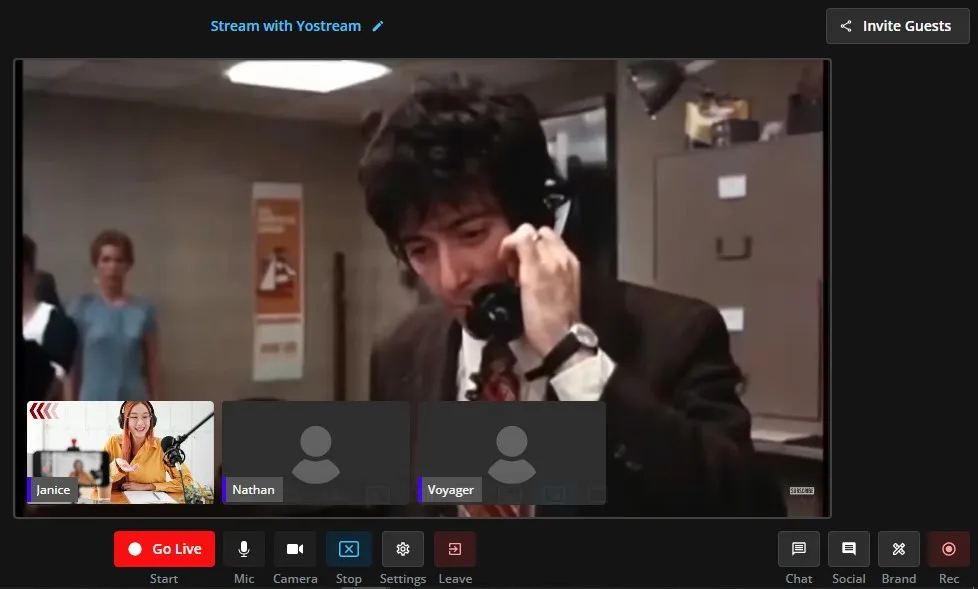
9. Cinema Layout
- What it is: Expands the main content to full screen with minimal overlay.
- Best for: Movie nights, concerts, full-screen game streams.
- Why use it: Maximizes the immersive viewing experience.
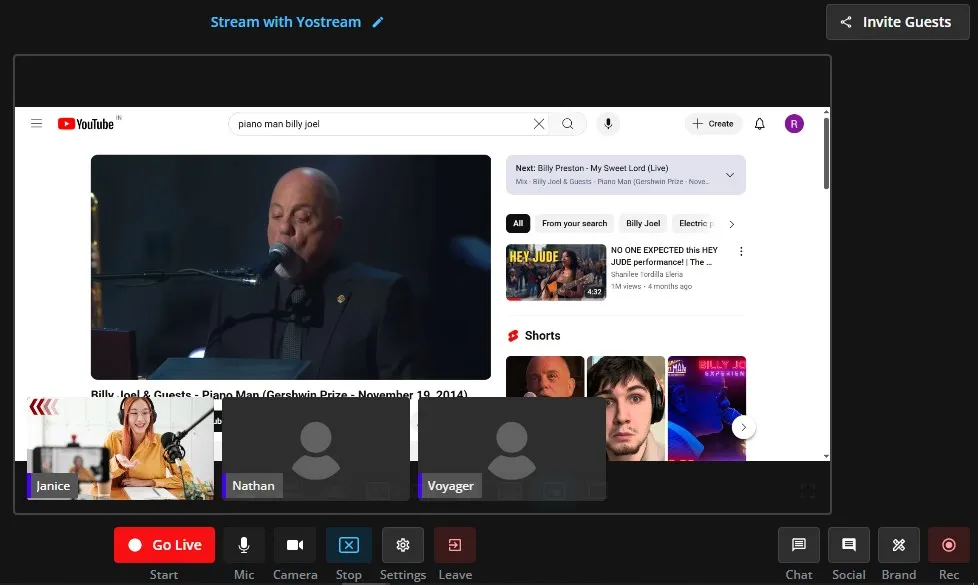
How to Choose the Right Layout
When deciding which layout to use, ask:
- What’s the goal of my stream? (Education, entertainment, engagement)
- How many participants will be on screen?
- Do I want the focus on people, content, or both?
Creators often switch layouts mid-stream to keep engagement high; for example, starting with a Group Layout for introductions, then moving to Spotlight Layout for the main discussion.
Why Yostream Layouts Stand Out
- No downloads required – everything works in your browser.
- Seamless transitions – switch layouts in real-time without disrupting the stream.
- Optimized for engagement – layouts designed around common live streaming scenarios.