

The webcam market is full of overpriced hardware that still underperforms the camera already in your pocket. Modern smartphones shoot 4K, handle low-light beautifully, and offer multiple lens options. With a couple of free apps, that same phone becomes a professional-grade OBS source in minutes.
This guide walks through two proven methods to connect your phone camera to OBS Studio without a capture card: a USB connection using DroidCam for rock-solid stability, and a wireless NDI workflow for cable-free flexibility. Both work on Android and iPhone, both are free to start, and neither requires any extra hardware beyond what you already own. Once your phone is feeding into OBS, the rest of your streaming setup — destinations, overlays, multistreaming — layers on top without any changes. Tools like Yostream work seamlessly with this kind of OBS-based setup for pushing to multiple platforms at once.
Why Use Your Phone as a Webcam for OBS?
Most entry-level webcams ship with small sensors, mediocre autofocus, and average low-light performance. Your phone's camera has been engineered with significant R&D behind it. Here's what that means in practice:
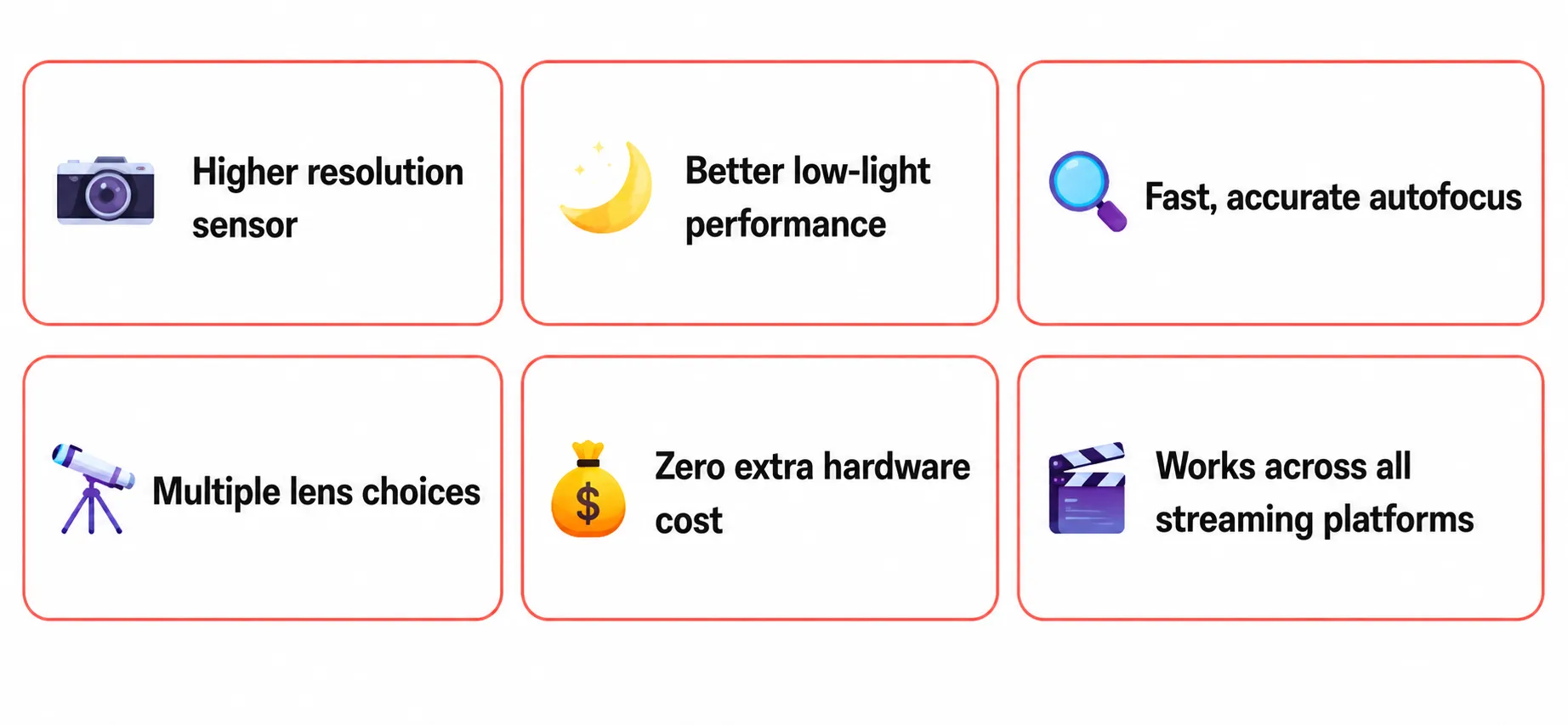
OBS Studio treats both methods below as standard video sources. You can switch scenes, apply filters, crop, and add overlays exactly as you would with any other camera.
What You Need Before Starting
- OBS Studio installed on your computer (Windows or macOS)
- An Android or iPhone (relatively recent model recommended)
- A USB data cable — not a charge-only cable (for the USB method)
- Both devices on the same local WiFi network (for the NDI method)
- DroidCam app on your phone + DroidCam OBS plugin on your computer (USB method)
- NDI Tools and an NDI camera app such as NDI HX Camera (WiFi method)
METHOD 1: Connect Your Phone to OBS via USB (DroidCam)
USB is the most reliable option for using your Android or iPhone as a webcam in OBS. There's no WiFi interference, virtually no latency, and your phone charges while streaming. If you're doing long-form streams, recordings, or interviews where the camera stays in one place, start here.
There are two ways to get DroidCam into OBS: the DroidCam OBS plugin (recommended) and the classic desktop client. The plugin integrates directly as a native OBS source, supports up to 4K, and doesn't need a separate client running alongside it. The desktop client still works fine and is useful if you want DroidCam available in other apps like Zoom or Discord as a virtual webcam. This guide covers the plugin route — OBS's official smartphone camera guide has additional context if you want to compare both approaches.
1. Install DroidCam on Your Phone
Search for DroidCam in the App Store or Google Play and install it. When you open it for the first time, grant camera and microphone access. Microphone is optional for video-only setups, but worth enabling if you want to route phone audio into OBS.
2. Install the DroidCam OBS Plugin on Your Computer
Head to droidcam.app/obs and download the plugin installer for Windows or macOS. Run through the installer completely — it drops the plugin files into your OBS plugins folder automatically and installs the ADB drivers needed for USB connectivity. Restart OBS after installation.
💡
If you'd rather use the classic desktop client (no plugin), download it from droidcam.app instead. Both work, but the plugin gives better quality controls and lower latency.
3. Enable USB Debugging (Android Only)
- Open Settings
- Go to About Phone
- Tap Build Number seven times until you see "You are now a developer"
- Go back to the main Settings page and open Developer Options
- Toggle USB Debugging on
⚠️
Developer Options may be hidden under "Software Information" depending on your Android version and manufacturer.
4. Connect Your Phone to the Computer
Plug in using your USB data cable. Your phone will display a prompt asking to allow USB debugging from your computer — tap Allow. If you check "Always allow from this computer," you won't need to confirm again on future sessions.
5. Open DroidCam
On your phone:
- Open DroidCam.
On your PC:
- Launch the DroidCam Client.
6. Select USB Mode
In the DroidCam Client:
Select Click to Add a Device.
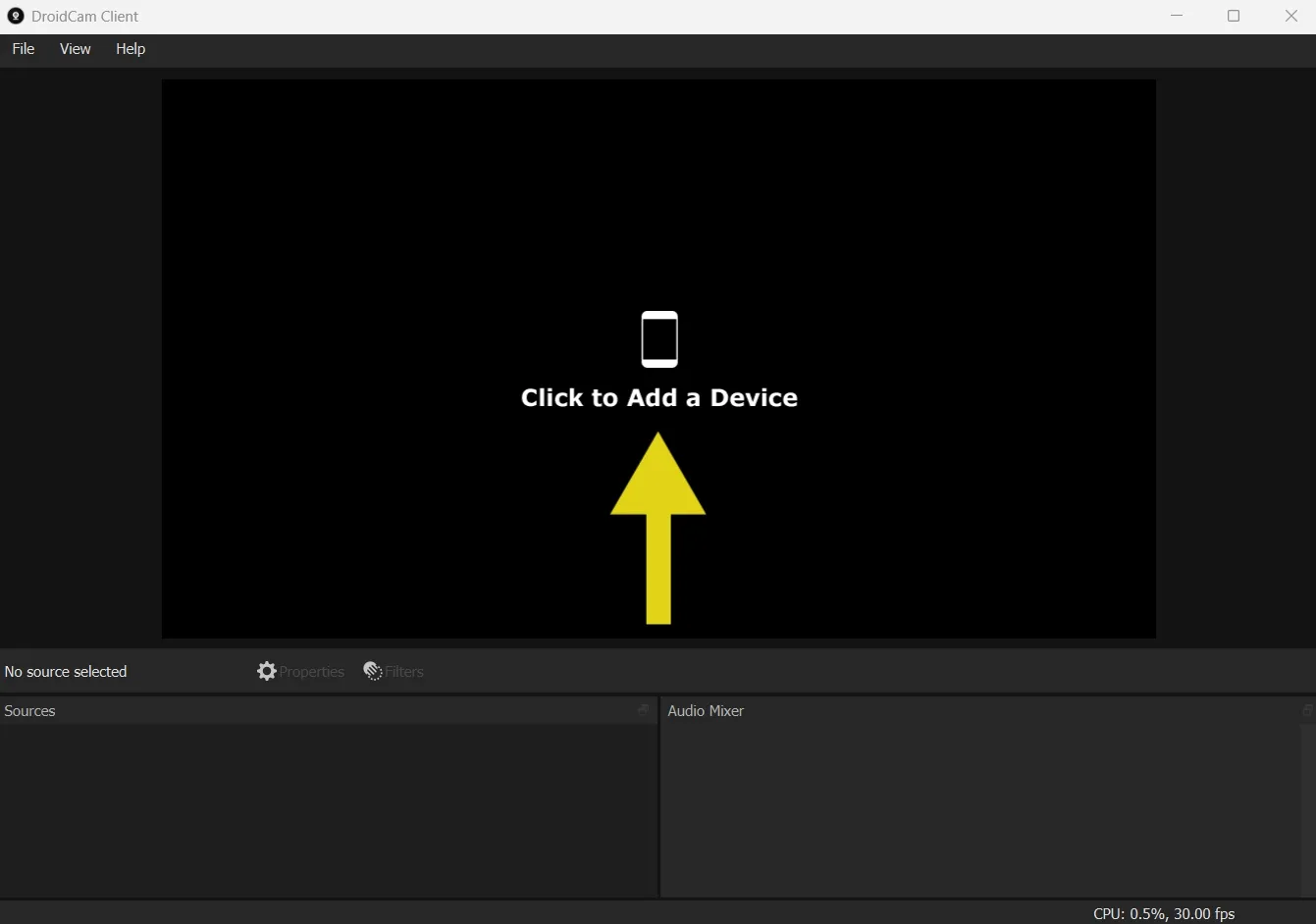
Select USB instead of Wi-Fi.
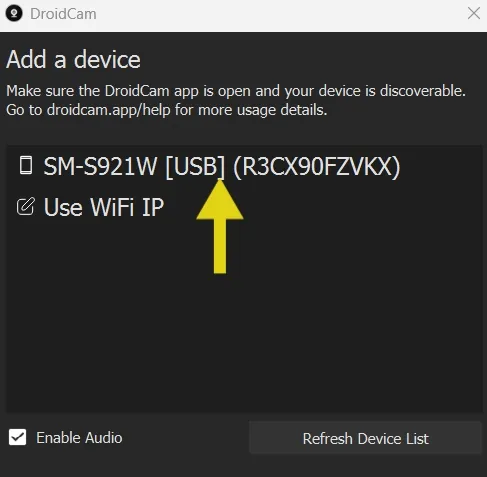
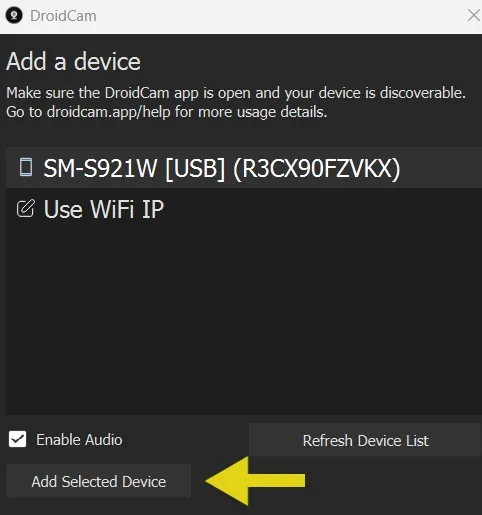
After selecting USB, a new button Add Selected Device will pop up at the bottom. Click it.
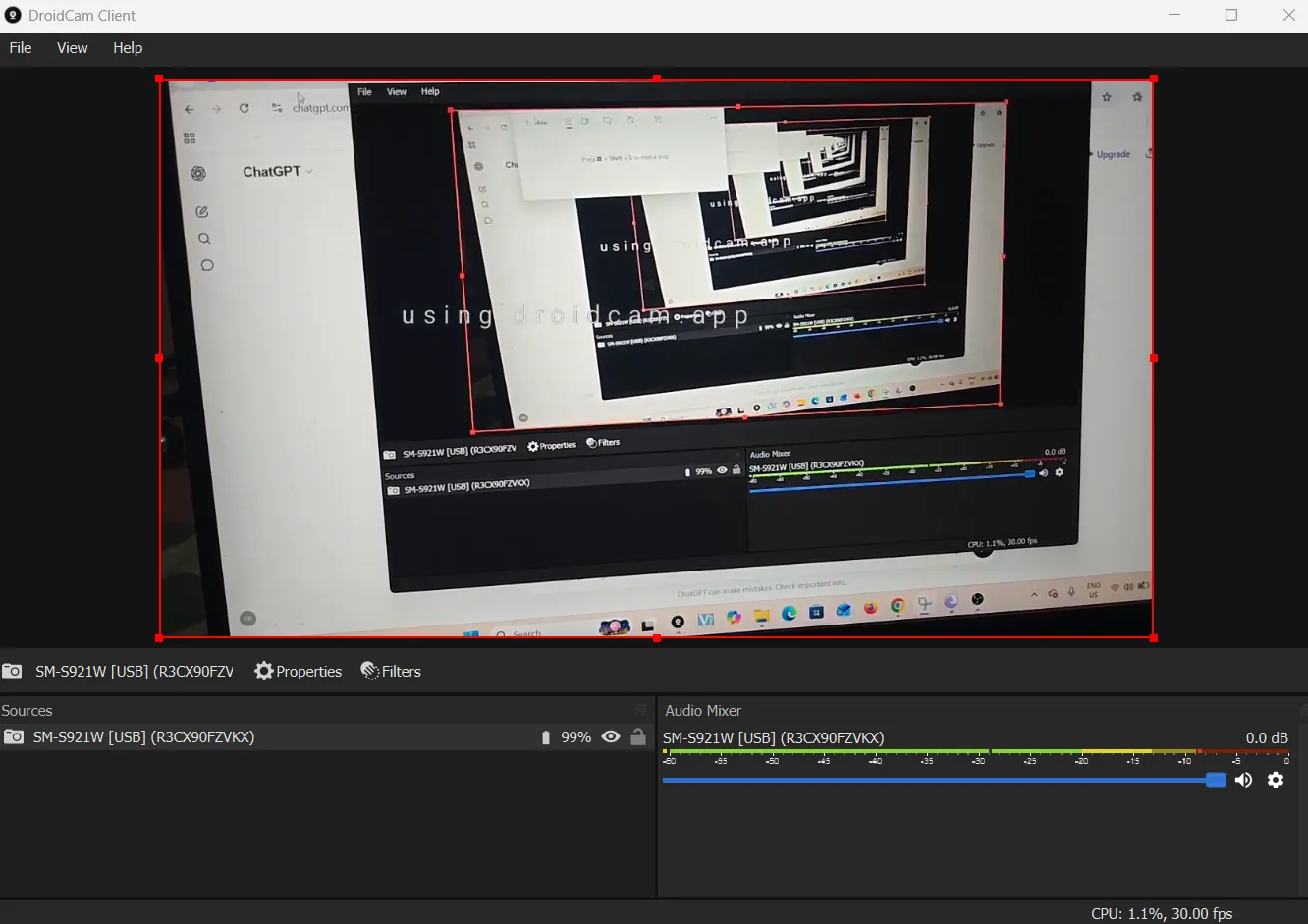
You should now see the phone's camera feed in the DroidCam window.
7. Open OBS
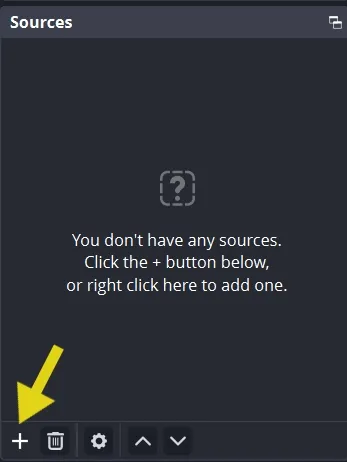
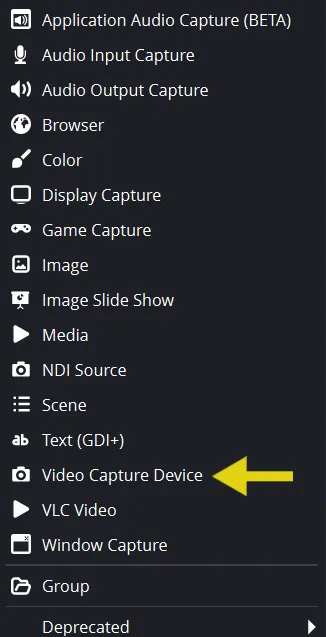
Open OBS Studio. Click the + under Sources.
Select Video Capture Device.
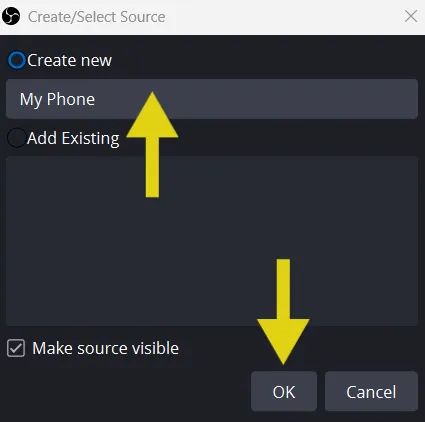
Give a name to the source. Click Ok at the bottom.
Select DroidCam Video from the dropdown menu under Devices. Your phone camera should now appear in OBS.
METHOD 2: Connect Your Phone to OBS Wirelessly (NDI)
NDI (Network Device Interface) is a professional protocol developed by NewTek for transmitting high-quality video over local networks. Broadcast studios use it for multi-camera setups. For streamers, it means placing your phone anywhere in the room without running a cable.
One thing worth knowing: DroidCam dropped its built-in NDI support due to licensing constraints, so the wireless phone-to-OBS workflow now uses a dedicated NDI camera app on the phone side rather than DroidCam. The result is the same — your phone appears as a wireless video source in OBS — but you'll need a separate app for it. Good options include NDI HX Camera and Camo, both available on Android and iOS. You can read more about NDI Tools and how the protocol works on NDI's official tools page.
For best results, use a 5 GHz or WiFi 6 network, and connect your computer via Ethernet if possible. A congested 2.4 GHz network will cause dropped frames.
1. Connect Both Devices to the Same Network
Your phone and computer must be on the same local WiFi network. NDI discovery works on the local subnet — if one device is on a guest network and the other is on the main network, they won't see each other.
2. Install NDI Tools on Your Computer
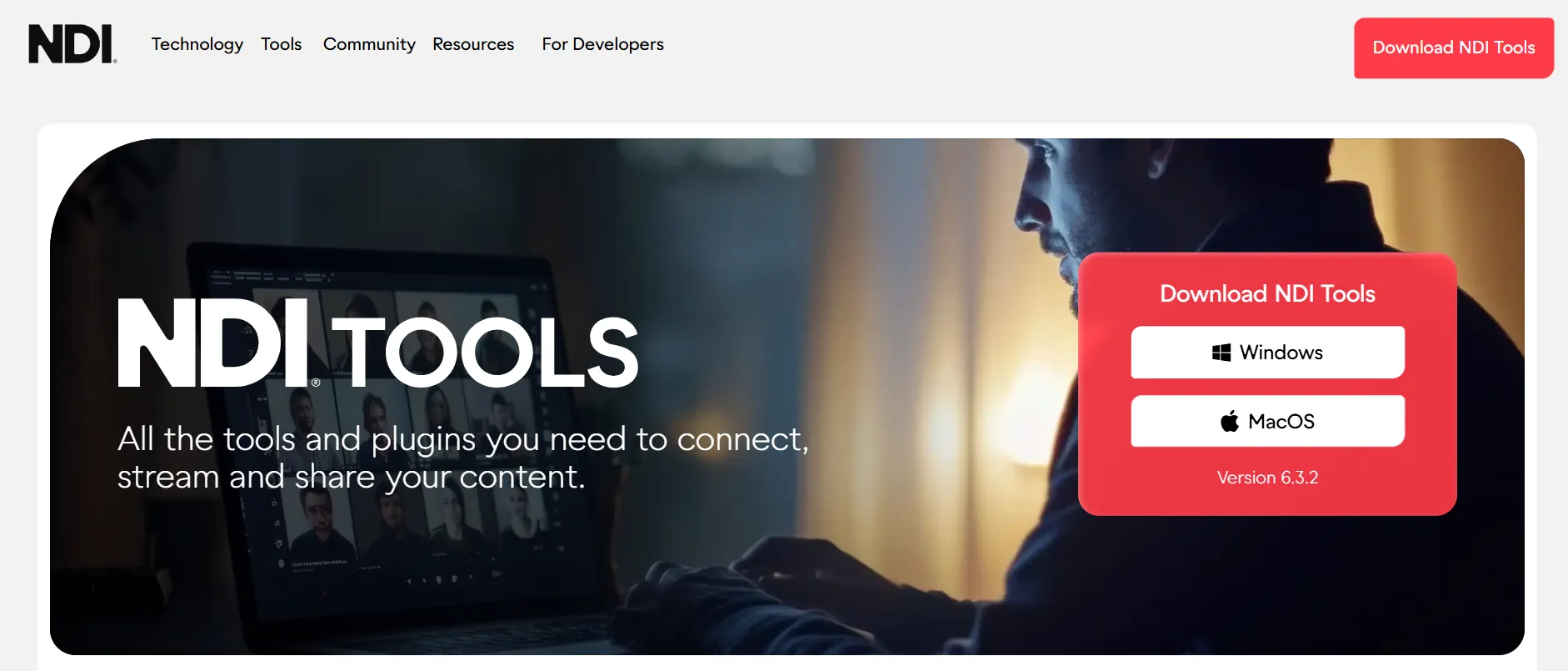
Download NDI Tools from the NDI website (free). Run the installer and restart your computer when prompted. The package includes NDI Monitor, which lets you verify your phone's stream before adding it to OBS.
3. Install an NDI Camera App on Your Phone
Install an app that broadcasts your phone camera as an NDI source. NDI HX Camera (iOS and Android) is the most widely used. Camo is another solid option, particularly on iPhone, where it also works over USB. Open the app, grant camera permissions, and tap to start broadcasting. The app will advertise itself as an NDI source on your local network.
4. Install the OBS NDI Plugin
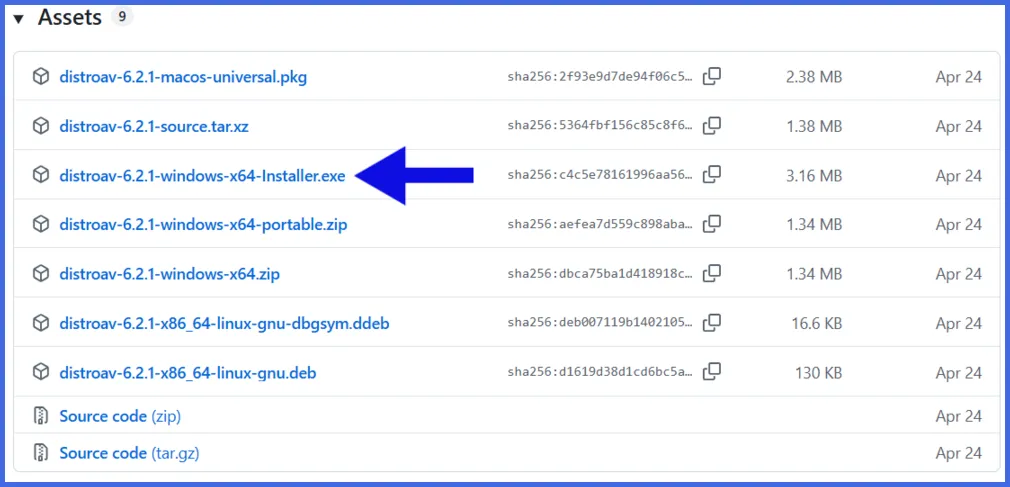
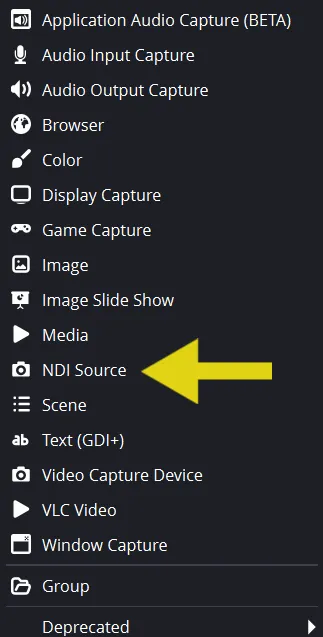
Download the obs-ndi plugin from its GitHub releases page. Install it and restart OBS. You'll know it's working when you see NDI Source as an option in the Sources panel.
On the GitHub page, scroll down and click the .exe file to start the download.
5. Add Your Phone as an NDI Source in OBS
In OBS, click + under Sources
Select NDI Source
Name it and click OK
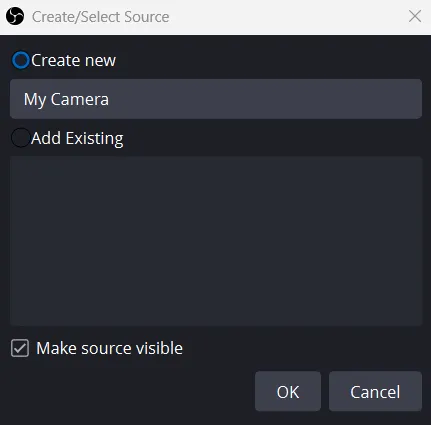
In the Source Name dropdown, select LOCALHOST. Click OK at the bottom.
Your phone's camera feed will appear in OBS. Latency is typically 1–3 frames over a strong local network.
USB vs WiFi: Which Method Should You Use?
| Feature | USB (DroidCam) | WiFi (NDI) |
|---|---|---|
| Image Quality | Excellent | Excellent |
| Latency | Near-zero Best | Low (1–3 frames) |
| Connection Stability | Excellent Best | Depends on network quality |
| Camera Mobility | Limited by cable | Fully wireless Best |
| Multi-camera Support | One phone per port | Multiple phones on one network Best |
| Phone Charges While Streaming | Yes ✓ | No — use a power bank |
| Setup Complexity | Easy | Moderate |
| Best For | Fixed-angle, solo streaming | Multi-camera, flexible setups |
Troubleshooting Common Problems
⚠️ OBS Does Not Detect the Camera
- Restart OBS after installing DroidCam or the NDI plugin
- Make sure the app is actively running on your phone, not minimized
- Confirm your phone is unlocked — a locked screen stops the camera
- Try closing and reopening OBS completely
⚠️ USB Connection Fails or Isn't Detected
- Swap to a known good USB data cable (not charge-only)
- Try a different USB port on your computer
- Re-enable USB Debugging in Developer Options
- Tap "Allow" when the USB Debugging prompt appears on your phone
- Confirm the DroidCam OBS plugin is installed (not just the phone app)
- On macOS: check System Settings > Privacy & Security for any blocked access
⚠️ NDI Source Doesn't Appear in OBS
- Confirm both devices are on the same WiFi network — not guest vs. main
- Disable any active VPN on either device
- Check your firewall isn't blocking NDI traffic (port 5960 TCP)
- Restart the NDI camera app on your phone and check NDI Monitor first
- Switch to a 5 GHz network if you're on 2.4 GHz
⚠️ Video Is Blurry or Laggy in OBS
- For USB: check the resolution setting inside the DroidCam desktop app
- For NDI: reduce competing network traffic and switch to Ethernet on the PC
- Lower the NDI app's output resolution if the stream drops frames consistently
- Make sure OBS canvas resolution matches your source resolution
Questions Streamers Actually Ask
1. Can I still use Discord, Zoom, or Google Meet on my phone while it's connected to OBS?
No, not at the same time. Whichever app holds the camera — DroidCam, your NDI app, or another video call app — locks exclusive access to it. If you need the phone for a call mid-stream, you'll have to close the streaming app first, which interrupts the OBS feed. Plan your phone's role before going live rather than trying to multitask it.
2. Do I need a paid version of DroidCam or any NDI app to stream at 1080p?
DroidCam's free tier caps you at standard definition (640×480). Getting to 1080p or higher requires the Pro upgrade, which is a one-time in-app purchase. Most NDI camera apps follow a similar model — a free tier for testing, with HD resolutions gated behind a paid unlock. Budget a small one-time cost if resolution matters for your stream.
3. Can I record locally on my phone and use OBS separately at the same time?
Not really. Once the camera app is sending a live feed to OBS, the phone's native camera app can't simultaneously record to local storage. If you want a backup recording in case OBS drops, your better option is recording directly inside OBS itself, or using a second device entirely for redundancy.
4. Why does my phone camera look zoomed in or cropped differently than expected in OBS?
Phone camera apps often default to a narrower field of view than the lens is actually capable of, especially on devices with multiple rear lenses. Check your camera app's lens or zoom setting — many apps let you switch from the default 1x to a 0.5x ultra-wide lens, which dramatically changes how much of the room is visible without moving the phone at all.
5. Does using my phone as a webcam drain mobile data?
No, as long as you're using USB or local WiFi as described in this guide. Both methods transmit video over a direct connection or your local network, not the internet. Your mobile data plan stays untouched. The only time data usage applies is if you're using a cloud-relay app that routes the feed through an external server instead of a local connection.
6. Can I use an old phone I'm not actively using as a dedicated streaming camera?
Yes, and it's a common setup. An older phone with a working camera and a cracked screen or dead battery health still works fine for this, since it just needs to run the camera app and stay connected — battery longevity matters less if it's plugged into USB power the whole time. This is also a good way to repurpose a phone you'd otherwise sell for very little.
7. Will a phone case or PopSocket get in the way of mounting it for streaming?
It depends on the mount. Standard phone tripod clamps and desk arms accommodate most cases, but thick cases or attached grips can block the clamp from closing fully or shift the phone's center of balance. If you're using a magnetic mount (like MagSafe-style accessories), you'll need a case that supports it specifically — a generic case will not hold reliably.
8. Is it safe to leave my phone plugged into the same USB cable for hours during long streams?
Yes, modern phones handle extended USB connection and charging without battery degradation concerns for occasional long sessions. If you stream for many hours daily, consider enabling any "optimized charging" or battery-protection setting your phone offers, which limits the charge to around 80% during sustained connection to reduce long-term wear.
Set It Up Once, Forget About It
Using your phone as a webcam for OBS Studio is one of the most practical upgrades a streamer or content creator can make without spending anything. The camera quality improvement over most entry-level webcams is immediate and noticeable, and both DroidCam and NDI are mature, stable tools that handle long sessions reliably.
If you're just getting started, go USB. It takes five minutes to set up, has no network dependencies, and your phone charges throughout the stream. Once you're comfortable with the workflow, the NDI method opens up more creative possibilities like overhead shots, separate room angles, or a proper two-camera interview setup.
Either way, your phone is a capable piece of broadcast hardware. It just needed the right software bridge to reach OBS. And once it's there, everything else, streaming to YouTube and Twitch at the same time, adding overlays, bringing in remote guests, builds on top of that same foundation without touching your camera setup again.
Recommended Reads:
- No webcam? No problem: How To Turn Your Mobile Phone Camera Into A Webcam? (iPhone & Android)
- Stream seamlessly across multiple devices: Ultimate Guide to DistroAV (NDI Plugin) Setup for OBS Studio
- Find the right path for your stream: Capture Card vs NDI for Dual PC Streaming: Which Setup Is Right for You?
- Crush webcam lag today: How to Fix Webcam Lag During Live Streaming