

If your stream looks amateur, viewers leave in under 30 seconds, and no algorithm will save you. The assumption most new streamers carry is that a polished, professional-looking broadcast costs serious money: a production suite here, a noise filter subscription there, a graphic designer for your overlays. That assumption is wrong.
The best free tools for professional live streaming are not stripped-down trials. They are full-featured, actively maintained, and used by creators who pull thousands of concurrent viewers every day. This guide breaks down exactly five of them: what each one does, how to configure it for maximum impact, and which type of streamer benefits most from each.
Why Does Stream Quality Determine Growth More Than Content Alone?
This is a question worth answering before touching any tool. Researchby StreamElements and Rainmaker.gg consistently shows that viewer retention in the first three minutes of a live stream determines whether a broadcast grows or dies on the algorithm. Platforms like Twitch and YouTube surface content based on how long people stay, not just how many showed up.
Audio quality is the single biggest driver of early drop-off. Viewers tolerate lower video resolution far longer than they tolerate background noise, echo, or a muffled mic. After audio, visual consistency (meaning a clean, branded layout with readable overlays) signals to a viewer that this streamer takes their work seriously. That perception drives subscriptions, follows, and word-of-mouth shares.
The tools in this guide address both of those pillars: audio and visual professionalism.
What Does a "Professional" Stream Actually Look Like?
Before selecting tools, it helps to define the target. A professional-looking stream typically has:
- A consistent branded layout with overlays, alert boxes, and a clean webcam frame
- Clear, noise-free audio with balanced levels between voice, game audio, and alerts
- Smooth scene transitions between gameplay, facecam, and intermission screens
- Readable on-screen information: recent follower, current goal, social handle
- Stable video output at 1080p/60fps minimum, with no dropped frames or encoding lag
None of these require paid software. Here is what does the job for free, and help you stream like a pro.
The 5 Free Tools That Deliver a Professional Live Stream
Tool 1: Yostream: Browser-Based Multi-Streaming With a Production Layout Built In
What it is: Yostream is a browser-based live streaming platform that lets you broadcast simultaneously to multiple platforms (YouTube, Twitch, Facebook, LinkedIn, TikTok, and more) from a single tab, without any software installation.
Why it belongs at #1: Every other tool on this list is a component. You build a setup by combining them. Yostream is the only tool here that ships with a production-ready environment out of the box and handles distribution at the same time. Branded overlays, multi-platform chat monitoring, custom backgrounds, and simultaneous multi-streaming are all available from your browser, which makes it the natural starting point for any streamer who wants results before diving into advanced configuration.
It is also the only free tool on this list that solves the multi-platform growth problem by default. Streaming to one platform limits your reach to one audience. Yostream removes that ceiling on day one.
Key features on the free plan:
- Multistreaming: Broadcast to multiple platforms simultaneously from one dashboard
- Unified chat: Read and respond to live chat from all connected platforms in a single feed, with no toggling between browser tabs
- Custom overlays and branding: Add logos, banners, and overlays directly within the platform
- Virtual backgrounds: Replace or blur your background without green screen hardware
- Guest invitations: Bring co-hosts or guests into your stream via a shareable link, with no software required on their end
💡 Pro Tip
If you are already using OBS for scene control, you can pipe your OBS output into Yostream using RTMP output, and use Yostream purely for multi-platform distribution. You get OBS's scene control and Yostream's simultaneous broadcasting combined, with no compromise on either end.
For streamers who want to grow on more than one platform at once, multistreaming is one of the highest-leverage tactics available. Yostream makes this achievable on a free plan, which is not standard among competing multi-streaming services.
Best for: Creators who want to stream to multiple platforms simultaneously, manage multi-platform chat from one place, or stream without installing software.
Platform compatibility: YouTube, Twitch, Facebook, LinkedIn, TikTok Live, and custom RTMP destinations.
Tool 2: OBS Studio: The Production Engine Every Serious Streamer Needs
What it is: OBS (Open Broadcaster Software) Studio is a free, open-source streaming and recording application available on Windows, macOS, and Linux. It is the industry standard for independent creators and is used by professional broadcasters worldwide.
Why it belongs on this list: OBS gives you complete control over your stream layout: multiple scenes, source layering, transitions, audio mixing, and direct RTMP output to any platform. No other free tool matches its feature depth for actual broadcast control.
Key features you should use immediately:
- Scene Collections: Build separate scene sets for different stream types (gaming, just chatting, intermission). Switch between them instantly during a live broadcast.
- Audio Mixer with filters: Apply noise suppression, a noise gate, and a compressor directly inside OBS with no third-party plugin required for basic audio shaping.
- Virtual Camera: Output your full OBS scene to video call platforms like Zoom or Discord. Useful for streamers who also do podcasts or interviews.
- Replay Buffer: Capture the last 30 seconds of gameplay on demand. Essential for gaming streamers who want to clip highlights without recording full sessions.
OBS's built-in noise suppression (RNNoise) is surprisingly effective for reducing consistent background hum like fans or AC units. Go to Audio Mixer > your mic source > Filters > Add > Noise Suppression. Set it to RNNoise for better results than the default Speex.
💡 Pro Tip
Use GPU encoding (NVENC for NVIDIA, AMF for AMD, VideoToolbox for Mac) instead of x264 CPU encoding. This frees your CPU for the game, reducing dropped frames significantly. Find it under Settings > Output > Encoder.
Technical note:
OBS outputs video using H.264 (or H.265 on supported encoders) and AAC audio by default, the same codecs Twitch, YouTube, and Facebook Gaming accept. You do not need to configure this manually; OBS's default output settings are already platform-compatible.
Best for: Every streamer. OBS is non-negotiable as the foundation of any professional setup that involves custom scene control.
Learning curve: Moderate. The interface is not beginner-friendly on day one, but the official OBS documentation and community forums (including r/obs on Reddit) are extensive.
Platform compatibility: Twitch, YouTube, Facebook Gaming, TikTok Live, Kick, and any RTMP-compatible destination, including Yostream.
Tool 3: StreamElements: Free Overlays, Alerts, and a Loyalty System in One Dashboard
What it is: StreamElements is a free cloud-based platform that provides stream overlays, alert boxes, on-screen widgets, a loyalty point system, a merch store, and a chatbot, all managed through a browser dashboard.
Why it belongs on this list: The gap between a raw OBS stream and a polished broadcast is almost entirely filled by StreamElements. It handles everything viewers see on top of your gameplay: the follower alert that animates when someone subscribes, the goal bar counting toward your next milestone, the "recent donation" ticker at the bottom of the screen.
StreamElements overlays are hosted on StreamElements' servers, not your machine. This means even a lower-end PC can run complex animated overlays without performance hits.
Key features worth knowing:
- Overlay Editor: Drag-and-drop interface to build custom layouts. Import community-made overlays from the StreamElements marketplace, hundreds of which are free.
- Alert Box: Fully customizable animated alerts for follows, subscriptions, donations, raids, and cheers. Animations, sounds, and text are all editable.
- StreamElements Chatbot (SE.Live): Automated responses, custom commands, spam filters, and giveaway tools. Reduces moderation load considerably.
- Loyalty System: Viewers earn points for time spent watching. You can set up redeemable rewards (song requests, shoutouts, etc.) without any paid integration.
- Activity Feed: A real-time sidebar showing all viewer interactions across your stream, useful for monitoring engagement without watching chat constantly.
StreamElements includes a free built-in merchandise store. You can sell branded products directly through your stream dashboard without a separate Shopify or Printful account. For streamers working toward Twitch Affiliate status (50 followers, 500 total minutes broadcast, 7 unique broadcast days, and an average of 3 concurrent viewers over 30 days), the StreamElements loyalty system helps drive the repeat viewership that pushes those concurrent viewer numbers up.
Best for: Streamers who want a polished branded look without design skills.
Platform compatibility: Twitch, YouTube, Facebook Gaming, and custom RTMP destinations.
Tool 4: Canva: Where Your Stream Brand Actually Gets Built
What it is: Canvais a free browser-based graphic design tool with thousands of templates for social media, presentations, and, relevantly, streaming assets.
Why it belongs on this list: Your stream brand extends far beyond the broadcast itself. Thumbnails, offline screens, panels, social media posts announcing when you go live, a consistent color palette and font pairing. These are the visual signals that tell viewers this is a real channel worth following. Canva's free tier covers all of it.
How to use Canva specifically for streaming:
- Stream overlays and panels: Search "Twitch panel" or "stream overlay" in the Canva template library. Export as PNG with transparent background, then import into OBS as an Image Source.
- Thumbnail creation: For YouTube VODs or highlight clips, Canva's free templates let you create consistent, branded thumbnails in under 5 minutes.
- Offline and BRB screens: Create a branded static or looping image for when you step away. Export as PNG and set as a scene in OBS.
- Social media announcement posts: Build a consistent template you can update weekly: just swap the date and game. Viewers recognize the format, which conditions them to watch for it.
💡 Pro Tip
Set up a Canva Brand Kit (available on the free tier for one brand set). Lock in your hex color codes, fonts, and logo. Every asset you create will be visually consistent without manually matching colors each time.
Accessibility note:
When designing overlays in Canva, ensure sufficient color contrast between text and background. WCAG 2.1 recommends a minimum 4.5:1 contrast ratio for body text. This makes your stream more readable for viewers with visual impairments and improves general legibility on smaller screens.
Best for: Streamers building a recognizable visual brand on a zero-dollar budget.
Limitation: Some premium Canva templates and elements require Canva Pro. The free tier has sufficient variety for most streaming use cases, but options are narrower.
Tool 5: Krisp: AI Noise Cancellation That Removes Everything Except Your Voice
What it is: Krispis an AI-powered noise cancellation application that works as a virtual audio device. It sits between your microphone and OBS (or any other app), stripping background noise in real time.
Why it belongs on this list: Even a mid-range microphone sounds significantly better with Krisp active. It removes keyboard clicks, room echo, pets, traffic, fans, and HVAC noise with a level of accuracy that OBS's built-in noise suppression cannot match. For streamers without acoustic treatment or a dedicated studio, it is the closest thing to a soundproofed room that exists as software.
How it works technically: Krisp installs as an audio driver. You select "Krisp Microphone" as your input in OBS instead of your physical mic. Krisp processes the audio on your machine and passes the cleaned signal to OBS. Setup takes under three minutes.
Key capabilities on the free plan:
- Real-time background noise removal
- Echo cancellation (removes room reverb and mic bleed from speakers)
- Background voice cancellation (removes other people talking in your environment)
- Works with any microphone, including budget USB mics
Krisp works best when your mic gain is set correctly before applying it. If your gain is too low, Krisp will aggressively filter your voice as well as background noise. Set your mic level so your voice peaks between -12dB and -6dB in OBS before enabling Krisp.
Best for: Streamers in noisy environments, apartment dwellers, or anyone whose mic picks up keyboard, fan, or room noise.
Free plan note: Krisp offers a free plan with usage limits. Streamers with longer sessions should review current plan details at krisp.ai to determine if the free tier suits their schedule.
How Do These 5 Free Tools Compare at a Glance?
| Tool | Primary Function | Requires Installation | Works on Any Hardware | Best Streamer Type | Free Tier Limitations |
|---|---|---|---|---|---|
| Yostream | Browser-based multi-streaming | No (browser-based) | Yes | Multi-platform creators | Check yostream.io for current plan details |
| OBS Studio | Streaming/recording engine | Yes (Windows/Mac/Linux) | Yes | All streamers | None, fully free |
| StreamElements | Overlays, alerts, chatbot | No (browser-based) | Yes | All streamers | None on core features |
| Canva | Graphic design and branding | No (browser-based) | Yes | Brand-conscious creators | Some premium templates locked |
| Krisp | AI noise cancellation | Yes (audio driver) | Yes, no GPU required | Noisy-environment streamers | Usage limits on free plan |
Can You Use All 5 Together in One Setup?
Yes, and this is the recommended approach:
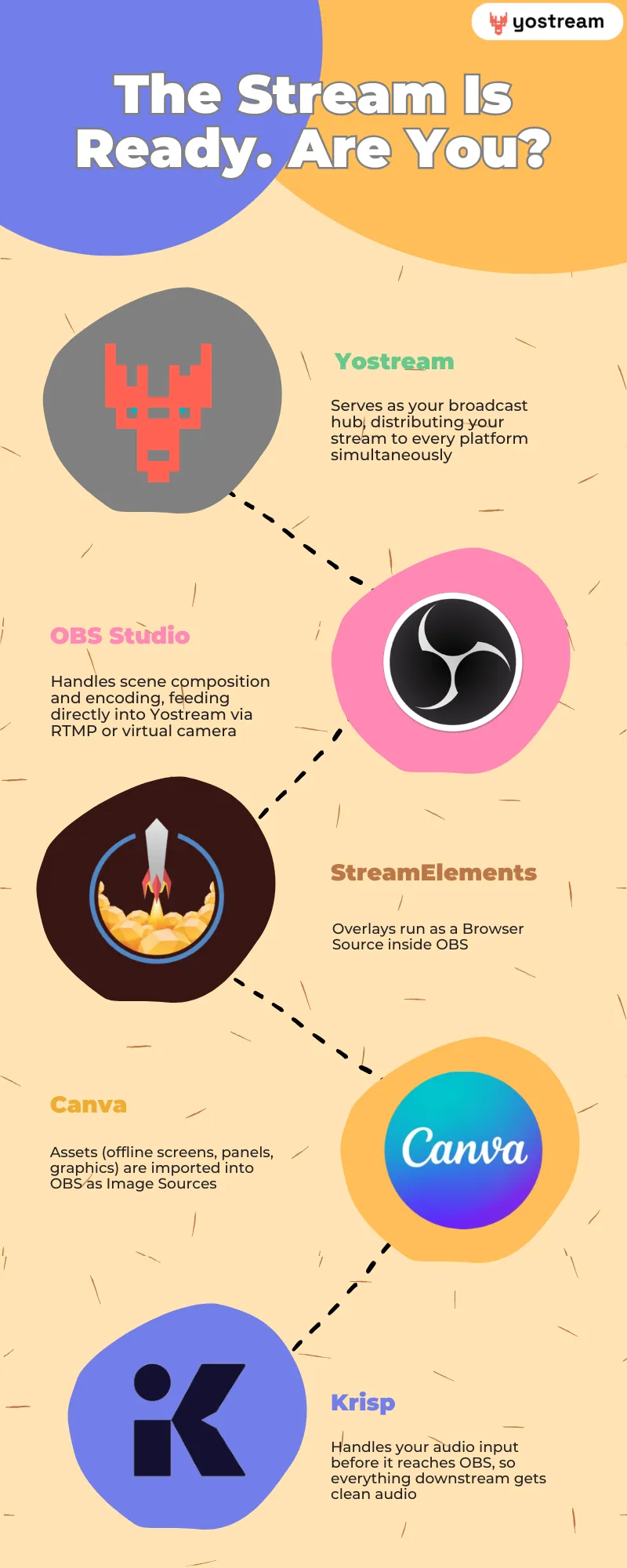
This five-tool stack replicates what a paid production setup does, at zero cost.
Setup Order:
Install Krisp first and select it as your mic input in OBS. Set up OBS with your StreamElements overlay as a Browser Source and your Canva-designed assets as Image Sources. Then connect your OBS output to Yostream for simultaneous multi-platform broadcasting.
Questions Streamers Actually Ask
1. Do free streaming tools affect stream quality compared to paid ones?
No, not in any meaningful way for the majority of streamers. OBS Studio, for example, uses the same encoding pipeline as paid tools like Streamlabs (which is built on OBS). The underlying technology is identical. What paid tools typically add is convenience, templates, and customer support, not better output quality.
2. What is the minimum PC spec to run OBS and stream at 1080p/60fps?
A baseline modern setup (Intel Core i5 8th gen or AMD Ryzen 5 equivalent, 8GB RAM, and a discrete GPU) can handle 1080p/60fps streaming when using GPU-based encoding (NVENC or AMF). CPU-based encoding (x264) at 1080p/60fps demands significantly more processing power. Integrated graphics can handle lower resolutions (720p/30fps) for less demanding games.
3. Is Krisp better than OBS's built-in noise suppression?
For most environments, yes. OBS's RNNoise filter handles constant background noise (fans, air conditioning) reasonably well. Krisp uses a more advanced AI model that handles intermittent and variable noise (keyboard clicks, voices, movement) significantly better. If OBS's built-in suppression is sufficient for your environment, use it. It has zero usage limits.
4. Can I stream to Twitch and YouTube at the same time for free?
Yes. Yostream's free plan supports simultaneous multi-platform streaming, which is the primary use case it is built for. Note that Twitch's terms of service previously restricted simultaneous streaming for Twitch Partners (not Affiliates or non-partnered streamers). Check current Twitch Partner terms if applicable to your account status.
5. Do I need a green screen to remove my background on stream?
No. Yostream includes virtual background replacement without green screen hardware. OBS also supports this via the Background Removal plugin (free download from the OBS community). Neither requires a physical green screen, though a green screen produces cleaner edges.
6. How do I make stream overlays without design experience?
StreamElements' free overlay marketplace has community-built designs ready to activate in one click. For customized versions, Canva's streaming templates require no design background; you replace text and colors within a prebuilt layout.
7. What frame rate should I stream at: 30fps or 60fps?
60fps for gaming content, especially fast-paced titles (FPS, racing, fighting games). 30fps is acceptable for slow-paced games, art streams, or just-chatting content. The difference is most visible during motion. Higher frame rate requires more encoding overhead. If you experience dropped frames at 60fps, switch to 30fps before lowering resolution.
8. What platform algorithm factors does stream quality actually influence?
Platform Algorithm Cheat Sheet:
- Twitch: Prioritizes channels with active chat, consistent streaming hours, and clips shared externally. Visual quality influences clip shareability directly.
- YouTube Live: Surfaces streams based on subscriber click-through rate and average watch duration in the first 30 minutes. A professional thumbnail and layout directly affects CTR.
- TikTok Live: LIVE scoring weights engagement rate (comments per viewer) and session duration. High production quality correlates with lower early drop-off, which boosts scoring.
What Most Streamers Get Wrong About "Professional Quality"
The mistake is thinking professional quality comes from expensive hardware. It does not. It comes from consistency and attention to detail within whatever setup you have.
A stream with a $3,000 microphone and no noise gate sounds worse than an $80 USB mic running through Krisp with a properly configured noise gate in OBS. A stream with expensive overlays that do not match the game's color palette looks less professional than a simple, consistent Canva-designed layout that runs throughout the whole channel.
The tools above cost nothing. The discipline to configure them correctly and apply them consistently is what actually separates growing channels from stagnant ones.
Don't Stop Here:
- Broadcast HD live: 6 Best Live Streaming Software for HD Broadcasts With Minimal Lag (2026)
- Avoid the delay: Prevent Buffering And Lag During Live Streams
- Is Your CPU Crying? How to Fix High CPU Usage While Streaming