


Every lag problem in a live stream has a specific cause, sitting in one of five layers of the broadcast pipeline. The frustrating part: fixing one layer often worsens another, unless you know where each problem lives.
This guide answers a direct question: which live streaming software for HD broadcasts with minimal lag should you run in 2026, and what settings, protocol, and hardware choices give you both? Not a list. Real answers you can implement today, with the reasoning spelled out.
🎯 What You'll Leave With
Many streamers confuse YouTube's normal end-to-end latency (3–45 seconds depending on mode) with an actual sync error. A/V sync is about the relationship between audio and video, not the overall delay. Both should arrive late together. If audio and video arrive at different times relative to each other, that's a sync problem.
1. Where Does Latency Actually Come From? The 5-Layer Pipeline
When viewers complain about delay, "the stream is lagging" is a symptom, not a diagnosis. A broadcast engineer traces the delay through each of these five layers, because the fix for each one is different:
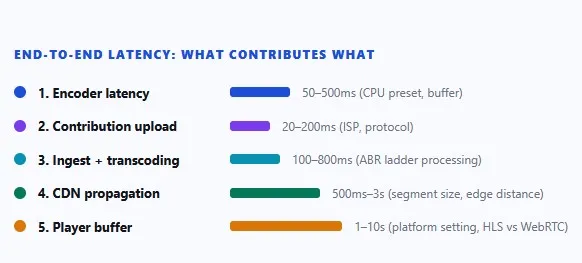
Layers 1 and 2 are in your control. Layers 3 and 4 are partly in your control via protocol and platform choice. Layer 5 is set by the platform. Most "low latency" streaming guides address only layers 1 and 2. That is necessary but not sufficient: you can encode in 80ms and still deliver 8-second-delayed video because the platform's HLS player holds a 6-second buffer by default. Choosing the right software affects all five layers.
⚠️ Latency Layers Stack, They Don't Average
500ms encoder + 200ms upload + 600ms ingest + 2s CDN + 4s player buffer = 7.3 seconds end-to-end, even with a "fast" encoder. Platform latency settings (Section 5) are where layers 4 and 5 get cut.
What Is "Low Latency" in Real Numbers?
- Sub-500ms: Real-time. WebRTC only. Required for phone-call-quality interaction: live auctions, co-productions, telehealth.
- 1–3 seconds: Low latency. SRT or RTMP with platform low-latency modes. Usable for Q&A, live commentary, webinars. The sweet spot for most creators in 2026.
- 3–8 seconds: Standard. Default RTMP to YouTube or Twitch. Fine for one-way broadcasting, awkward for viewer interaction.
- 8–30 seconds: Broadcast-mode HLS. Never appropriate when viewer response matters.
2. Which Protocol Reduces Lag Most? WebRTC vs RTMP vs SRT vs LL-HLS
Protocol choice sets the ceiling on how fast any software can possibly be. Here is what each one means in practice:
| Protocol | Typical Latency | Max HD | Best Use Case | Special Player Needed? |
|---|---|---|---|---|
| WebRTC | <500ms | 1080p | Webinars, auctions, interactive shows | No (browser-native) |
| RTMP | 2–5s | 1080p 60fps | YouTube, Twitch, Facebook (the default for platform streaming) | No (universal) |
| SRT | 1–2s | 4K | Remote production, sports OB, secure corporate broadcast | Yes (SRT-capable receiver) |
| LL-HLS / CMAF | 2–4s | 4K | Large-scale platform delivery (YouTube, Akamai) | Yes (Apple HLS 3+) |
| Standard HLS | 6–30s | Any | VOD. Do not use for interactive live formats. | Yes |
SRT: The Protocol Most Creators Should Know but Often Skip
SRT (Secure Reliable Transport) was developed by Haivision and open-sourced in 2017 under the SRT Alliance, which now counts over 500 member companies including Cisco, Microsoft, and AWS. SRT uses UDP as a transport but adds automatic repeat request (ARQ) and optional forward error correction (FEC) on top, recovering dropped packets on unreliable networks without the 2–4 second TCP buffer that RTMP requires. The result: 1–2 second contribution latency that holds stable even over congested or long-haul internet links.
If you do remote production (a journalist filing live from the field, a sports coordinator pulling a remote camera feed, a corporate IT team streaming over VPN), SRT is the right call. RTMP on an unstable connection drops frames. SRT does not.
🧠 Pro Tip: The RTMP Ingest Workflow
Every RTMP stream needs two values from the destination platform: a server URL (e.g., rtmp://a.rtmp.youtube.com/live2) and a stream key (a unique authentication token). In OBS: Settings → Stream → Custom → paste both values. Yostream handles this automatically when you authorize your YouTube or Twitch account, so you never touch these values manually.
What About LL-HLS and CMAF?
Low Latency HLS, enabled by CMAF (Common Media Application Format), is how YouTube brings standard HLS latency from 6–30 seconds down to 2–4 seconds. CMAF reduces the minimum delivery segment size to sub-second chunks, which the CDN distributes before a full segment is written. YouTube's Ultra Low Latency mode uses CMAF under the hood. As a broadcaster, you do not configure CMAF directly. Change the platform's latency mode setting (Section 5) and CMAF handles the rest.
3. The 6 Best Live Streaming Tools for HD Broadcasts With Minimal Lag
🥇 1. Yostream: Best Browser-Based Tool for HD Multistreaming With Low Setup Lag
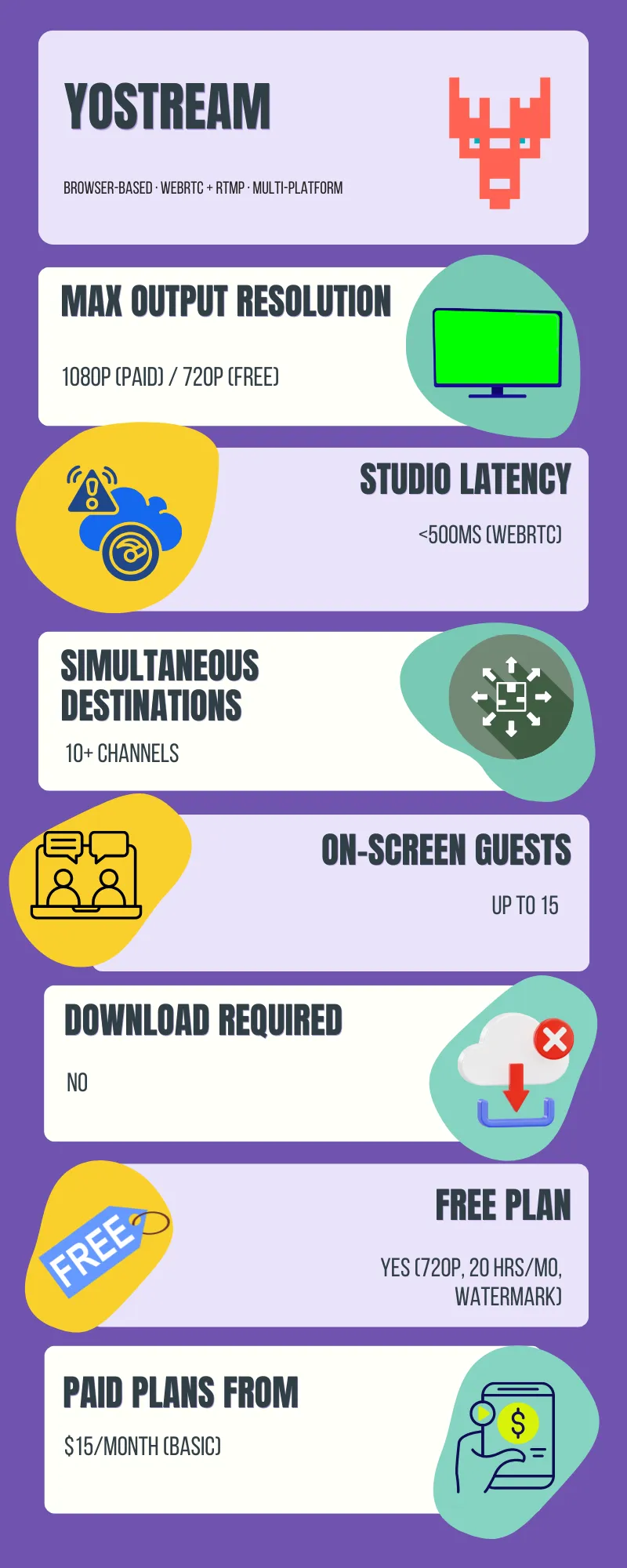
Yostream uses WebRTC for in-session communication (the sub-500ms layer connecting your guests and your camera) and RTMP for platform delivery (pushing the composed stream to YouTube, Twitch, Facebook, etc. simultaneously). Your studio-side experience is real-time; the delivery side stays compatible with every major platform.
Because encoding is handled server-side, the local machine is not the bottleneck. On the same laptop where OBS drops frames, Yostream runs clean.
What it Does Well:
- Consolidates comments from YouTube, Facebook, Twitch, and LinkedIn into one panel, so there is no tab-switching mid-broadcast
- Custom Source (RTMP Source) lets you connect OBS or any other RTMP-capable encoder directly into Yostream. You get OBS's full scene control, overlays, and game capture on the input side, with Yostream handling multistreaming and platform delivery on the output side. No need to run two separate broadcast pipelines.
- Custom overlays, lower-thirds, logos, and themes without a graphics tool
- Guest invite by link, with no software install on the guest's end and no parallel Zoom call eating CPU
- Team collaboration is built in: invite team members and assign them as Admin (can manage streams, schedule broadcasts, and invite others) or Co-host (can control overlays, manage guests, and moderate chat during a live broadcast). Every member logs in with their own credentials, so there is no password sharing and no risk of someone accidentally accessing billing or account settings they should not touch.
- Separate-track recording for post-production repurposing into a podcast
- Screenshare and layout switching without dropping the stream
Real Limits
The free plan is capped at 720p with a watermark. 2 channel multistreaming. 5 hours of recording.
✅ Who Should Use Yostream
Educators, coaches, marketers, journalists, faith communities, and small businesses going live to multiple platforms simultaneously without managing encoder software. Also a strong fit for small production teams: the Admin and Co-host roles mean a producer can manage the backend while a host runs the show, without sharing account credentials. And if you are already an OBS user who wants Yostream's multistreaming without abandoning your OBS scene setup, the Custom Source feature makes that combination work out of the box. Pricing is meaningfully lower than StreamYard at comparable tiers. The free plan is fully functional for evaluation within the free trial period.
2. OBS Studio: Best Free Tool for HD Encoding With Full Encoder Control
OBS Studio is open-source, free, and runs on Windows, macOS, and Linux. It gives you complete encoder-level control: custom bitrate caps, x264 tune flags, multi-track audio routing, and plugin support. With the settings in Section 5 applied, it achieves 1–2 second contribution latency.
Key Limitation
OBS streams to one RTMP destination by default. Multistreaming requires a cloud relay (Restream, Castr) or the obs-multi-rtmp plugin, both of which add approximately 1–2 seconds to the distribution layer.
On GPU Hardware Encoding
NVIDIA NVENC, AMD AMF, and Intel QSV offload H.264/H.265/AV1 encoding from the CPU to dedicated silicon on the GPU. This frees CPU cycles and reduces the encoder queue delay that causes frame drops during complex scenes. Always prefer hardware encoding over x264 software encoding when your GPU supports it.
3. StreamYard: Best for Interview and Panel Formats
StreamYard is browser-based, WebRTC-first, and built for talk-format streaming: interviews, panels, virtual summits, and multi-speaker faith broadcasts. It supports up to 10 on-screen participants and 15 backstage. For HD stability at 1080p, the host needs at least 7 Mbps upload (5 Mbps is the documented floor, but it leaves no headroom for screen sharing). Pricing at comparable tiers is higher than Yostream.
4. Streamlabs Desktop: Best for Gaming and Twitch-Native Streaming
Streamlabs runs on the OBS engine and adds Twitch alert widgets, donation overlays, theme packs, and Merch shelf integrations. It is the standard recommendation for gaming streamers going to Twitch. Low Latency Mode is at Settings → Stream → Low Latency Mode. For 1080p 60fps gaming: NVENC H.264 at 6,000–8,000 kbps on an RTX 2060 or newer runs cleanly. Built-in multistreaming requires a Prime subscription.
5. Restream: Best Cloud Relay for Distributing to 30+ Platforms
Restream is a distribution layer, not a production studio. Stream once from OBS, Streamlabs, or any RTMP encoder; Restream replicates the output to 30+ platforms simultaneously. Your upload bandwidth is used once regardless of destination count. Processing delay added by the relay: approximately 1–2 seconds on top of your encoder-to-ingest delay. HD quality passes through intact as long as your source bitrate meets each platform's requirements.
6. vMix: Best for Professional Multi-Camera HD Broadcasts
vMix is Windows-only paid software built for broadcast-grade production. It supports NDI (Network Device Interface, a royalty-free IP video standard by Vizrt) for connecting cameras over ethernet without capture card hardware per feed. It also supports 4K up to 60fps, instant replay, slow-motion, and simultaneous multistreaming to multiple RTMP endpoints natively, with no relay needed. Requires a high-end Windows workstation for multi-camera 4K work.
4. Full Comparison Table
| Tool | Max HD | Studio Latency | Multistream | Browser / Desktop | Free Plan | Best Fit |
|---|---|---|---|---|---|---|
| Yostream | 1080p | <500ms | ✅ 10+ channels | Browser | ✅ 720p / 20hr | Educators, marketers, multistream creators |
| OBS Studio | 4K | 1–5s | Plugin/relay needed | Desktop | ✅ Free, open source | Power users, gaming, custom pipelines |
| StreamYard | 1080p | <500ms | ✅ Yes | Browser | ✅ Limited free | Panels, interviews, virtual summits |
| Streamlabs | 1080p 60fps | 2–5s | ✅ Prime plans | Desktop | ✅ Free (watermark) | Gaming, Twitch, community alerts |
| Restream | 1080p (pass-through) | +1–2s relay | ✅ Core feature | Both | ✅ Limited free | Multi-platform distribution layer |
| vMix | 4K 60fps | Ultra-low (NDI) | ✅ Built-in | Desktop (Windows only) | ✅ 60-day trial | Multi-cam events, broadcast production |
5. Platform-Specific Latency Settings: Step-by-Step
Platform defaults are optimized for reliability in the worst network conditions, which means they run slow by default. Change these settings before every broadcast.
YouTube Live: Enable Ultra Low Latency
- Go to YouTube Studio (studio.youtube.com) and click Create → Go Live
- In the Stream setup panel, find the Latency dropdown under Stream Settings
- Change "Normal latency" to Ultra low latency
- Note the trade-offs: viewer delay drops from 20–30s to roughly 3–5s, but DVR rewind is disabled and max resolution is capped at 1080p at 9,000 kbps. For 4K streams, use Normal or Low latency instead.
Twitch: Enable Low Latency Mode
- Go to Twitch Creator Dashboard (dashboard.twitch.tv)
- Navigate to Settings → Stream in the left sidebar (not through Edit Stream Info)
- Find the Low Latency toggle and enable it
- In OBS, set Keyframe Interval to exactly 2 seconds
Step 4 is not optional. Twitch Low Latency Mode requires a 2-second keyframe interval to function. If the interval is set to 0 (auto) or any other value, the toggle has no effect. Result: viewer delay drops from approximately 8–10 seconds to 2–3 seconds.
Facebook Live: What You Can and Cannot Control
Facebook Live has no named latency mode setting. Its CDN architecture adds 3–8 seconds of viewer-side delay depending on delivery region, and this range is less predictable than YouTube's because Facebook's edge server geography is less uniform. Two things you can do to minimize it:
- Disable DVR replay in Live Producer → Stream settings → uncheck "Enable DVR." DVR adds buffer overhead on Facebook's side.
- Use CBR at 4,000–6,000 kbps. Facebook's ingest is more sensitive to bitrate spikes than YouTube's. VBR from your encoder causes more platform-side buffering on Facebook specifically.
6. FAQs
1. Can I stream in 1080p HD with under 2 seconds of lag?
Yes, with the right stack: SRT or WebRTC contribution, wired connection at 10+ Mbps upload, CBR at 6,000–8,000 kbps, 2-second keyframe interval, and platform low-latency mode enabled. Sub-2-second is achievable contribution-to-ingest. Viewer-side latency includes CDN delivery on top of that, typically adding 1–4 seconds. Browser-to-browser WebRTC with no CDN in the path is the only way to reliably hit sub-500ms for all participants.
2.What is the best free live streaming software for HD with low lag?
OBS Studio for desktop: free, open-source, and with the settings applied for low-lag at 1080p. For browser-based free use, Yostream's free tier gives you 720p at 20 hours per month with multistreaming to 2 channels, which is enough to evaluate the full workflow before upgrading.
3. Does multistreaming increase latency?
Using a cloud relay like Restream adds approximately 1–2 seconds to your contribution pipeline. After that, each destination platform adds its own latency independently. A viewer on YouTube and a viewer on Twitch will see different delays. This is expected behavior. Your upload bandwidth is not multiplied by the number of platforms when using a relay.
4. Does H.265 reduce latency compared to H.264?
No. H.265 improves compression efficiency (roughly 40–50% smaller at equivalent quality) but does not reduce latency. Software H.265 encoding is more CPU-intensive than H.264, which can actually increase encoder delay on machines without dedicated H.265 hardware support. For live streaming in 2026, H.264 with NVENC or AV1 with a compatible GPU are the better choices.
5. What is adaptive bitrate streaming, and do I need to configure it?
Adaptive bitrate streaming (ABR) is where the platform generates multiple quality renditions of your stream (1080p, 720p, 480p, 360p) and the viewer's player automatically selects the highest quality their connection can sustain. YouTube and Twitch implement ABR automatically from your single source. You send one HD stream; the platform builds the quality ladder. Viewers on slow connections get a watchable lower-resolution version with no extra work on your end.
6. What streaming software works best on a low-end PC?
Browser-based tools are the right answer for underpowered hardware. Yostream and StreamYard both encode server-side; your local CPU only handles the browser tab and camera capture. Any machine that runs Chrome can run Yostream. If you need desktop software, OBS with x264 at superfast preset and zerolatency tune is the lowest-overhead option, though it will still load a weak CPU more than a browser-based tool would.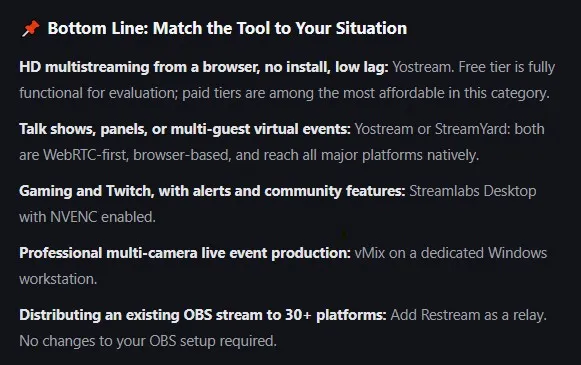
Readers Also Explored:
- No heavy lifting needed: How To Live Stream With A Low-End PC
- Avoid the delay: Prevent Buffering And Lag During Live Streams
- Game on!: Best OBS Settings for Game Streaming on Low-End PCs
- Best Twitch stream settings: What Are The Best Settings For Live Streaming On Twitch