

Recently, Yostream launched its Embedded Chat feature, allowing creators to display audience messages directly inside their live streams.
If you haven’t set it up yet, you can first read the tutorial on how to embed chat in your stream for step-by-step instructions.
Once enabled, the next step is to customize chat in live stream broadcasts so it matches your content style and brand identity. In this guide, you’ll learn how to adjust chat position, design, spacing, themes, and branding elements for a more professional and engaging stream.
What Does It Mean to Customize Chat in Live Stream?
Customizing chat in live stream means modifying how audience messages appear on screen, including layout, spacing, colors, and themes.
Platforms like Yostream allow creators to control chat appearance so it blends seamlessly with their video content.
Step-by-Step: How to Customize Chat in Live Stream
Step 1: Enable Live Chats from the Social Panel
After entering the stream studio:
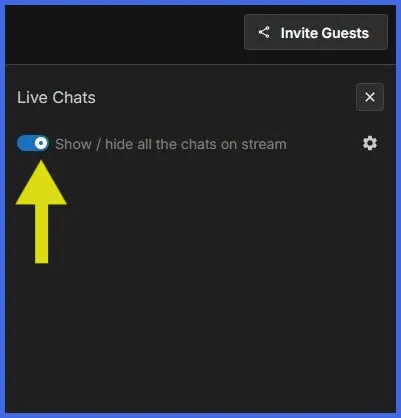
- Click the Social icon (bottom-right corner).
- Toggle Live Chats ON.
Once enabled:
- Chats will appear directly on the stream canvas
- Messages will also appear separately in the right panel
This ensures you can both display and monitor chats simultaneously.
Step 2: Open Chat Customization Settings
Next:
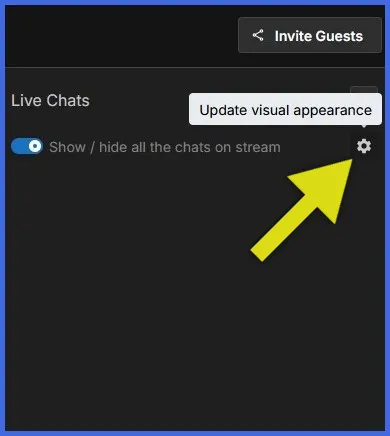
- Locate the Settings icon next to the Live Chats toggle
- Click it (labeled “Update Visual Appearance”)
This opens the chat customization panel.
Step 3: Choose Position Mode
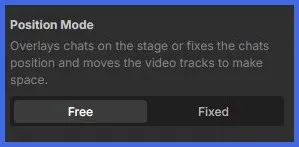
The first customization option is Position Mode.
Available Modes:
1. Free Mode
- Drag chat anywhere on screen
- Resize chat panel freely
- Ideal for flexible layouts
2. Fixed Mode
- Chat stays on the right side of the canvas
- Automatically stretches vertically
- Cannot be dragged or resized
- Video adjusts to make space
When to Use What
- Use Free Mode for creative layouts (gaming, podcasts)
- Use Fixed Mode for clean, professional streams (webinars, interviews)
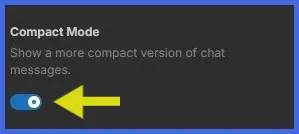
Step 4: Enable Compact Mode
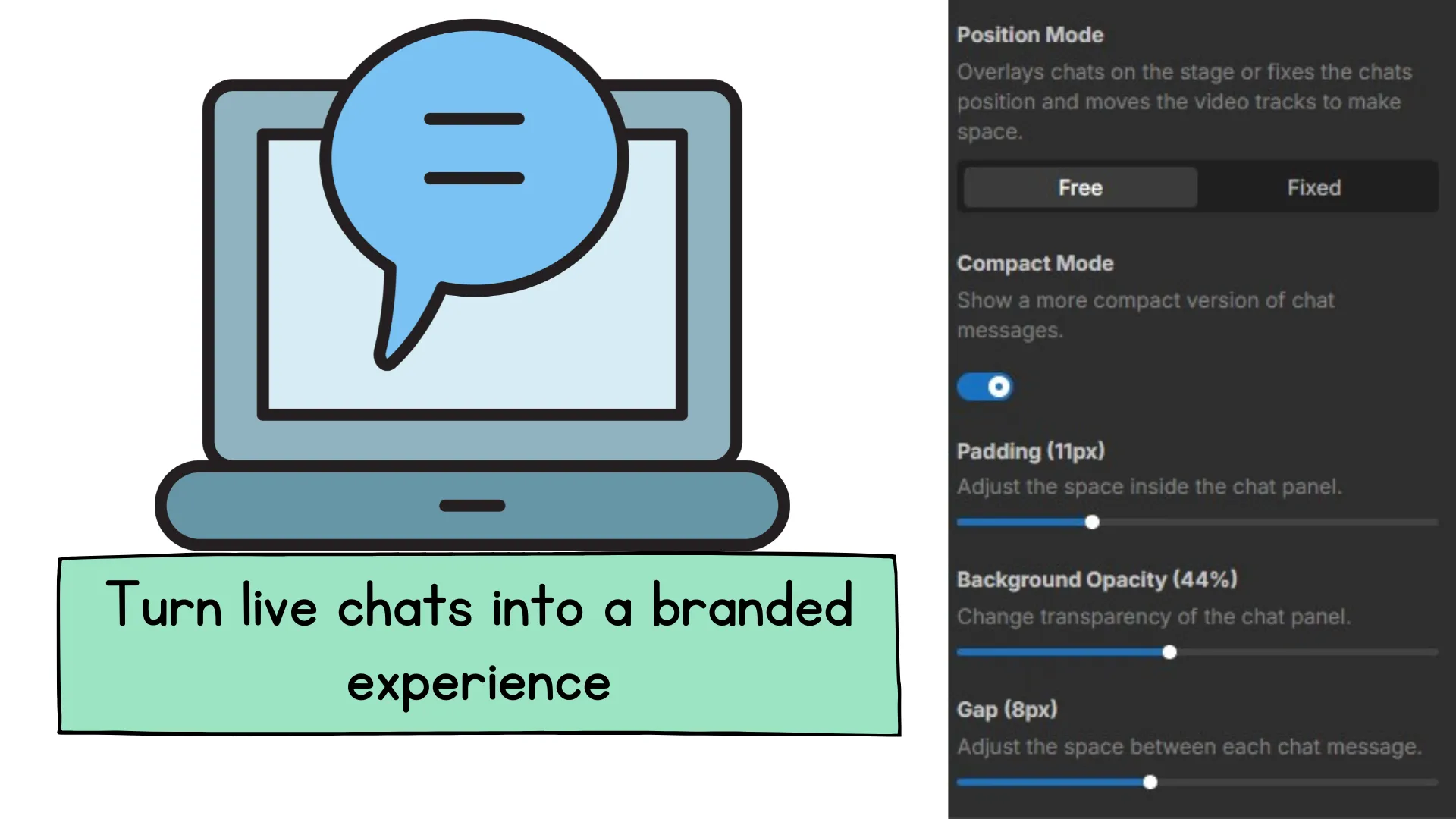
Toggle Compact Mode to:
- Display shorter chat bubbles
- Fit more messages on screen
- Reduce visual clutter
This is useful for high-traffic streams where chats move quickly.
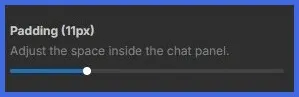
Step 5: Adjust Padding
Padding controls the space inside the chat panel.
- Use the slider to increase or decrease spacing
- Higher padding = cleaner look
- Lower padding = more messages visible
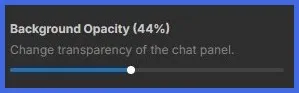
Step 6: Adjust Background Opacity
This setting controls chat transparency.
- Use the slider to adjust opacity
- Lower opacity = more transparent
- Higher opacity = solid background
Important Behavior
- In Fixed Mode → Background appears behind chat
- In Free Mode → Background may not be visible the same way
This helps balance readability vs visual aesthetics.
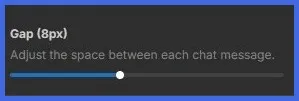
Step 7: Adjust Gap Between Messages
Gap controls the space between chat messages.
- Use the slider to increase or decrease spacing
- Smaller gap = compact chat
- Larger gap = clearer separation
Step 8: Customize Chat Themes and Branding
Now move beyond layout into visual branding.
Open the Brand Panel
- Click the Brand icon (next to Social)
- Select the Theme icon (first option)
Choose Chat Theme
You can select from four themes:
- Bubble → modern and conversational
- Classic → traditional chat look
- Minimal → clean and distraction-free
- Block → bold and structured
Set Brand Color
You can also:
- Choose a brand color
- Match chat visuals with your stream identity
Add Graphics
Click the Graphics icon (second option) to:
- Add logo
- Apply overlays
- Set backgrounds
You can explore additional branding elements to create a fully customized stream experience.
Key Takeaways
- You can customize chat in live stream using layout and design controls
- Yostream allows full control over chat position, spacing, and themes
- Free and Fixed modes offer flexible layout options
- Branding tools help match chat UI with your stream identity
- Chats appear both on canvas and side panel for better control
Benefits of Customizing Chat in Live Streams
Better Viewer Experience
Readable and well-designed chats improve engagement.
Stronger Branding
Custom themes and colors make your stream recognizable.
Cleaner Layout
Control spacing, opacity, and positioning.
Higher Engagement
Well-placed chats encourage more interaction.