

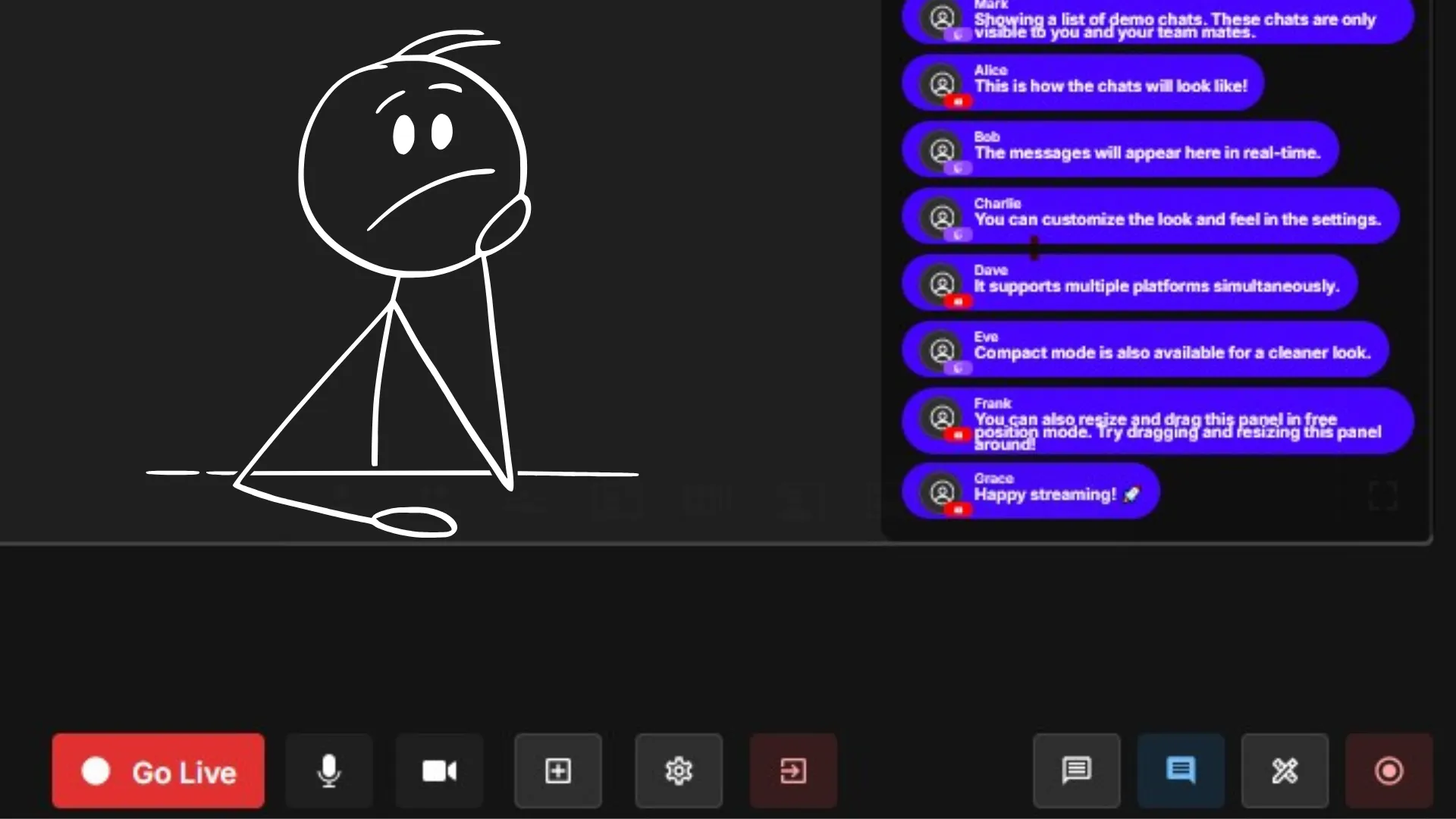
Live streaming becomes far more engaging when viewers can see their messages appear on screen. Many creators want to embed chat in live stream broadcasts so audience conversations become part of the show. The feature of embedding chat in live stream was recently released on Yostream.
In this step-by-step tutorial, you’ll learn how to embed chat in live stream using Yostream, a browser-based streaming studio that allows creators to go live and display audience comments directly on the stream canvas with many other benefits.
By the end of this guide, you’ll know how to activate live chats and show viewer messages from platforms like YouTube and Facebook Live during your broadcast.
What Does Embedding Chats in a Stream Mean?
Embedding chats in a live stream means displaying audience comments from streaming platforms directly inside the broadcast video.
Instead of viewers only seeing comments in the platform’s chat window, the messages appear visually on the stream itself.
For example, comments from platforms like:
- YouTube
- Facebook Live
can be shown as on-screen chat overlays during your broadcast.
This improves interaction and makes the stream feel more conversational.
Step-by-Step: How to Embed Chats in Your Stream
Follow these steps to enable embedded chats using Yostream.
Step 1: Open Yostream in Your Browser
Start by opening the streaming platform.
- Launch your preferred browser.
- Visit yostream.io.
- Wait for the homepage to load.
Since Yostream operates entirely in the browser, you do not need to download any streaming software or install additional tools.
This makes it ideal for creators who want to start streaming quickly.

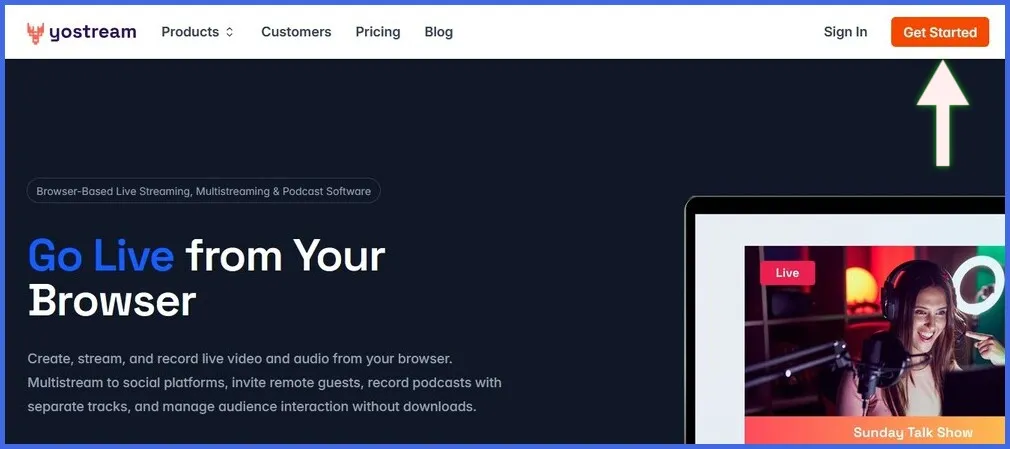
Step 2: Click the “Get Started” Button
Once the homepage loads:
- Locate the Get Started button.
- It appears in the top-right corner of the page.
- Click the button to open the sign-in page.
This step will take you to the authentication screen where you can access your streaming dashboard.
Step 3: Sign In to Your Account
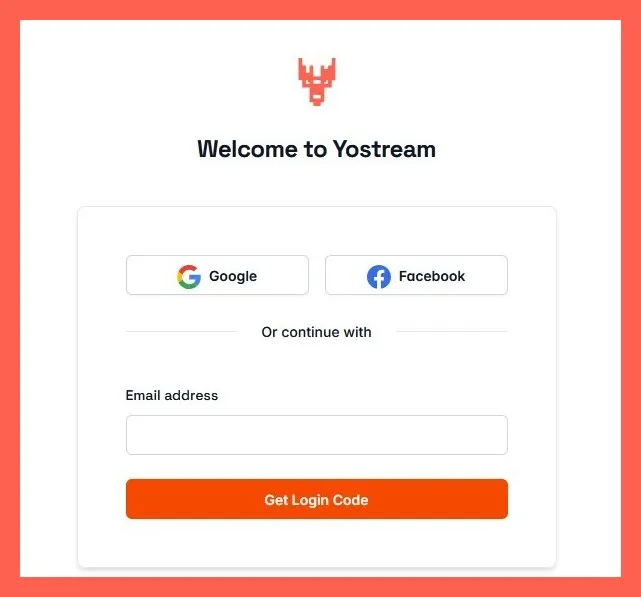
You can sign in using multiple methods:
- Google account
- Facebook account
- Email address
Many creators prefer social login when they frequently stream to platforms like YouTube or Facebook Live.
Alternatively, you can enter any email address to create or access your account.
Step 4: Enter the 6-Digit OTP (Email Login Only)
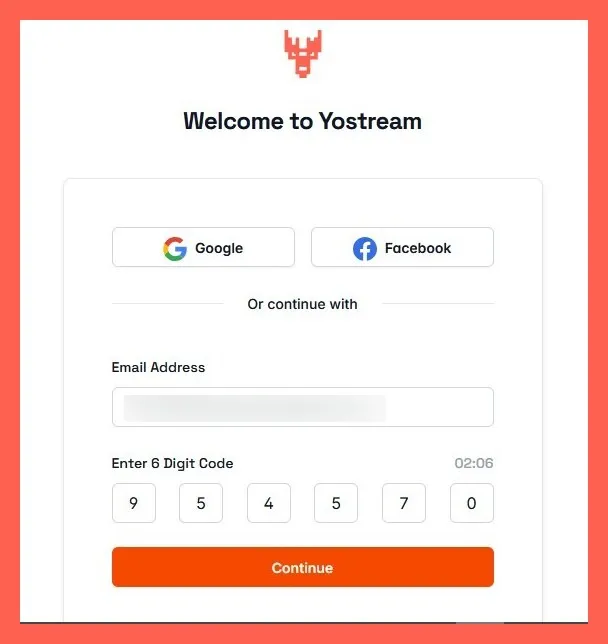
If you sign in using email:
- Check your email inbox.
- Locate the message containing the 6-digit OTP.
- Enter the OTP on the verification screen.
- Submit the code.
OTP verification ensures secure account access.
Step 5: Open the Live Streaming Dashboard
After successful login, you will enter the Yostream dashboard.
To begin streaming:
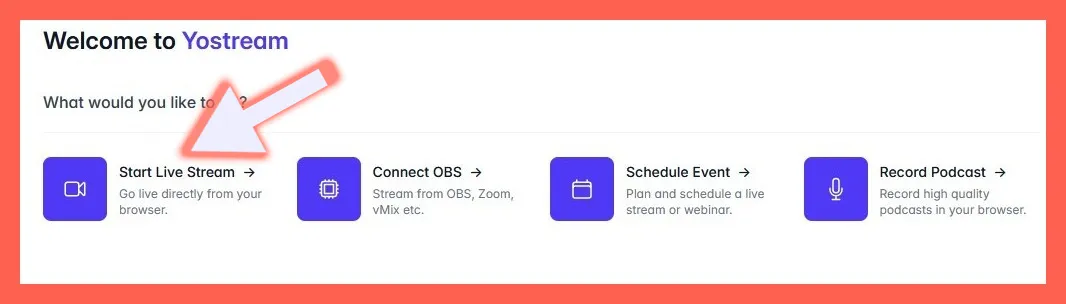
- Locate the Start Live Stream option.
- Click it.
This will open the browser-based streaming studio where you control your broadcast.
Step 6: Allow Camera and Microphone Access
Your browser will now request permission to access your devices.
When the prompt appears:
Click Allow while visiting the site for camera and microphone access.

In the setup form:
Click Join Room.
After joining the room, your video feed will appear in the stream canvas.

Step 7: Open the Social Panel
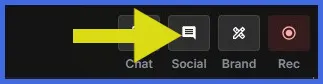
Look at the bottom-right corner of the streaming interface.
You will see four feature icons.
Select the Social option.
This panel manages chat interactions.
Step 8: Enable Live Chats
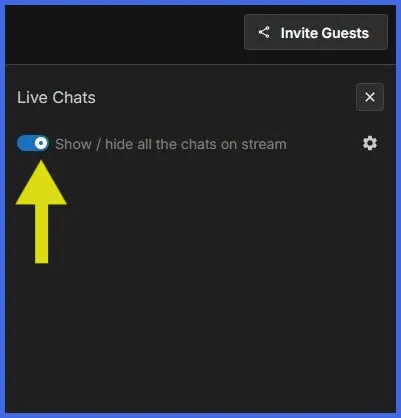
Inside the Social panel:
- Locate the Live Chats toggle.
- Turn it ON.
This enables the chat aggregation system within Yostream.
Step 9: Display Chats on Your Stream Canvas
Once Live Chats are enabled:
- Comments from your streaming destinations appear on screen.
- Messages are displayed inside the stream canvas.
If you are streaming to multiple platforms such as YouTube and Facebook Live, the system can combine chats into one unified feed.
Your audience will now see their comments appear during the broadcast.
Benefits of Embedding Chats in Live Streams
Displaying chats inside your broadcast provides several advantages.
Higher Viewer Engagement
Viewers participate more when their comments appear on screen.
Stronger Audience Connection
Live conversations create a sense of community.
Better Replay Experience
Recorded streams preserve the real-time audience discussion.
Multi-Platform Interaction
Messages from multiple platforms appear in a single feed.
Best Practices for Displaying Chats in Your Stream
To maintain a professional live stream:
Highlight meaningful comments
Show questions, feedback, or reactions that contribute to the conversation.
Avoid covering important visuals
Position chat overlays where they do not block your content.
Moderate messages
Remove spam or inappropriate comments before displaying them.
Encourage participation
Ask viewers questions to increase engagement.