

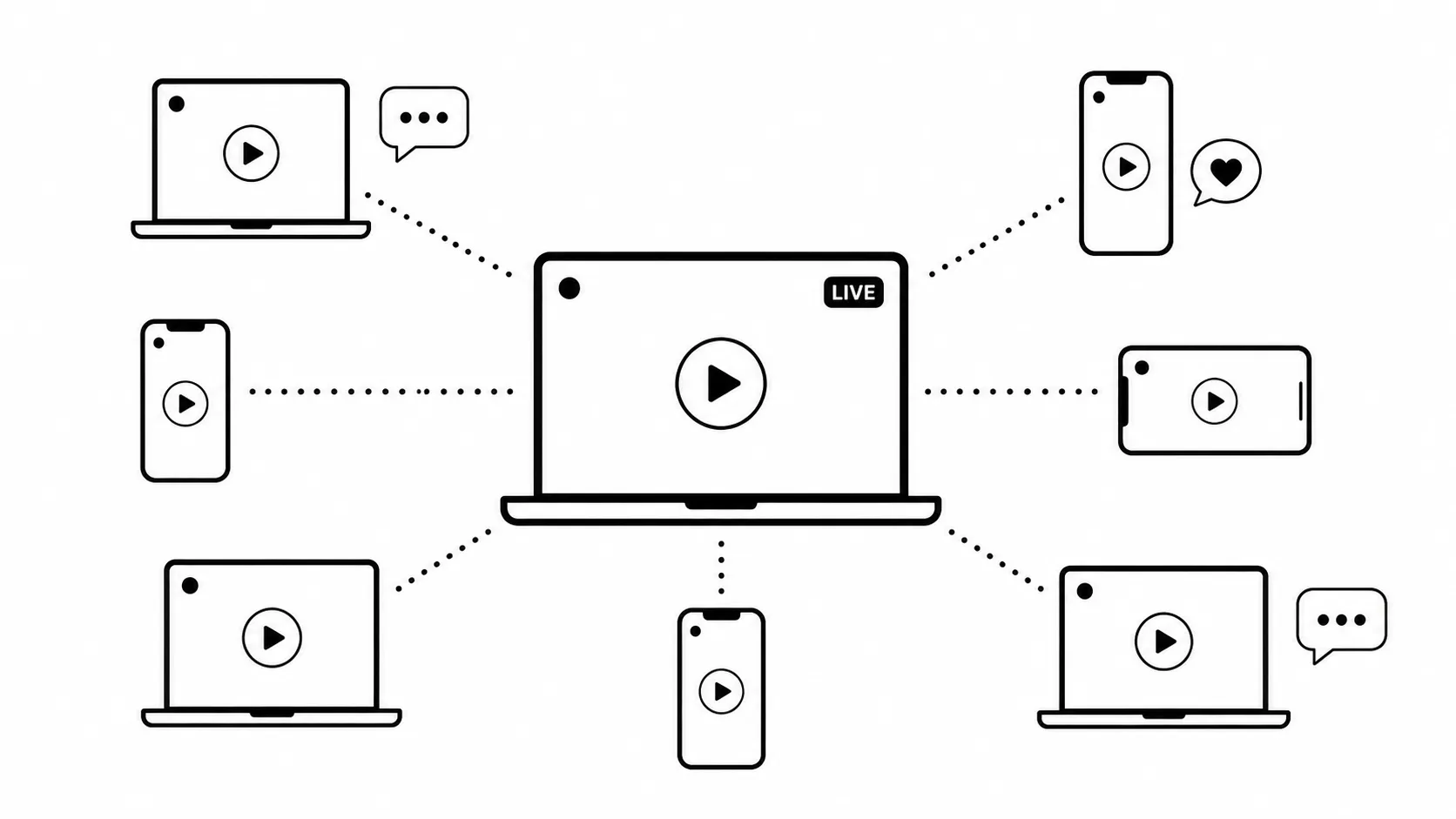
Ten minutes into most virtual watch parties, something breaks. Someone's audio lags a beat behind the video. A guest joins late and asks everyone to rewind. Half the group is thirty seconds ahead because their stream buffered better than everyone else's. By the time the actual movie or match gets interesting, half the chat is still troubleshooting.
If you've hosted more than one of these, you already know the fix isn't a better streaming service. It's better preparation. The platform matters less than most guides suggest. What actually determines whether people show up next time is whether the last one felt easy.
This guide covers how to host a virtual watch party that holds together from the first minute to the last, including which platform fits your specific situation, the copyright rule almost every first-time host misses, and how to keep a chat engaged without talking over the good parts.
Quick Start: Get a Watch Party Running Tonight
Most people landing on this guide fall into one of two situations. Find yours and skip straight to it. The deeper explanations further down are there if you want them, not because you need them to get started.
Small private group (a movie night with friends)
This is the setup for five to fifteen people watching something together casually. Total setup time is about fifteen minutes.
- Pick what you're watching and confirm everyone can access it. Each guest generally needs their own subscription to the service (Netflix, Disney+, Max, Prime Video). If someone doesn't have access, decide now rather than mid-event.
- Install a synced-playback browser extension. Teleparty (free, Chrome and Edge) is the most widely used option and works across Netflix, Disney+, Hulu, Max, and Prime Video, even though Amazon dropped its own native Watch Party feature. Everyone in the group needs the same extension installed.
- Start the video, then click the extension icon to generate a party link, and send that link to your group.
- Open a separate voice or video call for actually talking, since the sync extension only handles playback and text chat, not voices. A Discord voice channel is the easiest free option here because it has no time limit. If you'd rather use Zoom, know that the free plan cuts group calls off at 40 minutes, which is short for most movies, so either upgrade or plan on restarting the call partway through.
- Test five minutes early: confirm everyone can hear each other in the voice call, confirm the video is synced for everyone (not just playing, but at the same timestamp), and confirm nobody's stuck behind a paywall.
- Hit play together and let the extension keep everyone in sync from there.
Public creator stream (commentary, reaction, or panel content going out live)
This is the setup for a host broadcasting their own commentary or reaction to an audience, not private synced playback of someone else's video.
- Confirm what's actually being broadcast is your commentary, not a rebroadcast of the copyrighted source. Reaction and commentary formats are generally fine; re-streaming someone else's video feed usually isn't, see the rights section below.
- Decide which platforms your audience is actually on (YouTube, Twitch, LinkedIn, Facebook), since this determines whether you need one destination or several at once.
- If you're going to more than one platform, set up a browser-based multistreaming tool such as Yostream, connect each destination with its stream key, and skip installing separate desktop software for each platform.
- Run a short private test stream to check camera framing, mic levels, and that every connected destination is actually receiving the feed before you go live for real.
- Go live and share the link across each platform's own audience, rather than funneling everyone to just one.
When something breaks mid-event
- Playback and voice drift out of sync: pause both the video and the call, let everyone confirm they're paused, then resume together rather than trying to nudge the timing while it's still playing.
- One guest can't hear anyone: check they actually joined the voice or video call. This is the single most common issue, since it's easy to join the sync extension and forget the separate call entirely.
- Video keeps buffering for one person: it's almost always their connection, not the host's. Have them switch their video quality down manually, or drop to audio-only in the call while they catch up.
- The sync extension stops working for one platform mid-event: fall back to a manual countdown and everyone pressing play at the same second. It's not elegant, but it finishes the night.
- A live stream keeps dropping for a creator event: check upload bandwidth first, not the software, since an unstable upload connection is the most common cause of repeated drops.
What Counts as a Virtual Watch Party
A virtual watch party is any online event where a group watches the same video content at the same time while talking to each other, through text chat, voice, or video. What separates it from a regular video call is the shared focus: everyone's attention is on the same screen at the same moment, not on each other's faces.
That shared timing is what makes it work. A group commenting on the same goal, the same plot twist, or the same product reveal in real time creates a kind of conversation that a recorded reaction video or a delayed group chat never quite matches.
People run watch parties for a wide range of events: movie nights, TV premieres, live sports, gaming tournaments, product launches, webinars, anime marathons, fundraising streams, and album listening sessions. The format is the same in every case. The tooling and the tone are what change.
Why Watch Parties Keep Growing as a Format
The common assumption is that people join a watch party to see the content. In practice, most of them have already seen it, or could watch it alone in five minutes. They join for the reaction, not the content itself.
This tracks with a broader shift in how people consume entertainment: watching alone has become the exception people actively try to avoid, not the default. A watch party gives people a low-effort way to be social around something they were going to watch anyway.
For hosts and creators, that shift has a practical upside. Longer, more interactive viewing sessions tend to translate into stronger community retention, since guests come back for the group, not just the content. That's part of why watch parties have become a recurring fixture for gaming communities, fandoms, and creator audiences rather than a one-off event format.
Picking the Right Format for Your Audience
Not every watch party needs the same setup. A movie night with six friends and a public esports viewing party for a few hundred strangers have almost nothing in common operationally.
| Watch party type | Best for | Typical audience size |
|---|---|---|
| Movie night | Friends and family | Small, private |
| Sports watch party | Live matches | Medium to large community |
| Gaming tournament | Esports and creator content | Public audience |
| TV premiere | Fan communities | Medium to large |
| Educational screening | Schools, teams, onboarding | Closed group |
| Product launch | Brands and customers | Public, one-time |
| Live commentary or reaction event | Creators and streamers | Public, recurring |
Deciding which of these you're actually running, before you touch a single tool, saves you from picking software built for the wrong scale.
How to Host a Virtual Watch Party, Step by Step
1. Decide what the guest experience should feel like
Before opening any app, answer one question: what do you want people to walk away feeling? A casual movie night, a competitive sports argument, a focused product reveal, and a chatty anime marathon all call for different pacing, different moderation, and different platforms. This decision drives everything that follows.
2. Confirm you actually have the right to stream the content
This is where a lot of first-time hosts get into trouble, and it's worth being blunt about. A personal subscription to a streaming service does not give you the right to publicly rebroadcast that content. Most streaming platforms only permit synchronized group viewing through their own official tools or licensed extensions, and using content outside those terms can get a channel struck or a stream pulled mid-event.
If you're hosting privately with a small group of friends using a licensed watch-together tool tied to your own account, you're generally fine. If you're planning a public, promoted, or recurring event, check the platform's terms first. For creator-led livestreams, the safer rule is to only broadcast content you own, have licensed, or have explicit permission to show. YouTube, for example, interrupts or ends live streams the moment third-party copyrighted content is detected unless the channel has been added to the rights holder's allowlist, so having a personal subscription isn't the same as being cleared to broadcast.
3. Match the platform to the audience, not the other way around
| Need | Reasonable option |
|---|---|
| Private movie night with friends | A browser extension built for synced private playback (Teleparty, Kast, or similar) |
| Community discussion around a show or game | Discord voice channels with a Watch Together activity |
| Large public creator audience | YouTube Live |
| Gaming and esports communities | Twitch |
| Multi-platform creator commentary or reaction event | Browser-based multistreaming software |
🎬 Worth Knowing:
Amazon quietly removed Prime Video's native Watch Party feature in April 2024 with no in-app notice, so if you've seen older guides recommend it directly, that instruction is out of date. People wanting to watch Prime Video together now generally rely on third-party browser extensions instead.
Most private watch parties don't need broadcast software at all. Where a tool like Yostream actually fits is a narrower case: creators running live commentary, reaction streams, or panel-style discussions who want their own broadcast, not the copyrighted source video, to reach several platforms (YouTube, Twitch, LinkedIn, Facebook) at the same time. Because it runs in the browser, there's nothing to install, which matters for hosts who need to go live quickly and repeatedly rather than set up a permanent studio rig.
4. Test the setup before anyone joins
Hosts who've done this more than a few times almost never skip a dry run. Thirty minutes before go-live, check your internet connection, microphone, camera framing, screen share, chat moderation, playback sync, a backup browser, and every invitation link. Upload speed matters just as much as download speed here, since it's what actually carries your video and voice out to everyone else. A connection that streams video fine can still choke on live audio if upload bandwidth is unstable, which is one of the more common causes of a watch party that sounds fine for the first ten minutes and falls apart after.
Keeping People Engaged Once the Party Starts
A watch party can have flawless video and still feel flat if nobody's talking. The goal is a room where people forget they're watching a screen instead of sitting on a couch together.
Before the event, send invitations three to seven days out, share the schedule across time zones if your group is spread out, and let guests vote on what you're watching. A poll two days before the event does more for turnout than a perfect invitation graphic.
During the event, keep interaction light rather than forced. Short polls at key moments, a prediction game for a sports or esports event, a quick Q&A with a guest, and simple emoji reactions all work better than constant narration. The instinct to fill every silence with commentary is one of the most common ways hosts undercut their own event. Guests need room to actually watch and react. Jump in when it adds something, not to fill dead air.
Which Platform Actually Fits Your Event
| Platform | Best for | Strengths | Where it falls short |
|---|---|---|---|
| Discord | Small to mid-size communities | Voice chat, persistent community, low setup | Weak public discoverability |
| YouTube Live | Public creator events | Large reach, easy sharing | Strict copyright enforcement |
| Twitch | Gaming and esports | Strong live chat culture | Not built for movie or TV content |
| Zoom | Private groups | Familiar interface | Not designed for public broadcast |
| Browser-based multistreaming (e.g. Yostream) | Creator commentary and reaction events distributed across multiple platforms | No install, streams to several RTMP destinations at once | You still need your own audience and streaming destinations, it doesn't provide synced playback of third-party video |
Equipment That Actually Matters
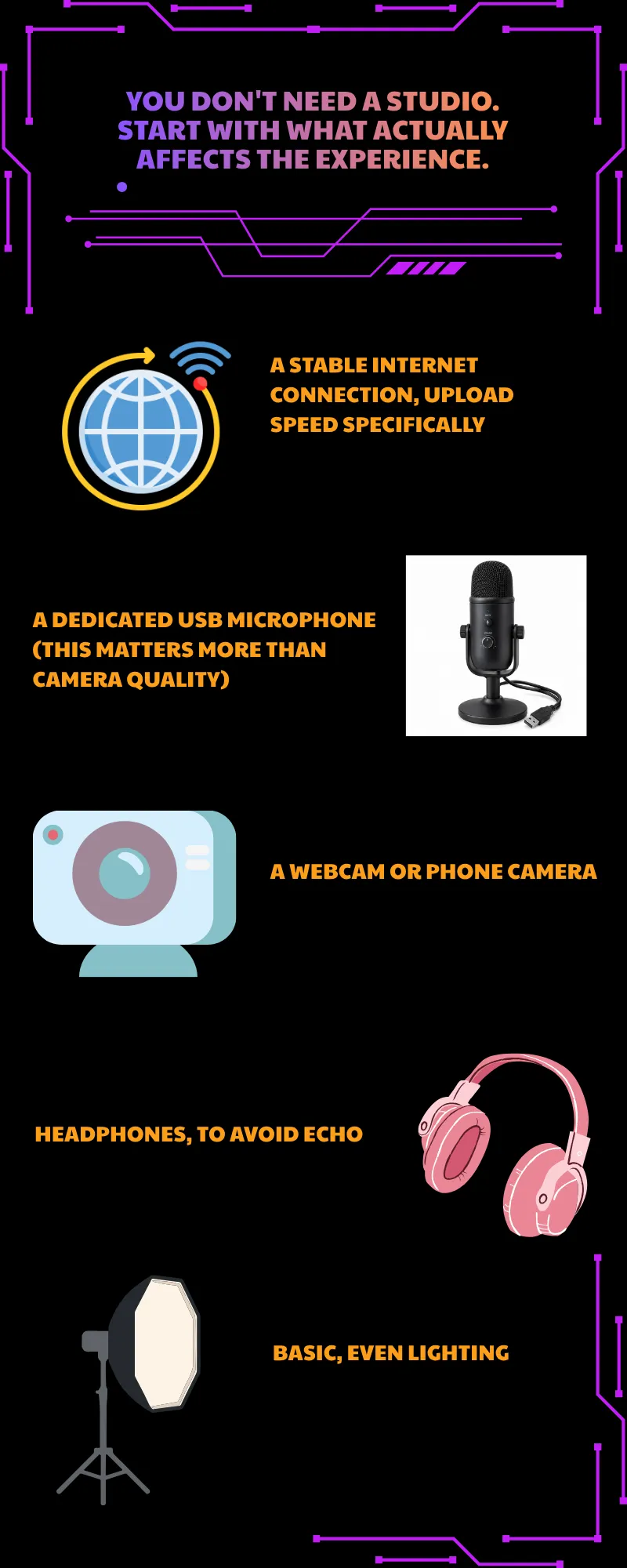
Once the basics are solid, an external webcam, a second monitor, a stream deck, or a capture card for gaming events are reasonable upgrades. Audio quality tends to have a bigger effect on whether people stay than video resolution does. A watch party with mediocre video and clean audio holds an audience far better than the reverse.
Mistakes That Quietly Kill Watch Parties
The most common failure points, in order of how often they actually happen: starting late, skipping a rights check on the content, not testing audio beforehand, talking over the moments people actually came to watch, running a large public event with no moderator, and relying on a connection that hasn't been stress-tested. None of these require expensive fixes. They require a checklist and ten extra minutes before go-live.
Running Watch Parties at Scale
Once an event regularly draws dozens or hundreds of viewers, a few things start to matter more.
Moderators become necessary, not optional, past a certain size. Someone needs to welcome new viewers, remove spam, and handle repetitive questions so the host can focus on the event itself.
Simple overlays, a countdown timer, event title, social handles, and an upcoming schedule, make a public event feel organized without much extra work.
A consistent schedule does more for long-term growth than any single well-produced event. A weekly Friday movie night or a recurring match-day stream builds a habit in a way that one-off events never do.
For creators running these larger, recurring events across multiple platforms at once, this is also where multistreaming tools like Yostream tend to earn their place: instead of managing separate logins and separate chats on YouTube, Twitch, and LinkedIn, the commentary broadcast goes out once and reaches all of them, while the host focuses on the audience rather than the plumbing.
Frequently Asked Questions
Can I host a virtual watch party for free? Yes. Several browser extensions and video call tools offer free watch-together features, and most livestreaming platforms have free tiers as well, though limits on participants or streaming destinations vary by provider.
What's the best platform for a virtual watch party? It depends on the event. Private movie nights work well with browser extensions built for synced playback. Public creator events, especially ones broadcasting original commentary rather than someone else's copyrighted video, usually work better on a livestreaming platform, with browser-based multistreaming tools useful when the goal is reaching several platforms at once.
Can I livestream Netflix, Disney+, or Prime Video content? No, not without explicit rights or a licensing agreement. Publicly rebroadcasting commercial streaming content is against nearly every major platform's terms of service, and doing it on a monetized channel risks a copyright strike.
Does Amazon Prime Video still have a built-in Watch Party feature? No. Amazon removed the native Watch Party feature in April 2024. People watching Prime Video together now typically use third-party browser extensions instead.
How many people can join a virtual watch party? It depends entirely on the platform. Private watch-together tools are usually built for small groups, while livestreaming platforms can support audiences in the thousands.
Do I need OBS to host a watch party? Not necessarily. If you're running a private, synced-playback watch party, you don't need broadcast software at all. If you're running a public commentary or reaction stream across multiple platforms, browser-based tools like Yostream let you go live without installing desktop software.
What internet speed do I actually need? A stable upload speed of at least 10 Mbps is generally sufficient for a 1080p stream. Higher resolutions, multiple simultaneous destinations, or a shaky connection call for more headroom than that number suggests.