

Yostream has recently launched its highly anticipated Team feature, empowering users to add admins and co-hosts as dedicated team members seamlessly. This update transforms solo streams into powerhouse productions, allowing you to delegate go-live controls, manage guest invites, and handle real-time moderation without missing a beat. It is perfect for scaling your content game across YouTube, Facebook, Twitch, and beyond. Whether you're coordinating a podcast or a co-hosted webinar, dive in and elevate your workflow today!
Yostream Team Feature
Yostream Team feature lets you invite people into your studio in two capacities:
- Admin
- Co-host
Proper use of these features keeps live shows secure, delegatable, and repeatable. As the Owner of the team, you're the ultimate admin, whereas the other two have their own roles.
Why it matters
- Reliability: Assigning roles reduces single-person dependency. It is critical for live events.
- Security: Role separation prevents accidental billing or settings changes.
- Compliance & privacy: Controlled access makes it easier to manage recordings and legal consent.
- Scalability: Clear roles simplify onboarding when your production team grows.
How to Add a Team Member?
After entering the Yostream dashboard, you'll see the Team feature in the left panel.
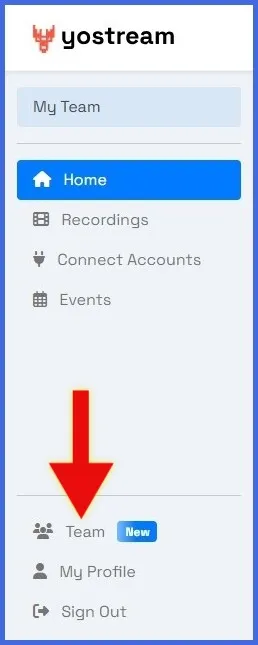
Once you click the Team icon, you will see a page with the following sections:
- My Team
- Members
- Billing & Usage
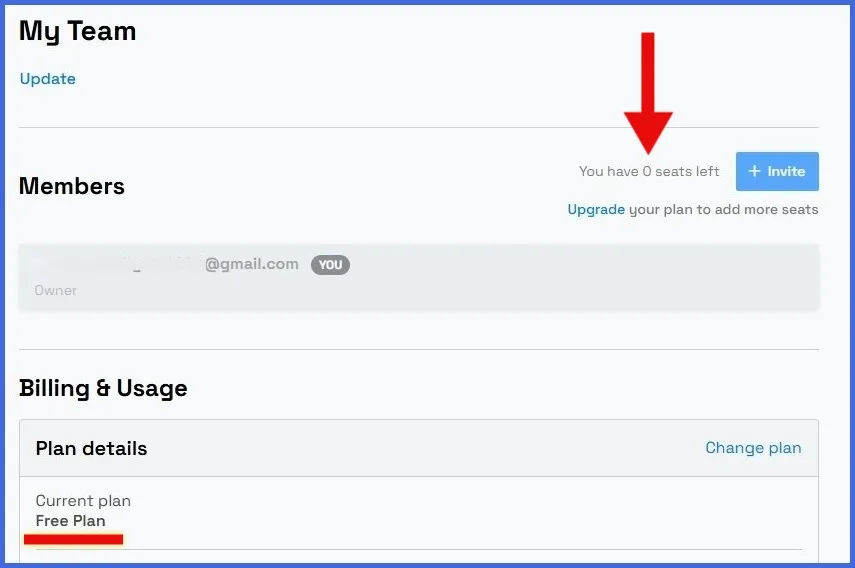
If you're using the free plan of Yostream, you'll see that you've 0 seats left. Additionally, the '+ Invite' button in the Members section will be unresponsive.
Check out the pricing plans of Yostream. Choose whichever you want, and after completing the payment, revisit the Team feature in your dashboard.
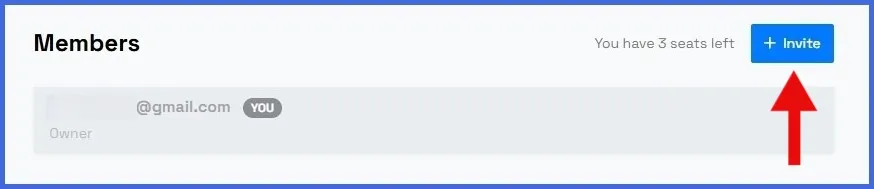
In the image given below, you can see that a user has subscribed to the premium plan and is now capable of adding 3 members.
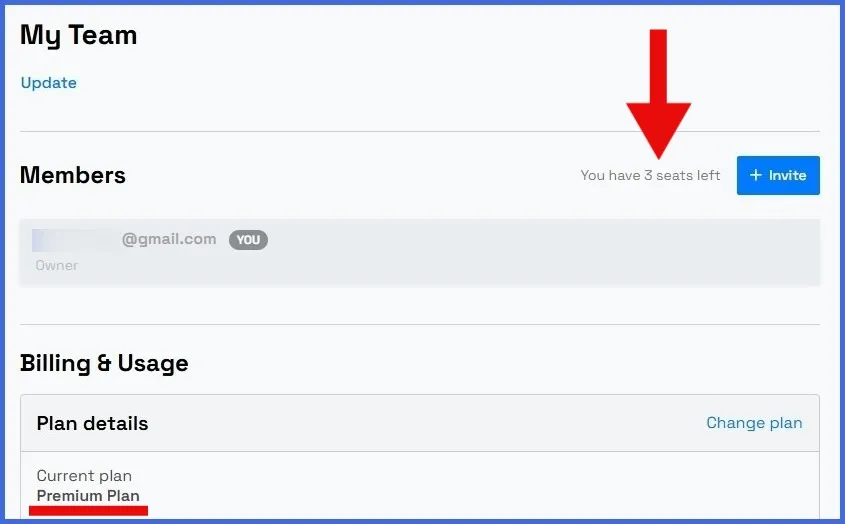
Click the '+ Invite' button to start adding members.
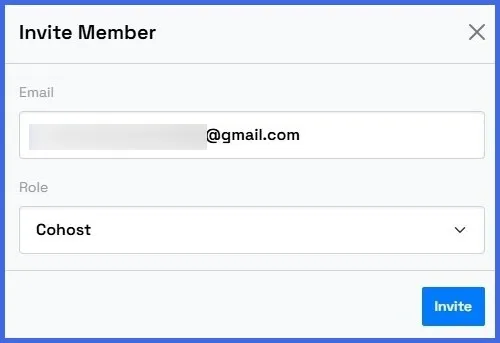
In the following form, enter the email address of the person you want to add as a member. Assign the role of Cohost or Admin. Click invite.
Once the email is sent, you can see the following update under the Members section.
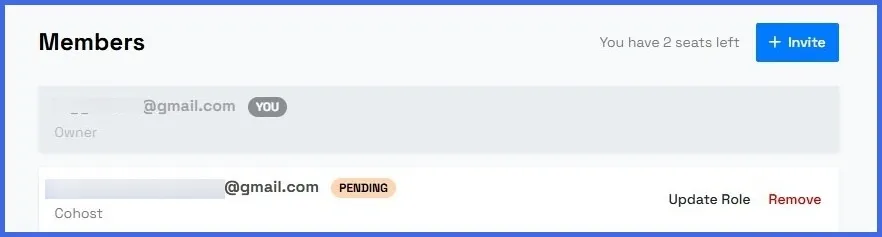
Once the invitation is accepted, the 'Pending' status will be removed automatically. Now, enter the Yostream Studio. You can see the newly-added member to your Team.
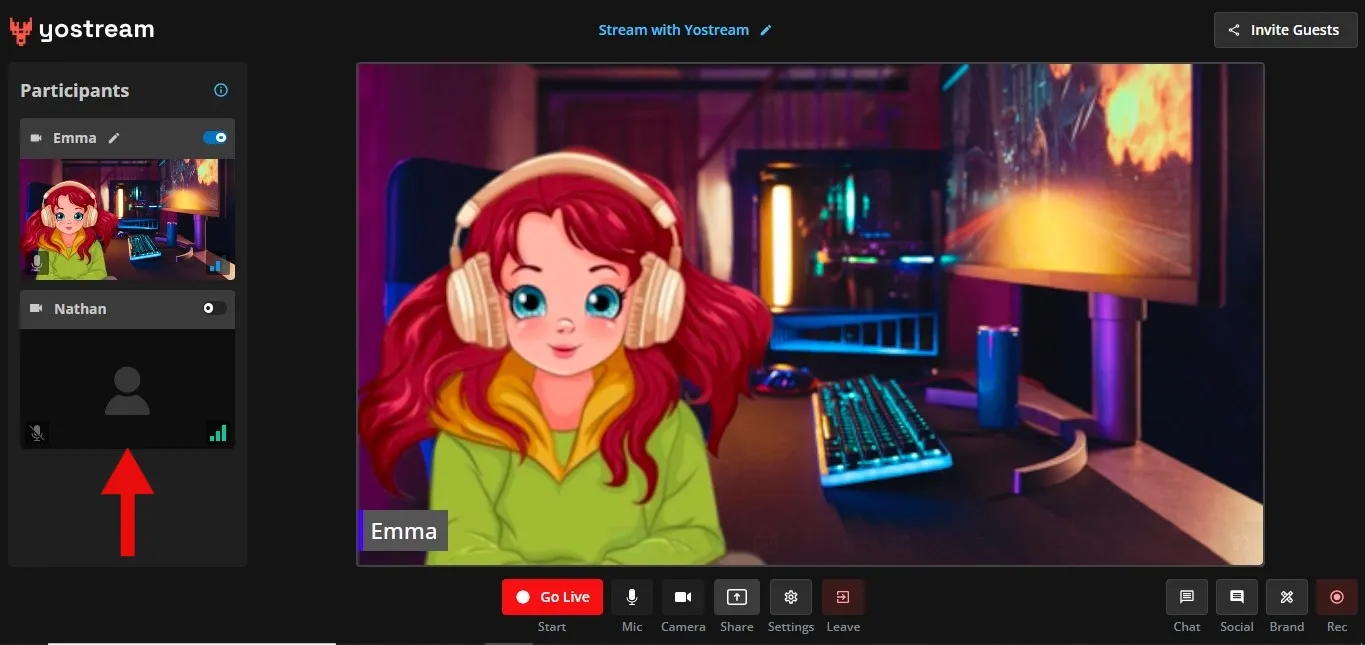
You've just added the very first member to your team. Depending on your subscription plans, the number of members can be changed.