

Your PC doesn't have a dedicated GPU, has 6GB of RAM, and Chrome is already fighting you for memory before you've opened a single streaming tool. Yes, you can still live stream on it. Browser-based software like Yostream needs 4GB to 8GB RAM and a stable connection to run smoothly, and because there's nothing to install, you skip the extra overhead a desktop app like OBS adds on top of your operating system and browser.
That's the short version. This guide walks through how to live stream on a low end PC using Yostream, plus what's actually happening under the hood so you know why it works and where its limits are.
Who This Guide Is For
This is written for people streaming from:
- 4GB to 8GB RAM systems
- Intel Core i3, Pentium, or Celeron processors
- AMD Ryzen 3 or Athlon processors
- Older office laptops or budget desktops
Browser-Based vs. Desktop Streaming Software
| Traditional Desktop Software | Yostream | |
|---|---|---|
| Installation required | Yes | No |
| Manual updates needed | Yes | No, runs current version in browser |
| Multistreaming built in | Varies by software | Yes |
| Guest rooms | Requires separate tool | Yes, built in |
| Admin / co-host roles | Varies | Yes |
| Works across devices without reinstalling | No | Yes, sign in from any supported browser |
Why Multistreaming Doesn't Multiply Your CPU Load
This is the part most guides skip, and it's the part that actually matters if you're worried about your PC keeling over mid-stream.
Set up multistreaming in OBS to five destinations and you're typically asking your machine to manage five separate output connections, sometimes five separate encodes. That adds up fast on limited hardware.
With Yostream, you connect your destinations once inside the studio and go live to all of them from a single browser session. Your machine handles one outgoing stream from the browser; distribution to each connected platform happens on Yostream's side, not by running duplicate encode jobs locally. Adding a fourth or fifth destination doesn't scale your local CPU load the way adding a fourth or fifth RTMP output in a desktop encoder would.
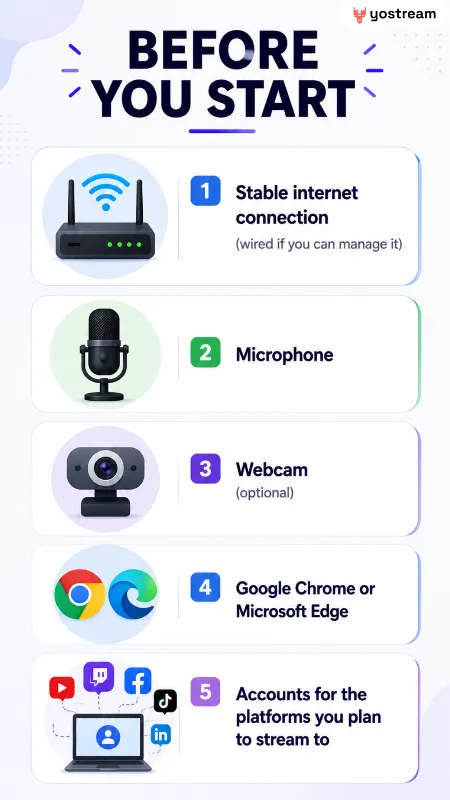
Minimum Recommended Specs
| Component | Recommendation |
|---|---|
| CPU | Intel Core i3 / Pentium / Celeron, AMD Ryzen 3 / Athlon or equivalent |
| RAM | 4GB minimum, 8GB recommended |
| Browser | Chrome or Edge, latest version |
| Upload Speed | Commonly cited industry baseline is 5–10 Mbps for 720p |
| Webcam | 720p recommended |
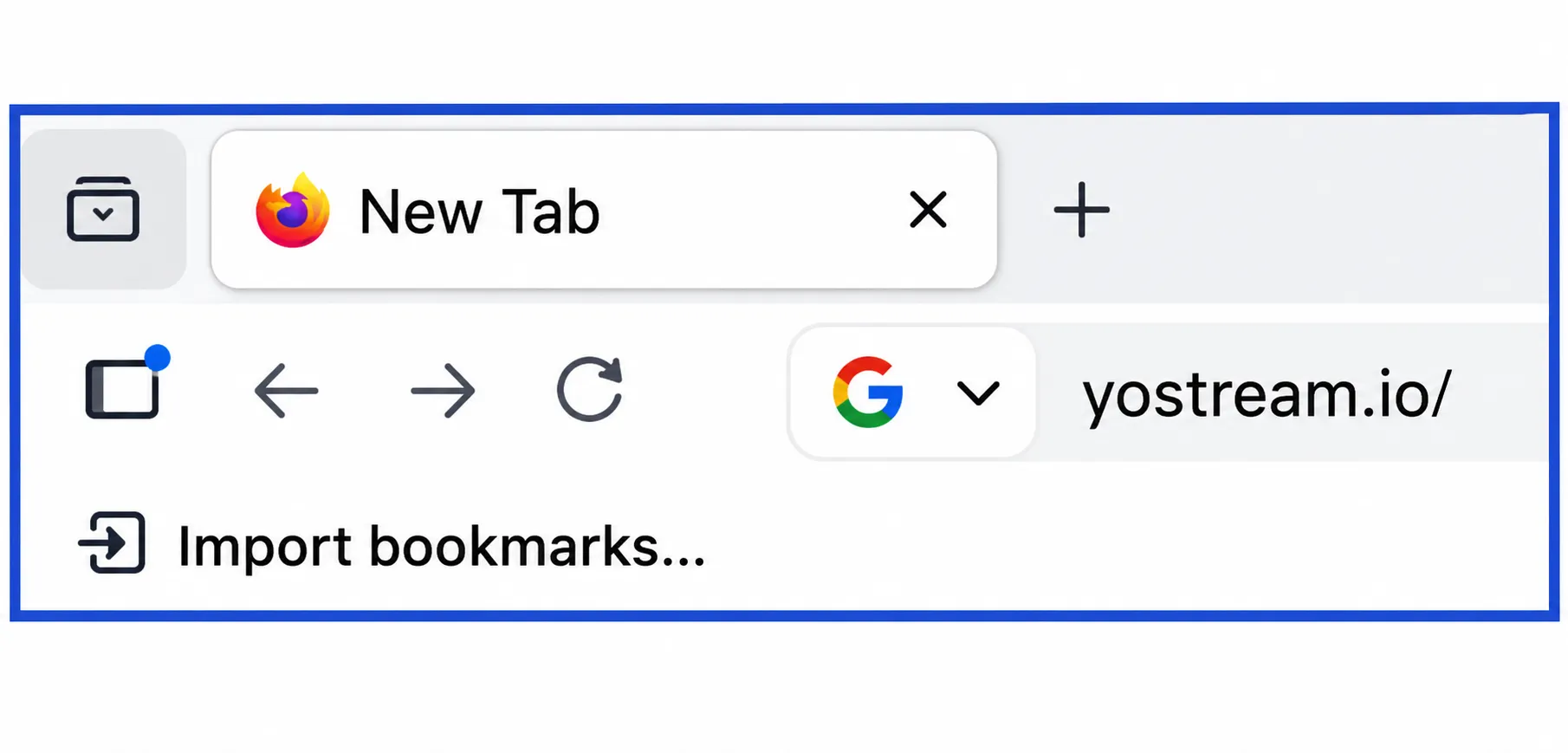
Step 1: Go to Yostream
Type yostream.io into your browser's address bar and hit enter. That takes you straight to the homepage, no separate download page, no installer to run.
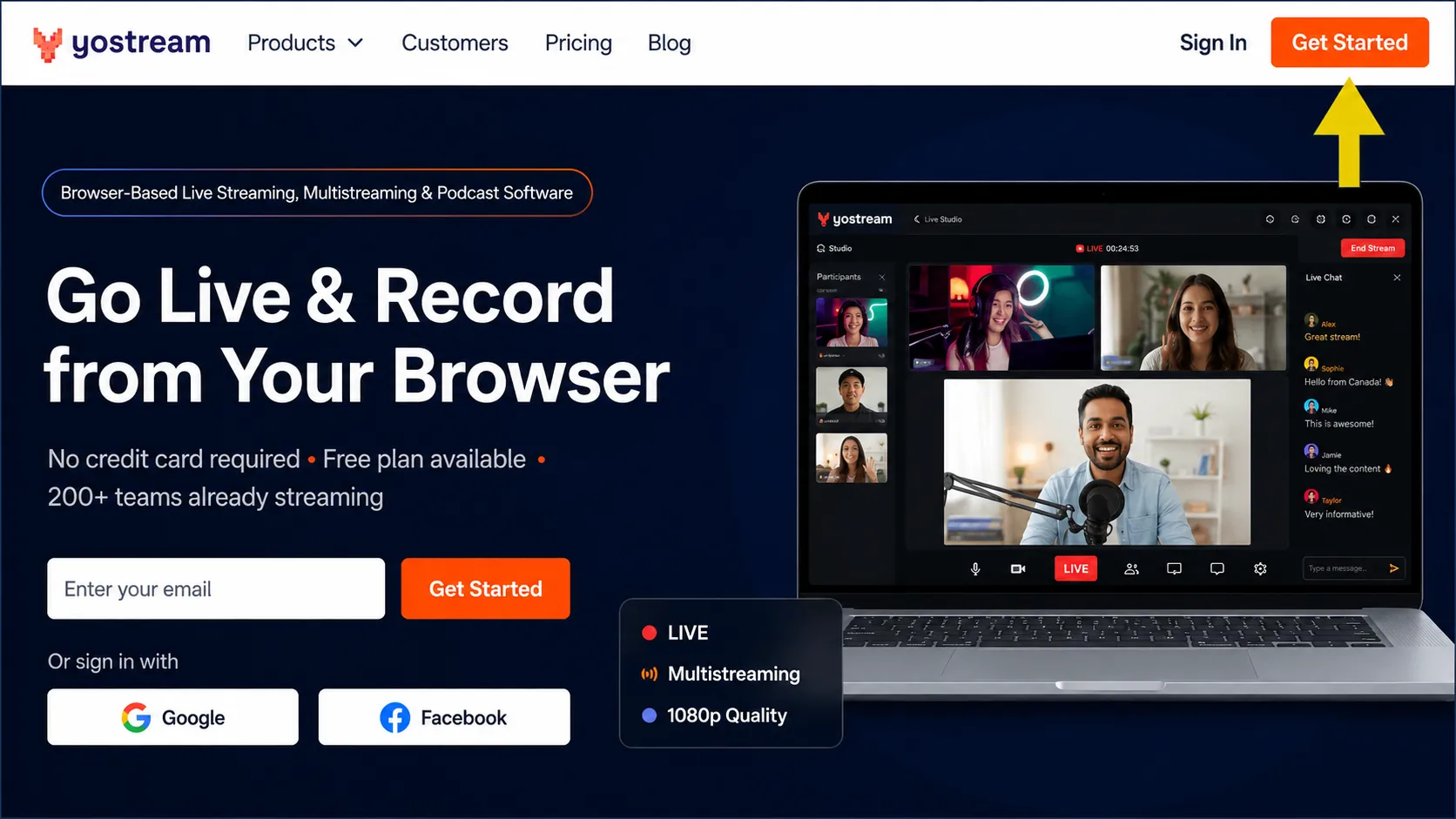
Step 2: Click Get Started
You'll find it in the top-right corner of the homepage.
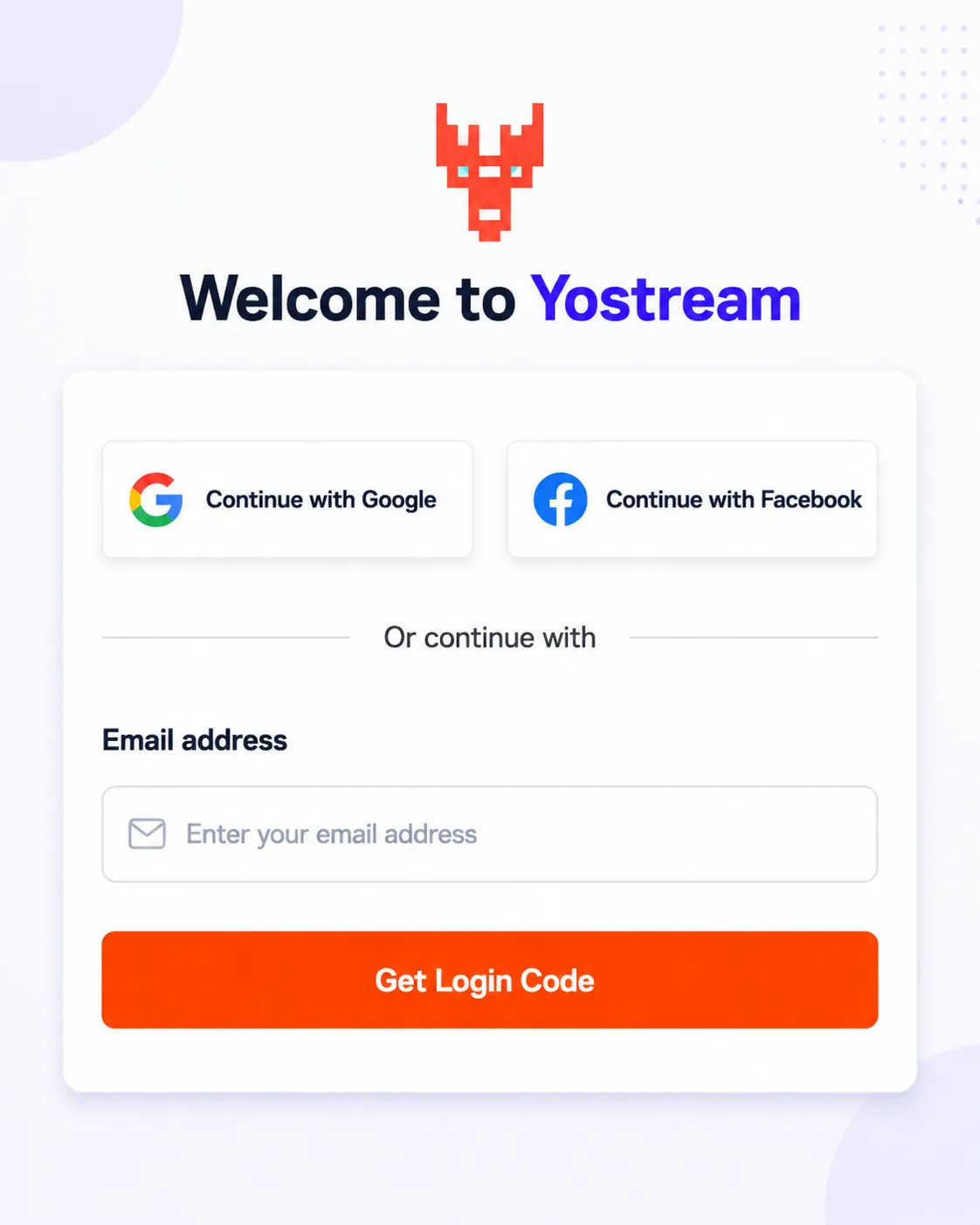
Step 3: Sign In
You can sign in with Google, Facebook, or your email address. This walkthrough uses email, since it's the option that doesn't assume you've got those accounts linked already, but all three land you in the same place.
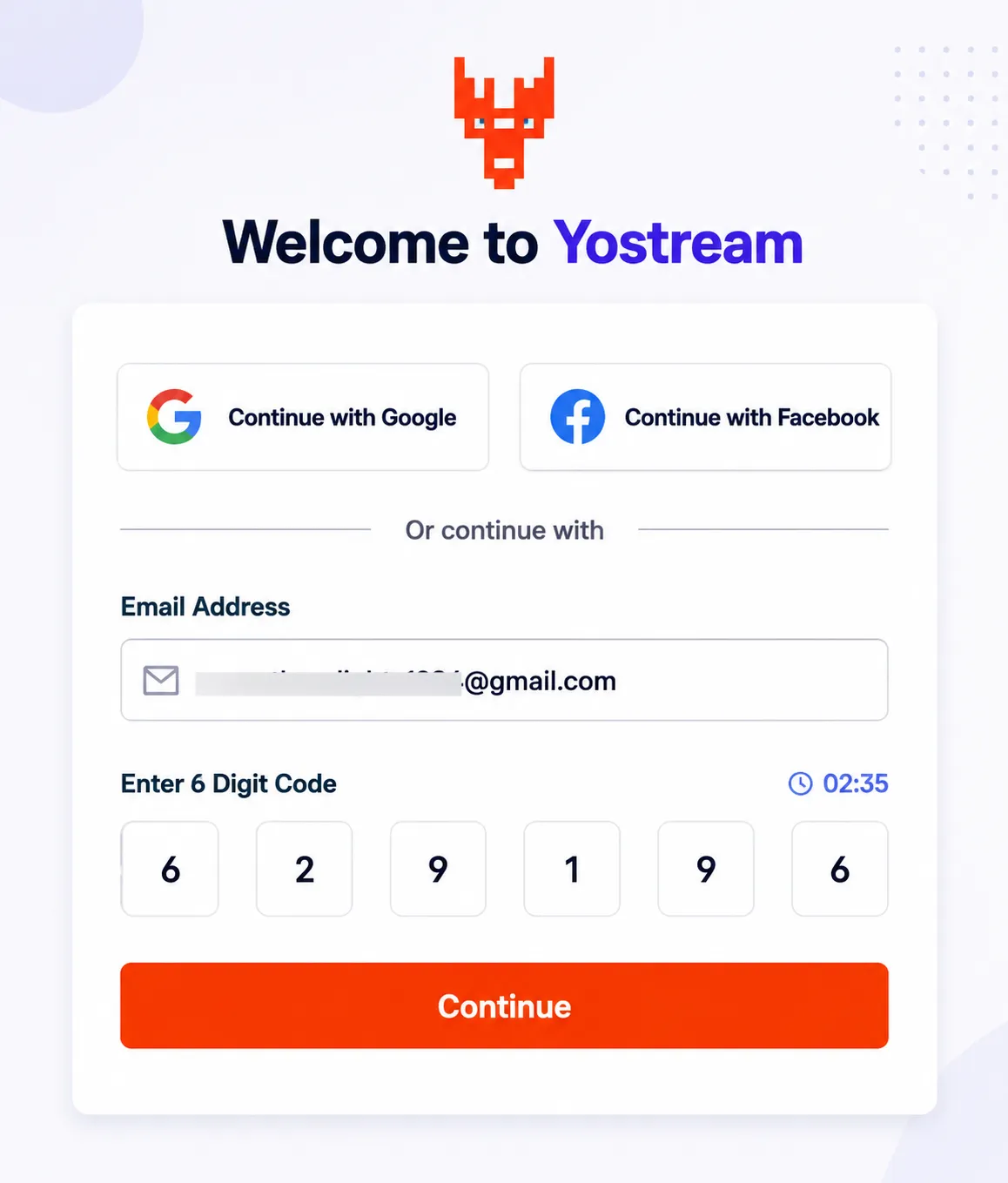
Step 4: Enter Your Login Code
Check your inbox for a 6-digit code and enter it. There's no password to create or remember here, just the code each time you sign in.
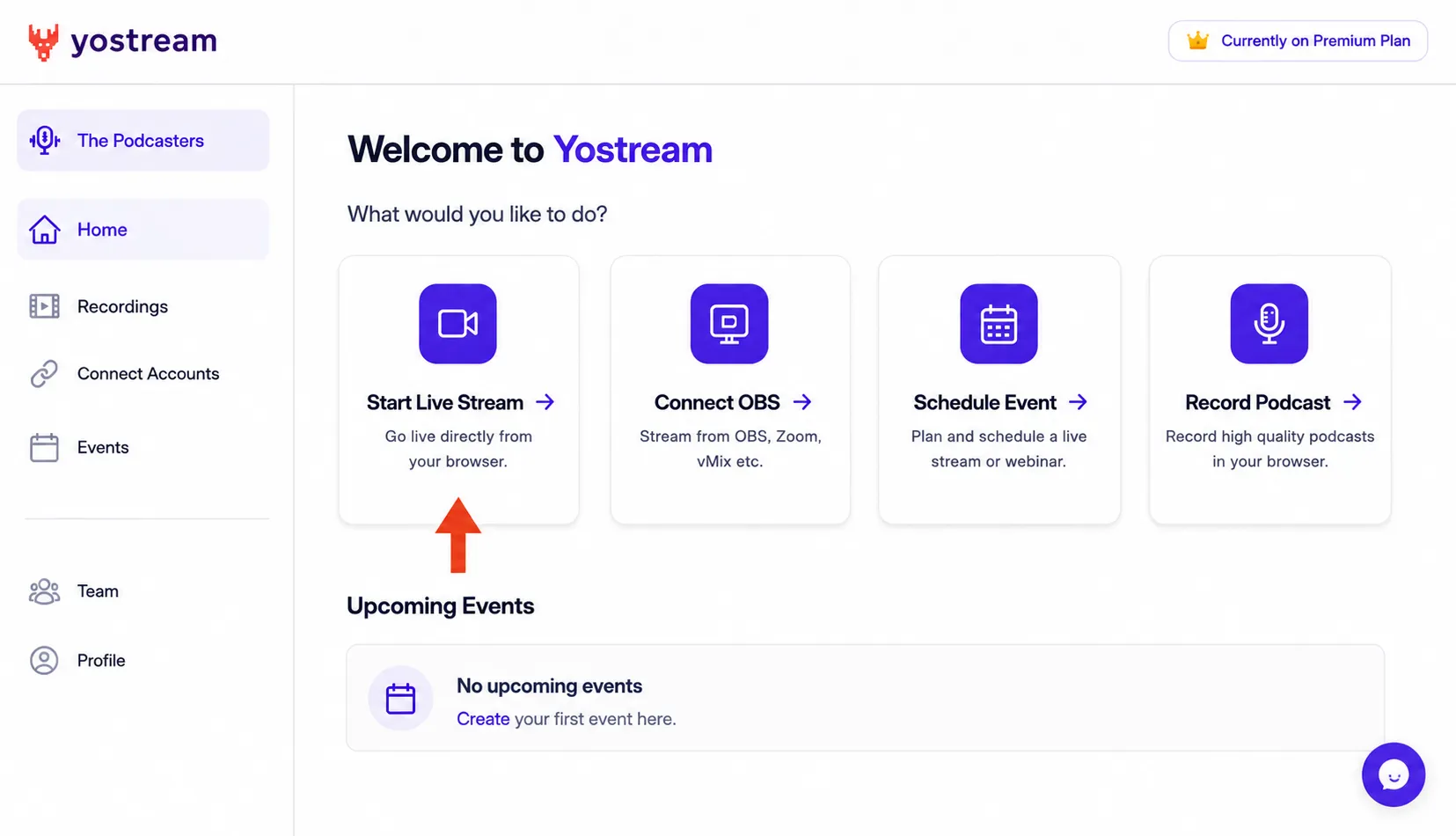
Step 5: Start a New Stream
You're now on the dashboard. Click Start Live Stream.
Step 6: Allow Camera and Mic Access
Your browser will prompt you for camera and microphone permissions. Allow both. This matters more than it sounds: if you accidentally block one, you won't find out until you're already live and your audience is watching a frozen frame or hearing dead air. If that happens, you can re-enable permissions from your browser's site settings (see: how to re-enable camera and mic permissions) without restarting the whole setup.
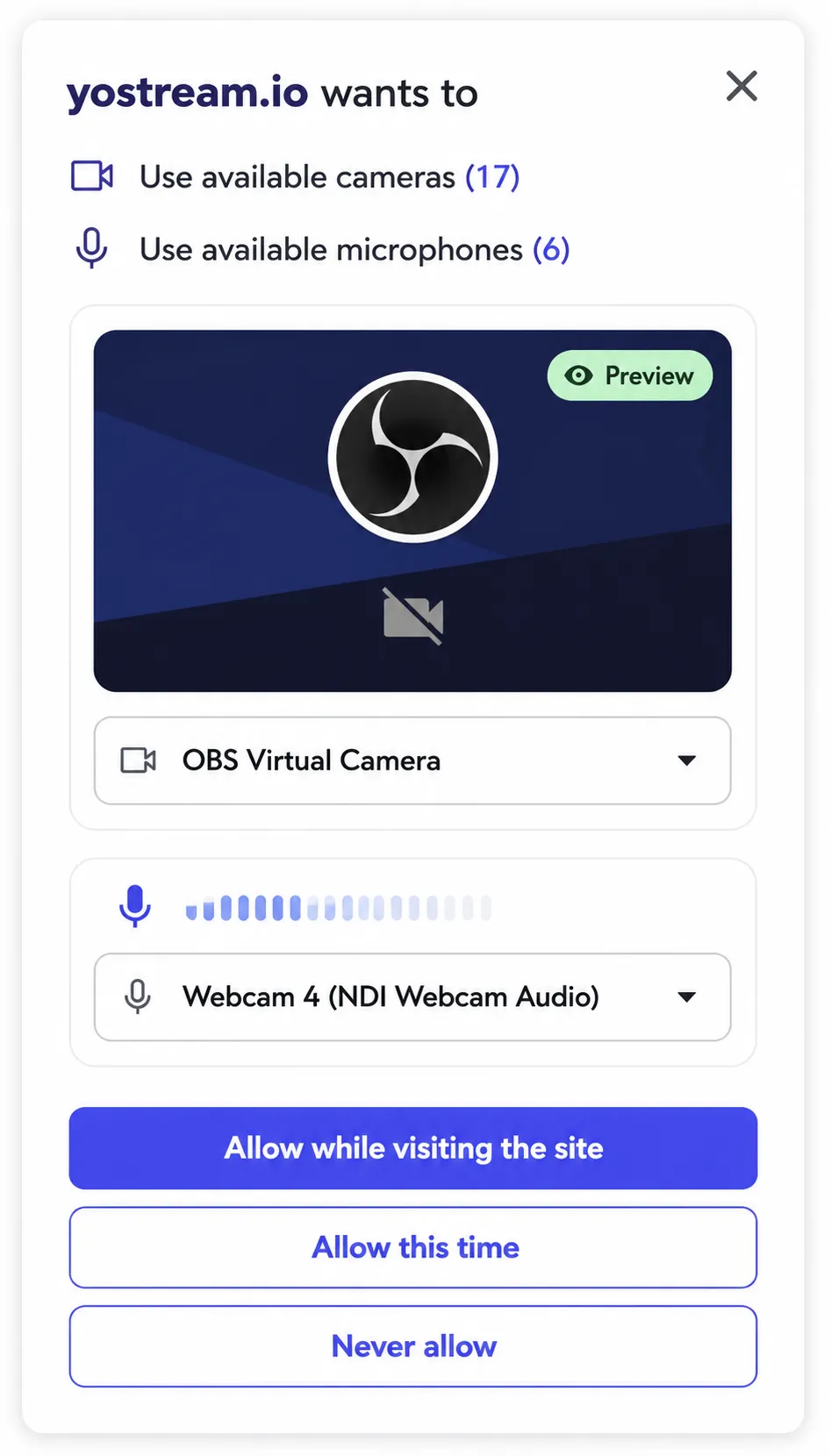
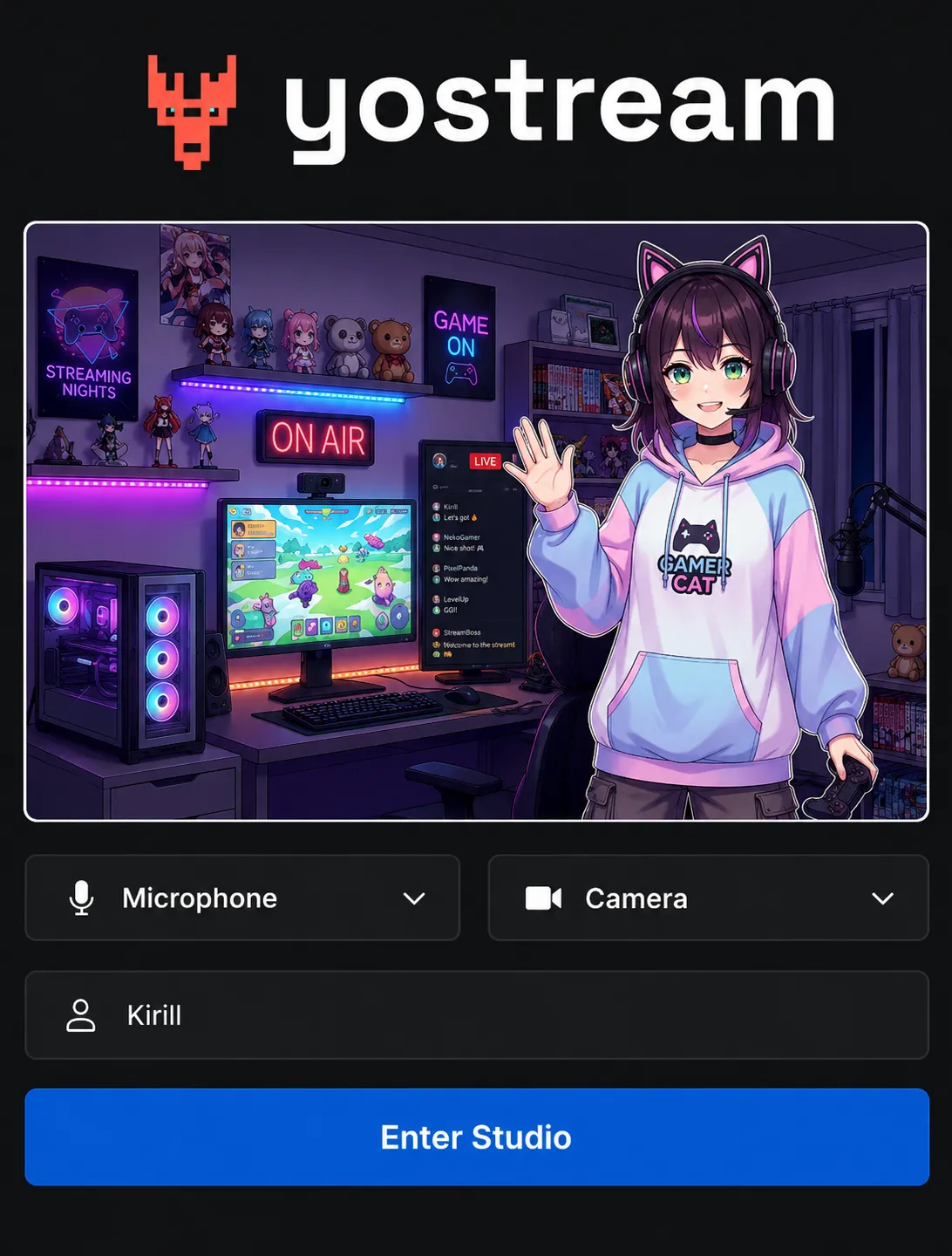
Step 7: Choose Your Devices and Enter the Studio
Select your camera and mic from the dropdowns, enter a username, and click Enter Studio.
Step 8: Get on Camera
Once you're inside the studio, toggle your name on in the left panel. Your camera feed appears on the main stage, the canvas your viewers will actually see.
Step 9: Theme Your Broadcast
The right panel, labeled Theme Your Broadcast, is where you set up the look of your stream: theme, logo, overlay, background, video, audio, banners, and tickers. Worth knowing upfront: the free plan ships with Yostream's default branding baked in. If you want full control over how your stream looks, custom logo placement, your own overlay set, branding stripped down to just yours, you'll need a paid plan.
If you're running the show solo on a weak machine, this is also where team roles help. Yostream supports admin and co-host permissions, so you can hand scene switching, guest management, or chat moderation to someone else's device while your PC just focuses on capturing and encoding your own feed. Guests join through the built-in Room feature without installing anything themselves (see: how to invite guests), though how many you can bring in depends on your plan.
Step 10: Click Go Live
You'll find this at the bottom of the studio.

Step 11: Connect Your Destinations
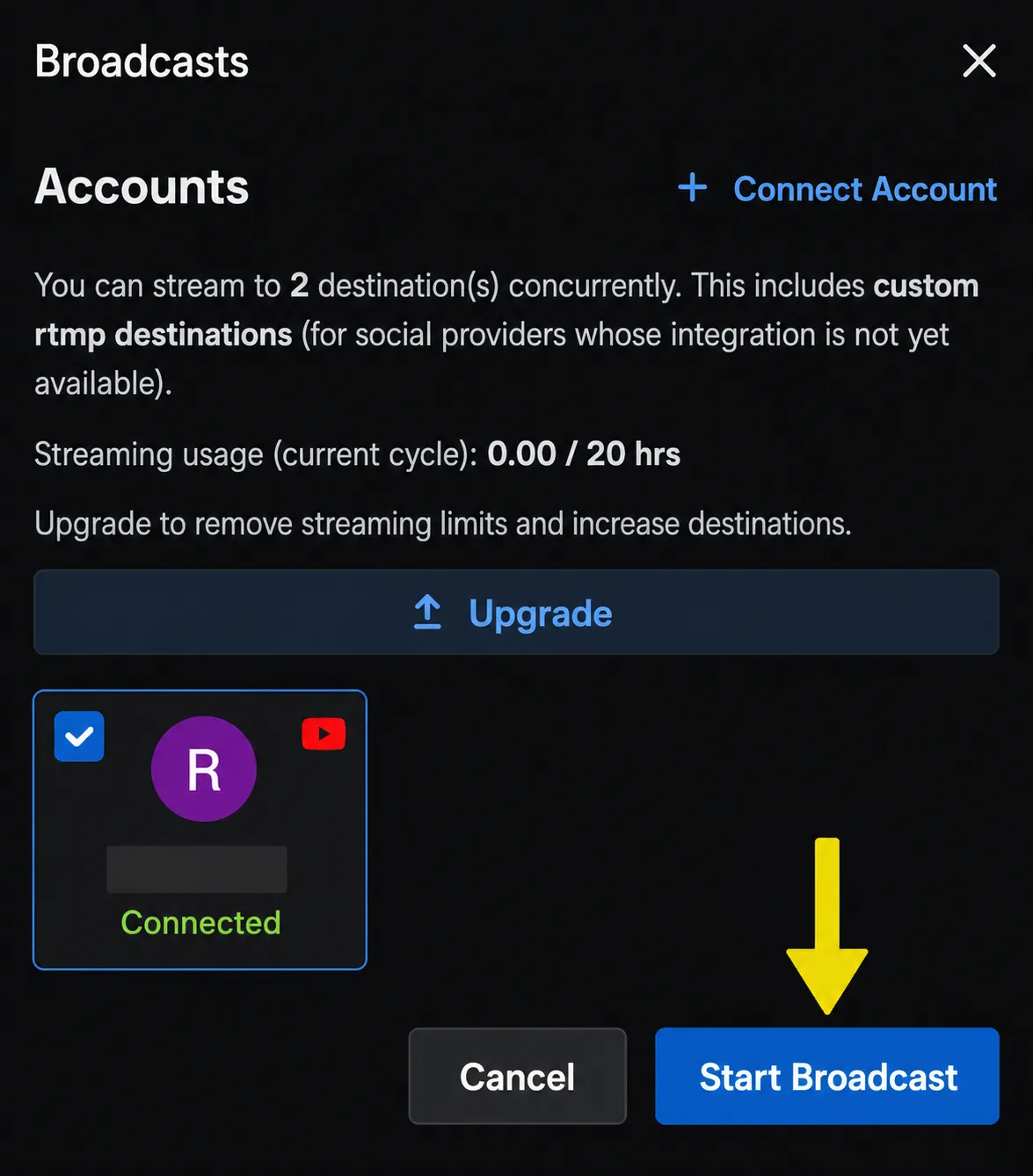
A pop-up appears. Click Connect Account, then add your platforms from the dropdown, YouTube, Facebook, Twitch, LinkedIn, X, and more. If the platform you want isn't listed, use Custom Destination at the bottom of the dropdown to add it manually.
Step 12: Select Destinations and Start Broadcasting
Choose which connected destinations to send your stream to and click Start Broadcast. Selecting more than one is what "multistreaming" actually means in practice, and it's worth knowing that on the free plan, you're capped at two destinations at once. If you need more, that's a paid-plan feature. (See: How to Multistream.)
Best Settings for Low End Hardware
| Setting | Recommendation |
|---|---|
| Resolution | 720p |
| Frame Rate | 30 FPS |
| Browser Tabs | Only what you need open |
| Background Apps | Closed |
| Webcam | 720p |
| Internet | Ethernet or stable Wi-Fi |
Signs Your PC Is Struggling Mid-Stream
- Webcam freezes or stutters
- Audio drifts out of sync with video
- Browser tab becomes unresponsive
- Fan noise increases sharply
- Task Manager shows sustained high CPU
- Viewers report dropped frames on their end
If you're seeing two or more of these at once, close background apps first, then drop your resolution before assuming your hardware can't handle streaming at all.
Getting More Out of Limited Hardware
- Close everything else. Video editors, games, large downloads, virtual machines, and your forty open tabs. Chrome alone can eat a few hundred MB per tab.
- One browser window. Multiple windows means multiple renderer processes competing for the same limited RAM.
- Restart before you go live. Clears background processes and memory bloat built up over a normal day of use.
- Wire in if you can. Wi-Fi interference causes more dropped-frame headaches than most people expect.
- Don't chase 1080p. 720p is where most low-end setups land the best balance of quality and stability.
When You'll Outgrow the Browser-Only Setup
At some point your production might need scene automation, custom plugins, or graphics complex enough that a dedicated encoder makes sense. That's where RTMP Source comes in, available on Pro plans and above. It lets you run OBS, vMix, Streamlabs, or XSplit locally and route that output through Yostream, so you still get Yostream's multistreaming and destination management even after outgrowing a browser-only workflow. (See: RTMP Source Guide.) Most low-end-PC beginners won't need this on day one, and using it does add back some of the local encoding load a browser-only setup avoids.
Frequently Asked Questions
Can I stream with only 4GB of RAM? Yes, for straightforward webcam or screen-share sessions, provided you've closed other applications and your internet connection is stable. Heavier productions with multiple guests will feel the strain sooner on 4GB than on 8GB.
Do I need a graphics card? No. Integrated graphics found in most modern processors are enough for basic browser-based streaming.
Is this realistic for an old laptop? Yes, with the caveat that "old laptop" covers a wide range. A 4GB Celeron running a single guest and a screen share will do fine. The same machine trying to run five guests and a chat overlay will struggle, because your browser still has to decode every incoming feed regardless of where the outgoing distribution happens.
Can I stream to multiple platforms at once without extra software? Yes. Connect your destinations once and select all of them when you go live.
Can I add guests without installing anything? Yes, through the Room feature. Guest limits depend on your plan.
Can I bring in a co-host to help run the stream? Yes. Admin and co-host roles let someone else manage scenes, guests, or chat from their own device, taking real load off the person presenting on the weaker machine.
What if I eventually need OBS-level control? You can route an external encoder through Yostream using RTMP Source on Pro plans and above, without giving up multistreaming to your connected destinations.
Can I stream using Wi-Fi instead of Ethernet? Yes, but wired connections are more consistent. If you're on Wi-Fi, stay close to your router and avoid networks shared with heavy downloads or gaming.
Can I stream from a Chromebook? Yes, since Yostream runs in the browser rather than requiring installed software, most Chromebooks with a supported browser can run it for straightforward streams.
How much upload speed do I need? Twitch recommends 5 Mbps upload for 720p at 30fps, and 6.2 Mbps at 60fps, which is a reasonable baseline for a single browser session regardless of how many platforms you're sending to, since you're only uploading once from your machine.
Can I stream at 1080p on a low-end PC? Technically yes, but it's not recommended. 1080p increases encode and upload demands, which is exactly the load a low-end setup is trying to avoid. Stick to 720p unless you've tested 1080p specifically on your machine first.
Can I stream games on a low-end PC using Yostream? Screen-sharing gameplay works, but game streaming is CPU and GPU intensive by nature. This is the scenario most likely to expose the limits of low-end hardware regardless of which software you use.
Streaming on older hardware doesn't require pretending your PC is more capable than it is. The realistic path is matching your workflow to what your machine can actually handle: fewer local processes, a browser-based studio instead of a second heavyweight application, and destination handling that doesn't scale your CPU load with every platform you add. Yostream's browser-based model is built around that tradeoff. It won't make a decade-old Celeron feel like a gaming rig, but it removes the specific bottleneck, running a full desktop production suite locally, that causes most low-end streaming setups to fall over. And if your needs grow later, RTMP Source means you're not locked out of a more advanced setup down the line.
Streamers Also Liked:
- Choose the best: 7 Affordable Live Streaming Software For Low-End PC
- Apply today: Best OBS Settings for Game Streaming on Low-End PCs
- Avoid the delay: Reduce Latency While Live Streaming