
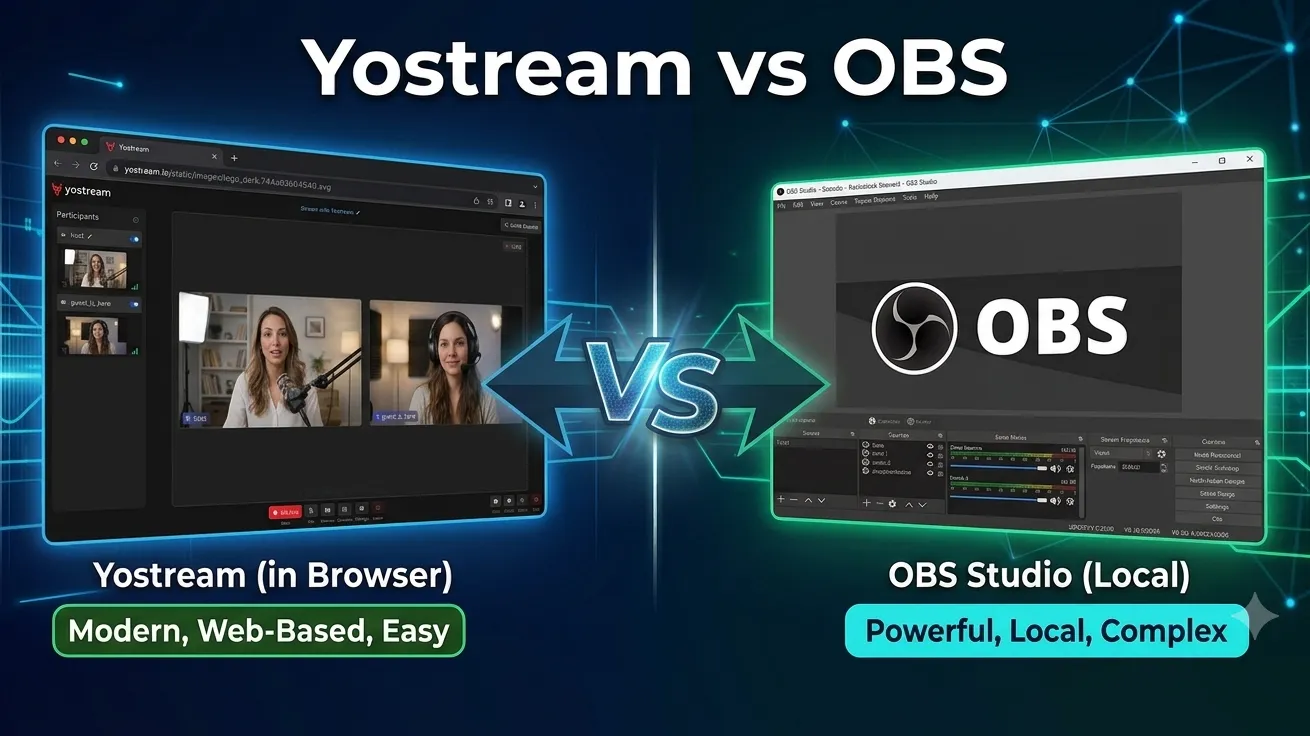
OBS is great software. Some of our own users run OBS together with Yostream (more on that below). But OBS isn't the right tool for everyone and in truth, neither is Yostream.
If you're trying to decide between the two, this post will help you pick. And if the answer is "use OBS", I'll be straightforward about that.
The Core Difference
OBS handles everything on your computer. It captures, mixes scenes, encodes video, and broadcasts — all right on your machine.
Yostream works differently. Your browser does one small job: capture your camera and send a single lightweight stream to our servers. Everything complex like mixing guests, layouts, and overlays, happens on our end. We also distribute your stream to YouTube, Twitch, and any platform you connect.
Almost every difference below comes from this one design choice.

Where OBS Is Better
Let me start with OBS, because these points are real.
Full control. OBS lets you build anything. Imagine an esports streamer using two cameras. They have a game feed, alert overlays, a chat widget, and sponsor banners. All of this happens in one scene, with custom transitions between scenes. That's OBS territory. Yostream won't match that level of control.
Game capture. OBS captures your game directly at the GPU level. For heavy gaming streams at high frame rates, nothing beats it. Yostream's browser-based screen share isn't very efficient for this — I'll be honest.
It's free. Completely. No paid plans, no limits, no watermarks. If you have a good PC and the patience to learn it, it's hard to argue with free.
Plugins. Need vertical video, multiple RTMP outputs, or noise removal? There's an OBS plugin for that.
Where Yostream Is Better
Your PC does much less work.
When you use OBS, your computer handles several tasks at once. It manages game performance, scene mixing, video encoding, and broadcasting. On a mid-range or older PC, that combined load causes dropped frames, lag, and crashes. If you've ever searched "OBS dropping frames fix", you know what I mean.
With Yostream, your browser sends just one light WebRTC stream to our servers. There, we mix the scene and distribute it across platforms. One thing to clarify: your browser does some local encoding. WebRTC isn't magic. However, this task is much lighter than the full pipeline OBS runs on your machine.
A real scenario: a teacher running live classes on a five-year-old laptop. In OBS, the class presentation and the encoding fight for the same CPU, and students see frozen frames. In Yostream, the laptop sends just one stream. Mixing occurs on our servers. This keeps the class running smoothly on the same machine. If this is your situation, our guide on streaming from low-end PCs goes deeper.
Multistreaming is built in.
To set up OBS for multistreaming, you need to:
- Install a plugin.
- Manually configure each destination.
- Accept more CPU load for each extra platform.
With Yostream, you connect YouTube, Twitch, Facebook, LinkedIn or any RTMP destination once. Then one click streams to all of them. No matter if you stream to one platform or six, your PC's load remains unchanged. You're only sending one stream to us.
A real scenario: a church streams its Sunday service to YouTube and Facebook at the same time. A volunteer with no technical background runs it. That setup takes an afternoon of plugin configuration in OBS. In Yostream it takes two clicks.
Guests join with a link.
OBS has no guest system. To bring a remote guest in, people use Zoom or Discord and capture the window. It functions, but it could be more streamlined.
In Yostream, you send your guest a link. They click it, allow camera and mic, and they're in your studio. No download, no account, nothing to set up on their side.

You're live in 3 minutes.
OBS needs installing, scene setup, encoder settings, stream keys, testing. For a first-timer this can take an hour or more. Yostream runs in the browser — sign up, connect your platform, go live. That's the whole process.
Podcast recording in the same tool.
OBS can record, but it's not made for podcasts. Yostream offers a podcast studio mode. You can record virtual podcasts, and it gives a separate audio/video track for each guest. This renders a studio-quality recording of each guest, which you can then download. Use them to edit and mix a high-quality virtual podcast.
Side-by-side
| OBS Studio | Yostream | |
|---|---|---|
| Price | Free | Free plan, paid from $15/month |
| Installation | Required | None — runs in browser |
| PC requirements | Mid to high-end recommended | Lower — mixing and distribution happen on our servers |
| Multistreaming | Plugin needed, more CPU per destination | Built in, no extra load on your PC |
| Guests | Needs Zoom/Discord workaround | Built in — guests join by link |
| Setup time | 30 min to a few hours | Under 3 minutes |
| Game capture | Excellent (GPU level) | Better done via OBS as RTMP source |
| Plugins | Huge ecosystem | Limited |
| Podcast mode | No | Yes — local HQ recording for each guest |
| Where the work happens | All on your PC | Light capture on your PC, heavy work on our servers |
The option most posts miss: use both
Well, this is actually my favorite setup, and many of our users do exactly this.
Say you're a gamer. You love OBS for scene control and game capture. Configuring RTMP outputs for each platform is tough. Plus, multistreaming from OBS is overloading your CPU.
Do this: keep OBS for capture and scenes. Send the OBS output into Yostream as a custom RTMP source. Yostream takes your stream and sends it out to YouTube, Twitch, Facebook, and more from our servers.
You keep OBS's power. You get our multistreaming and ease of setup. Your CPU only encodes one stream. Nobody loses.

We have a guide for this here: How to connect OBS to Yostream via RTMP.
So which one should you use?
Use OBS if you have a powerful PC, you stream heavy games needing GPU-level capture, you want maximum control and plugins, and you mostly stream to one platform.
Use Yostream if you want to be live in minutes instead of hours, your PC struggles with OBS, you stream to more than one platform, or you have guests and podcasts in your workflow.
Use both if you already use OBS and want multistreaming without the CPU cost.
Try Yostream free — no credit card needed
Our free plan lets you stream to two platforms at once, up to 20 hours a month. No credit card to start — if it's not for you, you've lost nothing.
If something doesn't work, or you think I got something wrong in this post, email me. I read every reply.
— Piyush, Yostream
Last updated: July 2026
Streamers Also Liked:
- Find the platform that fits your style: Kick vs Twitch vs YouTube: Which Streaming Platform Should You Start On First?
- The setup never got easier: OBS Is Not the Gold Standard Anymore. Here Is What Actually Changed
- Is Kick finally beating Twitch? Kick vs Twitch: Pros, Cons, and Which One Wins
- Your phone is already a better webcam: How to Use Your Phone as a Webcam for OBS Studio (USB & WiFi Guide)
- The ultimate latency face-off: RTMP vs. WebRTC Latency: What 500 Milliseconds Actually Costs Your Live Stream (And Which Protocol Wins)