

The holy month of Ramadan brings Muslims together in worship, with Taraweeh prayers holding a special place in the hearts of believers. But not everyone can attend the mosque in person. The elderly, those with health conditions, travelers, and Muslims in areas without nearby mosques often miss the spiritual experience of congregational night prayers.
If you are responsible for your mosque's outreach and searching for how to live stream Ramadan Taraweeh prayers online, you have found the right resource. This comprehensive guide walks through every step of broadcasting Taraweeh prayers professionally, ensuring remote worshippers feel connected to the congregation.
Live streaming Taraweeh prayers is a form of sadaqah jariyah (ongoing charity). Every person who prays along or benefits from your stream earns you continuous rewards. By the end of this guide, you will have a complete, reliable system for broadcasting nightly prayers with clear video, pristine audio, and multi-platform reach.
Why Live Stream Taraweeh Prayers? Understanding the Impact
Reaching Those Who Cannot Attend
Live streaming allows Islamic services to reach a global audience, breaking physical and time barriers. It caters to community members who may be unable to attend prayers in person due to commuting issues, physical disabilities, sickness, or remote locations.
For those at home, such as housewives, the young, the elderly, and the physically disabled, a live broadcast of the congregation can help them pray along with the community while not being physically present at the mosque.
Expanding Your Mosque's Reach
With the younger generation increasingly relying on digital media, offering Muslim services online is essential. Live streaming provides real-time interaction, enabling viewers to feel connected to the congregation and the imam's recitation.
Many established mosques already broadcast Taraweeh prayers live on Facebook and YouTube. Your mosque can join this growing community of digital dawah.
What Equipment Do You Need for Taraweeh Live Streaming?
Before setting up software, you need the right hardware. Quality matters. Investing in good live streaming cameras ensures your stream is clear and engaging, capturing the solemnity and beauty of the prayers in high definition.
Camera Options
| Camera Type | Best For | Considerations |
|---|---|---|
| Smartphone (modern) | Small mosques, testing | Use tripod, ensure stable focus |
| Webcam (Logitech Brio/StreamCam) | Fixed camera position | USB connection, easy setup |
| Camcorder with HDMI out | Mid-size mosques | Requires capture card |
| DSLR/Mirrorless | Professional quality | Needs capture card and power supply |
| PTZ Camera | Large mosques | Remote controlled, multiple angles |
Audio Equipment Requirements
Clear audio is more critical than video for Taraweeh streams. Viewers need to hear the Qur'an recitation clearly.
Essential audio setup:
- Connect directly to your mosque's sound system
- Use an audio interface or mixer with USB output
- Position a dedicated microphone near the imam if sound system feed is unavailable
- Test audio levels before every stream
Internet Connection Requirements
A reliable, high-speed internet connection is crucial to prevent interruptions and maintain the sacred atmosphere of Taraweeh prayers.
Internet speed recommendations:
| Stream Quality | Resolution | Upload Speed Needed |
|---|---|---|
| Standard HD | 720p | 3-5 Mbps |
| Full HD | 1080p | 5-10 Mbps |
| High Quality | 1080p+ | 10+ Mbps -7 |
Use a wired Ethernet connection if possible. Wi-Fi can be unreliable, particularly during mosque services where many devices compete for bandwidth.
Additional Hardware
- Tripod or stable camera mount: Avoid shaky footage
- Capture card: For cameras with HDMI output (Elgato, AverMedia)
- Laptop or computer: Running the streaming software
- Backup power: Consider UPS for power outages
Which Streaming Software Should You Use for Taraweeh?
You have several options for broadcasting software. The choice depends on your technical comfort level and feature requirements.
Option 1: Browser-Based Solutions (Recommended)
Browser-based platforms eliminate software installation and complex setup. Yostream is a browser-based live streaming software that allows you to customize your stream with overlays, logos, and other branding elements. It offers features such as screen sharing, multiple guests, and the ability to switch between different layouts during the stream .
Benefits of browser-based streaming:
- No software installation required
- Stream directly from your browser, ideal for volunteers with limited tech experience
- Multistreaming to multiple platforms simultaneously
- Cloud-based storage for recording sermons
Option 2: OBS Studio (Free, Powerful)
OBS Studio is a free app for Windows and MacOS that lets you combine video and audio sources into one broadcast . It offers maximum flexibility and control.
What makes OBS helpful for mosques: Whether you are using a laptop webcam or multiple broadcast-ready cameras, OBS helps present a clear and professional-looking stream .
OBS requires more technical knowledge but costs nothing and offers unlimited customization.
Software Comparison Table
| Feature | Yostream | OBS Studio | StreamYard |
|---|---|---|---|
| Installation | None (browser) | Download required | None (browser) |
| Ease of Use | Very Easy | Moderate | Very Easy |
| Multistreaming | Yes (up to 2 free, more paid) | Via plugins | Yes (paid) |
| Cost | Free tier available | Free | Free tier available -6 |
| Custom Branding | Yes -7 | Yes | Yes -6 |
| Guest Invitation | Yes | No (separate setup) | Yes -6 |
How to Set Up Yostream for Taraweeh Live Streaming
For most mosques, browser-based solutions offer the best balance of simplicity and professional features. Here is the step-by-step process using Yostream.
Step 1: Create Your Yostream Account
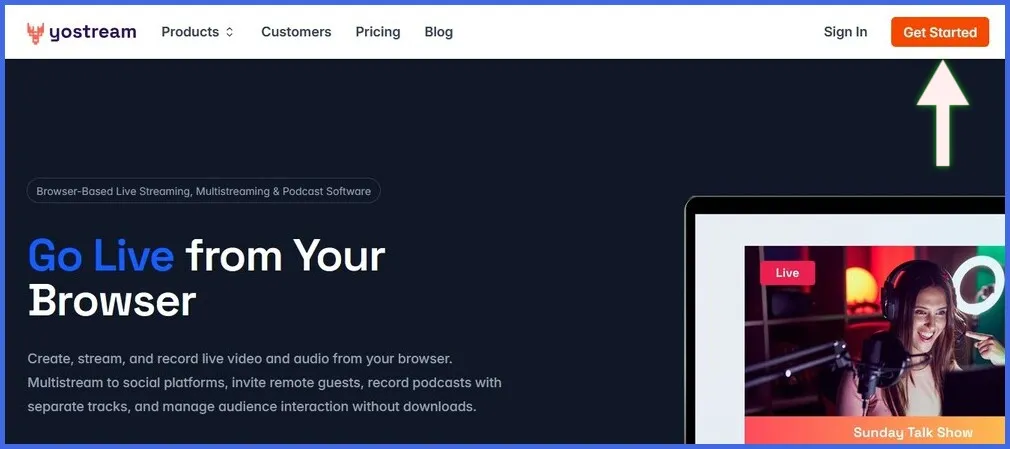
Open your web browser and visit yostream.io. Click the Get Started button at the top-right corner of the homepage.
Use your Google, Facebook, or email account to log in.
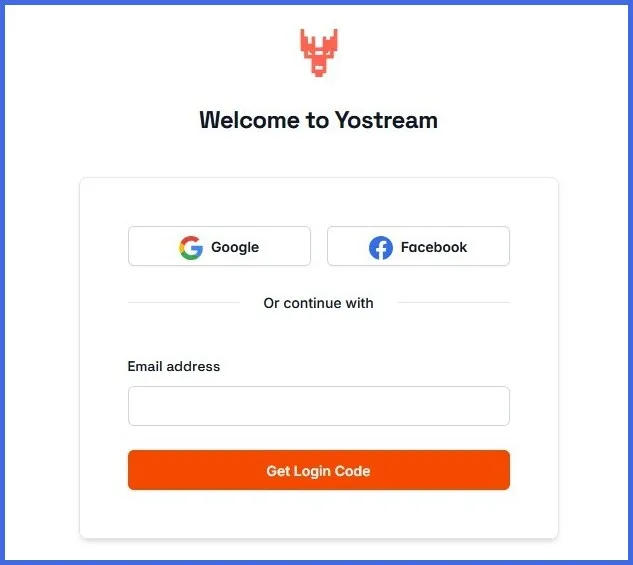
If signing up via email, enter your email ID, request the login code, and input the 6-digit code sent to your inbox.
Step 2: Enter the Live Stream Studio
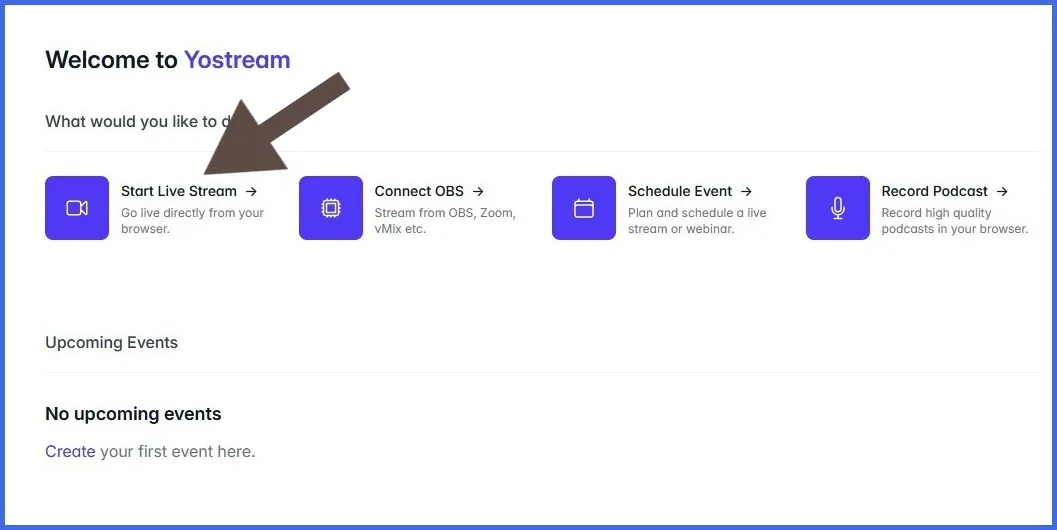
Navigate to the Dashboard and click on Start Live Stream. Allow your browser to access your camera and microphone.
Step 3: Set Up Your Video and Audio Sources
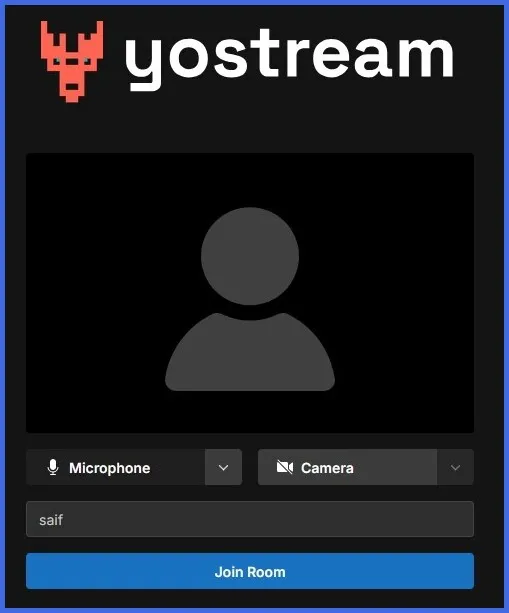
Select your preferred camera and microphone inputs. Enter a username and click Join Room to enter the Yostream studio.
For best results:
- Use your mosque sound system as the audio source
- Position your camera for a clear view of the imam and prayer rows
- Test everything before the first night of Ramadan
Step 4: Add Custom Branding (Optional)
Select the Brand icon from the bottom-right corner. Using the custom branding option, you can :
- Upload your mosque's logo
- Add overlay graphics
- Set background images
- Display prayer times or announcements
- Add banner text with ticker
Step 5: Configure Your Streaming Destinations
Yostream allows you to multistream to multiple platforms simultaneously. Click the Go Live button and connect your favorite destinations.
Popular social media platforms are already integrated. If your desired platform is missing, you can connect it easily through Custom RTMP.
Platforms you can stream to:
- YouTube
- Facebook Live
- Rumble
- Kick
- Trovo
- Twitter/X
- Twitch
- Custom RTMP destinations
Step 6: Go Live
Once you select your destinations, click Start Broadcast. If you are streaming to more than one destination, this is called multistreaming. The free plan allows multistreaming to only 2 destinations.
Step 7: Record for Later Viewing
Select the Rec icon at the bottom-right corner and click Start Recording to save a copy of your Taraweeh stream. This creates an archive for those who cannot watch live or want to revisit the recitation. You can locate the recorded file by clicking the instruction text at the bottom.
How to Configure OBS for Taraweeh Live Streaming
If you prefer OBS Studio for its flexibility, here is the setup process.
Initial OBS Configuration
- Download OBS Studio from obsproject.com and install
- When OBS launches, run the Auto-Configuration Wizard
- Choose "Optimize for streaming, recording is secondary"
- Set Canvas resolution to 1920x1080 and Framerate to 30
- Select your streaming service (YouTube, Facebook, etc.)
- Make sure "Prefer hardware encoding" is checked
Adding Video Sources
At the bottom of the OBS window, you will see a box labeled Scenes. Think of a scene as a layout.
Create a Taraweeh scene:
- Click the + button in Scenes and name it "Taraweeh"
- Go to the Sources box and click the + button
- Choose "Video Capture Device" to add your camera
- Select which camera to use from the dropdown
Adding Audio from Mosque Sound System
Click Settings → Audio and choose your audio interface or mixer under "Mic/Auxiliary Audio". Check the Audio Mixer in the main window. Aim for the sound to peak around -10 dB.
Connecting OBS to Streaming Platforms
Click Settings → Stream. Choose your streaming platform (YouTube, Facebook, etc.). Log in or paste your Stream Key. The stream key is found on the platform's dashboard where you schedule or start a livestream.
Testing Before Going Live
Before the first night of Ramadan, do a full test:
- Record a short clip by clicking Start Recording
- Watch it to check audio, video, and sync
- Test a livestream as unlisted on YouTube
- Adjust as needed
How to Use Yostream's RTMP Source to Display OBS Content for Taraweeh Streaming
After configuring OBS for your Taraweeh broadcast, you might wonder how to get that polished OBS output to your viewers while also reaching multiple platforms. This is where Yostream's RTMP Source becomes an essential tool for mosque streaming.
What Is RTMP Source and Why Use It for Taraweeh?
RTMP Source is a feature that allows Yostream to receive a live RTMP video feed directly from encoders like OBS Studio. Instead of Yostream generating the video stream (which would require re-encoding), it simply accepts your already-encoded feed and distributes it to your chosen platforms.
For Taraweeh streaming, this means:
- You keep OBS control. All your scenes, overlays, translation text, and camera switching stay exactly as you designed them in OBS.
- Yostream handles distribution. Your single OBS feed reaches YouTube, Facebook, and other platforms simultaneously.
- Zero re-encoding overhead. Yostream acts as a smart relay, preserving your original video and audio quality.
- No performance hit. Your streaming computer works exactly as hard as streaming to one platform.
Why This Matters for Mosque Streams
Many mosques have volunteers who become comfortable with OBS over time. They learn to switch scenes, display Quran translations, and manage lower thirds. Asking them to learn a completely new system mid-Ramadan creates confusion and potential stream failures.
With RTMP Source, your team keeps using the OBS setup they know and trust. Yostream simply becomes the distribution layer that takes their excellent work and shares it with the world.
Step-by-Step: Connecting OBS to Yostream via RTMP Source
Step 1: Prepare Your OBS Scene for Taraweeh
Before connecting to Yostream, ensure your OBS scene is ready:
- Camera positioned and focused on the imam and prayer area
- Audio feed from mosque sound system confirmed working
- Any overlays, banners, or translation text tested
- Scene transitions practiced
Run a local recording in OBS to verify everything works perfectly.
Step 2: Generate Your RTMP Source in Yostream
- Log into your Yostream account at yostream.io
- In your dashboard, click Start Live Stream to enter the studio
- Navigate to 'Sources' from the studio dashboard
- Select RTMP Source from the available options
- Name your source clearly (e.g., "Taraweeh OBS Feed" or "Main Mosque Camera")
- Click Generate
- Copy the provided Stream URL and Stream Key
Keep this browser tab open. You will return to Yostream after configuring OBS.
Step 3: Configure OBS to Send to Yostream
- In OBS, go to Settings (File menu or Settings button)
- Click the Stream tab in the left sidebar
- Set Service to Custom (not Twitch, YouTube, etc.)
- In the Server field, paste the Stream URL you copied from Yostream
- In the Stream Key field, paste the Stream Key
- Click Apply and then OK
Step 4: Verify the Connection
- In OBS, look at the bottom status bar
- Click Start Streaming (this sends your feed to Yostream, not directly to viewers yet)
- Switch to your Yostream browser tab
- You should see your OBS feed appearing in the Yostream preview window
- Check that audio levels are healthy and video is clear
Step 5: Add Your Destination Platforms
With your OBS feed now flowing into Yostream:
- In Yostream, click Add Destination or select from available platforms
- Choose your streaming platforms (YouTube, Facebook, etc.)
- Authorize Yostream to access each platform (one-time setup)
- Configure stream titles, descriptions, and privacy settings per platform
- You can add multiple destinations simultaneously
Step 6: Go Live to Your Audience
- When ready to broadcast Taraweeh, ensure OBS is already streaming to Yostream
- In Yostream, click Start Broadcast
- Your single OBS feed now reaches every platform you selected
- Viewers on YouTube, Facebook, and other platforms see the exact same high-quality stream
Step 7: Monitor and Manage
During the Taraweeh prayer:
- Monitor OBS stats for any encoding or rendering issues
- Watch Yostream's dashboard for platform health
- Use Yostream's unified chat to see comments from all platforms in one place
- A moderator can respond to viewer questions or duas without switching tabs
Step 8: End Your Stream
After the prayer completes:
- In Yostream, click End Broadcast
- In OBS, click Stop Streaming
- Verify recordings are saved in both OBS (local) and Yostream (cloud, if enabled)
Benefits of This Setup for Taraweeh Streaming
| Feature | Benefit for Your Mosque |
|---|---|
| OBS familiarity | Volunteers use tools they already know |
| No re-encoding | Original video and audio quality preserved |
| Multistreaming | Reach viewers on YouTube, Facebook, and more |
| Unified chat | Monitor all comments in one dashboard |
| Browser-based | Access Yostream from any computer |
| Recording options | Save streams locally or in cloud |
Displaying Text in Your Stream
Both Yostream and OBS allow you to add text overlays:
In Yostream: Use the Branding options to add banners with prayer times, translation notes, or announcements.
In OBS: Add Text sources or browser sources displaying translation tools. You can position these as lower thirds to avoid obscuring the prayer view.
How to Engage Remote Viewers During Taraweeh
Live Chat Management
Yostream allows you to view and respond to live chat comments from all connected platforms in a single dashboard. This unified interface helps manage audience interaction during prayers.
Best practices for chat during Taraweeh:
- Assign a moderator to monitor comments
- Respond to questions after prayer segments
- Share dua requests during appropriate times
- Post prayer timings for different nights
Displaying Viewer Comments
You can show selected comments on screen to create connection between the mosque and remote viewers. Both Yostream and StreamYard offer features to display comments during broadcast .
Announcing Schedules
Many mosques adjust Taraweeh start times throughout Ramadan. For example, some mosques begin at 8 p.m. the first week, 9 p.m. the second week, and 9:15 p.m. the remaining weeks. Use on-screen banners to keep remote viewers informed of schedule changes.
What Are the Best Camera Positions for Taraweeh?
Single Camera Setup
Position one camera to capture:
- The imam leading prayers
- The first few rows of congregation
- The mihrab (prayer niche)
Place the camera on a tripod at the side or back of the prayer hall for an unobstructed view.
Multiple Camera Setup
If resources permit, use multiple cameras:
| Camera | Position | Purpose |
|---|---|---|
| Main camera | Center back | Wide shot of imam and rows |
| Side camera | Front corner | Close-up of imam during recitation |
| Camera 3 | Balcony/upper level | Overhead view of congregation |
PTZ Cameras for Remote Control
PTZ (Pan-Tilt-Zoom) cameras allow one operator to control multiple angles from a single location. This is ideal for mosques with limited volunteers.
How to Ensure High Audio Quality for Qur'an Recitation
Connect Directly to Sound System
The best audio comes from your mosque's professional sound system. Use:
- XLR cable from mixer to audio interface
- USB audio interface connected to streaming computer
- Test levels to avoid distortion
Backup Microphone
Place a dedicated microphone near the imam as backup. This ensures audio continues if the main system encounters issues.
Audio Level Monitoring
Monitor audio levels throughout the stream. Aim for consistent levels without clipping. The Audio Mixer in OBS shows volume levels, with target peaks around -10 dB.
Common Taraweeh Live Streaming Problems and Solutions
Problem: Stream Buffers or Disconnects
Symptoms: Viewers report buffering, stream cuts out mid-prayer.
Solutions:
- Use wired Ethernet instead of Wi-Fi
- Lower your streaming bitrate
- Ensure no one else is using significant bandwidth
- Test speed during peak hours
Problem: Audio Echo or Feedback
Symptoms: Viewers hear delayed audio or echoing.
Solutions:
- Mute camera microphones, use sound system feed only
- Disable desktop audio in OBS
- Check audio sync in settings
Problem: Video Too Dark or Poor Quality
Symptoms: Viewers cannot see the imam or congregation clearly.
Solutions:
- Ensure adequate lighting on the imam
- Adjust camera exposure settings
- Upgrade to camera with better low-light performance
Problem: Translations Not Syncing
Symptoms: Translation text does not match the recitation.
Solutions:
- Use automated tools like Tarteel
- Assign a volunteer to advance text manually
- Display general translations that refresh periodically
Problem: Stream Starts Late or Misses Beginning
Symptoms: Stream begins after prayer has started.
Solutions:
- Assign a dedicated person to manage the stream
- Start stream 5-10 minutes before prayer time
- Use scheduled broadcasts
Frequently Asked Questions About Taraweeh Live Streaming
1. Is it permissible to live stream Taraweeh prayers?
Many Islamic scholars permit live streaming of prayers for those who cannot attend. Always consult your local mosque leadership for guidance specific to your community. The intention is to include those who cannot be present physically.
2. What is the minimum internet speed for Taraweeh streaming?
For 1080p streaming, you need at least 5-10 Mbps upload speed. For 720p, 3-5 Mbps may suffice. Always maintain headroom above your streaming bitrate.
3. Can I stream Taraweeh to multiple platforms at once?
Yes. Yostream allows multistreaming to platforms like YouTube, Facebook, and Twitter simultaneously. This expands your reach to viewers on different platforms.
4. How do I record Taraweeh prayers for later viewing?
Both Yostream and OBS offer recording features. In Yostream, click the Rec icon before starting. In OBS, click Start Recording. You can also use platform features like YouTube unlisted videos for archives.
5. Can I invite remote reciters or scholars to join the stream?
Yes. Yostream allows you to invite multiple guests to join via browser links. This is useful for hosting remote scholars for tafsir sessions before or after Taraweeh.
6. How do I display prayer times and announcements on screen?
In Yostream, use the Branding options to add banners with ticker text. In OBS, create Text sources and position them as lower thirds or overlays.
The Rewards of Taraweeh Live Streaming
Live streaming Taraweeh prayers is more than a technical project. It is a form of worship that extends the blessings of Ramadan to Muslims worldwide. Every person who prays along with your stream, every heart touched by the recitation, and every soul connected to the mosque earns you ongoing rewards.
Start simple. One camera, one microphone, one platform. As your team gains experience, add translations, multiple camera angles, and multistreaming to reach more viewers.
Now is the time to prepare your streaming setup, train your volunteers, and ensure that no member of your community misses the spiritual experience of Taraweeh prayers.