

This is not a rehash of the OBS documentation. It is a practitioner's walkthrough built from real streaming setups used by content creators, educators, esports commentators, and podcast hosts. Every section answers a specific question a real user has typed into a search bar or asked in a Discord server.
If you have ever opened OBS and wondered why your split-screen looks stretched, misaligned, or just wrong, this guide tells you exactly why and exactly how to fix it.
What Is a Split-Screen Layout in OBS?
A split-screen layout in OBS Studio is a scene configuration where two or more video sources are displayed simultaneously within a single output frame, each occupying a defined region of the canvas.
This is different from a simple overlay. In a split-screen layout, both sources carry equal or intentionally proportional visual weight. Examples include:
- A game feed on the left, webcam on the right (commentary/reaction format)
- Two webcams side-by-side for co-hosted podcasts or interviews
- Screen share on top, presenter cam on the bottom
- Four equal quadrants for multi-game or multi-camera production
OBS achieves this entirely through its Sources panel and Transform controls. No plugin is required for basic split-screen work, though OBS plugins can extend functionality significantly.
Before You Start: The Vocabulary You Need
| Term | What It Means in OBS |
|---|---|
| Scene | A saved layout configuration with its own sources and positions |
| Source | An individual input (webcam, capture card, media file, display) |
| Canvas | The virtual output frame (usually 1920x1080 or 1280x720) |
| Transform | Position, size, and crop settings for each source |
| Base Resolution | Your editing/layout canvas size |
| Output Resolution | What gets streamed or recorded (can be scaled down) |
| Bounding Box | A defined area that constrains a source's display dimensions |
💡 Pro Tip
Your Base (Canvas) Resolution and your Output (Scaled) Resolution are two separate settings. Always design your split-screen layout at your Base Resolution. Downscaling happens at output time and does not affect your layout math.
Step 1: Set Your Canvas Resolution Correctly
Go to Settings > Video
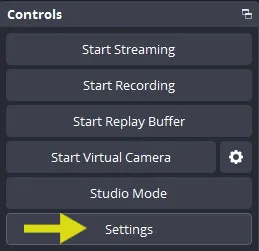
- Base (Canvas) Resolution: 1920x1080 (recommended for all modern split-screen work)
- Output (Scaled) Resolution: 1920x1080, 1280x720, or whatever your stream/record target is
- Downscale Filter: Lanczos (sharpest for most content types)
Why this matters for split-screen: When your canvas is 1920x1080, a perfect 50/50 horizontal split means each panel is exactly 960x1080. If your canvas is a non-standard resolution, every layout calculation changes. Lock it down first.

Step 2: Add Your Sources to the Scene
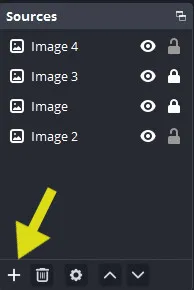
In the Sources panel at the bottom of OBS:
1. Click the + button
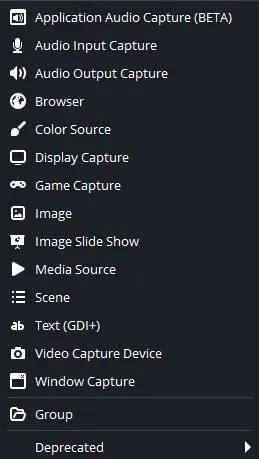
2. Choose your source type:
- Video Capture Device for webcam.
- Window Capture or Game Capture for software/games
- Display Capture for full screen.
- Media Source for video files.
3. Name each source clearly (e.g., "Cam Left", "Game Feed Right")
4. Repeat for each panel in your layout
⚠️ Watch Out
Do not use Display Capture for split-screen gaming streams unless you have a specific reason. Game Capture is lower latency and does not capture your OBS window itself by mistake.
Step 3: Position Sources Using Transform Controls
This is where most beginners get stuck. OBS gives you two ways to position sources:
Option A: Manual Drag and Snap (Fastest for Simple Layouts)
- Click a source in the preview
- Hold Alt and drag an edge to crop (not resize) the source
- Drag the source to position it
- Hold Ctrl while resizing to disable snapping for fine control
Option B: Edit Transform (Most Accurate)
Right-click any source > Transform > Edit Transform (or press Ctrl+E)
For a clean 50/50 horizontal split:
| Source | Position X | Position Y | Size W | Size H |
|---|---|---|---|---|
| Left Panel | 0 | 0 | 960 | 1080 |
| Right Panel | 960 | 0 | 960 | 1080 |
For a 60/40 split favoring the left source:
| Source | Position X | Position Y | Size W | Size H |
|---|---|---|---|---|
| Left Panel | 0 | 0 | 1152 | 1080 |
| Right Panel | 1152 | 0 | 768 | 1080 |
💡 Pro Tip
Always use the Bounding Box in Transform settings when sources have inconsistent aspect ratios. Set the bounding box to your target panel size and select "Scale to inner bounds" to prevent stretching.
Step 4: Handle Aspect Ratio Mismatches
This is the most common source of bad-looking split screens. Most webcams output 16:9. Some capture cards deliver 4:3. A 1080p game feed and a 720p webcam do not fill the same panel size without intervention.
The three strategies:
1. Scale to Fill (Crops the source)
Set bounding box to panel dimensions. Use "Scale to outer bounds." The source fills the panel completely but edges may be cropped.
Use this for: Webcam feeds where cropping a little off the sides is acceptable.
2. Scale to Fit (Adds letterbox/pillarbox)
Set bounding box to panel dimensions. Use "Scale to inner bounds." The full source is visible but black bars may appear.
Use this for: Game feeds where you must not crop any action.
3. Manual Crop + Scale
Use Alt+drag to crop first, then resize. Gives you the most control.
Use this for: 4:3 sources you want to present as 16:9 without distortion.
Step 5: Add a Divider Line (Optional but Professional)
A thin vertical or horizontal line between panels sharpens the visual separation.
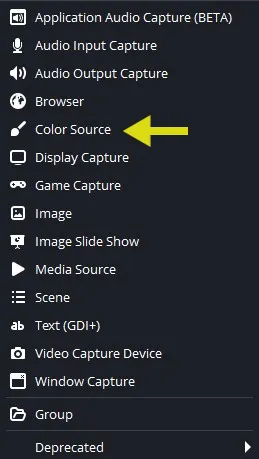
- Add a new source: Color Source
- Set color to white, grey, or your brand color
- Set size to 4px wide, 1080px tall (for vertical divider)
- Position it at exactly X:958 (for a 50/50 split centered divider)
- Lock the source in the Sources panel so you do not accidentally move it
Step 6: Build Layout Templates as Scenes
OBS lets you create multiple scenes and switch between them. For professional split-screen production, build each layout variant as its own scene:
- Scene: Solo Cam — Full-frame webcam only
- Scene: Split 50/50— Equal side-by-side
- Scene: Game + Cam— 70% game, 30% cam
- Scene: Interview— Two webcams side-by-side
- Scene: Screen Share— Full screen + pip cam
Use Scene Collections (top menu > Scene Collection > New) to group related layouts for different show formats.
Does OBS Have a Built-In Split-Screen Template?
No. OBS Studio does not ship with pre-built layout templates. Every layout is built manually through Sources and Transform controls. This is by design: OBS is a flexible production tool, not a consumer app with drag-and-drop presets.
If you want templates without manual setup, tools like Yostream offer browser-based streaming studios with pre-designed split-screen layouts you can apply in one click, which is significantly faster for creators who want professional-looking layouts without the OBS configuration overhead. Yostream also integrates directly with OBS via RTMP Source, so you can push your OBS canvas into Yostream as a live feed, layer it with Yostream's templates, overlays, and co-host layouts, and stream the final output to your platform, all without leaving either tool.
How to Align Sources Perfectly Without Guessing
OBS has alignment tools most users never discover:
- Right-click any source in preview > Transform > Center on Screen (horizontal or vertical)
- View > Align Items (appears in right-click on multi-selected sources)
- Turn on View > Snapping to snap sources to canvas edges and to each other
- Turn on View > Grid to align by a consistent pixel grid
For multi-source layouts, select all sources (Ctrl+A), right-click, and use the Align Items submenu to distribute them evenly.
Why Does My Split-Screen Look Blurry or Pixelated?
Several causes, each with a specific fix:
| Symptom | Cause | Fix |
|---|---|---|
| Both panels look soft | Output resolution too low | Increase Output Resolution in Settings > Video |
| One panel is sharp, one is blurry | Source resolution mismatch | Match source capture resolution to panel size |
| Everything looks grainy | Encoder settings too aggressive | Increase bitrate or switch to x264 / NVENC |
| Edges look jagged | Downscale filter set to bilinear | Switch to Lanczos in Settings > Video |
| Webcam looks compressed | USB bandwidth saturation | Use a capture card or reduce webcam resolution |
How to Record or Stream a Split-Screen Layout
Once your layout is built in a scene, the output settings handle everything else. Your split-screen is just what OBS "sees" on its canvas.
For recording:
- Settings > Output > Recording
- Format: MKV (most reliable; remux to MP4 after recording)
- Encoder: NVENC H.264 or x264 depending on your GPU
For streaming:
- Settings > Output > Streaming
- Service: Twitch, YouTube Live, etc.
- Bitrate: 6000 kbps for 1080p60 on most platforms
The split-screen canvas outputs as a single composited frame. The platforms receive it exactly as you see it in the OBS preview.
Frequently Asked Questions
1. Can I use OBS split-screen for Zoom or virtual meetings?
Yes, but indirectly. Use OBS Virtual Camera (Tools > Start Virtual Camera) to pipe your OBS canvas output as a camera source into Zoom, Teams, or Google Meet. Your split-screen layout becomes your "camera feed" in the meeting.
2. How many sources can I have in a split-screen layout?
OBS has no hard limit on sources per scene. Practical limits are set by your CPU/GPU. A modern mid-range PC handles 4 to 6 simultaneous video sources without frame drops. Beyond that, consider using NDI sources over a local network to distribute encoding load.
3. Does OBS split-screen work on Mac?
Yes. OBS Studio is cross-platform (Windows, macOS, Linux). The Source and Transform functionality is identical across platforms. The only differences are in available capture methods: macOS uses Screen Capture and does not support Game Capture the same way Windows does.4. What is the best split-screen layout for interview streams?
Two equal webcam sources at 960x1080 each, with name lower-thirds added as separate text sources. Use a subtle Color Source background in each panel (slightly different shade) to visually distinguish the two speakers.5. Why are my sources out of sync in my split-screen?
Audio/video sync issues in split-screen layouts usually come from:
- Different capture latencies for different sources (especially across HDMI capture cards and USB webcams)
- Use Advanced Audio Properties (right-click any audio source) to add sync offset in milliseconds per source
6. Can I save my split-screen layout as a template?
OBS does not export individual scene layouts as portable templates. However, you can:
- Export a full Scene Collection (Scene Collection > Export)
- Share the .json file with other OBS users
- They import it as a new Scene Collection with your exact layout
The Good Stuff's Ahead:
- Stream vertical in easy steps: Download And Install The Aitum Vertical Plugin For OBS
- Your complete guide to OBS Multi-RTMP: How To Install The OBS Multiple RTMP Outputs Plugin
- A plugin worth trying: How to Download and Install StreamFX Plugin for OBS
- The tweaks you need: Best OBS Settings for Game Streaming on Low-End PCs