

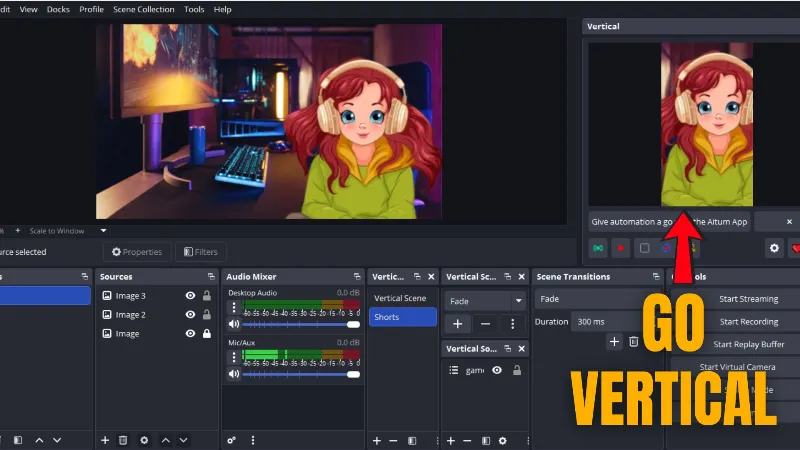
The vertical plugin for OBS is designed to enhance its capabilities in creating vertical video content. It is handy for social media platforms like YouTube Shorts, Instagram, TikTok, and Snapchat.
By default, OBS has been developed only for landscape video format. However, it can also support the portrait format for which you've to download and install the Aitum Vertical Plugin.
What Is the Aitum Vertical Plugin for OBS?
The aitum vertical plugin is an OBS extension that enables creators to build and manage dedicated vertical video layouts alongside traditional horizontal scenes. Instead of maintaining separate OBS projects for portrait and landscape content, the plugin allows both formats to coexist within a single workflow.
This is particularly useful for creators publishing content to TikTok, Instagram Reels, YouTube Shorts, Snapchat, and other mobile-first platforms where vertical video delivers a better viewing experience.
How the Aitum Vertical Plugin Works with OBS
After installing the aitum vertical plugin, OBS gains additional vertical-specific docks, including Vertical Scenes and Vertical Sources. These tools allow creators to reuse existing scenes while optimizing them for a 9:16 aspect ratio.
For example, a gaming creator can keep gameplay centered in a horizontal YouTube stream while creating a separate vertical composition for TikTok Live. This flexibility helps maintain professional-looking layouts across multiple platforms without rebuilding every scene from scratch.
How to Change OBS to Vertical?
Once the installation finishes, open OBS on your PC.

Click Docks in the header bar. From the list, select:
- Vertical Scenes,
- Vertical Sources
- Vertical Scene Transitions
- Vertical

All of the selected docks will now appear on the interface.

In the Vertical Scenes panel, click the '+' button.

Enter a vertical scene name, and click OK.

In the Vertical Sources panel, click the '+' button.

In the landscape video format, the scene name is Game.

After clicking the '+' button in the Vertical Sources panel:
- Select Scene.
- Select Game.

Your video is now appearing on the Vertical panel.

The video might not fit perfectly in the vertical frame. Drag the edges and corners of the red border to adjust your video in the frame.

Click the 'lock' icon in Vertical Sources to remove the red border.

Congratulations! Now you know how to change OBS to vertical. Now you can stream to popular platforms like Instagram, YouTube Shorts, TikTok, Snapchat, etc.

Why OBS Users Install the Aitum Vertical Plugin
OBS Studio was originally designed around the 16:9 landscape format. While users can manually create portrait layouts by changing canvas settings, the aitum vertical plugin simplifies the process by introducing dedicated vertical scenes, sources, and controls.
Benefits include:
- Faster vertical scene creation
- Separate portrait and landscape layouts
- Better workflow for short-form content creators
- Easier streaming to mobile-first platforms
- Reduced setup time compared to manual OBS configuration
Best Practices for Creating Vertical Video in OBS
When using the aitum vertical plugin, consider the following recommendations:
Keep Important Elements Centered
Most mobile viewers consume content in portrait orientation. Position webcams, avatars, gameplay highlights, and captions near the center of the frame to prevent cropping on different devices.
Use a Dedicated Vertical Scene
Rather than simply resizing a horizontal scene, create a dedicated vertical scene using the aitum vertical plugin. This provides greater control over layouts and improves the viewing experience on mobile platforms.
Test Before Going Live
Preview your vertical layout before streaming. Verify that text overlays, alerts, and graphics remain readable within the 9:16 canvas.
Frequently Asked Questions:
1. Is the Aitum Vertical Plugin free?
Yes. The aitum vertical plugin is generally available as a free extension for OBS, allowing creators to add vertical video capabilities without purchasing additional streaming software.
2. Do I need the Aitum Vertical Plugin to create vertical videos in OBS?
No. OBS can be configured manually for portrait video. However, many creators use the aitum vertical plugin because it provides dedicated vertical workflows and simplifies scene management.
3. Can the Aitum Vertical Plugin be used for TikTok Live?
Yes. The aitum vertical plugin is commonly used by creators who stream or record content for TikTok Live, Instagram Reels, YouTube Shorts, and other vertical-video platforms.
4. Does the Aitum Vertical Plugin affect OBS performance?
The aitum vertical plugin is designed to integrate directly with OBS. Performance will primarily depend on your computer hardware, scene complexity, encoding settings, and active sources.
5. Can I use horizontal and vertical layouts simultaneously?
Yes. One of the main advantages of the aitum vertical plugin is the ability to manage both landscape and portrait content within the same OBS setup, making it easier to repurpose content for multiple platforms.
Recommended Reads:
- Browser-powered VTubing starts here: The Fastest Way to Start VTubing Without OBS
- Mark your perfection with best OBS plugins: 16 Important OBS Plugins For Content Creators
- Made for newbies, loved by pros: Best OBS Studio Alternatives for New Streamers
- Stream seamlessly across multiple devices: Ultimate Guide to DistroAV (NDI Plugin) Setup for OBS Studio