

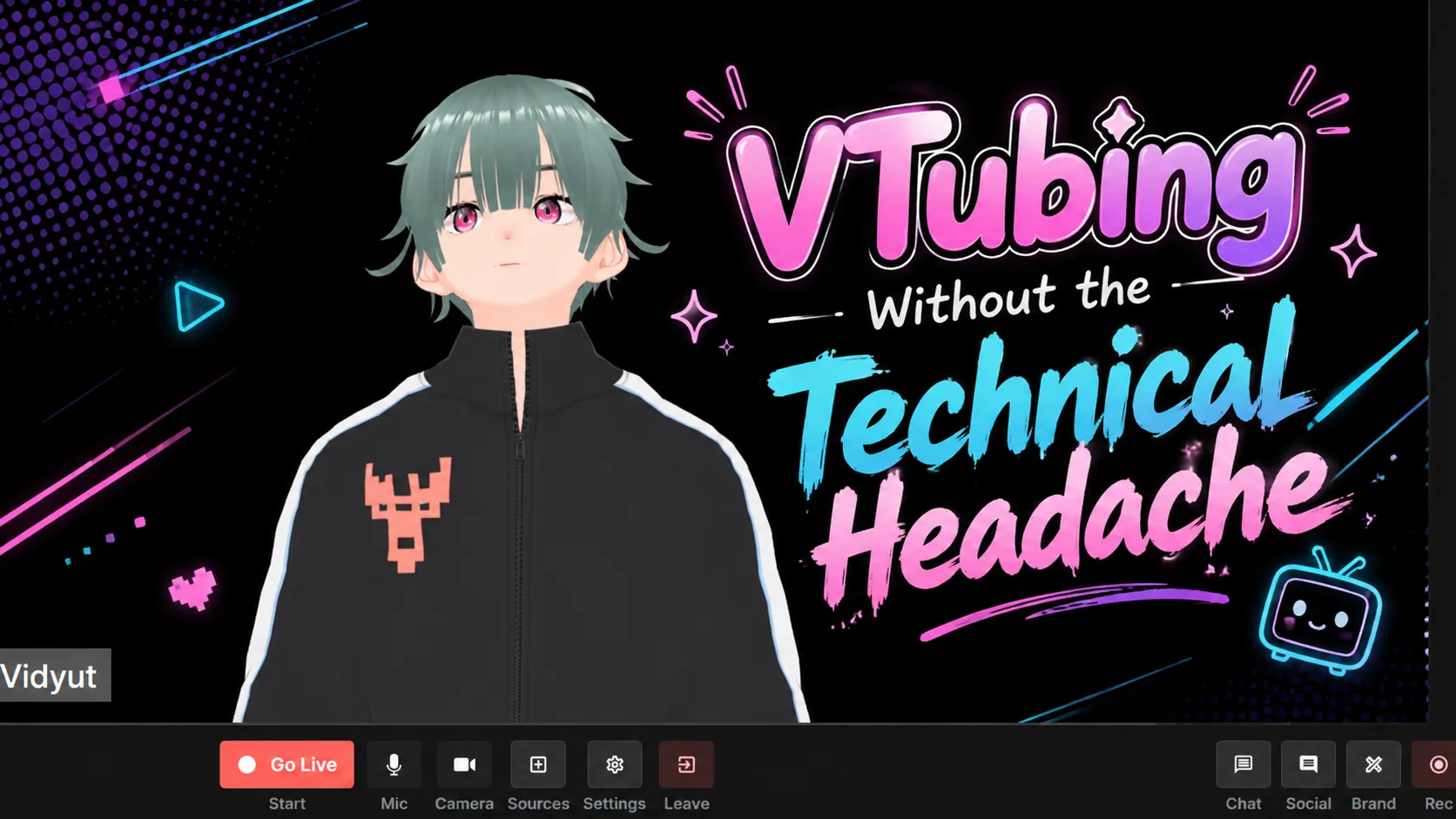
Many aspiring VTubers spend more time troubleshooting OBS than actually creating content. Audio routing breaks, scenes become complicated, plugins conflict, and beginners often abandon streaming before their first broadcast.
The good news is that VTubing without OBS is completely possible today.
Modern browser-based streaming tools allow you to take a VTuber avatar created in Vroid Studio, animate it through VSeeFace, and stream directly from a web browser. No scene collections. No encoder settings. No software updates every few weeks.
This guide walks through the exact process step-by-step. You'll learn how to create a VTuber avatar, enable face tracking, connect a virtual camera, and go live through your browser using Yostream. By the end, you'll have a complete beginner-friendly VTubing workflow that works even if you've never streamed before.
🎭 What Does VTubing Without OBS Actually Mean?
VTubing is the practice of streaming or creating content using a virtual avatar instead of showing your real face.
Traditionally, VTubers use OBS Studio as the middle layer between their avatar software and streaming platform.
A traditional workflow looks like this:
Vroid Studio → VSeeFace → OBS → YouTube/Twitch
A browser-based workflow looks like this:
Vroid Studio → VSeeFace → Yostream → YouTube/Twitch/Facebook
The second workflow removes an entire layer of complexity.
Think of OBS as a giant recording studio with hundreds of switches and knobs. Most beginner VTubers only need a microphone, camera source, and stream button. A browser-based workflow gives them exactly that.
🤔 Can You Really Become a VTuber Without OBS?
Yes.
OBS is popular, but it is not mandatory.
The key requirement is getting your animated avatar into a video source that a streaming platform can recognize.
VSeeFace solves this problem through its Virtual Camera feature.
Once enabled, your avatar appears like a webcam to other applications. Browser-based platforms can then use it exactly like a physical webcam.
This means:
- No OBS scenes
- No OBS plugins
- No stream key configuration inside OBS
- No encoder tuning
- Fewer points of failure
For solo VTubers, educators, coaches, and creators who prioritize simplicity, this approach often works better.
🛠️ What Software Do You Need for a Beginner VTuber Setup?
| Tool | Purpose | Free Version |
|---|---|---|
| Vroid Studio | Create VTuber avatar | Yes |
| VSeeFace | Face tracking and avatar animation | Yes |
| Webcam | Facial tracking input | Yes (existing webcam) |
| Yostream | Browser-based streaming and multistreaming | Yes |
| YouTube/Twitch Account | Streaming destination | Yes |
Why This Combination Works
Each tool has a single responsibility.
- Vroid Studio creates the avatar.
- VSeeFace animates the avatar.
- Yostream handles the streaming.
This separation keeps the workflow simple and reliable.
🎨 Step 1: Create Your VTuber Avatar Using Vroid Studio
What Is Vroid Studio?
Vroid Studio is a free avatar creation application developed by the team behind VRM avatars.
It allows beginners to create anime-style 3D characters without needing Blender or advanced 3D modeling knowledge.
Create Your Avatar
1. Install and open Vroid Studio
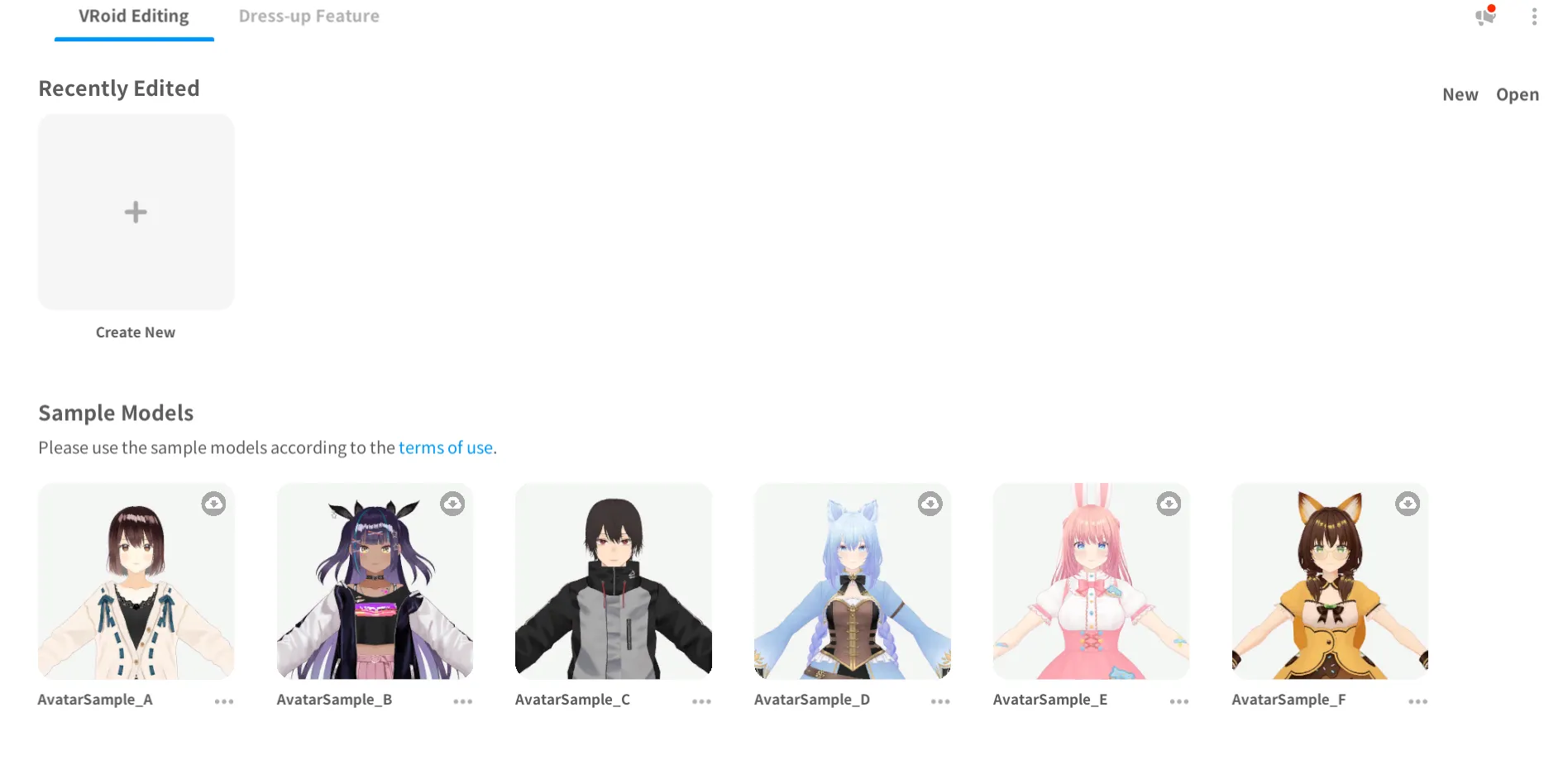
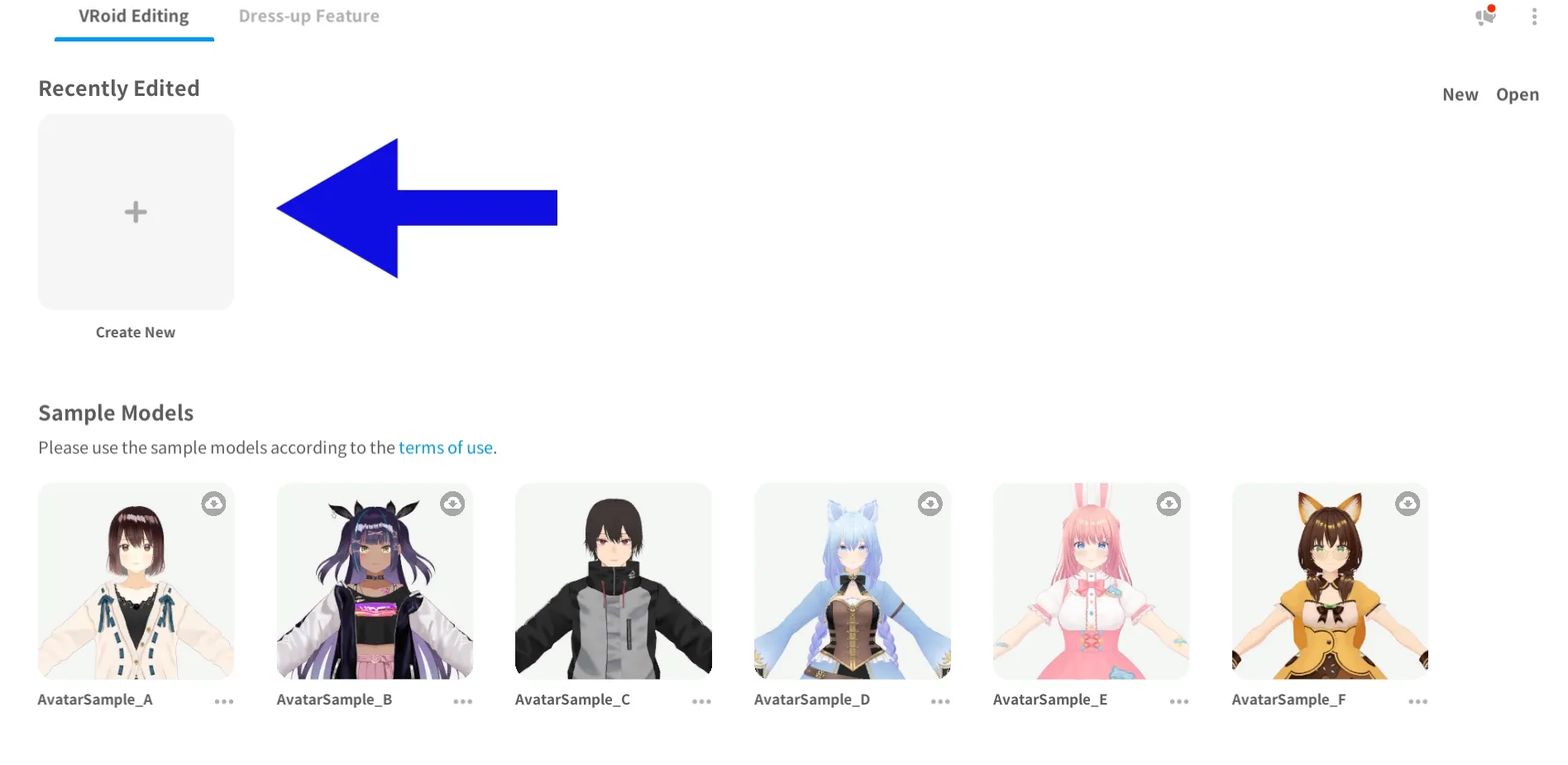
2. Select "Create New"
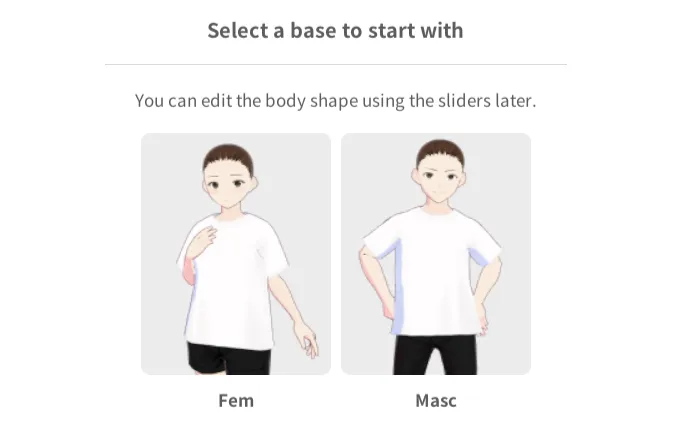
3. Choose a base character
4. Customize your avatar
Vroid Studio provides a wide range of options to help bring your vision to life. You can personalize nearly every aspect of your character’s appearance, including hairstyles, hair colors, eye shapes, eye colors, facial features, skin tone, makeup, and facial expressions. The platform also allows you to adjust body proportions such as height, head size, and overall build to create a unique look that matches your personality or brand. In addition, you can customize clothing, accessories, textures, and outfit colors, giving you complete creative control over your avatar’s design.
5. Export your avatar
Once you finish customizing your avatar, click the upload icon in the top-right corner of the screen and select "Export as VRM." In the VRM Settings window, choose "VRM 0.0" as the Export Format, complete all required fields in the form, and then click "Export" at the bottom to save your avatar as a VRM file.
🎥 Step 2: Animate Your Avatar Using VSeeFace
What Is VSeeFace?
VSeeFaceis a real-time face tracking application that animates VRM avatars using your webcam.
It tracks:
- Head movement
- Eye movement
- Facial expressions
- Mouth movement
Many independent VTubers use VSeeFace because it offers excellent tracking quality while remaining free.
Load Your Avatar
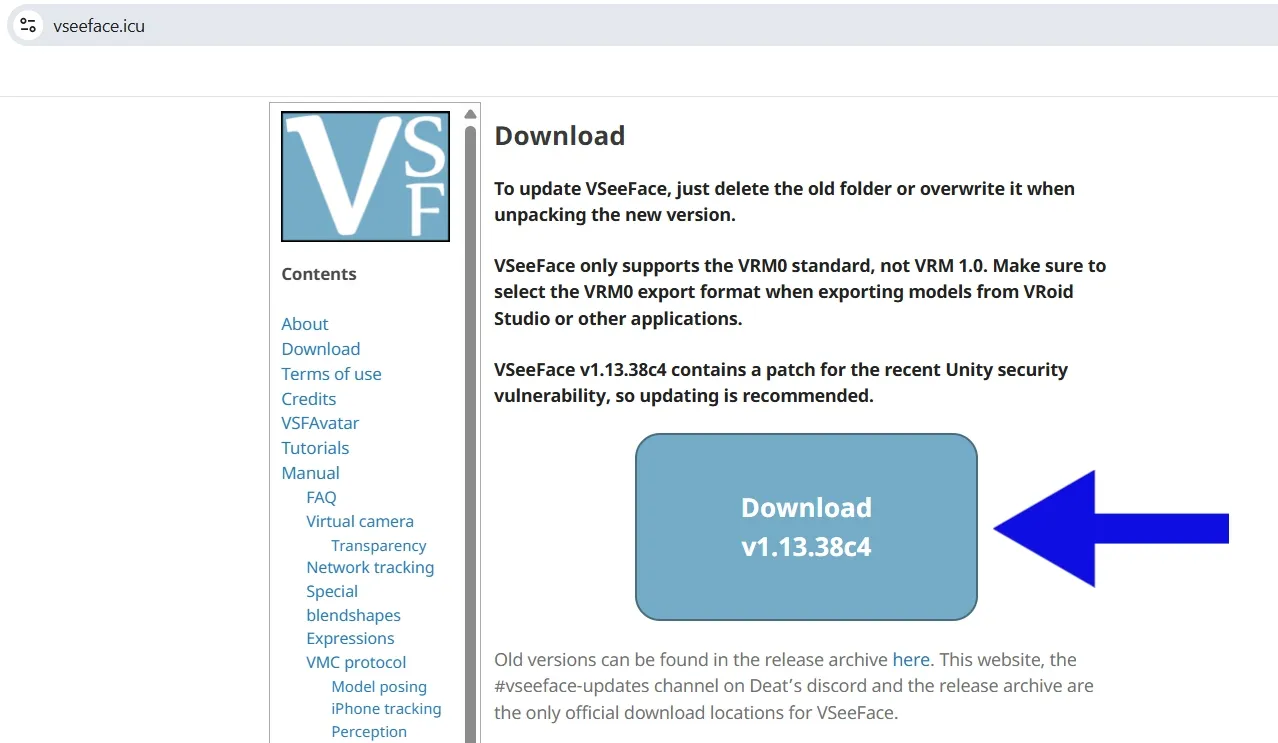
1. Download and open VSeeFace
2. Select your VRM file
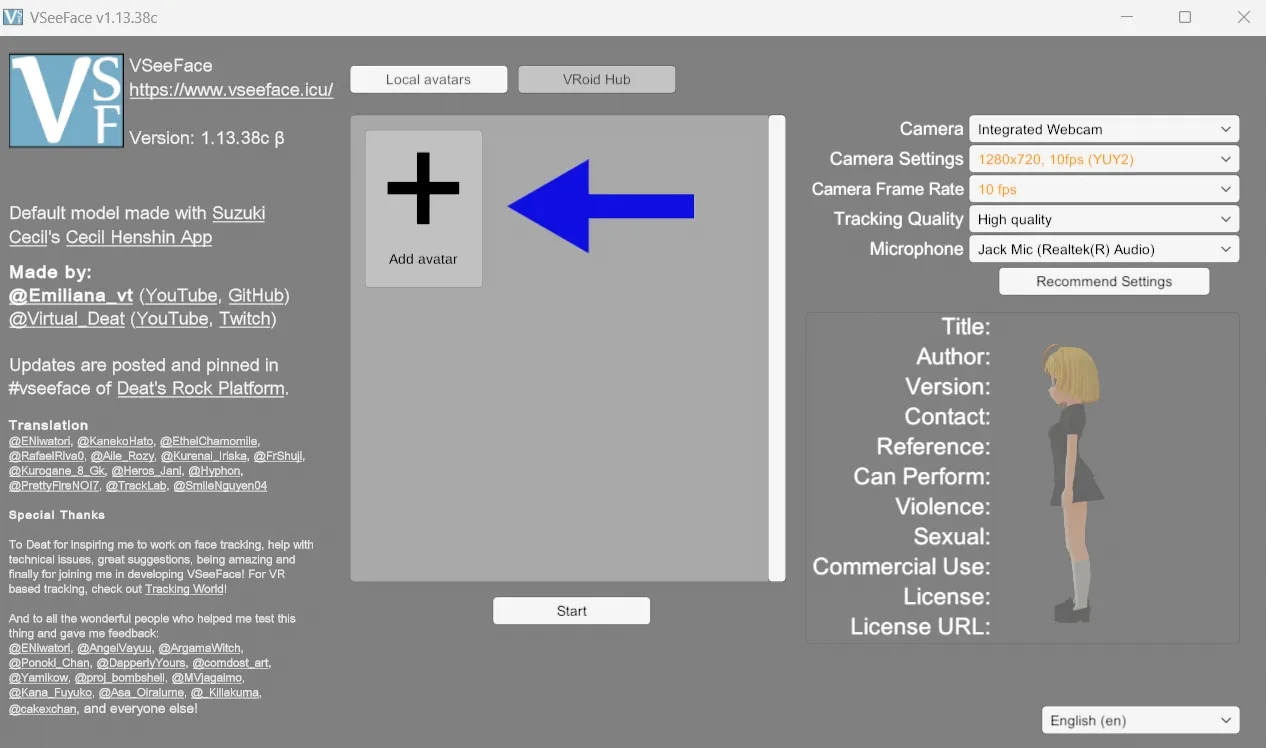
Click on the Add avatar icon and upload the VRM file you exported in the Vroid Studio.
3. Select Camera and Microphone
From the right side of your panel, you can select your desired camera and microphone. You can also adjust further settings.

4. Allow camera access
After uploading the VRM file, and clicking Start at the bottom, you can see your avatar moving with your face. Select Settings > General Settings. Enable the virtual camera while ensuring it's installed. Depending on your preferences, you can go through other settings as well.
After activation, Windows will recognize the avatar feed as a webcam source.
Adjust Tracking Settings
For better results:
- Sit in good lighting.
- Keep your face visible.
- Position webcam at eye level.
- Avoid strong backlighting.
Trade-off:
According to standard recommendations, placing a light source in front of your face rather than behind you improves image quality, visibility, and camera performance, which can help facial tracking systems work more reliably.
Verify It Works
Open your browser camera permissions or camera testing website.
You should see a new camera source from VSeeFace.
If visible, you're ready for streaming.
⚠️Warning
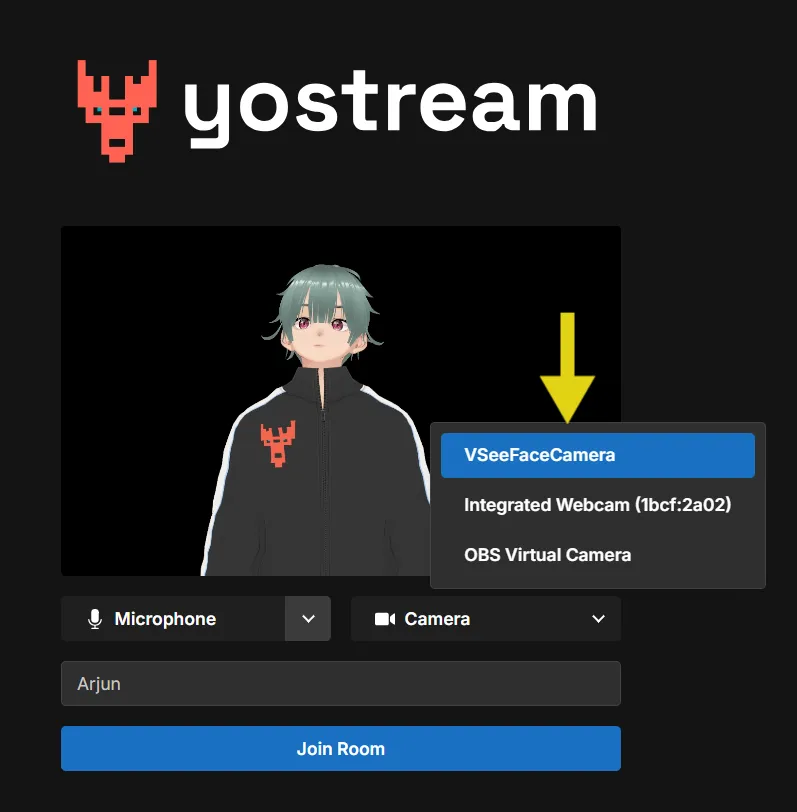
Some users accidentally select their physical webcam instead of the VSeeFace virtual camera later during setup. Always verify which camera source is active before going live.
🌐 Step 3: Stream Directly Through Your Browser Using Yostream
Why Use a Browser-Based Streaming Platform?
Most beginner VTubers don't need advanced scene composition.
They need:
- Reliable streaming
- Multiple destinations
- Easy setup
- Minimal technical maintenance
This is where browser-based streaming becomes practical.
Start Streaming as a VTuber Using Yostream
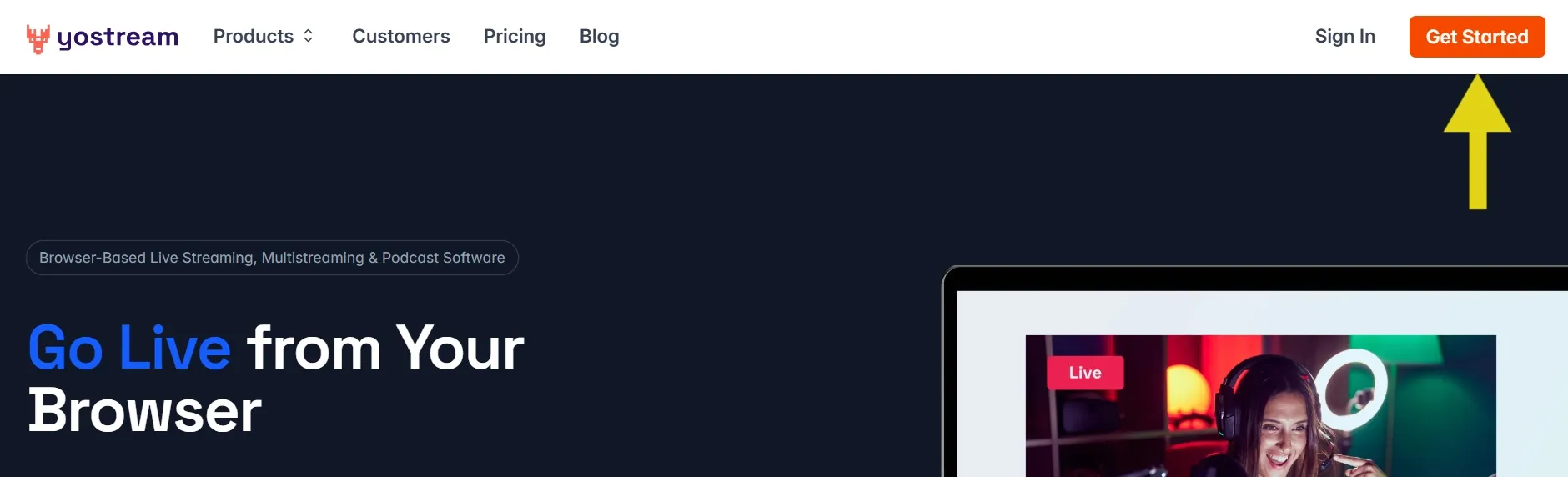
Type Yostream.io in address bar of your browser and hit Enter.

Click Get Started at the top-right corner.
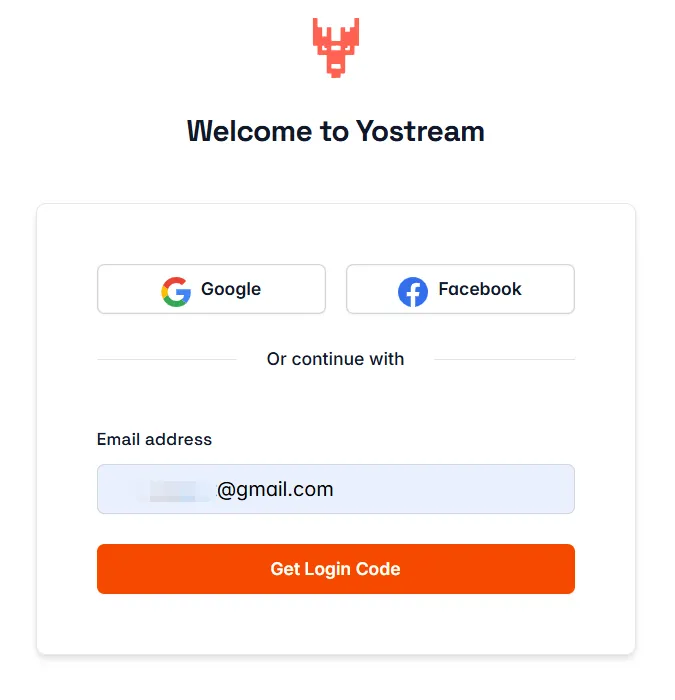
You can log into Yostream while connecting your Google or Facebook accounts. Alternatively, you can use any Email address to proceed. In this demonstration, we'll enter an Email address before clicking Get Login Code.
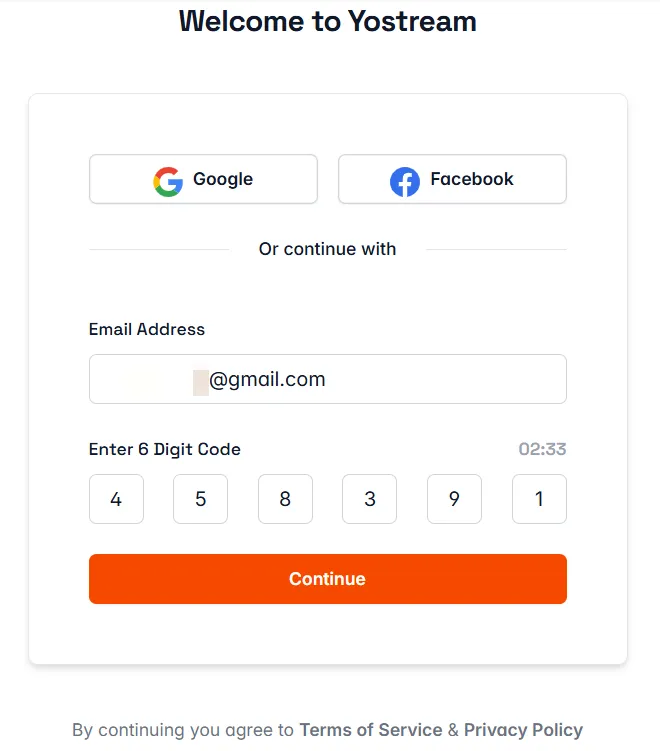
Provide the 6-digit login code received on your registered Email address. Click Continue.
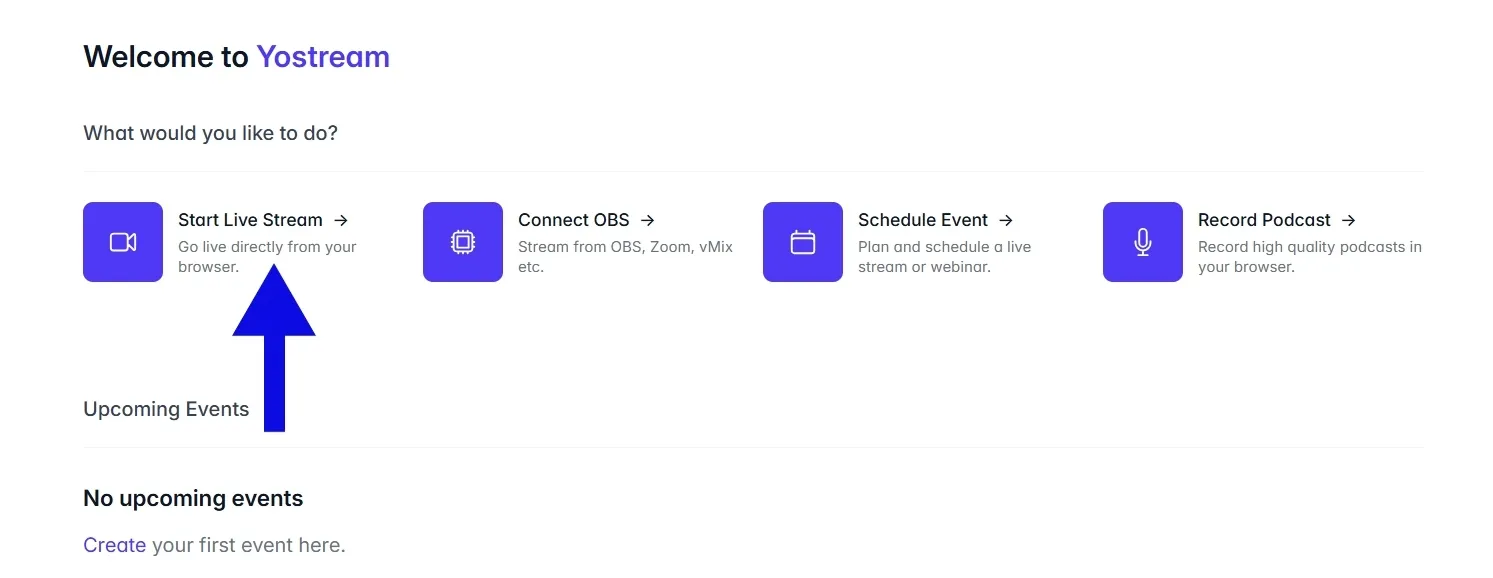
Click Start Live Stream in your dashboard.
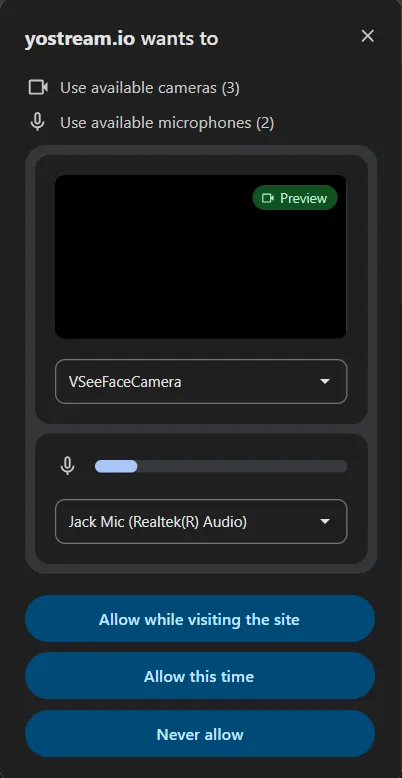
Give permission to the browser for accessing camera and microphone.
Select your desired microphone. Choose the VSeeFaceCamera from the dropdown menu under the Camera option. Provide a username, and click Join Room.
Toggle on the left panel to bring your avatar on the canavas.
Click Go Live and connect accounts to start streaming.
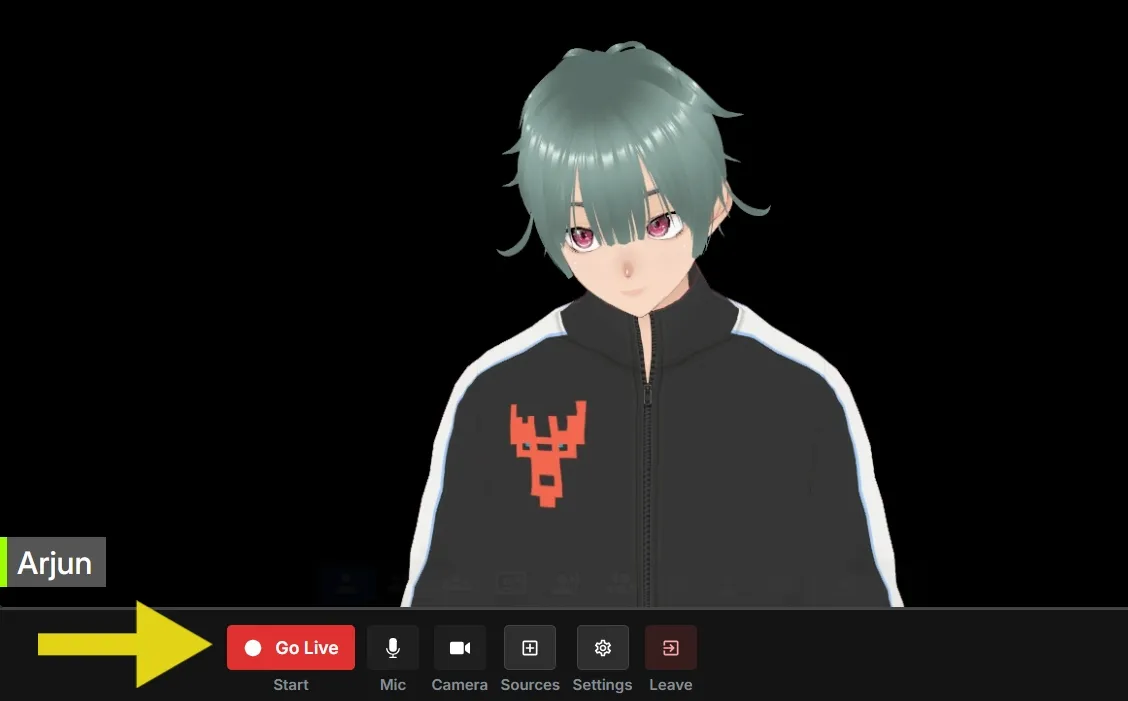
If you want to multistream to several destinations simultaneously without configuring multiple broadcasting tools, Yostream can handle that directly from the browser.
📊 Browser-Based VTubing vs OBS Workflow
| Feature | Browser-Based Workflow | OBS Workflow |
| Setup Time | 10-20 minutes | 1-3 hours |
| Learning Curve | Low | Moderate to High |
| Scene Management | Basic | Advanced |
| Plugin Support | Limited | Extensive |
| Resource Usage | Lower | Higher |
| Multistreaming | Built-in on some platforms | Additional setup |
| Beginner Friendly | Excellent | Moderate |
| Maintenance | Minimal | Frequent |
🎯 What Are the Biggest Advantages of VTubing Without OBS?
Faster Launch Times
You can start broadcasting within minutes instead of managing scenes and profiles.
Lower System Load
OBS performs video encoding and scene rendering.
Removing it often reduces resource consumption.
Easier Troubleshooting
When problems occur, you only need to check:
- VSeeFace
- Browser
- Streaming platform
Better for New Creators
Most beginners want to create content, not manage production software.
🔍 Common Problems and Fixes
Avatar Not Appearing
Check:
- Virtual camera enabled
- Correct camera selected
- Browser permissions granted
Face Tracking Feels Jittery
Improve:
- Lighting
- Webcam positioning
- Tracking calibration
Audio Is Missing
Verify:
- Correct microphone selected
- Browser permissions approved
- Audio meter activity visible
Stream Looks Delayed
Close unnecessary applications and reduce system load.
❓ Can VSeeFace Stream Directly to YouTube?
No.
VSeeFace is avatar-tracking software, not streaming software.
It animates your avatar and outputs it through a virtual camera.
You still need a broadcasting solution such as OBS or a browser-based streaming platform like Yostream to send the video feed to YouTube, Twitch, or Facebook.
Frequently Asked Questions About VTubing
Q1. Can I use a VTuber avatar on a low-end PC?
Yes. A basic VTubing setup using Vroid Studio, VSeeFace, and a browser-based streaming platform typically requires fewer system resources than a full OBS workflow. Performance depends on avatar complexity, webcam quality, and how many applications are running simultaneously.
Q2. Do I need a webcam to become a VTuber?
For real-time face tracking, yes. Applications like VSeeFace use a webcam to capture facial expressions and head movements. Without a webcam, your avatar can still appear on screen, but it won't react naturally to your movements.
Q3. Can I use my VTuber avatar for YouTube Shorts, TikTok, and Instagram Reels?
Absolutely. Many VTubers create short-form content using the same avatar they use for live streams. Recording clips, tutorials, reactions, and gaming highlights helps grow an audience across multiple platforms before or between live broadcasts.
Q4. What's the difference between a VRM avatar and a PNG avatar?
A VRM avatar is a fully rigged 3D character that can move, blink, and respond to facial tracking. A PNG avatar is a static image that does not animate unless paired with additional software. Most beginner VTubers use VRM avatars because they provide a more interactive viewing experience.
Q5. Can I stream as a VTuber on multiple platforms simultaneously?
Yes. Multistreaming allows you to broadcast the same VTuber stream to platforms such as YouTube, Twitch, Facebook, and LinkedIn at the same time. This helps new creators reach a larger audience without creating separate streams for each platform.
Q6. How much does it cost to start VTubing?
A beginner VTubing setup can cost very little. Vroid Studio and VSeeFace are free, and many creators start with an existing webcam and microphone. As your channel grows, you can invest in better cameras, microphones, custom avatars, and branding assets.
Q7. Can I use a custom background while VTubing without OBS?
Yes. Many VTuber applications support transparent backgrounds or chroma key options. Browser-based streaming platforms can then combine your avatar feed with custom backgrounds, overlays, branding elements, or presentation content without requiring complex scene management.
Explore More:
- Dress your stream up: How to Add a Professional Stream Overlay Without Hiring a Designer
- The blur stops here: Your YouTube Stream Looks Blurry. Here's Every Reason Why, and Exactly How to Fix It
- The setup never got easier. The alternatives did: OBS Is Not the Gold Standard Anymore. Here Is What Actually Changed
- The setting 90% of streamers ignore (but pros don’t): The One Audio Setting That Separates Pro Streamers from Beginners