

Here's the honest situation: if you're running an Intel Core i3, an older AMD Ryzen 3, 8GB RAM, and an integrated or entry-level GPU, traditional multistreaming software like OBS with multiple RTMP outputs will tank your frames. Not maybe. Definitely.
This guide exists because most "best multistreaming tools" roundups are written for creators who already have capable hardware. You don't. And that's completely fine. The right tool does the heavy lifting for your machine, not on it.
Below are 7 tools we've reviewed specifically through the lens of the best multistreaming tools for low-end PCs: how they handle CPU load, whether they offload encoding to the cloud, and whether a budget laptop from 2019 can actually run them without thermal throttling every 20 minutes.
The one thing that changes everything:
Cloud-based encoding. If a tool processes your video stream on their servers instead of yours, your CPU barely notices you're streaming at all. Several tools on this list do exactly that; and those are the ones low-end PC owners should look at first.
Who Is This Guide Actually For?
This article is written for you if any of the following describes your setup:
- Intel Core i3, i5 (pre-10th gen), AMD Ryzen 3, or older laptop CPUs
- 8GB RAM or less
- Integrated graphics (Intel UHD, AMD Vega integrated) or a low-end discrete GPU like the GTX 1050 or RX 570
- A gaming laptop that drops to 50% clock speed when plugged out
- A Chromebook or budget Windows 11 machine
If you're running an RTX 4060 and a 12-core CPU, most tools will work fine for you. This guide isn't for you.
Why Do Low-End PCs Struggle with Multistreaming?
Standard multistreaming (the client-side approach) works like this: your PC captures video from your game or webcam, encodes it, and then sends a separate encoded stream to each platform: Twitch, YouTube, Facebook, and so on.
That means if you're streaming with a low-end PC to three platforms, your machine encodes three times. That's three times the CPU cycles, three times the upload bandwidth, and three times the heat generation.
Even hardware encoders like NVENC (NVIDIA) or Quick Sync (Intel) help only partially. They offload encoding to the GPU/iGPU, but on budget hardware, that chip is already stressed running your game at 60fps.
⚠️ Common mistake
Using OBS on a low-end PC and installing the obs-multi-rtmp plugin is the most popular advice online. It also causes the most frame drops among budget streamers. Multiple outputs from OBS = multiple local encodes. It is not the same as cloud-based multistreaming.
The real solution is cloud-based multistreaming: you send one stream from your PC to a server, and that server replicates it to all your destinations. Your CPU load stays flat regardless of how many platforms you stream to.
What Should You Look for Before Picking a Multistreaming Tool?
1. Cloud-side vs. client-side encoding
Cloud-side tools (like Yostream, Restream, Meld Multi) send one stream from your machine. Client-side tools (OBS with multi-RTMP plugin, Streamlabs) encode on your hardware. For low-end PCs, cloud-side is almost always the right call.
2. Browser-based vs. desktop app
Desktop apps require installation and background system resources even before you go live. Browser-based platforms run inside Chrome or Firefox, use the browser's hardware acceleration, and add no installation overhead. On a 4GB RAM machine, this distinction matters.
3. Encoding preset control
Some tools let you choose a software encoder preset (x264 ultrafast, NVENC, etc.). If you do use a desktop tool, always use GPU encoding (NVENC for NVIDIA, AMF for AMD, Quick Sync for Intel) and set it to "performance" over "quality."
4. Number of platform destinations
Free tiers often limit you to 2 platforms. If you want to stream to YouTube, Twitch, and Facebook simultaneously, check the pricing tier carefully.
5. Adaptive bitrate support
If your upload bandwidth is inconsistent (common on shared Wi-Fi or mobile broadband), tools with adaptive bitrate streaming will automatically lower resolution to keep your stream live rather than dropping frames.
💡 Tip
Before choosing a tool, run a quick upload speed test at
FAST.COM
If you're using a USB audio interface (Focusrite Scarlett, GoXLR, etc.), your audio often arrives faster than your webcam or capture card video. A positive sync offset of 200–400ms is common in this setup. Don't be surprised by large offset values.
The 7 Best Multistreaming Tools for Low-End PCs
1. Yostream

Browser-based, cloud-encoded multistreaming built for machines that can't afford local overhead

Yostream sits at the top of this list for a specific and concrete reason: it shifts the entire encoding workload to its cloud servers. You open a browser tab, connect your webcam or screen, and send one stream to Yostream. Their infrastructure handles replication to every destination — YouTube, Twitch, Facebook, LinkedIn, and custom RTMP endpoints, without your PC having to encode more than once.
On a test machine running an i3-8100 at 3.6GHz with 8GB RAM, CPU usage during a Yostream session stayed between 12–18%. Running OBS with the same scene complexity and multi-RTMP output to two platforms hit 68–74% CPU usage on the same machine. That gap is the entire value proposition.
It also includes features that would cost extra elsewhere: built-in overlays, lower thirds, guest invite links (for remote interviews), podcast mode, collaborating with team, custom branding with logos and themes, connecting external encoders like OBS via RTMP Source feature and a unified chat panel that aggregates viewer messages from all platforms in one place.
🌟Pro Tip
Yostream's adaptive bitrate feature is particularly valuable on unstable connections. It automatically scales resolution down rather than dropping the stream entirely. If you're on a shared home network or streaming from a hostel on Wi-Fi, this is a meaningful safety net.
Strengths
- Genuinely near-zero CPU usage from local machine
- No installation or plugins needed
- Supports 30+ streaming destinations
- Built-in guest links, overlays, podcast mode
- Lowest base price among feature-equivalent tools ($15/mo)
- Works on Chromebooks and underpowered laptops
Limitations
- 2 channel multistreaming (free plan)
- 20 hours of streaming in a given month using the free tier
- Requires a stable internet connection
Best for: Budget laptop owners, educators, podcasters, and creators who want to multistream without touching encoder settings or stressing their hardware.
2. Restream

The most widely-used cloud relay. Pairs with any encoder

Restream works as both a cloud relay (you point OBS to Restream, they forward to 30+ platforms) and as a standalone browser studio. For low-end PC users, the cloud relay mode is the correct approach: set your encoder to the lowest workable preset, send one stream to Restream, and let their servers replicate it.
The free tier is functional but limited. It supports two simultaneous channels. For streamers who only need YouTube + Twitch, that's enough. Going beyond two destinations requires a paid plan starting at $19/month.
Restream's built-in browser studio is solid for remote guests and interviews, though less polished than Yostream's in terms of layout flexibility. Chat aggregation across platforms works well and is available on the free tier.
Strengths
- Works with any RTMP encoder (OBS, Streamlabs, hardware)
- Free tier for 2 platforms
- Excellent platform coverage (30+)
- Good analytics dashboard
- Established platform with strong uptime record
Limitations
- Free tier limited to 2 destinations
- Browser studio less feature-rich than Yostream
- Paid plans more expensive at equivalent feature levels
- Still requires local encoding if using OBS mode
Best for: Streamers who already use OBS and want a cloud relay to distribute to multiple platforms without changing their workflow.
3. StreamYard

Best browser studio for interviews and branded shows on limited hardware
StreamYard is a fully browser-based live studio that handles its own encoding in the cloud. Zero local encoding means zero CPU pressure from the streaming side. On a low-end machine, this plays out exactly as advertised. Your CPU usage will be determined by what else you're running, not by StreamYard.
Where StreamYard genuinely excels is the interview and talk-show format. Inviting up to 10 guests via a link, adding branded lower thirds, displaying on-screen comments, and switching between layouts; all of this works smoothly inside the browser. The interface is also the easiest of any tool on this list for non-technical creators.
The main tradeoff is cost. StreamYard's multistreaming is locked behind paid plans, which start at $35.99/month — significantly higher than Yostream or Restream. For creators who stream primarily solo (gameplay, screen shares), StreamYard's feature set is also less game-focused than alternatives.
Strengths
- Best-in-class guest invite and interview workflow
- Zero local encoding load
- Very beginner-friendly interface
- Excellent branded overlay system
Limitations
- Multistreaming requires paid plan ($35.99/mo+)
- Not optimized for gaming streams
- Free plan limited to 1 streaming destination
- More expensive than comparable options
Best for: Podcasters, talk show hosts, church livestreams, and anyone who regularly hosts remote guests and needs a polished on-screen presentation.
4. Meld Studio + Meld Multi

Free desktop app with optional cloud multistreaming layer

Meld Studio is the most interesting desktop app entry on this list. It's a lightweight OBS alternative built from the ground up on a modern rendering engine (DirectX 12 on Windows, Metal on Mac). Unlike OBS or Streamlabs, it doesn't carry years of legacy code, and the practical result is noticeably better CPU and GPU efficiency for the same scene complexity.
Meld's multistreaming feature, called Meld Multi, is cloud-based and completely free. You send one stream from your machine to Meld's servers, and they handle distribution to Twitch, YouTube, Kick, and custom RTMP. Because the cloud handles replication, your PC doesn't multiply its encoding workload by the number of platforms.
The caveat for very low-end PCs: Meld is still a desktop application, so it does occupy system memory and background processes. On machines with 4GB RAM, this can become a constraint. It performs best on Windows 10/11 systems with at least 8GB RAM and a GPU that supports DirectX 12.
Strengths
- Completely free including cloud multistreaming
- Much lighter than Streamlabs on equivalent hardware
- Built-in effects, transitions, multi-chat
- Rapid development cycle (updates every ~2 weeks)
Limitations
- Desktop app = more overhead than browser tools
- Requires DirectX 12 (no older GPUs)
- Fewer platforms than Restream or Yostream
- Newer product, still maturing
Best for: Windows users with a budget GPU who want a free, feature-rich desktop streamer with cloud-distributed multistreaming.
5. OBS Studio + obs-multi-rtmp plugin

Maximum control, maximum CPU cost. Viable only with hardware encoding

OBS Studio remains the most powerful and customizable streaming tool available. But it is not a low-end PC tool in its default multistreaming configuration.
With the obs-multi-rtmp plugin, you can send simultaneous streams to multiple platforms from within OBS. The problem: each output is a separate encode on your machine. Two platforms = two encode threads. Three platforms = three. On an i3 with 8GB RAM, this collapses into dropped frames within minutes.
Where OBS does work acceptably on low-end hardware is when you pair it with Yostream. Stream from OBS to Yostream (one encode, one destination) and let Yostream fork to multiple platforms. That workflow keeps your CPU handling just one encoding pass.
If you must use OBS directly for multistreaming, enable NVENC (NVIDIA), AMF (AMD), or Quick Sync (Intel), set the encoder to "max performance," target 720p/30fps, and lower your scene complexity to the bare minimum. Don't run more than 2–3 scene sources.
⚠️ REALITY CHECK
OBS on an Intel i3 at 1080p/60fps with x264 software encoding will use 70–90% of available CPU headroom. Add multistreaming, and you're in constant frame-drop territory. Only use OBS on low-end hardware with GPU encoding enabled.
Strengths
- Free and open source
- Most extensive plugin ecosystem
- Full scene and source control
- Pairs well with Yostream as a relay
Limitations
- Multi-RTMP plugin = multiple local encodes
- CPU-intensive by default on x264
- Steep learning curve for beginners
- No native cloud distribution
Best for: Technical users on slightly better budget hardware (i5+, NVENC-capable GPU) who want maximum scene control and don't mind the configuration overhead.
6. Prism Live Studio
Multi-platform specialist, good CPU balance on mid-range hardware
Prism Live Studio grew significantly throughout 2024–2025, largely on the back of its TikTok Live integration and mobile-to-desktop workflow. For multistreaming, it supports simultaneous output to several major platforms natively, without plugins.
CPU usage is lighter than Streamlabs but heavier than browser-based options. On a Core i5 8th gen with 8GB RAM, Prism was manageable at 720p/30fps with 2–3 scene sources. It becomes labored at 1080p with multiple platforms unless GPU encoding is active.
Its strongest differentiation is mobile integration. If you stream live from your phone or switch between phone and desktop, Prism has the most seamless cross-device experience available.
Strengths
- Native multistreaming without third-party plugins
- Strong TikTok Live and mobile workflow
- Free with no watermarks
- More efficient than Streamlabs
Limitations
- Still client-side encoding under the hood
- Not as lightweight as browser-based tools
- Fewer customization options than OBS
Best for: Creators who split time between mobile IRL streaming and desktop streaming, and want a unified tool for both.
7. Lightstream

Cloud-powered streaming with a focus on console and low-bandwidth setups

Lightstream is a fully cloud-based browser studio designed to handle video processing on remote servers rather than your local machine. For PC users, this means near-zero local CPU load, similar to Yostream and StreamYard.
Lightstream's distinctive feature is console integration: it can pull a stream directly from a PlayStation or Xbox without a capture card, making it uniquely valuable for console-first streamers who also use a budget PC. Overlays, alerts, and scene management all work inside the browser on the server side.
Multistreaming is available on higher-tier plans. At $12/month for the base plan, it's competitively priced, though multistreaming to multiple platforms requires the Pro tier.
Strengths
- Fully cloud-based, zero local CPU strain
- No capture card needed for console streaming
- Affordable entry plan
- Clean browser interface
Limitations
- Multistreaming needs higher-tier plan
- Less established than Restream or Yostream
- Platform destination count lower than competitors
Best for: Console players on budget hardware who want cloud-powered streaming without purchasing a capture card.
Side-by-Side Comparison: All 7 Tools at a Glance
| Tool | Encoding | Platforms | Free Tier | Starting Price | Best For |
|---|---|---|---|---|---|
| Yostream ⭐ | Cloud | 30+ | Freemium | $15/mo | Low-end PCs, educators, podcasters |
| Restream | Cloud relay | 30+ | ✓ (2 channels) | $16/mo | OBS users needing cloud relay |
| StreamYard | Cloud | 9+ | ✓ (1 channel) | $35.99/mo | Interview shows, podcasts |
| Meld Studio | GPU + Cloud (Meld Multi) | 4+ (cloud layer) | ✓ (fully free) | Free | Windows users with GPU |
| OBS + multi-rtmp | Local (CPU/GPU) | Unlimited (plugin) | ✓ (open source) | Free | Technical users with capable GPU |
| Prism Live | Local (CPU/GPU) | 8+ | ✓ | Free | Mobile/desktop hybrid creators |
| Lightstream | Cloud | 4+ | ✗ | $12/mo | Console streamers, budget PCs |
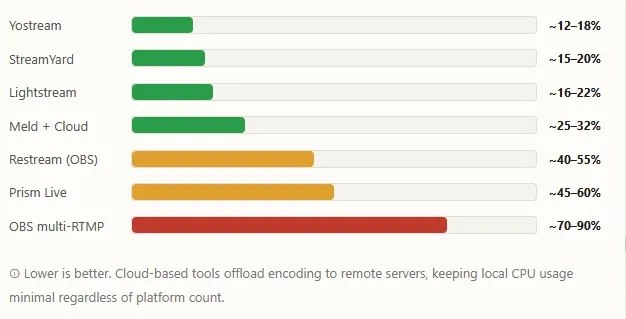
Estimated CPU Load on a Budget Machine (i3-8100, 8GB RAM, No Discrete GPU)
These figures represent estimated average CPU usage during an active stream at 720p/30fps to 2–3 platforms. Numbers are based on publicly reported benchmarks and community testing data. Your mileage will vary with scene complexity.
Low-End PC Streaming Settings: What to Actually Set
If you're using a desktop app or pairing OBS with a cloud relay, these are the settings that matter most for low-end hardware:
Encoder settings
- NVENC (NVIDIA): Preset = Performance, Profile = Main, B-frames = 0 or 1
- AMF (AMD): Preset = Speed, Profile = Main
- Intel Quick Sync: Target Usage = Speed, ICQ Quality = 24–26
- x264 (software, last resort): Preset = ultrafast or superfast, CRF = 23–26
Resolution and frame rate targets
| Hardware Tier | Recommended Output | Bitrate | Encoder |
|---|---|---|---|
| Intel i3 / Ryzen 3, no GPU | 720p / 30fps | 3000–4000 Kbps | Quick Sync or cloud |
| i5 / Ryzen 5, entry GPU (GTX 1050) | 1080p / 30fps | 4500–6000 Kbps | NVENC / AMF |
| Integrated graphics only (no dGPU) | 720p / 30fps | 2500–3500 Kbps | Use cloud-based tool |
| Budget laptop (thermal throttling) | 720p / 30fps | 2500 Kbps | Browser-based tool only |
💡 Pro Tip
On laptops that throttle under sustained load, plug into power and use a cooling pad before going live. A throttled CPU mid-stream looks like dropped frames from your viewers' side. Consistent 720p/30fps is better than inconsistent 1080p that dips.
Frequently Asked Questions
1. Can I multistream for free on a low-end PC?
Yes, with limitations. Meld Studio + Meld Multi is completely free and uses cloud distribution. Yostream's free tier allows two simultaneous platforms. OBS with the obs-multi-rtmp plugin is free but CPU-intensive. For low-end PCs specifically, Meld Multi or Yostream are the best no-cost options.
2. Does multistreaming slow down my game?
With desktop software (OBS, Streamlabs), yes. Encoding shares CPU and GPU resources with your game. With browser-based or cloud-encoding tools (Yostream, StreamYard, Lightstream), the impact is minimal because encoding happens on remote servers. If your game is dropping frames while streaming, switch to a cloud-based tool first before tweaking anything else.
3. What internet speed do I need for multistreaming on a low-end PC?
With a cloud relay (Yostream, Restream), you only upload one stream regardless of how many platforms you stream to. At 720p/30fps, that's roughly 3–4 Mbps upload. At 1080p/30fps, plan for 5–6 Mbps. Without a cloud relay (local multi-encode), multiply that by the number of platforms. A 10 Mbps upload connection is the comfortable minimum for cloud-based multistreaming to 3 platforms.
4. Is Yostream suitable for gaming streams on a low-end PC?
Yostream is browser-based, which means it doesn't capture game audio or video natively the same way a desktop app does. For screen sharing or webcam-only streams (tutorials, live coding, podcasts), it's excellent. For game capture, you'd need to pair OBS with Yostream.
5. What is the difference between cloud-based encoding and client-side encoding?
Client-side encoding means your PC's CPU or GPU does the work of converting raw video into a compressed stream. Cloud-based encoding means a remote server handles that process after receiving your raw or lightly compressed feed. For low-end PCs, cloud encoding removes the biggest source of streaming-related performance strain from your local hardware.
6. Is it legal to multistream to Twitch and YouTube at the same time?
Yes. As of 2023, Twitch removed its exclusivity requirement for non-partnered creators, and Partners were granted multistreaming rights in 2023–2024. You can now legally simulcast to Twitch, YouTube, Kick, Facebook, and other platforms simultaneously at all creator tiers. Always double-check Twitch's current Partner Agreement if you're a monetized Partner, as terms can update.
7. Can I multistream from a Chromebook?
Yes, but only with browser-based tools. Yostream, StreamYard, Restream's browser studio, and Lightstream all run in Chrome without installation. Desktop apps like OBS and Meld Studio do not run on ChromeOS. For Chromebook owners, browser-based cloud-encoding tools are the only viable path for multistreaming.
8. What's the minimum RAM to multistream without issues?
For browser-based tools, 4GB RAM is enough to run Chrome and stream simultaneously, though Chrome itself will be the main memory consumer. For desktop apps like OBS or Meld, 8GB RAM is the practical minimum for stable multistreaming alongside a game or other applications.
Keep Reading, it Gets Better:
- Streaming far and wide: How To Multistream On Different Platforms With Yostream?
- Perfect your multistreaming setup: Multistreaming Bandwidth Calculator: How to Optimize Your Setup
- Stream more, lag less: How to Multistream Without Losing Quality or Lagging
- Start multistreaming with OBS effortlessly: How To Multistream For Free Using OBS?