

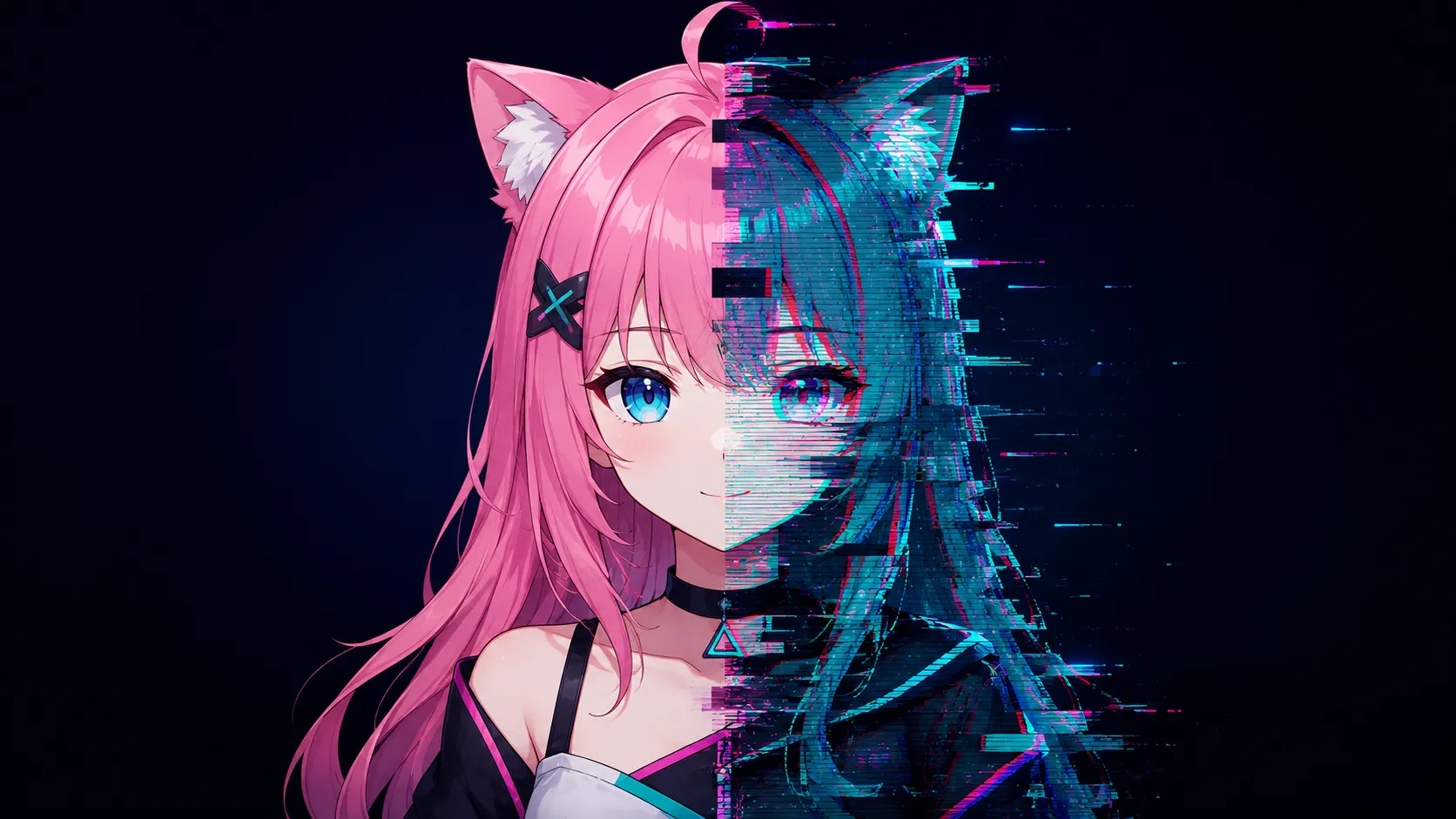
Your VTuber model suddenly jerks, floats, freezes, or loses sync mid-stream. Viewers notice instantly, and momentum dies. This happens to thousands of VTubers weekly, especially during high-energy moments or when pushing multistreaming.
This guide delivers concrete fixes for the most common VTuber tracking issues and rendering glitches. You will learn precise calibration steps, performance optimizations, and workflow adjustments that work with popular tools like VTube Studio and VSeeFace. Readers report 70-90% improvement after applying the core fixes.
Why Your VTuber Model Glitches: Common Causes
VTuber glitching appears in forms like jittery movement, floating limbs, mouth desync, low FPS rendering, or complete tracking loss.
Key culprits include:
- Calibration drift — Initial setup loses accuracy over time or after lighting changes.
- Lighting and camera problems — Poor or uneven light confuses facial recognition algorithms.
- Resource overload — High-poly models or excessive parameters strain CPU/GPU, causing lag.
- Software conflicts — OBS capture methods clash with tracking apps.
- Outdated drivers or settings — Old GPU drivers or default power-saving modes throttle performance.
Counterintuitive insight: Many VTubers chase expensive hardware upgrades when simply optimizing existing settings and lighting fixes 80%+ of issues, per community troubleshooting data and guides.
How to Calibrate Face Tracking Properly (Most Important Fix)
Calibration errors cause over 80% of face tracking failures. Do this every session.
- Position your camera at exact eye level, 50-70cm away, facing straight on.
- Ensure even, frontal lighting — avoid strong side lights or backlighting.
- Open your tracking software (VTube Studio or VSeeFace).
- Click the calibration button and follow prompts: look straight, tilt head slowly, open/close mouth, blink naturally.
- Test by moving your head and face — model should mirror without delay or exaggeration.
- Fine-tune sensitivity sliders for eyes, mouth, and head movement if needed.
💡 Pro Tip
Recalibrate after any lighting change or software restart. Save multiple calibration profiles for different times of day.
Fix VTuber Model Glitching in VTube Studio
VTube Studio dominates 2D Live2D VTubing. Specific glitches often tie to its settings.
For jittery or stiff tracking:
- Go to Tracking settings → reduce "Movement Config" distance to zero if model sways unnaturally.
- Lower physics parameters on high-motion parts (hair, accessories) to prevent wild swinging.
- Enable "Always" for symmetric eye blinking if one eye lags.
For laggy rendering:
- Set internal FPS limit to 60 or 30 in VTube Studio.
- In NVIDIA/AMD Control Panel, set VTube Studio.exe to "Prefer maximum performance" and assign dedicated GPU.
- Close background apps and lower model parameter count.
Resolve Rendering Lag and Low FPS Issues
Rendering lag appears as choppy animation or dropped frames, distinct from tracking loss.
| Issue | Likely Cause | Quick Fix |
|---|---|---|
| Low FPS in app only | High model complexity | Reduce physics, use lower-res textures, limit hotkeys |
| Lag spikes in OBS | Capture method or encoder | Use Window Capture or Spout2 plugin; set OBS to match VTuber FPS |
| Overheating laptop | Power throttling | Plug in, high performance mode, clean vents |
| Eye/mouth jitter | Over-sensitive tracking | Dial down sensitivity 10-20%, improve lighting |
Numbered How-To: Optimize for Smooth 60 FPS
- Update graphics drivers.
- In VTuber app, cap FPS and disable unnecessary expressions.
- Use browser-based multistreaming with Yostream — it offloads platform distribution from your local machine, reducing overall system strain compared to running multiple OBS instances or heavy encoders.
- Monitor with Task Manager or MSI Afterburner — keep GPU/CPU under 80% load.
- Test with a simple background and minimal overlays first.
Yostream shines here for VTubers fighting performance issues. Its no-download, browser-based approach lets you multistream cleanly without extra local rendering overhead from additional streaming software.
VTuber Face Tracking Not Working in OBS
Model moves perfectly in the tracking app but freezes or disappears in OBS.
Common fixes:
- Use correct capture: Game Capture or Window Capture with "Capture any fullscreen application" off for VTube Studio.
- Enable transparency via chroma key or Spout2/NDI if needed.
- Match canvas FPS and resolution between VTuber app and OBS.
- Run both as administrator or check firewall for tracking data ports.
⚠️Warning
Never use Display Capture for VTubers. It causes high CPU usage and potential glitching. Stick to targeted capture methods.
Advanced Tips for Stable VTubing Performance
- Lighting setup: Use a ring light or softbox at eye level. Consistent 300-500 lux works best for webcam tracking.
- Model optimization: Commissioners or self-riggers should limit deformers and physics layers. Test models at different complexities.
- iPhone/ARKit tracking: Superior for precision but requires stable WiFi — use dedicated router if possible.
- Hand tracking: Disable initially if causing "connection lost" errors; re-enable after face tracking stabilizes.
Original Analogy:
Think of VTuber tracking like a puppet show where strings (data points) must stay taut. Loose calibration or bad lighting is like dim stage lights — the puppeteer (software) can't see the strings clearly, leading to tangled, glitchy performance.
Comparison: Popular VTuber Tracking Solutions
- VTube Studio: Best for Live2D, hotkeys, free with paid model import.
- VSeeFace: Strong 3D VRM support, good free tracking.
vseeface.icu - Warudo or Animaze: More advanced but heavier on resources.
- Browser tools like Yostream: Ideal for final delivery — multistream without taxing your tracking PC further.
Choose based on model type (2D vs 3D) and hardware.
Qyuick Answers:
1. Why does my VTuber model glitch when I move fast?
Fast movements expose weak physics or low tracking sampling rates. Reduce physics intensity on extremities and ensure high tracking FPS. Improve lighting and recalibrate for better data points.
2. How often should I recalibrate my VTuber tracking?
Every stream session, or whenever lighting/environment changes. Calibration drift happens quickly and causes most intermittent glitching.
3. Can bad lighting really break VTuber face tracking?
Yes. Facial recognition algorithms rely on contrast and even illumination. Uneven or low light is a top cause of jitter, lost tracking, and inaccurate expressions.
4. What is the best way to fix mouth tracking desync?
Adjust mouth sensitivity sliders, use audio-reactive options if available, and ensure good microphone positioning. Test with exaggerated mouth movements during calibration.
5. Does upgrading my PC fix all VTuber rendering issues?
Not always. Software optimization, model complexity reduction, and proper capture methods often deliver bigger gains than raw hardware.
6. Why does my model stop moving in OBS but works elsewhere?
Capture source conflicts or FPS mismatches. Switch to Window/Game Capture and align resolutions/FPS settings.
7. Is there a permanent fix for VTuber tracking loss?
No single permanent fix exists because variables like lighting change, but consistent habits (calibration, lighting, updates, optimized settings) make issues rare.
Recommended Reads:
- Crush webcam lag today: How to Fix Webcam Lag During Live Streaming
- Stream more, lag less: How to Multistream Without Losing Quality or Lagging
- Expert visual hacks: How to Enhance the Visual Appeal of Your Live Stream