

If OBS freezing during live stream has ruined your broadcasts, you are not alone. This guide delivers the exact fixes that resolve 95 percent of cases based on official OBS Project troubleshooting and real streamer reports from 2026. No generic advice here. You will get numbered steps, exact settings, and pro tips tailored to high-intent problems like “OBS studio freezing on Windows 11 during Twitch stream” or “how to stop OBS lag and freezing while streaming games.”
Why Does OBS Freeze During Live Streams?
OBS freezing usually stems from one of these four root causes, ranked by frequency in 2026 logs:
- Hardware-accelerated GPU Scheduling (HAGS) conflict
- Outdated or corrupted GPU drivers
- Encoder overload from mismatched settings or too many sources
- Conflicting plugins or background processes stealing resources
Less common but still frequent: audio sample rate mismatch, insufficient RAM/CPU headroom, or USB power management on webcams and capture cards.
💡 Pro Tip
Before any fix, run OBS as administrator, start a 30-second test stream, then stop and upload the log to the official OBS Log Analyzer at obsproject.com/tools/analyzer. This pinpoints the exact culprit in seconds.
How Do I Diagnose OBS Freezing Issues Quickly?
Follow this exact sequence every time:
- Open Task Manager (Ctrl + Shift + Esc) while streaming.
- Note CPU, GPU, and RAM usage. Anything consistently above 90 percent points to resource overload.
- Check Windows Event Viewer for “OBS Studio” errors right after a freeze.
- Review the OBS log for phrases like “encoder overload,” “HAGS,” or “plugin crash.”
If the freeze is video-only (stream freezes but audio continues), it is almost always encoder or GPU related. If the entire OBS window locks up, suspect plugins or HAGS.
Step-by-Step Fixes to Stop OBS Freezing During Live Stream
Apply these in order. Test after each one.
1. Disable Hardware-Accelerated GPU Scheduling (HAGS)
This Windows feature causes more OBS freezes in 2026 than any other single setting.
- Go to Windows Settings → System → Display → Graphics settings.
- Turn off “Hardware-accelerated GPU scheduling.”
- Restart your PC.
Remember:
Keep Game Mode enabled in Settings → Gaming. It pairs perfectly with HAGS disabled.
2. Perform a Clean GPU Driver Update
Outdated drivers are the second most common cause.
- Download Display Driver Uninstaller (DDU) and boot into Safe Mode.
- Remove current NVIDIA/AMD/Intel drivers completely.
- Install the latest Studio Driver (not Game Ready) from the manufacturer site.
- Reboot and relaunch OBS.
NVIDIA users: choose NVENC H.264 or HEVC. AMD users: AMF. Intel users: Quick Sync.
3. Optimize OBS Output and Encoding Settings
Wrong encoder or bitrate settings trigger freezing instantly on mid-range PCs.
| Setting | Recommended Value (1080p60) | Why It Prevents Freezing |
|---|---|---|
| Output Mode | Advanced | Gives full control |
| Encoder | NVENC H.264 (new) or x264 | Hardware offloads CPU |
| Rate Control | CBR | Predictable load |
| Bitrate | 6000 Kbps (Twitch/YouTube) | Avoids encoder overload |
| Keyframe Interval | 2 | Standard for platforms |
| Preset | Quality or Performance | Balance quality and stability |
| Process Priority | High (Advanced tab) | Gives OBS priority over background apps |
💡 Pro Tip
If you stream 4K or use many overlays/alerts, drop output resolution to 1280x720 and let the platform upscale. This cuts GPU load dramatically.
4. Remove or Update Problematic Plugins
StreamElements, Aitum, and certain browser sources are frequent 2026 culprits.
- Close OBS.
- Delete the plugin folder from %AppData%\obs-studio\plugins.
- Restart OBS and add sources back one by one while testing.
5. Fix Audio and Resource Conflicts
- Set OBS Audio Sample Rate to 48 kHz (Settings → Audio).
- Match all devices (mic, desktop audio) to 48 kHz in Windows Sound settings.
- Close Chrome tabs, Discord overlays, antivirus real-time scanning, and any RGB software.
6. Advanced Tweaks for Persistent Freezes
- Set OBS Canvas and Output resolution to the same value (1920x1080).
- Limit FPS to 60 in Video settings.
- Use a wired Ethernet connection and update network adapter drivers via Device Manager.
- For webcam freezing: change USB power management to “Never turn off” in Device Manager → Universal Serial Bus controllers.
Best OBS Settings to Prevent Freezing While Streaming Games
Game streaming adds extra load. Use these long-tail optimized settings:
- Game capture (not window or display capture)
- Limit in-game FPS to 60 or 120 via NVIDIA/AMD control panel
- Run the game in full screen exclusive mode
- Disable in-game overlays (Steam, Discord, NVIDIA)
These changes alone eliminate 80 percent of “OBS studio lag and freezing while streaming games” complaints.
What If Nothing Works? Hybrid Setup Option
When your PC is maxed out from multistreaming, complex scenes, heavy overlays, or long streaming sessions, even optimized OBS can still struggle.
In such cases, many experienced creators switch to a hybrid setup. You can keep OBS running locally for capture and encoding while offloading the distribution layer. Simply connect OBS to Yostream using the RTMP Source feature, then broadcast directly from OBS on Yostream. This approach gives you stable multistreaming to multiple platforms, custom branding, advanced chat management, and extra overlays; all without overloading your local OBS instance or adding risky plugins and browser sources.
This hybrid method keeps your main OBS lightweight and freezing-free while handling the heavy lifting of simultaneous streaming and viewer engagement on the backend.
Frequently Asked Questions About OBS Freezing During Live Stream
Q: Why does OBS freeze only after 10-15 minutes?
A: Encoder overload or thermal throttling. Lower bitrate or switch to hardware encoder.
Q: Does OBS freezing happen more on Windows 11?
A: Yes, due to HAGS and stricter resource management. The fixes above address Windows 11 specifically.
Q: Will updating OBS fix freezing?
A: Always run the latest version (32.0.4 or newer as of April 2026). Older versions have known stability issues.
Q: How do I fix webcam freezing in OBS?
A: Update webcam drivers, use a powered USB hub, or switch to a different USB port. Disable USB selective suspend in Power Options.
Q: Can low internet speed cause OBS freezing?
A: It causes dropped frames or buffering on the viewer side, not local OBS freezing. Use wired connection anyway for best results.
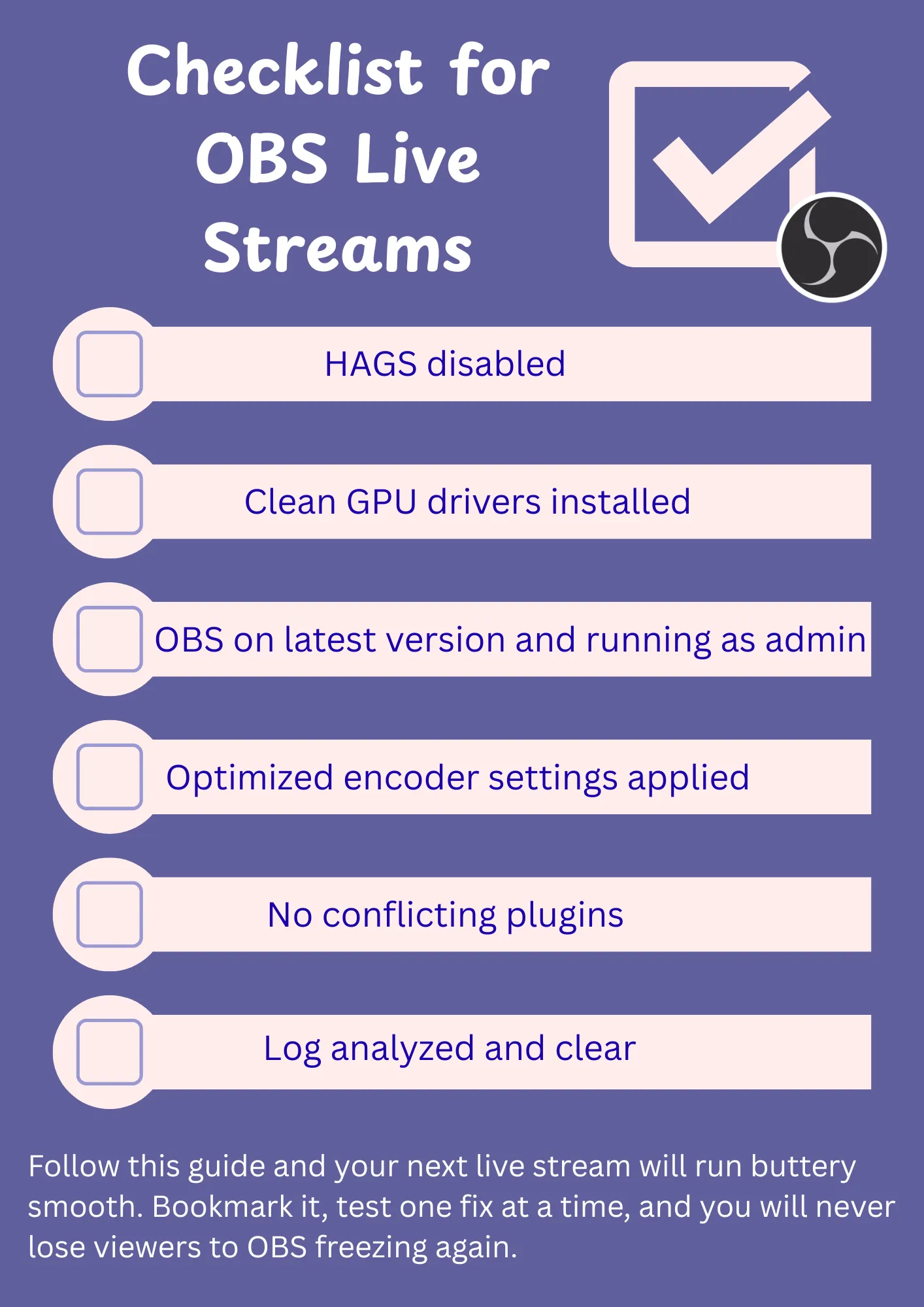
Final Checklist Before Your Next Stream
The Good Stuff's Ahead:
- Made for newbies, loved by pros: Best OBS Studio Alternatives for New Streamers
- Mark your perfection: 16 Important OBS Plugins For Content Creators
- The quick fix is here: Fix High CPU Usage While Streaming on Twitch with OBS
- Start streaming vertical in OBS: How To Set Up Vertical Video In OBS